> ## Documentation Index
> Fetch the complete documentation index at: https://support.pexcard.com/llms.txt
> Use this file to discover all available pages before exploring further.
# Connector for Google Drive
> The Connector for Google Drive allows users to download and sync receipts in a structured hierarchy directly to their Google Drive.
Watch this video to view a demo of connecting, configuring the Google Drive connector and syncing receipts [here.](https://www.youtube.com/watch?v=opr2rOquyFw)
## Connect PEX and Google Drive
To connect your PEX and Google Drive from the PEX Marketplace follow these steps:
Log in to [http://dashboard.pexcard.com/](http://dashboard.pexcard.com/?utm_source=support)
Navigate to [Apps > Available](https://dashboard.pexcard.com/apps/available?utm_source=support)
Locate **Connector for Google Drive**.
Click **More info** > **Install** > **Launch**.
**Note:**
To install the connector, you need to enable the following permissions: *Edit business settings & apps*, *Manage cardholder*, *View card transactions*. You can enable them in [My Profile -> Permissions](https://dashboard.pexcard.com/account/permissions?utm_source=support).
Once the app has launched for the first time click "Connect" on the right side panel to begin.
You will be directed to "Sign In" or select an already signed in Google account.
Click "Allow" to give PEX permission to access your Google Drive for the following data fields:
* [Permission to get information about the connected user](https://developers.google.com/people/api/rest/v1/people/get#authorization-scopes):
* `userinfo.email` See your primary Google Account email address.
* `userinfo.profile` See your personal info, including any personal info you've made publicly available.
* [Permissions for Google Drive](https://developers.google.com/drive/api/v3/about-auth):
* `drive.readonly` Allows read-only access to file metadata and file content. PEX requires this in order to [LIST the shared drives](https://developers.google.com/drive/api/v3/reference/drives/list#auth).
* `drive.file` Per-file access to files created or opened by the app.
## Configure settings
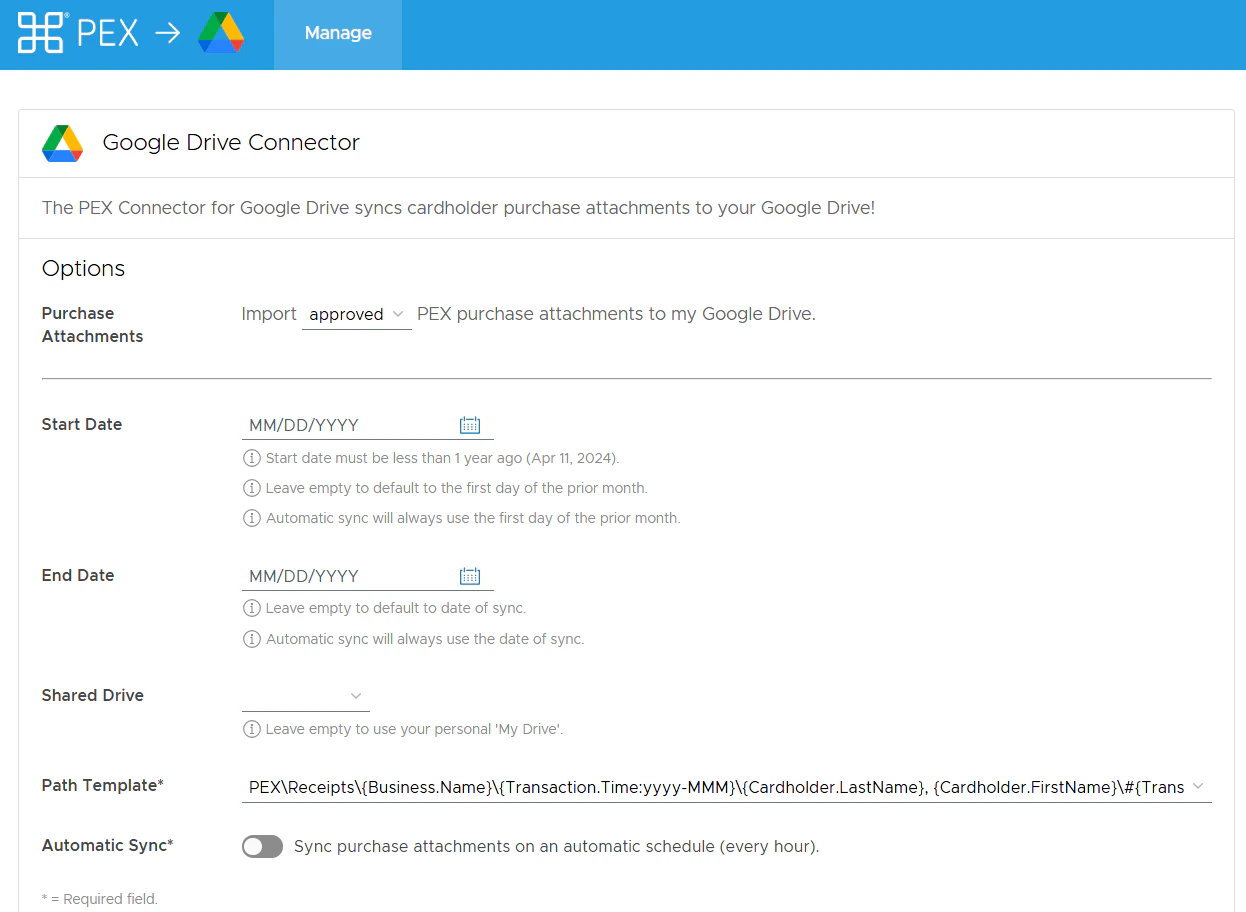
Select the preferred parameters for each field:
* Purchase Receipts - Choose Approved or All transactions.
* Start Date - The first date to sync.
* End Date - The final date to sync.
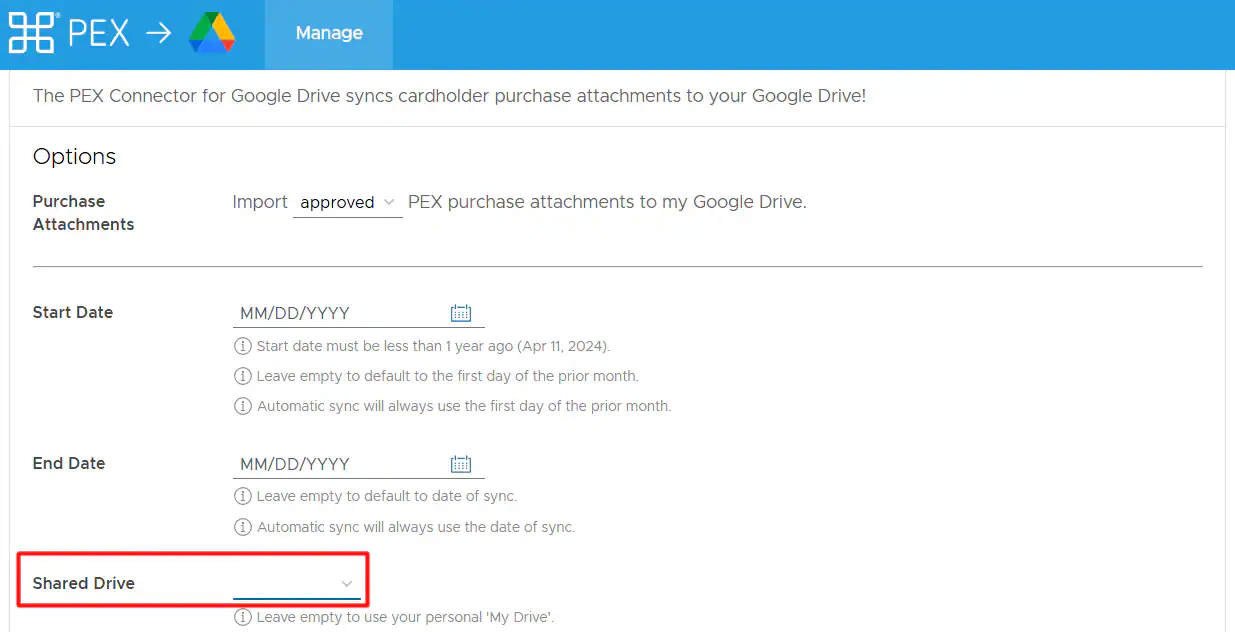
* Shared Drive - If you have multiple shared drives available you can select them here, or leave it blank to sync your personal "My Drive".
* Path Template - Click the arrow on the right side to choose between different file hierarchy options.
* Automatic Sync - Enable if you want to sync purchase attachments on an automatic schedule (every hour).
 Click "Save Options" to save your sync settings and then click "Sync Attachments" to begin downloading data to your Google Drive.
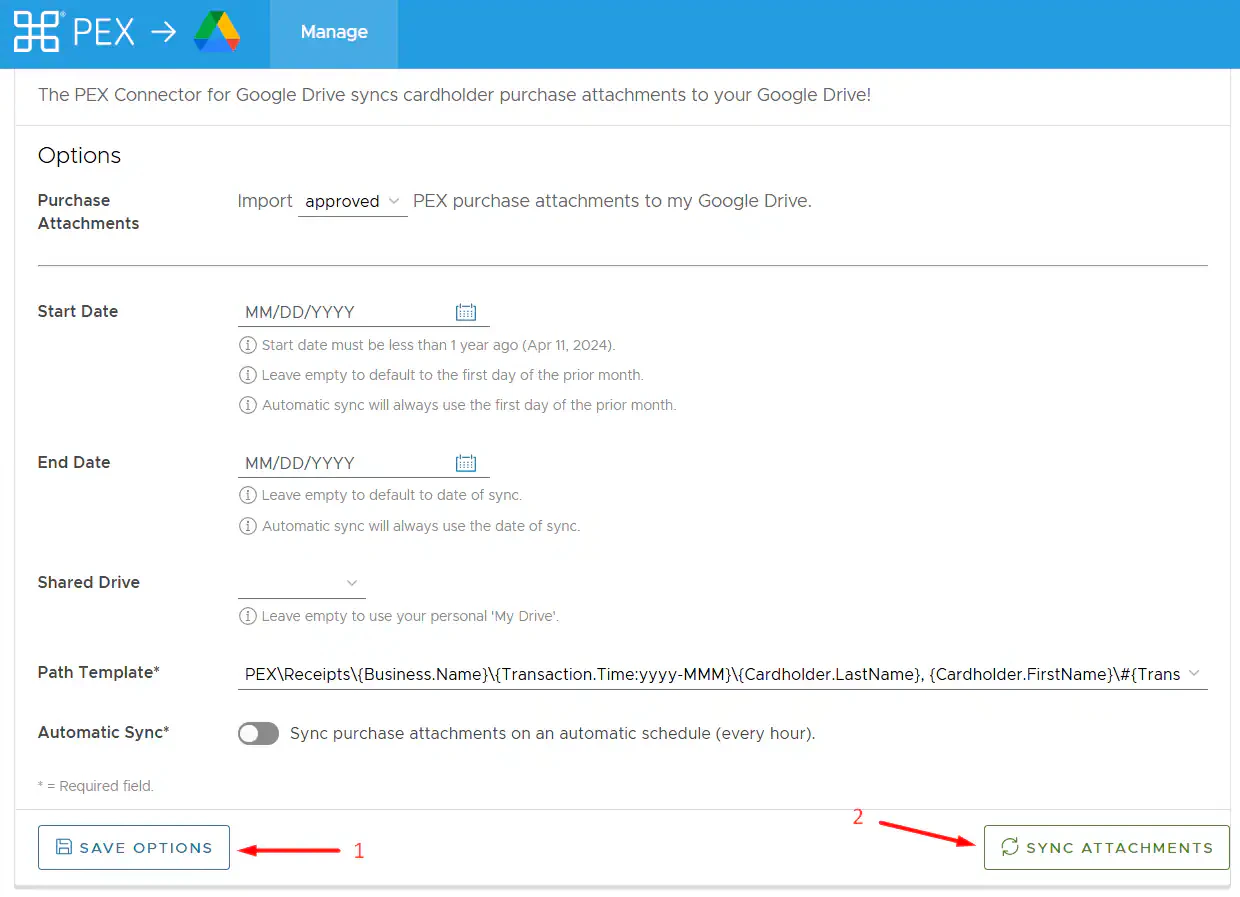 If there are no Start and End dates entered when you click "Sync Attachments", the connector will default to the 1st day of the prior month. When automatic sync is **on**, the connector auto optimizes its dates to the same 1st day of the prior month.
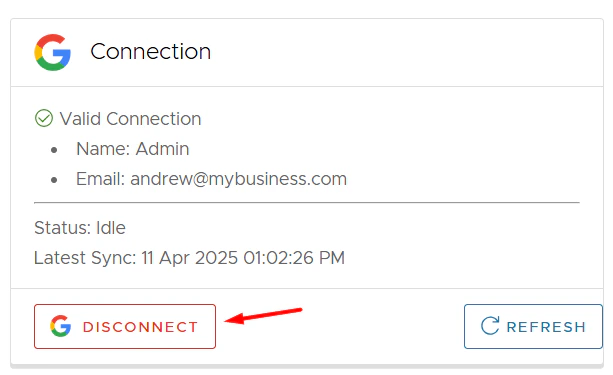
You can disconnect from your Google Drive if you don't want to sync receipts to Google Drive anymore.
If there are no Start and End dates entered when you click "Sync Attachments", the connector will default to the 1st day of the prior month. When automatic sync is **on**, the connector auto optimizes its dates to the same 1st day of the prior month.
You can disconnect from your Google Drive if you don't want to sync receipts to Google Drive anymore.
 ## FAQ
It will sync every time you click the “Sync Attachments” button.
## FAQ
It will sync every time you click the “Sync Attachments” button.
 The Start Date is max 1 year in the past.
The only limitation is up to 1 year in the past. The user could do however June 15 - December 15 2024 if they wanted to (assuming today is June 15, 2025).
We’ve incorporated feedback to come up with the most common types of configurations. Let us know if you have another preferred way to store receipts and we can update accordingly.
Previously synced receipts will not re-download if the file is already present in the PEX Receipts file hierarchy or if it has a sync note from being previously downloaded.
The Start Date is max 1 year in the past.
The only limitation is up to 1 year in the past. The user could do however June 15 - December 15 2024 if they wanted to (assuming today is June 15, 2025).
We’ve incorporated feedback to come up with the most common types of configurations. Let us know if you have another preferred way to store receipts and we can update accordingly.
Previously synced receipts will not re-download if the file is already present in the PEX Receipts file hierarchy or if it has a sync note from being previously downloaded.
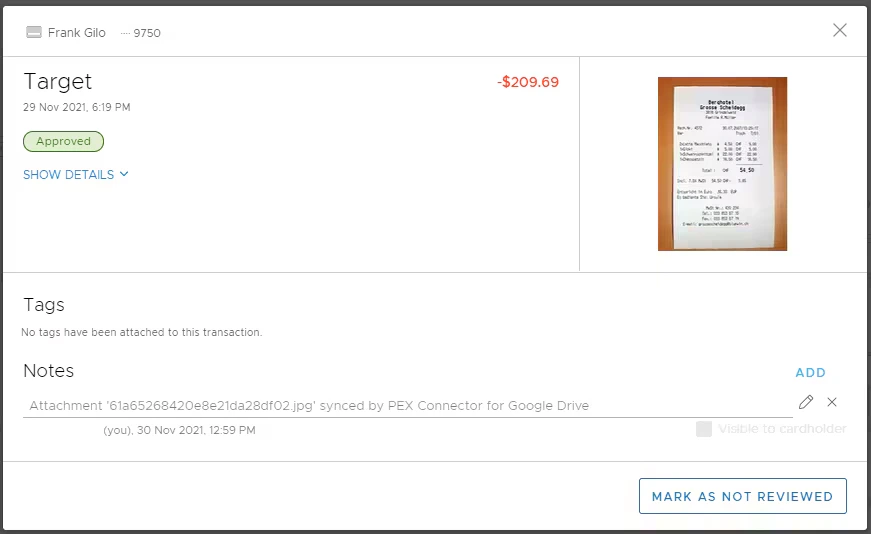 In order to re-download receipts, delete the sync note (shown above) on the relevant transactions and click "Sync Attachments" or wait for automatic sync to sync the receipts.
The sync between PEX and your Google Drive account is required to send transaction receipt images into your personal My Drive or Shared Drive folders. All transaction receipt images created by PEX will begin with a PEX\Receipts prefix or a custom file location created by you or your company's Admin. The Connector for Google Drive will only read and write data to the PEX\Receipts or the custom file location. Additionally, the Connector for Google Drive requires read-only access to the full drive to populate the "Shared Drive" drop down list. For more information on the PEX Privacy Policy, please navigate [here](http://www.pexcard.com/legal/privacy-policy/?utm_source=support).
In order to re-download receipts, delete the sync note (shown above) on the relevant transactions and click "Sync Attachments" or wait for automatic sync to sync the receipts.
The sync between PEX and your Google Drive account is required to send transaction receipt images into your personal My Drive or Shared Drive folders. All transaction receipt images created by PEX will begin with a PEX\Receipts prefix or a custom file location created by you or your company's Admin. The Connector for Google Drive will only read and write data to the PEX\Receipts or the custom file location. Additionally, the Connector for Google Drive requires read-only access to the full drive to populate the "Shared Drive" drop down list. For more information on the PEX Privacy Policy, please navigate [here](http://www.pexcard.com/legal/privacy-policy/?utm_source=support).
 For any questions related to your connector, please email [appsupport+googledrive@pexcard.com](mailto:appsupport+googledrive@pexcard.com)