> ## Documentation Index
> Fetch the complete documentation index at: https://support.pexcard.com/llms.txt
> Use this file to discover all available pages before exploring further.
# Connector for GreenSlate
> Still don't have account with PEX? Follow this [link](https://start.pexcard.com/get-started) to sign up.
Auto-sync purchases, cardholder fees, cardholder fundings, and receipt images from PEX into GreenSlate, ensuring your data is clean, accurate and up to date. Map GreenSlate fields such as Project, Account, Episode, Location, etc. to PEX tags.
**Note:**
On April 30, 2026 we will be deprecating the Legacy connector for GreenSlate.
## Ways to sync transactions
You can automatically sync transactions using either the legacy app or the new app. If you use the legacy app, you don't need to configure any settings—purchases will sync to GreenSlate automatically. However, receipts and fees will not sync to GreenSlate. To connect to the legacy app:
Log in to [http://dashboard.pexcard.com/](http://dashboard.pexcard.com/?utm_source=support)
Navigate to [Apps > Available](https://dashboard.pexcard.com/apps/available?utm_source=support)
Locate **Connector for GreenSlate**.
Click **More info** > **Install** > **Launch**.
**Note:**
To install the connector, you need to enable the following permissions: *Edit business settings & apps*, *Manage cardholder*, *View card transactions*. You can enable them in [My Profile -> Permissions](https://dashboard.pexcard.com/account/permissions?utm_source=support).
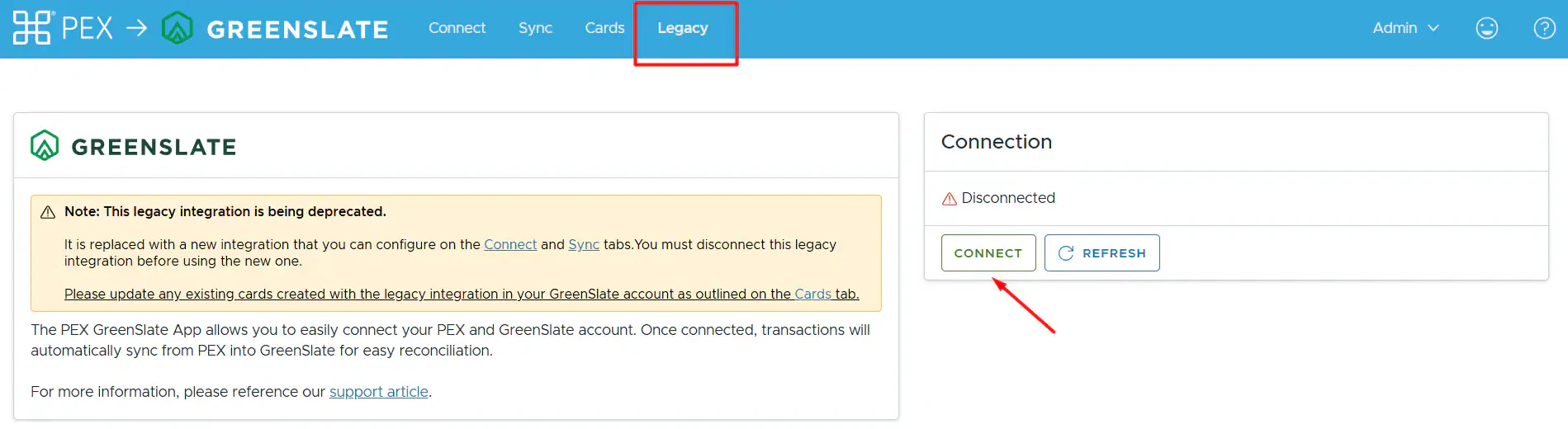
* You'll be re-directed to the **Legacy** tab.
Click **Connect**.
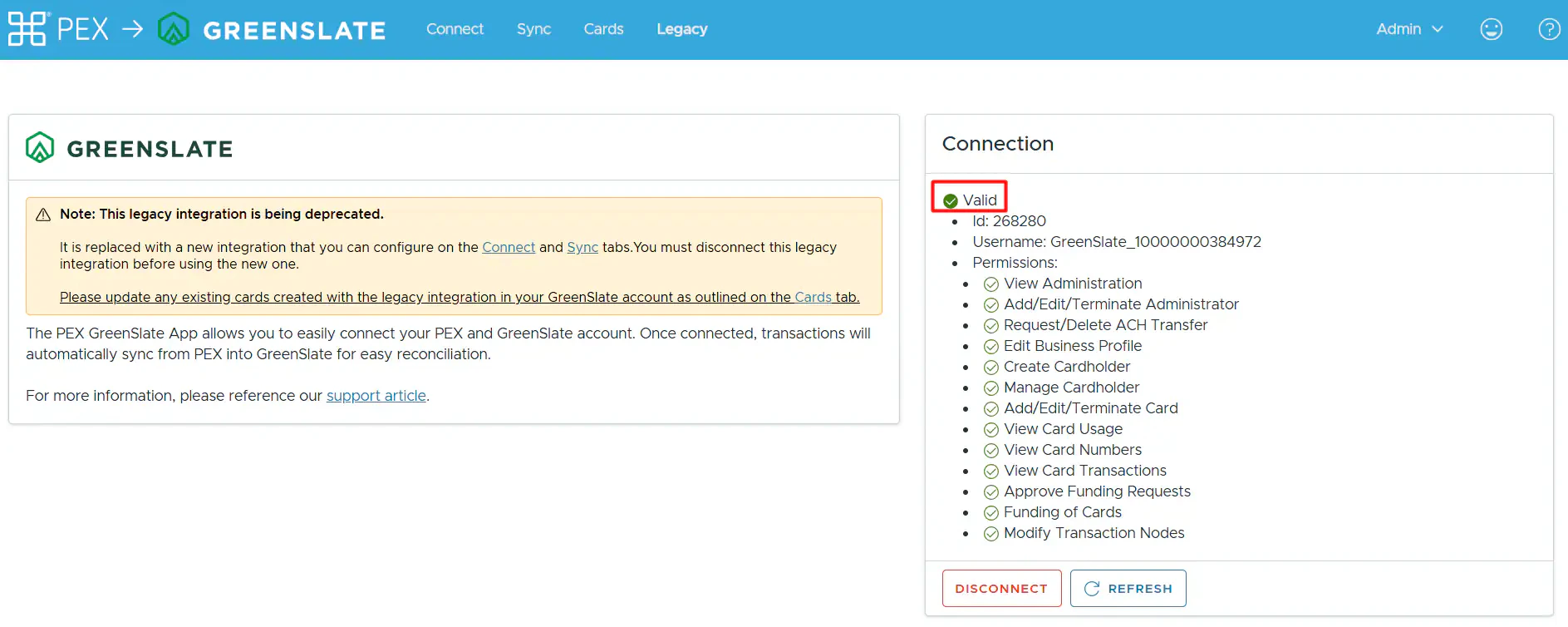
 Once connected, you will see that the connection status is **valid**.
 The second way to sync transactions to GreenSlate is by using the new app. With the new app, you can automatically sync purchases, cardholder fees, and receipt images from PEX into GreenSlate, instantly populating fields such as Project, Account, Episode, Location, and more with the correct values. Continue reading to learn how to configure the new app.
**Note:**
* You can use only one app at a time; you cannot be connected to the legacy app and the new app simultaneously.
* If you are an existing customer who used the GreenSlate connector before the new app was introduced, you will also have access to the **Cards** tab.
The second way to sync transactions to GreenSlate is by using the new app. With the new app, you can automatically sync purchases, cardholder fees, and receipt images from PEX into GreenSlate, instantly populating fields such as Project, Account, Episode, Location, and more with the correct values. Continue reading to learn how to configure the new app.
**Note:**
* You can use only one app at a time; you cannot be connected to the legacy app and the new app simultaneously.
* If you are an existing customer who used the GreenSlate connector before the new app was introduced, you will also have access to the **Cards** tab.
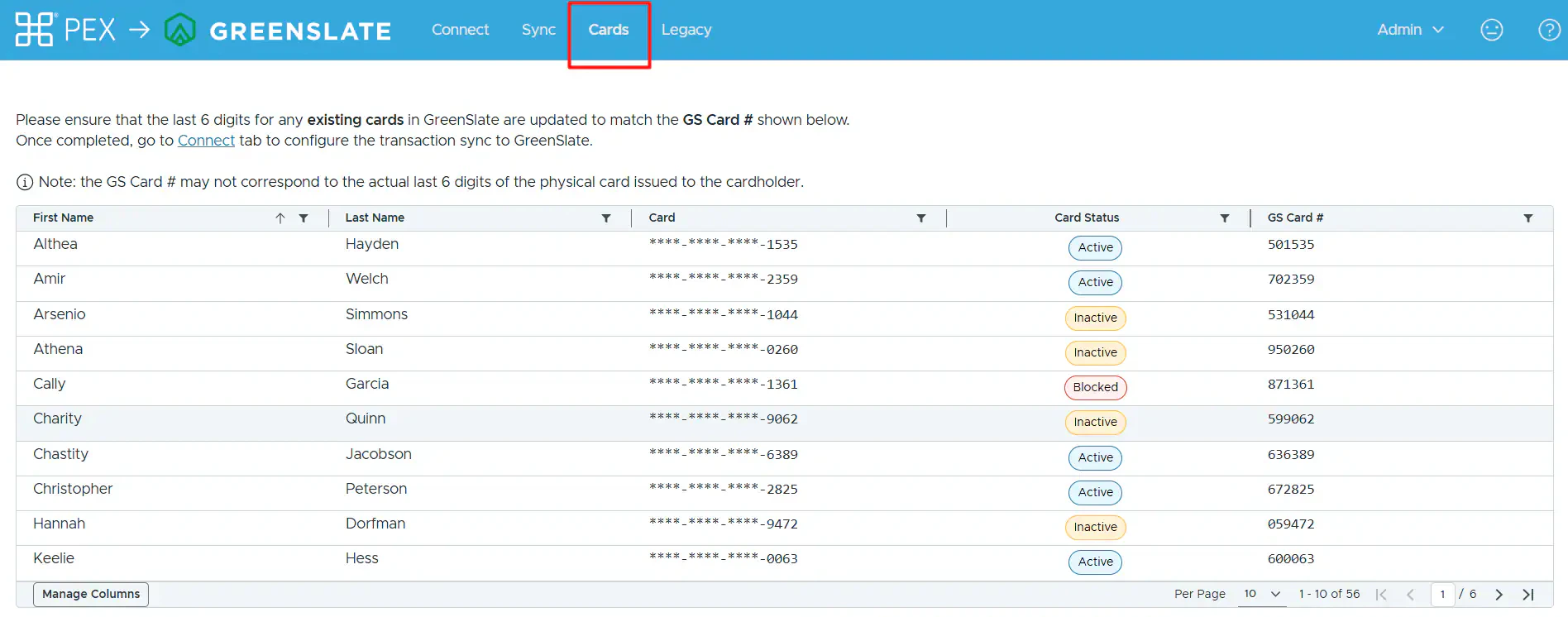 * If you want to switch to using the new app, please ensure that the **last 6 digits** for any existing cards in your GreenSlate account match the GS Card # shown in your table. Otherwise, duplicate cardholders will be created in your GreenSlate account.
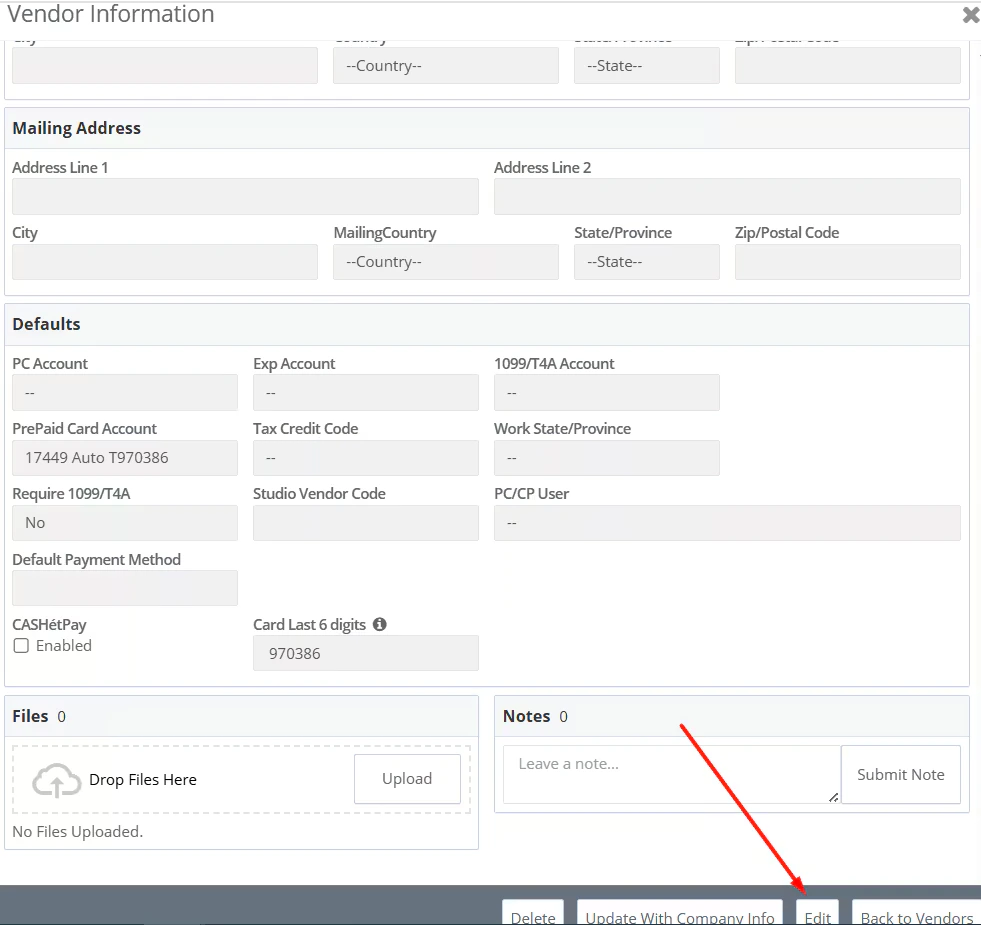
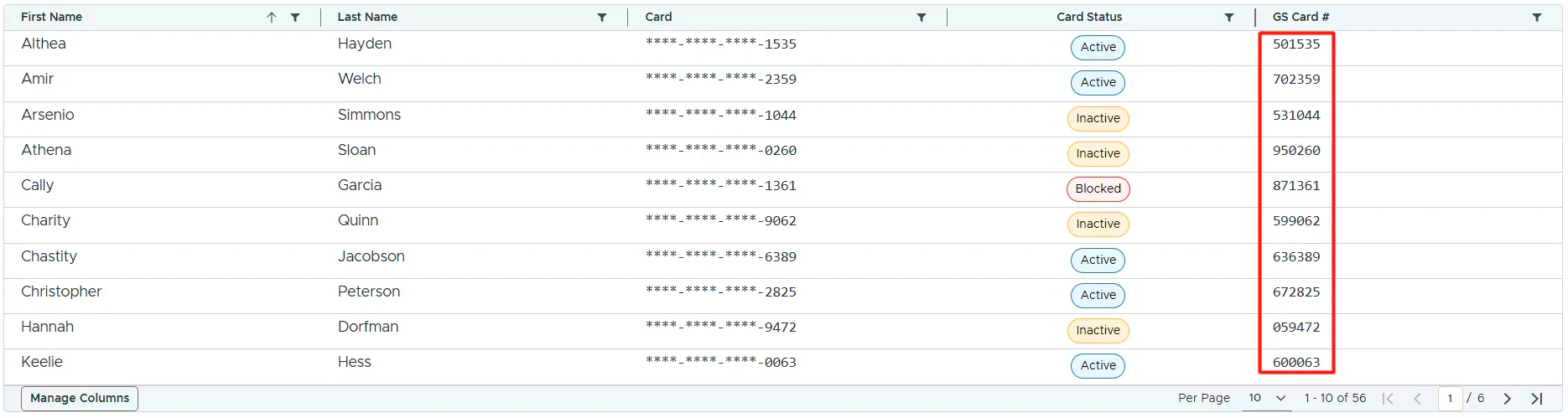 To update this in GreenSlate, go to *Accounts Payable -> Vendors -> click "Actions" across the vendor name ->*
 **select "View Vendor Profile In Same Tab" or "View Vendor Profile In New Tab" ->** *scroll down to the bottom-> click Edit ->*
 *update* the **Card Last 6 digits** field *with GS Card # shown in your table for that particular cardholder ->*
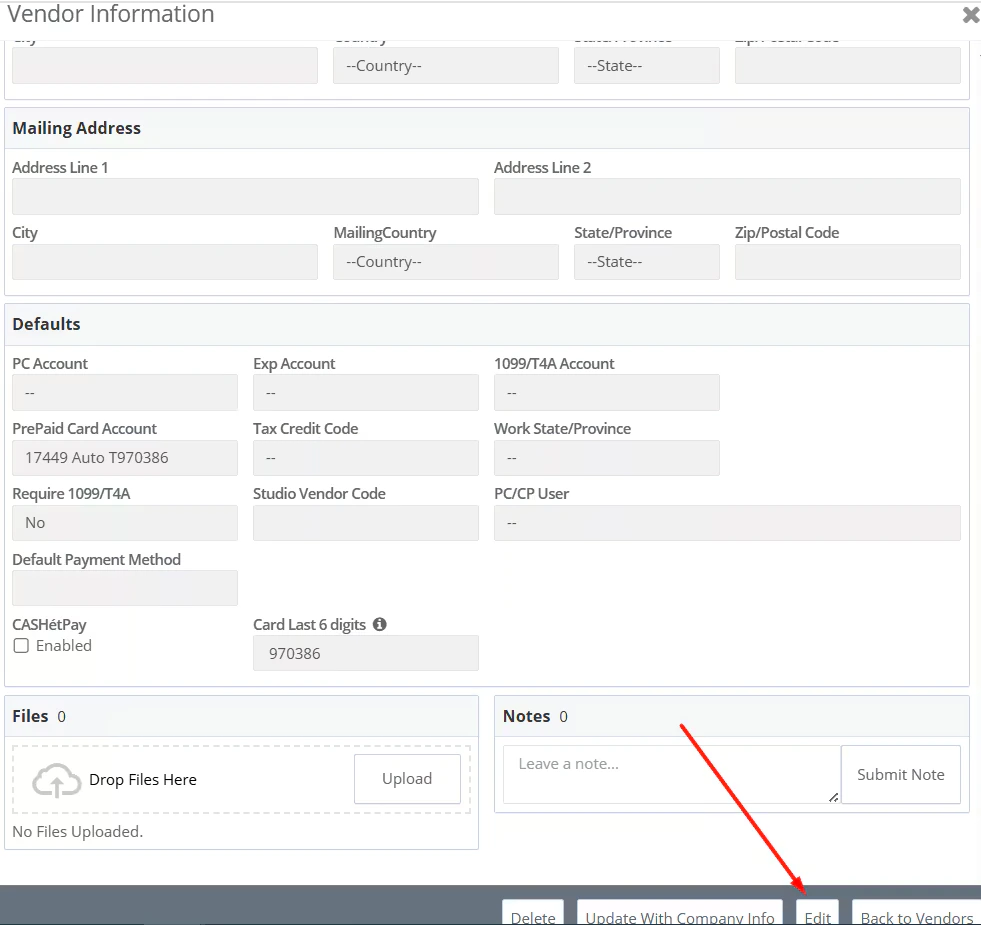 *click **Save**.*
 Make sure to update the last 6 digits for **all** your existing PEX cards in GreenSlate following the steps above.
Once completed, go to [Connect tab](#connect-pex-and-greenslate) to configure transaction sync to GreenSlate.
## Connect PEX and GreenSlate
To connect your PEX and your GreenSlate accounts from the PEX Marketplace using the new app follow these steps:
Log in to [http://dashboard.pexcard.com/](http://dashboard.pexcard.com/?utm_source=support)
Navigate to [Apps > Available](https://dashboard.pexcard.com/apps/available?utm_source=support)
Locate **Connector for GreenSlate**.
Click **More info** > **Install** > **Launch**.
**Note:**
To install the connector, you need to enable the following permissions: *Edit business settings & apps*, *Manage cardholder*, *View card transactions*. You can enable them in [My Profile -> Permissions](https://dashboard.pexcard.com/account/permissions?utm_source=support).
You'll be re-directed to a **Legacy** tab.
Click **Connect**.
Make sure to update the last 6 digits for **all** your existing PEX cards in GreenSlate following the steps above.
Once completed, go to [Connect tab](#connect-pex-and-greenslate) to configure transaction sync to GreenSlate.
## Connect PEX and GreenSlate
To connect your PEX and your GreenSlate accounts from the PEX Marketplace using the new app follow these steps:
Log in to [http://dashboard.pexcard.com/](http://dashboard.pexcard.com/?utm_source=support)
Navigate to [Apps > Available](https://dashboard.pexcard.com/apps/available?utm_source=support)
Locate **Connector for GreenSlate**.
Click **More info** > **Install** > **Launch**.
**Note:**
To install the connector, you need to enable the following permissions: *Edit business settings & apps*, *Manage cardholder*, *View card transactions*. You can enable them in [My Profile -> Permissions](https://dashboard.pexcard.com/account/permissions?utm_source=support).
You'll be re-directed to a **Legacy** tab.
Click **Connect**.
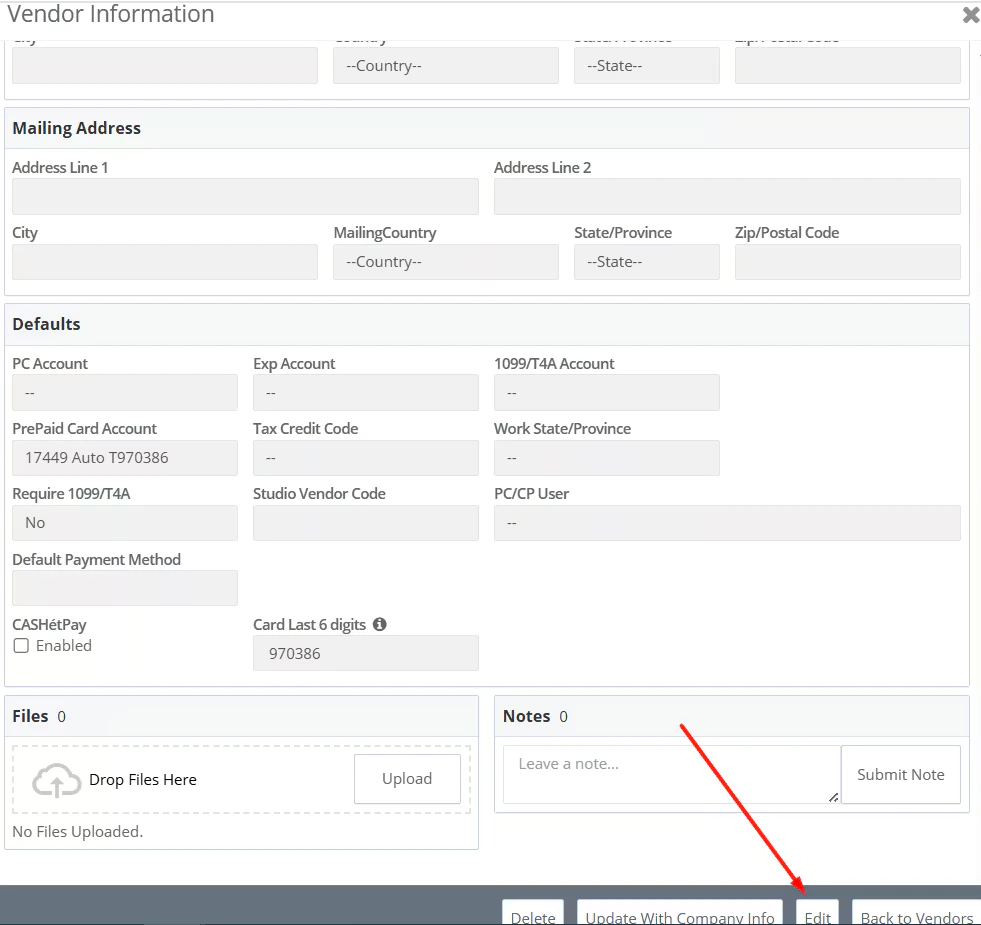 * You'll see this message:
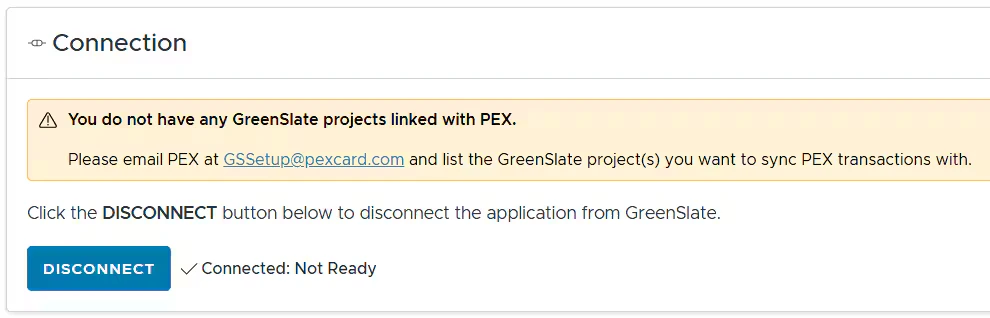 The next step is to link your GreenSlate project(s) with PEX. Please email PEX at [GSSetup@pexcard.com](mailto:GSSetup@pexcard.com) and list the GreenSlate project(s) you want to sync PEX transactions with.
* We will add your GreenSlate project(s) to PEX.
* Once your GreenSlate project(s) have been added, we will send you an email so you can proceed with the configuration.
## Configure Transaction Settings
The next step is to link your GreenSlate project(s) with PEX. Please email PEX at [GSSetup@pexcard.com](mailto:GSSetup@pexcard.com) and list the GreenSlate project(s) you want to sync PEX transactions with.
* We will add your GreenSlate project(s) to PEX.
* Once your GreenSlate project(s) have been added, we will send you an email so you can proceed with the configuration.
## Configure Transaction Settings
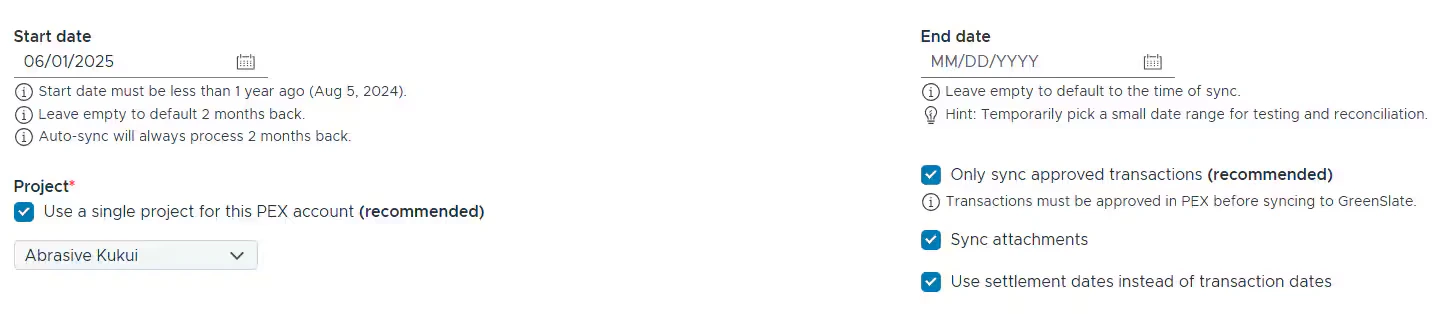 On the Transaction Settings card, you can configure the **Start Date** and **End Date**.
Start date:
* Must be less than 1 year ago (if today is Aug 30, 2025 then you can not go further back than Aug 30, 2024).
* Leave empty to default 2 months back.
* Auto-sync will always process 2 months back.
End Date:
* Leave empty to default to the time of sync.
* Temporarily pick a small date range for testing and reconciliation purposes.
For PEX to know which project to sync transactions to, select a **GreenSlate project**. Ensure you have at least one active project to select from the list. Uncheck the checkbox to enable selection of multiple projects.
Configure the following:
* Select the envelope grouping
* Group transactions into an envelope per cardholder, project, and company.
* If Admins select this option, the connector creates one envelope per week, containing all purchases that are ready to sync. For example, transaction A is made on July 15, and transaction B is made on August 2. Transaction A is tagged and approved on August 3, and transaction B is tagged and approved on August 4. Both transactions will sync to the same envelope.
* Create a single envelope per cardholder transaction.
* Sync all transactions or only approved transactions
* "Only sync approved transactions" means that transactions must be approved in PEX before syncing to GreenSlate.
* Sync attachments
* If this box is checked, purchase receipts will sync to GreenSlate.
* Use settlement dates or purchase dates
* Transactions sync only once settled, but you can choose either the settlement or purchase date as the posting date in GreenSlate.
## Purchases
To sync purchases to GreenSlate, configure the field mapping.
**Purchase Field Mappings**
Map GreenSlate fields so the connector knows which values to use when syncing purchases to GreenSlate. Fields can be mapped to static values or PEX tags. If you choose to use PEX tags, you must create them in advance, following the logic described in the ["Create PEX tags for GreenSlate"](/administrator-guide/create-pex-tags-for-greenslate) article.
For example, the "Account" is one of the fields on your Purchase:
* Mapping the "Account" field to a static value means that you can select one account out of the many presented in GreenSlate, and that value ("Advertising" in our example below) will be applied to all PEX purchases.
On the Transaction Settings card, you can configure the **Start Date** and **End Date**.
Start date:
* Must be less than 1 year ago (if today is Aug 30, 2025 then you can not go further back than Aug 30, 2024).
* Leave empty to default 2 months back.
* Auto-sync will always process 2 months back.
End Date:
* Leave empty to default to the time of sync.
* Temporarily pick a small date range for testing and reconciliation purposes.
For PEX to know which project to sync transactions to, select a **GreenSlate project**. Ensure you have at least one active project to select from the list. Uncheck the checkbox to enable selection of multiple projects.
Configure the following:
* Select the envelope grouping
* Group transactions into an envelope per cardholder, project, and company.
* If Admins select this option, the connector creates one envelope per week, containing all purchases that are ready to sync. For example, transaction A is made on July 15, and transaction B is made on August 2. Transaction A is tagged and approved on August 3, and transaction B is tagged and approved on August 4. Both transactions will sync to the same envelope.
* Create a single envelope per cardholder transaction.
* Sync all transactions or only approved transactions
* "Only sync approved transactions" means that transactions must be approved in PEX before syncing to GreenSlate.
* Sync attachments
* If this box is checked, purchase receipts will sync to GreenSlate.
* Use settlement dates or purchase dates
* Transactions sync only once settled, but you can choose either the settlement or purchase date as the posting date in GreenSlate.
## Purchases
To sync purchases to GreenSlate, configure the field mapping.
**Purchase Field Mappings**
Map GreenSlate fields so the connector knows which values to use when syncing purchases to GreenSlate. Fields can be mapped to static values or PEX tags. If you choose to use PEX tags, you must create them in advance, following the logic described in the ["Create PEX tags for GreenSlate"](/administrator-guide/create-pex-tags-for-greenslate) article.
For example, the "Account" is one of the fields on your Purchase:
* Mapping the "Account" field to a static value means that you can select one account out of the many presented in GreenSlate, and that value ("Advertising" in our example below) will be applied to all PEX purchases.
 Note that a purchase will not be tagged with this static value. You will not see this static value on the purchase details. The static value will be used only when syncing a purchase to GreenSlate.
* Mapping the "Account" field to a PEX tag ("Account" in our example below) means that you and your cardholders can select one of the tag values for each purchase.
Note that a purchase will not be tagged with this static value. You will not see this static value on the purchase details. The static value will be used only when syncing a purchase to GreenSlate.
* Mapping the "Account" field to a PEX tag ("Account" in our example below) means that you and your cardholders can select one of the tag values for each purchase.
 For that go to the "Transactions" menu -> locate a purchase -> click on it -> select a tag value ("Office Supplies" in our example below) of the "Account" tag -> click "Save". Note that you and your cardholders can select one of the tag values for each purchase once you finish the GreenSlate connector setup and sync tag options from GreenSlate to PEX.
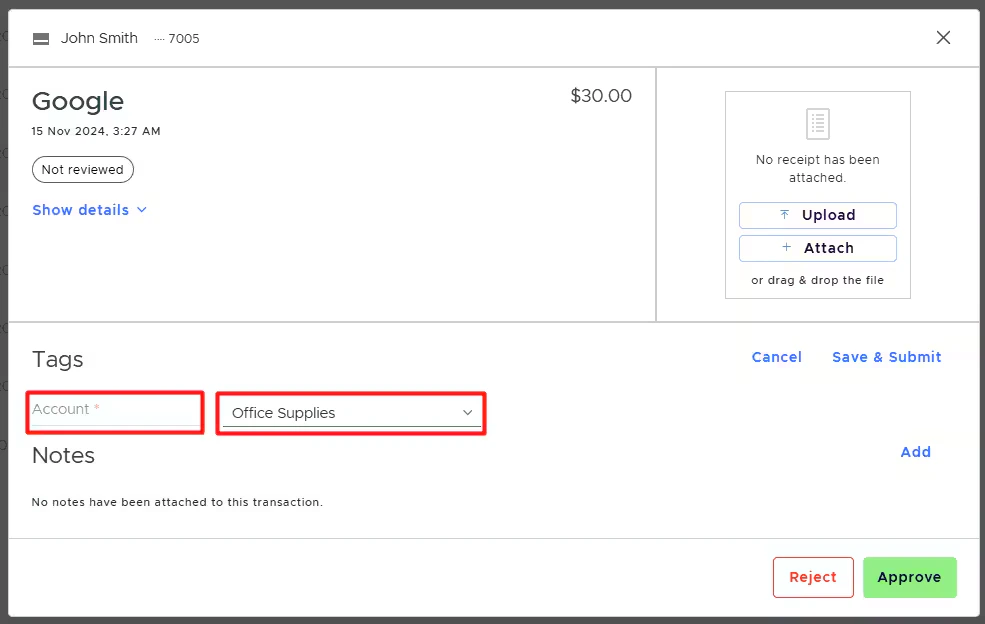 When mapping to a tag, you can also specify a default "Account" value: for example, Uncategorized, as highlighted below.
 Note that a purchase will not be tagged with this default value ("Uncategorized" in our example) on the purchase details. It means that if you or your cardholders forget to tag a purchase before it is synced to GreenSlate, the default value ("Uncategorized" in our example) will be applied to this purchase during the sync.
If you or your cardholders do tag a purchase with the tag option from the tag chosen in the highlighted field below,
Note that a purchase will not be tagged with this default value ("Uncategorized" in our example) on the purchase details. It means that if you or your cardholders forget to tag a purchase before it is synced to GreenSlate, the default value ("Uncategorized" in our example) will be applied to this purchase during the sync.
If you or your cardholders do tag a purchase with the tag option from the tag chosen in the highlighted field below,
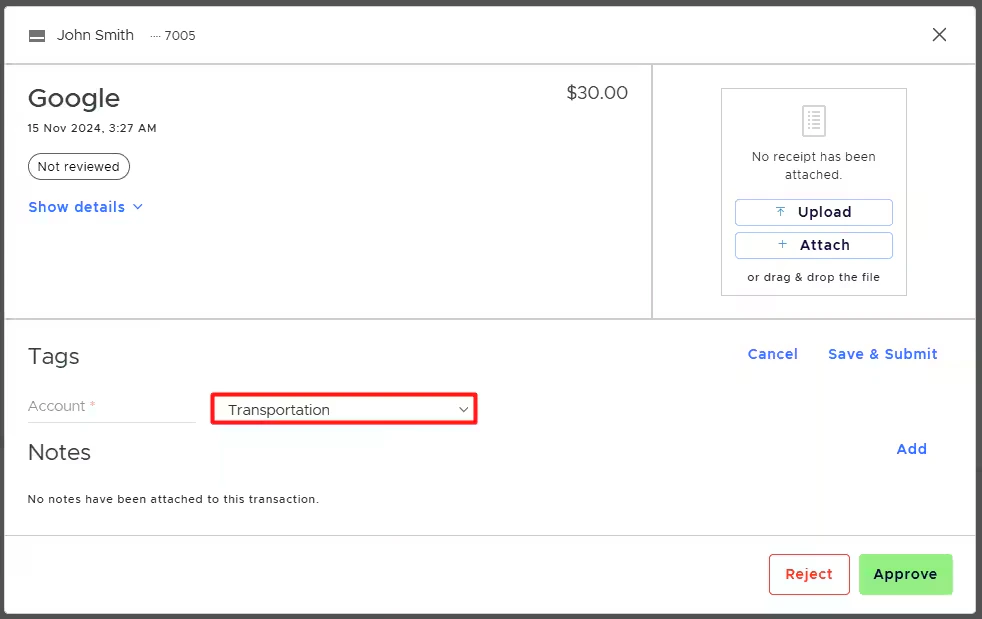
 that specific purchase will be recorded against the expense account ("Transportation" in our example below) you tagged the purchase with. Tags take precedence over default values.
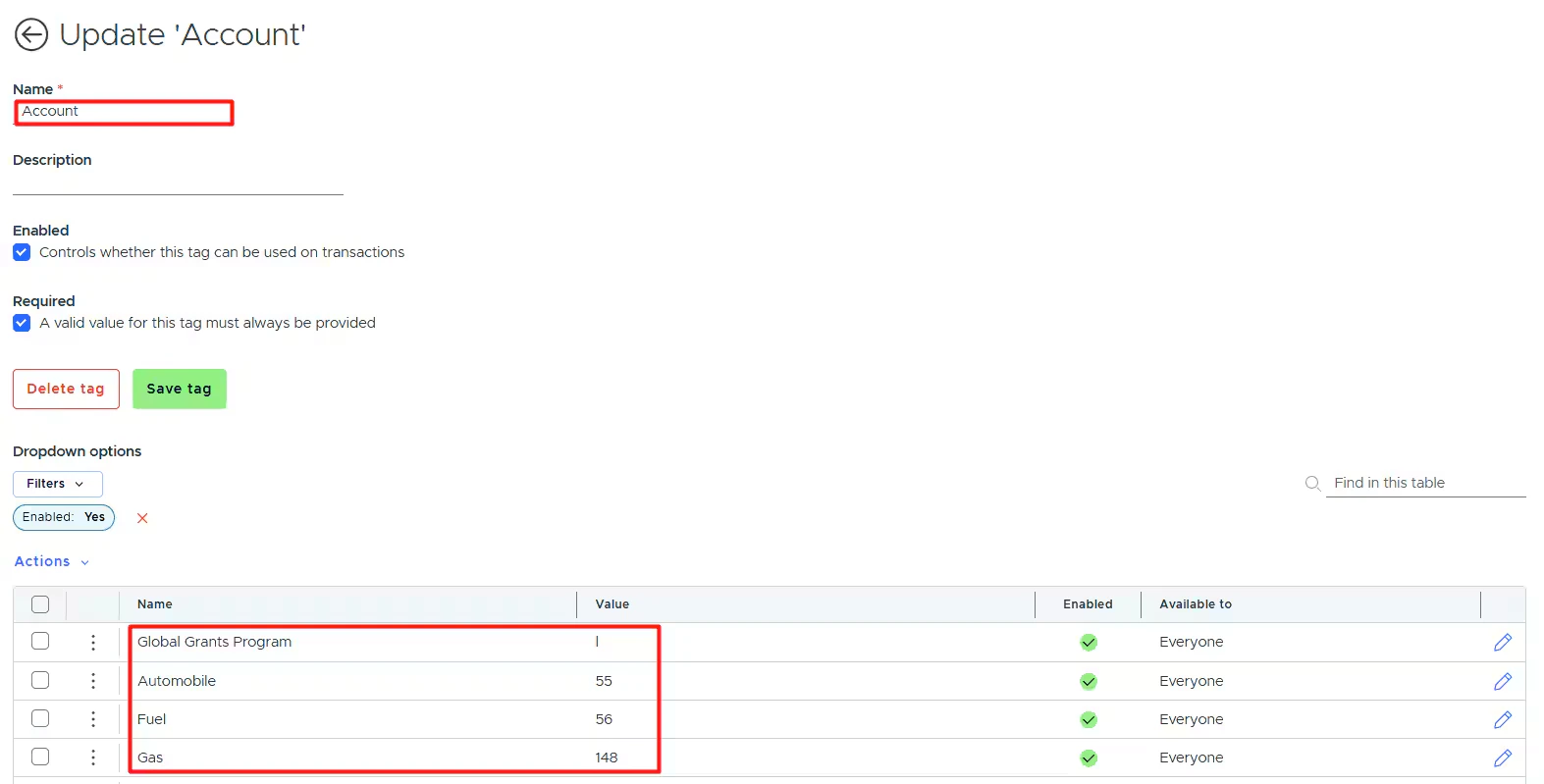
 * Enable the sync toggle to sync field values from GreenSlate into PEX as tag options.
 For example, the values for the PEX tag "Account" (in [Tag Manager](https://dashboard.pexcard.com/business-settings/tags?utm_source=support)) will be populated with the names of your GreenSlate accounts.
 ## Cardholder fees
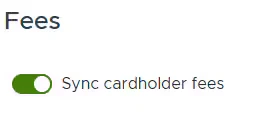
To sync cardholder fees to GreenSlate, enable the toggle *Sync cardholder fees*.
## Cardholder fees
To sync cardholder fees to GreenSlate, enable the toggle *Sync cardholder fees*.
 **Fee Field Mappings**
Map GreenSlate fields so the connector knows which values to use when syncing fees to GreenSlate. Fields can be mapped to static values or PEX tags. If you choose to use PEX tags, you must create them in advance, following the logic described in the ["Create PEX tags for GreenSlate"](/administrator-guide/create-pex-tags-for-greenslate) article.
For example, the "Account" is one of the fields on your Fee:
* Mapping the "Account" field to a static value means that you can select one account out of the many presented in GreenSlate, and that value ("Advertising" in our example below) will be applied to all PEX fees.
**Fee Field Mappings**
Map GreenSlate fields so the connector knows which values to use when syncing fees to GreenSlate. Fields can be mapped to static values or PEX tags. If you choose to use PEX tags, you must create them in advance, following the logic described in the ["Create PEX tags for GreenSlate"](/administrator-guide/create-pex-tags-for-greenslate) article.
For example, the "Account" is one of the fields on your Fee:
* Mapping the "Account" field to a static value means that you can select one account out of the many presented in GreenSlate, and that value ("Advertising" in our example below) will be applied to all PEX fees.
 Note that a fee will not be tagged with this static value. You will not see this static value on the fee details. The static value will be used only when syncing a fee to GreenSlate.
* Mapping the "Account" field to a PEX tag ("Account" in our example below) means that you and your cardholders can select one of the tag values for each fee.
Note that a fee will not be tagged with this static value. You will not see this static value on the fee details. The static value will be used only when syncing a fee to GreenSlate.
* Mapping the "Account" field to a PEX tag ("Account" in our example below) means that you and your cardholders can select one of the tag values for each fee.
 For that go to the "Transactions" menu -> locate a fee -> click on it -> select a tag value ("Office Supplies" in our example below) of the "Account" tag -> click "Save". Note that you and your cardholders can select one of the tag values for each fee once you finish the GreenSlate connector setup and sync tag options from GreenSlate to PEX.
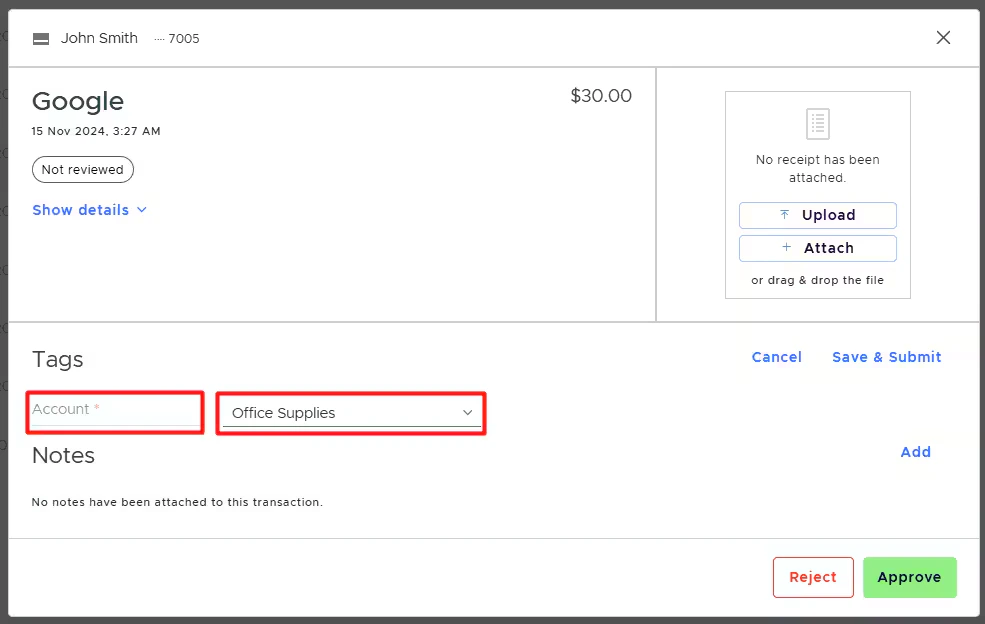 When mapping to a tag, you can also specify a default "Account" value: for example, Uncategorized, as highlighted below.
 Note that a fee will not be tagged with this default value ("Uncategorized" in our example) on the fee details. It means that if you or your cardholders forget to tag a fee before it is synced to GreenSlate, the default value ("Uncategorized" in our example) will be applied to this fee during the sync.
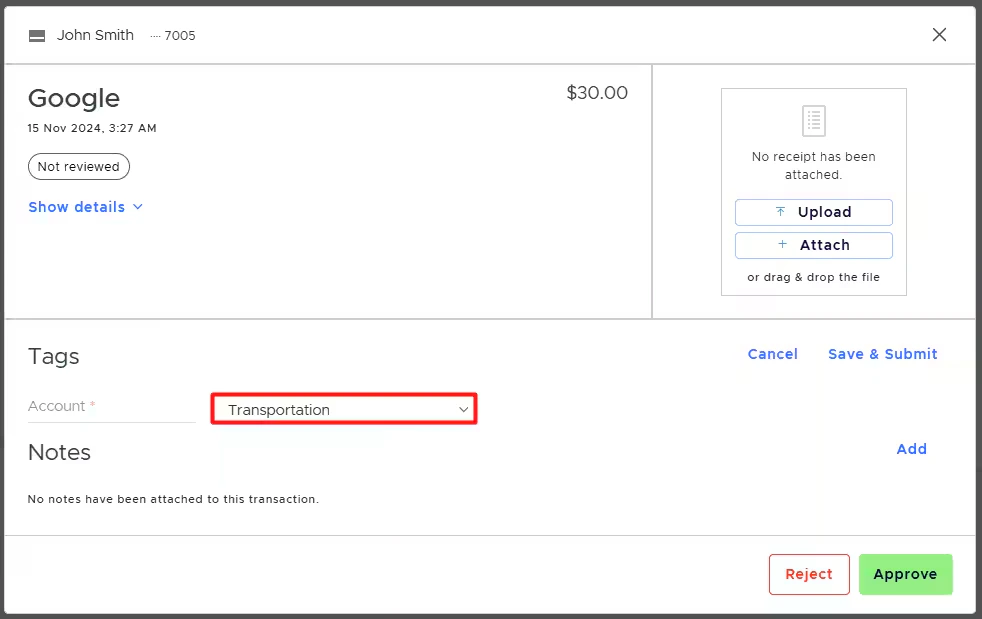
If you or your cardholders do tag a fee with the tag option from the tag chosen in the highlighted field below,
Note that a fee will not be tagged with this default value ("Uncategorized" in our example) on the fee details. It means that if you or your cardholders forget to tag a fee before it is synced to GreenSlate, the default value ("Uncategorized" in our example) will be applied to this fee during the sync.
If you or your cardholders do tag a fee with the tag option from the tag chosen in the highlighted field below,
 that specific fee will be recorded against the expense account ("Transportation" in our example below) you tagged the fee with. Tags take precedence over default values.
 ## Cardholder Fundings
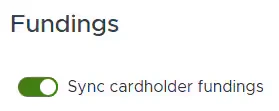
To sync cardholder fundings to GreenSlate, enable the toggle *Sync cardholder fundings*.
## Cardholder Fundings
To sync cardholder fundings to GreenSlate, enable the toggle *Sync cardholder fundings*.
 **Funding Field Mappings**
Map GreenSlate fields so the connector knows which values to use when syncing fundings to GreenSlate. The fields can only be mapped to static values.
Cardholder fundings that sync to GreenSlate will *credit* the account selected in the "Value" column ("PEX" in our example below).
**Funding Field Mappings**
Map GreenSlate fields so the connector knows which values to use when syncing fundings to GreenSlate. The fields can only be mapped to static values.
Cardholder fundings that sync to GreenSlate will *credit* the account selected in the "Value" column ("PEX" in our example below).
 PEX fundings that sync to GreenSlate will *debit* the PrePaid Card Account associated with the vendor in GreenSlate.
**Note:**
1. The above mappings apply to **all** your cardholders.
2. Cardholder funding transactions sync into their **own** envelopes—one envelope per funding per cardholder.
3. Syncing cardholder fundings is only available to PEX prepaid businesses.
Click "Save". PEX will redirect you to the **Sync tab**.
## Sync to GreenSlate
In the Sync tab, you can:
1. View the last synchronization time.
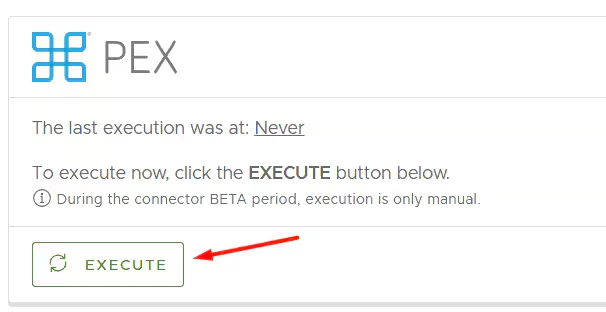
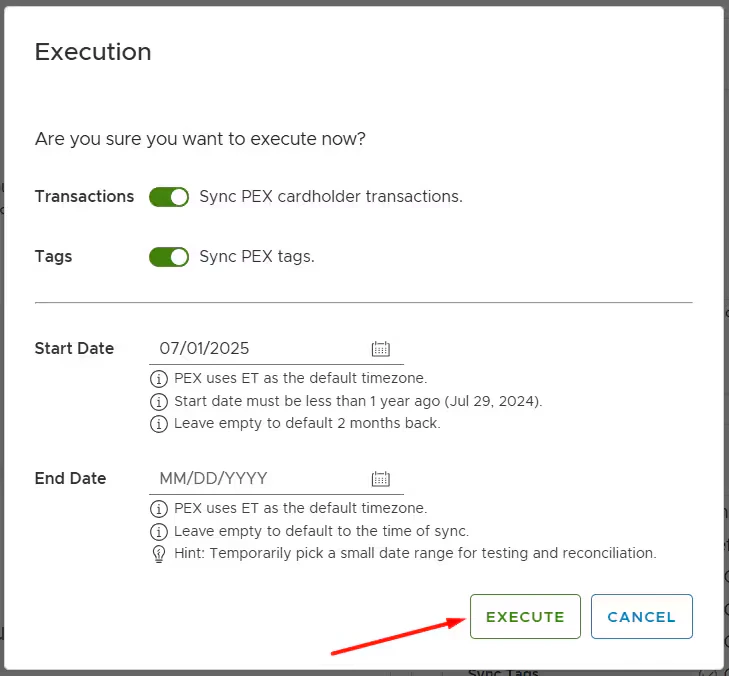
2. Manually sync transactions/tag options by clicking **Execute**.
PEX fundings that sync to GreenSlate will *debit* the PrePaid Card Account associated with the vendor in GreenSlate.
**Note:**
1. The above mappings apply to **all** your cardholders.
2. Cardholder funding transactions sync into their **own** envelopes—one envelope per funding per cardholder.
3. Syncing cardholder fundings is only available to PEX prepaid businesses.
Click "Save". PEX will redirect you to the **Sync tab**.
## Sync to GreenSlate
In the Sync tab, you can:
1. View the last synchronization time.
2. Manually sync transactions/tag options by clicking **Execute**.
 3. View **Connection** info.
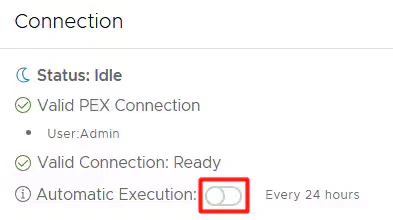
4. Enable/disable auto-sync. *Auto-sync is not available during the connector BETA period.*
* Enabled: Transactions sync automatically every 24 hours.
* Disabled: Transactions will not sync automatically.
3. View **Connection** info.
4. Enable/disable auto-sync. *Auto-sync is not available during the connector BETA period.*
* Enabled: Transactions sync automatically every 24 hours.
* Disabled: Transactions will not sync automatically.
 5. Disconnect.
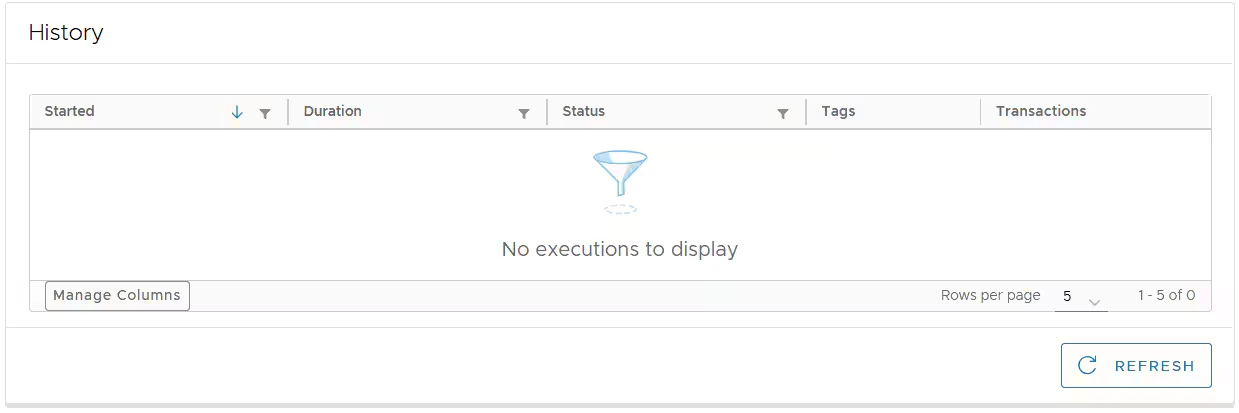
6. View the **History** of transactions synced to your GreenSlate account.
5. Disconnect.
6. View the **History** of transactions synced to your GreenSlate account.
 7. View Settings information.
8. Edit settings if necessary.
7. View Settings information.
8. Edit settings if necessary.
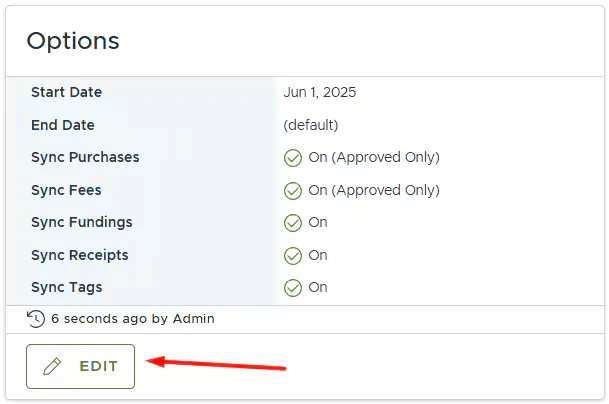 **Auto-sync**\
Auto-sync will always process transactions based on the start date specified on the **Connect tab**, with a maximum limit of 2 months back from today. If there is no start date specified on the **Connect tab** then auto-sync will sync transactions up to 2 months back from today.
**Manual sync**\
Manual sync will process transactions based on the start date specified on the **Execution screen**, with a limit of 1 year back from today. If the start date is left empty on the **Execution screen**, the manual sync will process transactions only up to 2 months back from today.
**Auto-sync**\
Auto-sync will always process transactions based on the start date specified on the **Connect tab**, with a maximum limit of 2 months back from today. If there is no start date specified on the **Connect tab** then auto-sync will sync transactions up to 2 months back from today.
**Manual sync**\
Manual sync will process transactions based on the start date specified on the **Execution screen**, with a limit of 1 year back from today. If the start date is left empty on the **Execution screen**, the manual sync will process transactions only up to 2 months back from today.
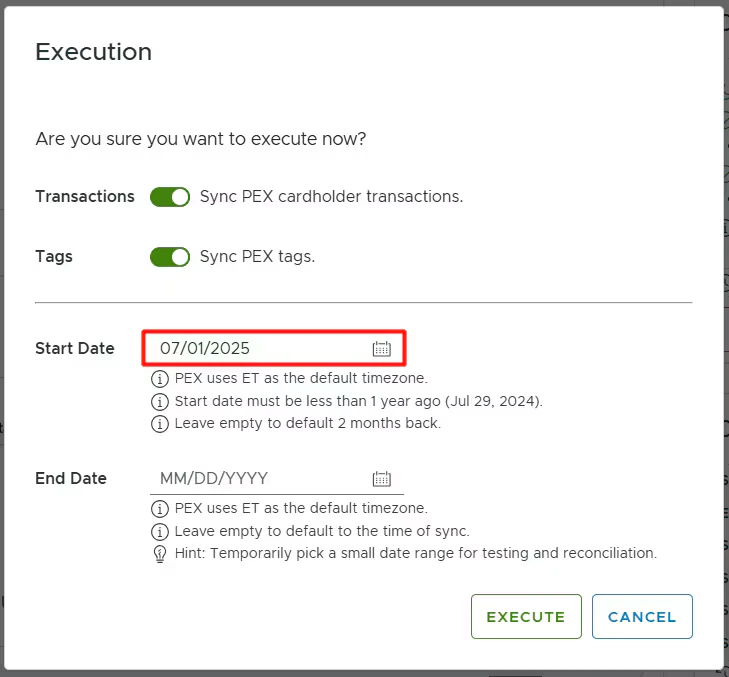 **Note:**
By default, the start date on the **Execution screen** is set to the **first day** of the current month.
## Auto Tagger
The Auto Tagger app is a great complement to GreenSlate. It allows you to create rules that auto-tag purchases. [Learn more.](/administrator-guide/pex-auto-tagger)
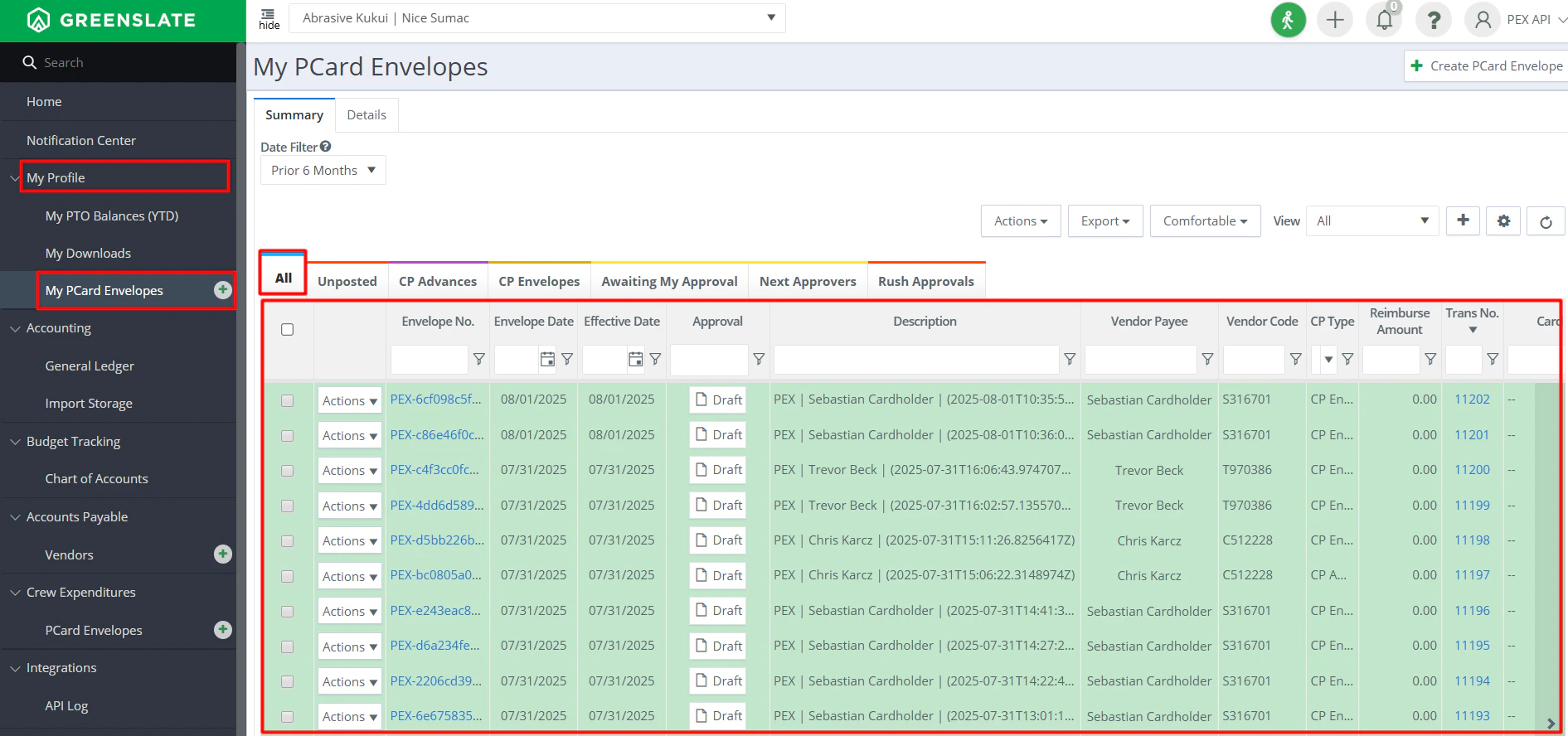
## View Synced Transactions in GreenSlate
Log into your GreenSlate account and navigate to *My Profile-> My PCard Envelopes -> All tab* to view synced transactions.
**Note:**
By default, the start date on the **Execution screen** is set to the **first day** of the current month.
## Auto Tagger
The Auto Tagger app is a great complement to GreenSlate. It allows you to create rules that auto-tag purchases. [Learn more.](/administrator-guide/pex-auto-tagger)
## View Synced Transactions in GreenSlate
Log into your GreenSlate account and navigate to *My Profile-> My PCard Envelopes -> All tab* to view synced transactions.
 ## View Synced Receipts in GreenSlate
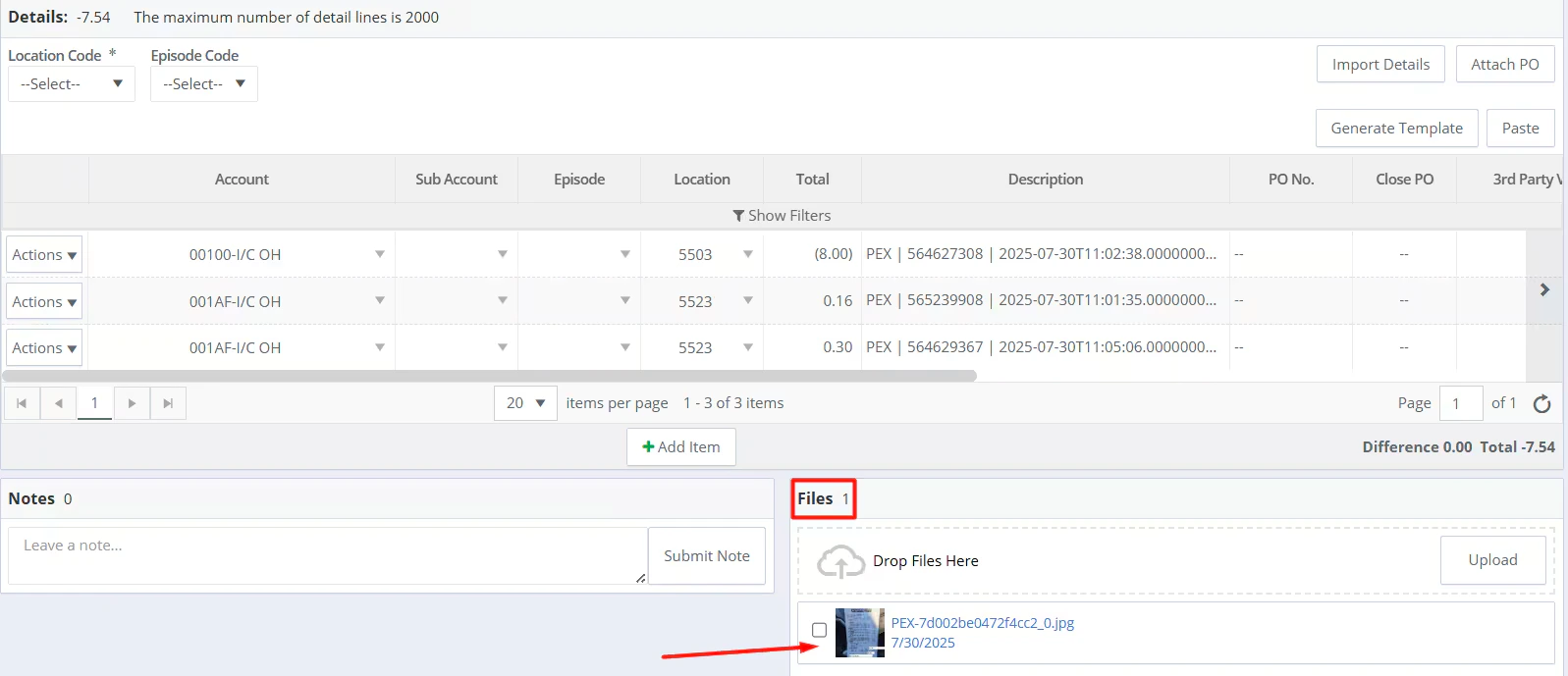
Log into GreenSlate account and navigate to *My Profile-> My PCard Envelopes -> All tab ->*
## View Synced Receipts in GreenSlate
Log into GreenSlate account and navigate to *My Profile-> My PCard Envelopes -> All tab ->*
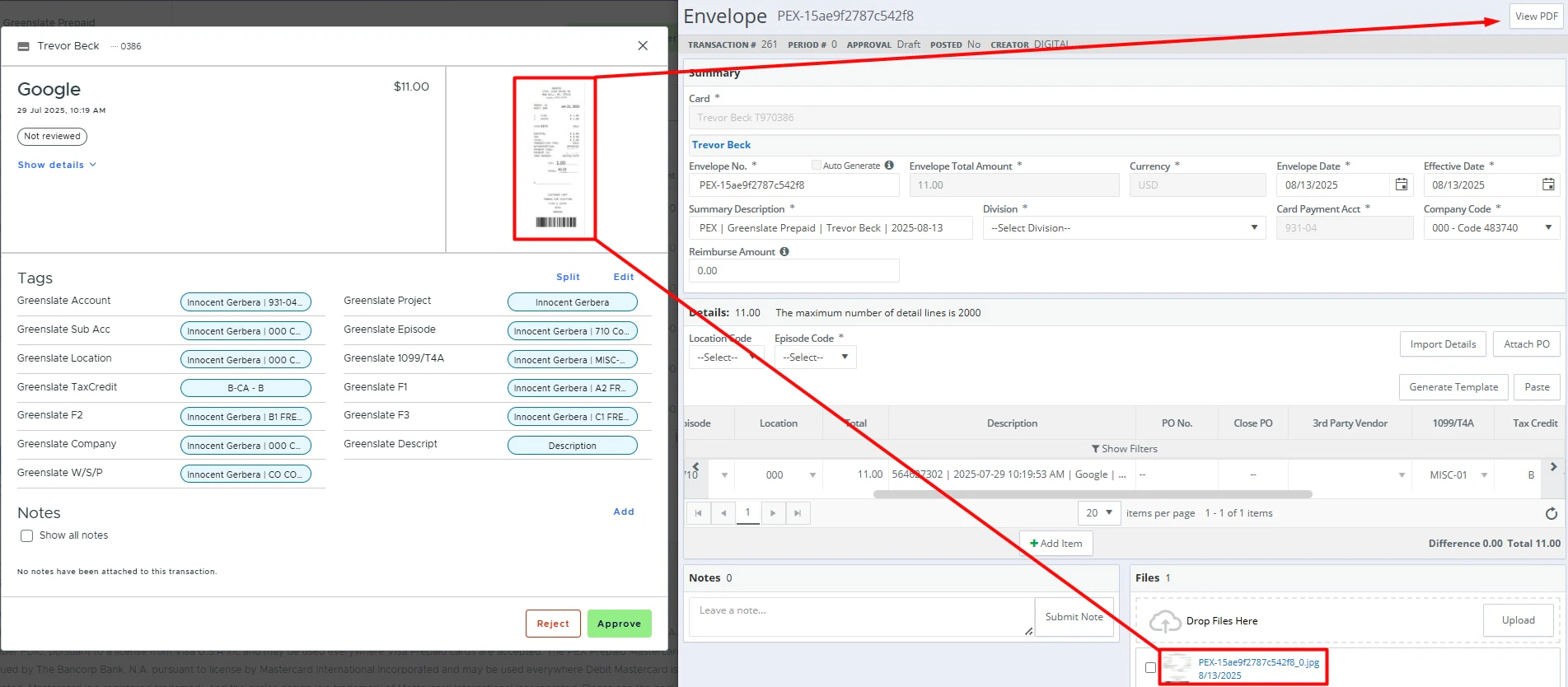
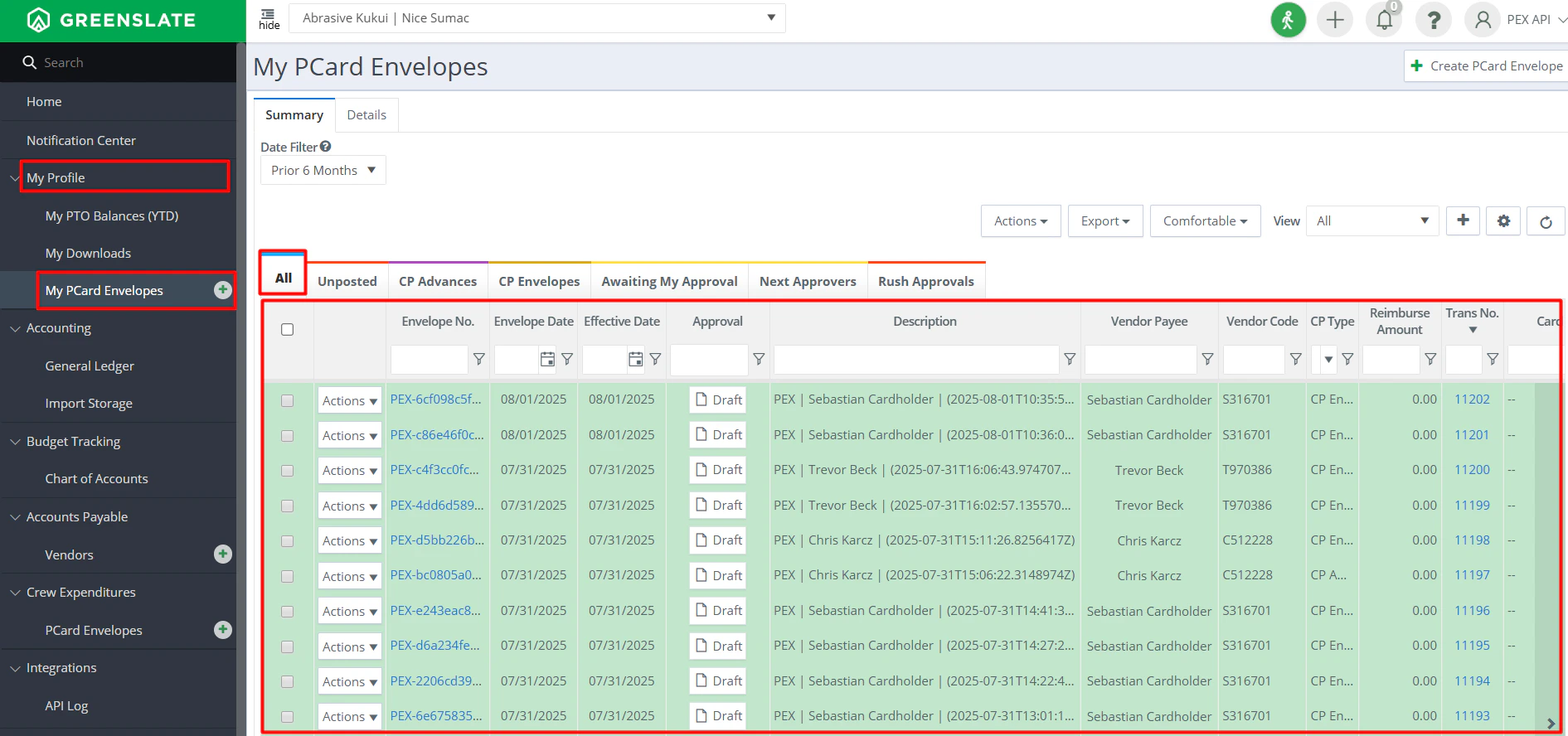 *-> open your transaction ->* scroll down to *Files* and click on the receipt to view it.
 *OR*
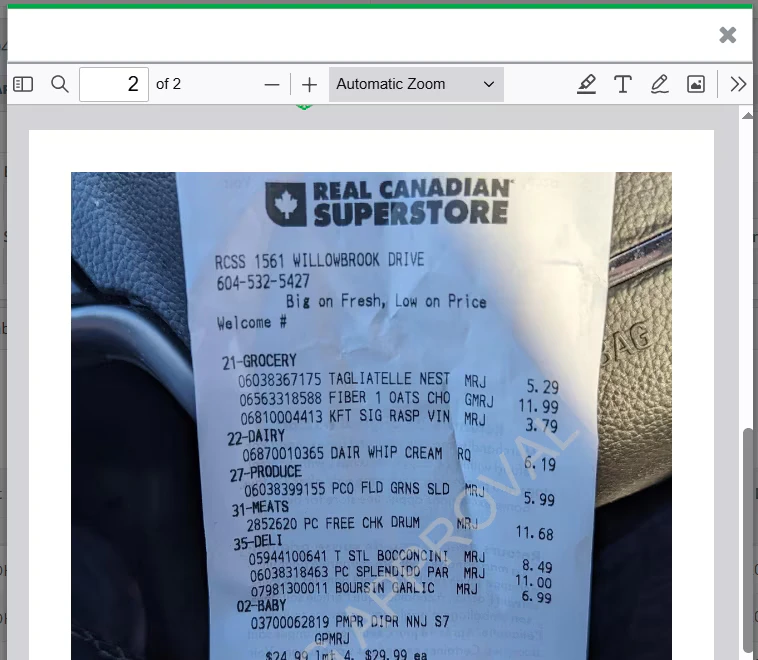
*-> Click View PDF ->*
*OR*
*-> Click View PDF ->*
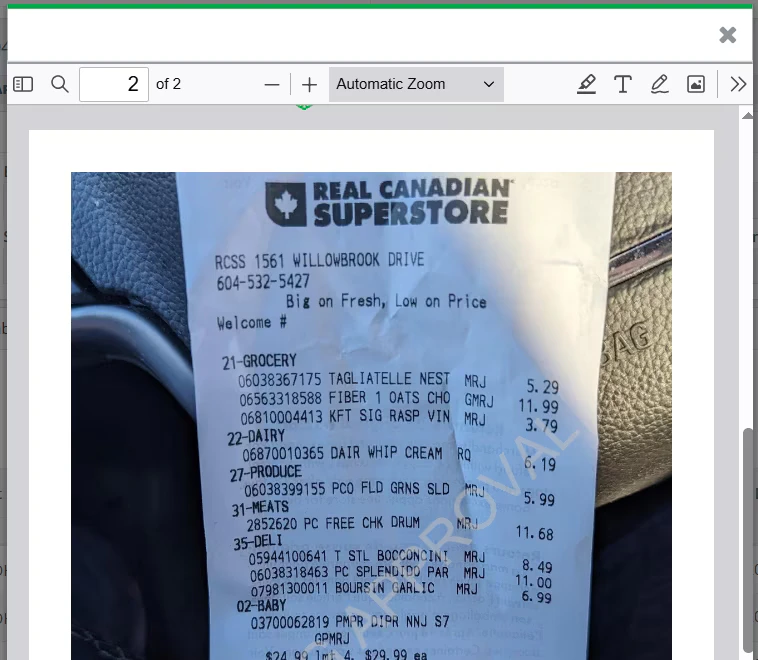
 *-> scroll down to see a receipt.*
 ## How does data flow between PEX and GreenSlate?
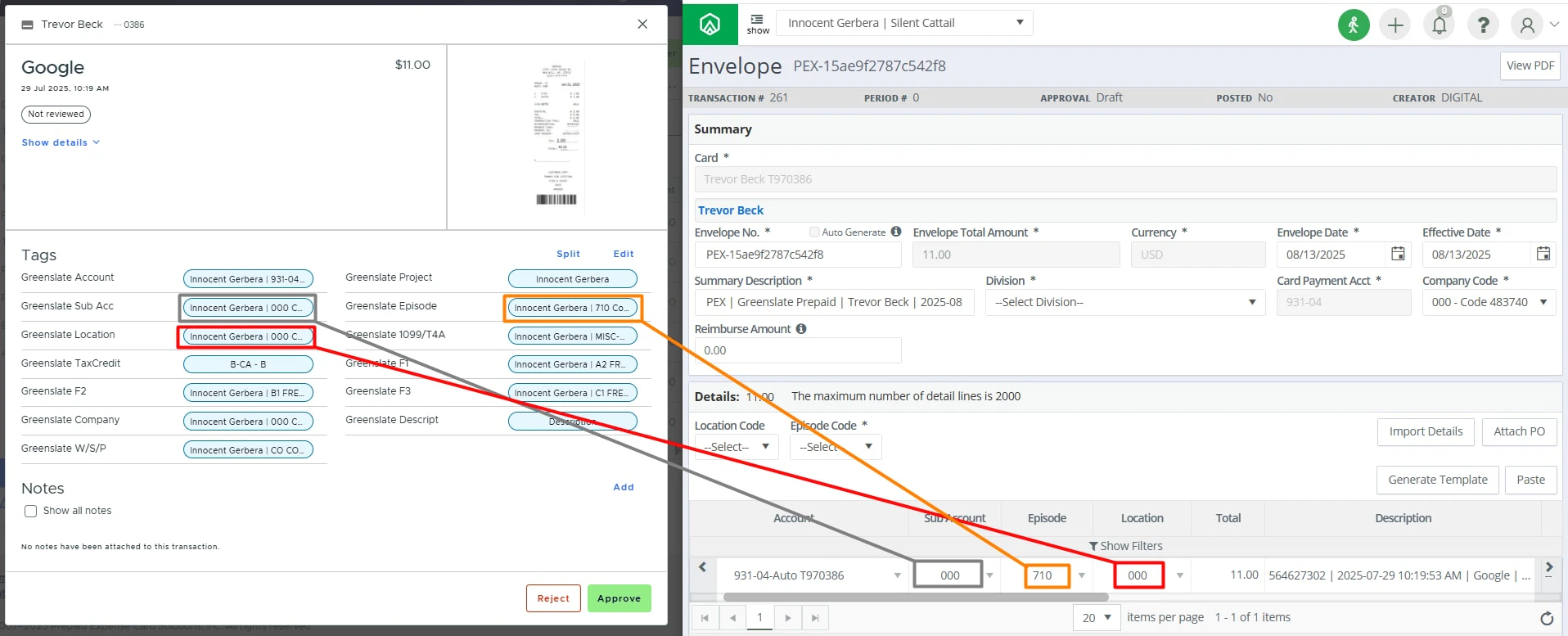
If everything is configured correctly and transactions are tagged, PEX will sync the following data points to GreenSlate:
* Cardholder name and last 6 digits
* Merchant name (Description field in GreenSlate)
* Transaction date and time (Description field in GreenSlate)
* Transaction amount
* Project name
* Account
## How does data flow between PEX and GreenSlate?
If everything is configured correctly and transactions are tagged, PEX will sync the following data points to GreenSlate:
* Cardholder name and last 6 digits
* Merchant name (Description field in GreenSlate)
* Transaction date and time (Description field in GreenSlate)
* Transaction amount
* Project name
* Account
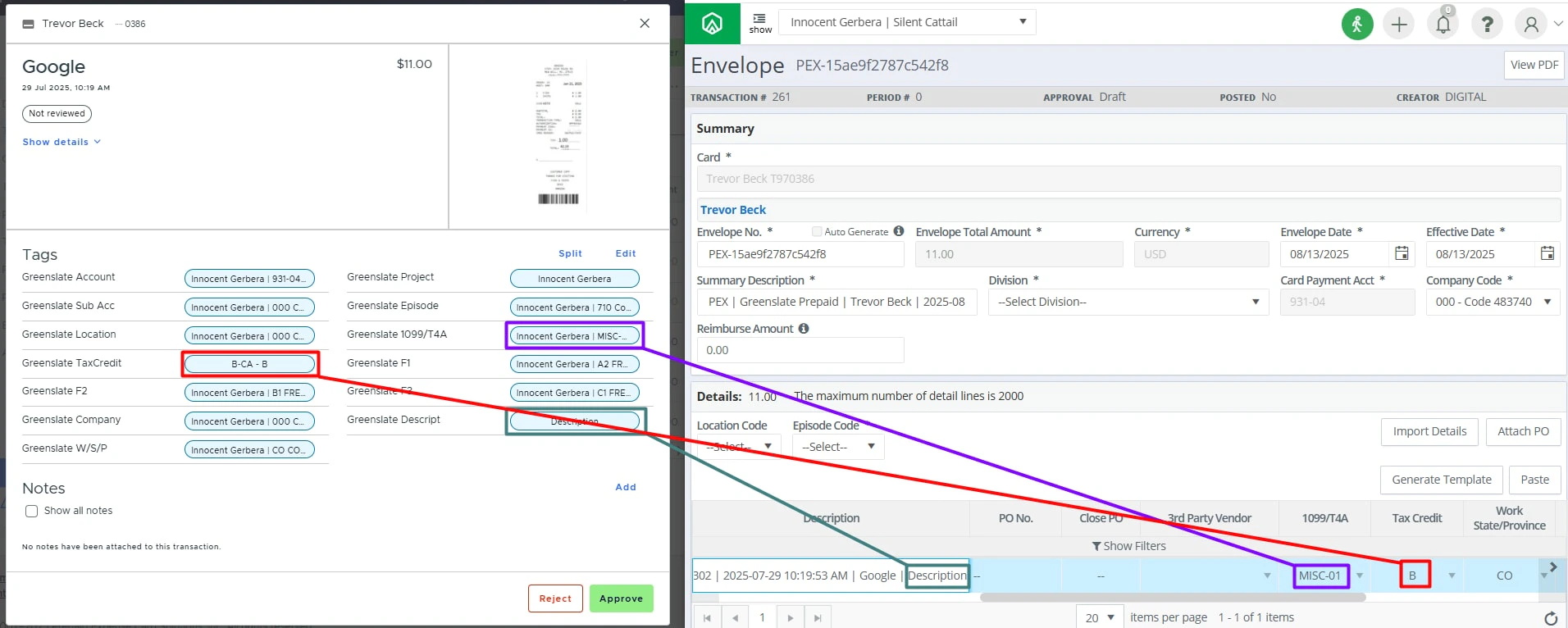
 * Sub Account
* Episode
* Location
* Sub Account
* Episode
* Location
 * 1099/T4A
* Tax Credit
* Description
* 1099/T4A
* Tax Credit
* Description
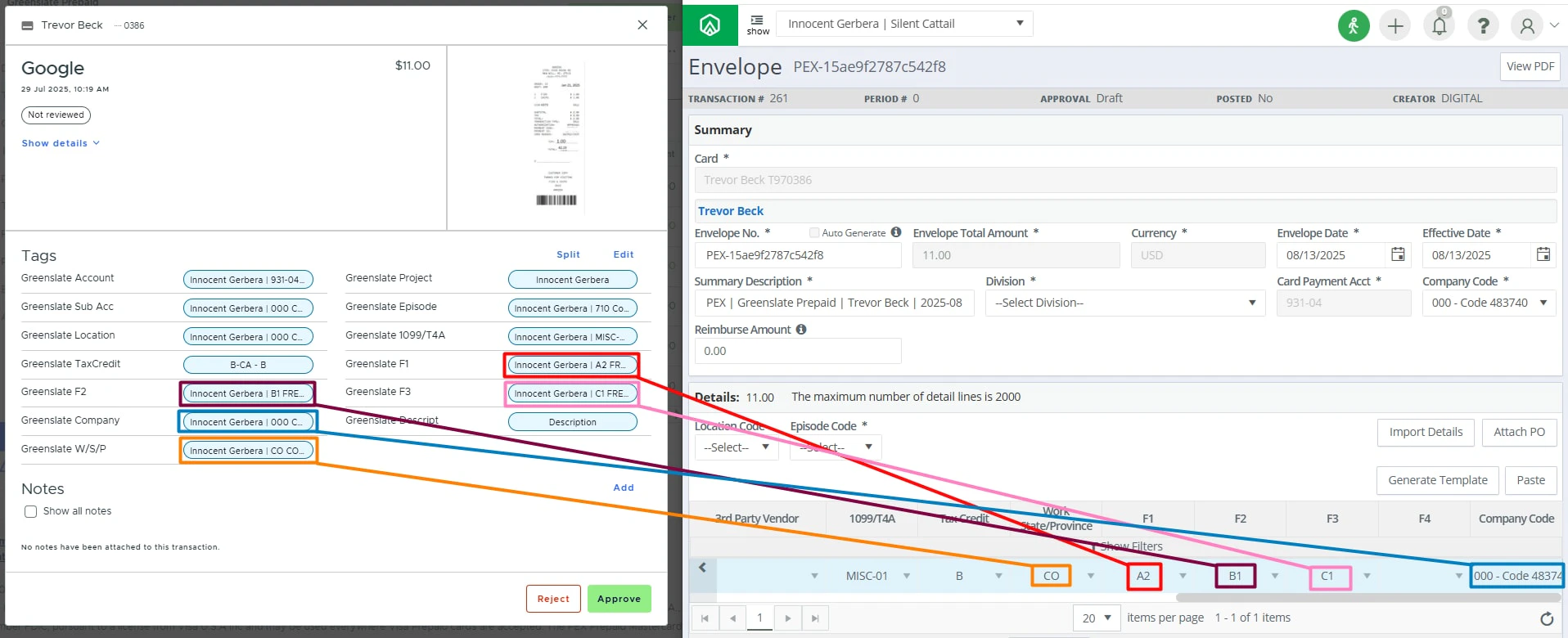
 * F1
* F2
* F3
* Company Code
* F1
* F2
* F3
* Company Code
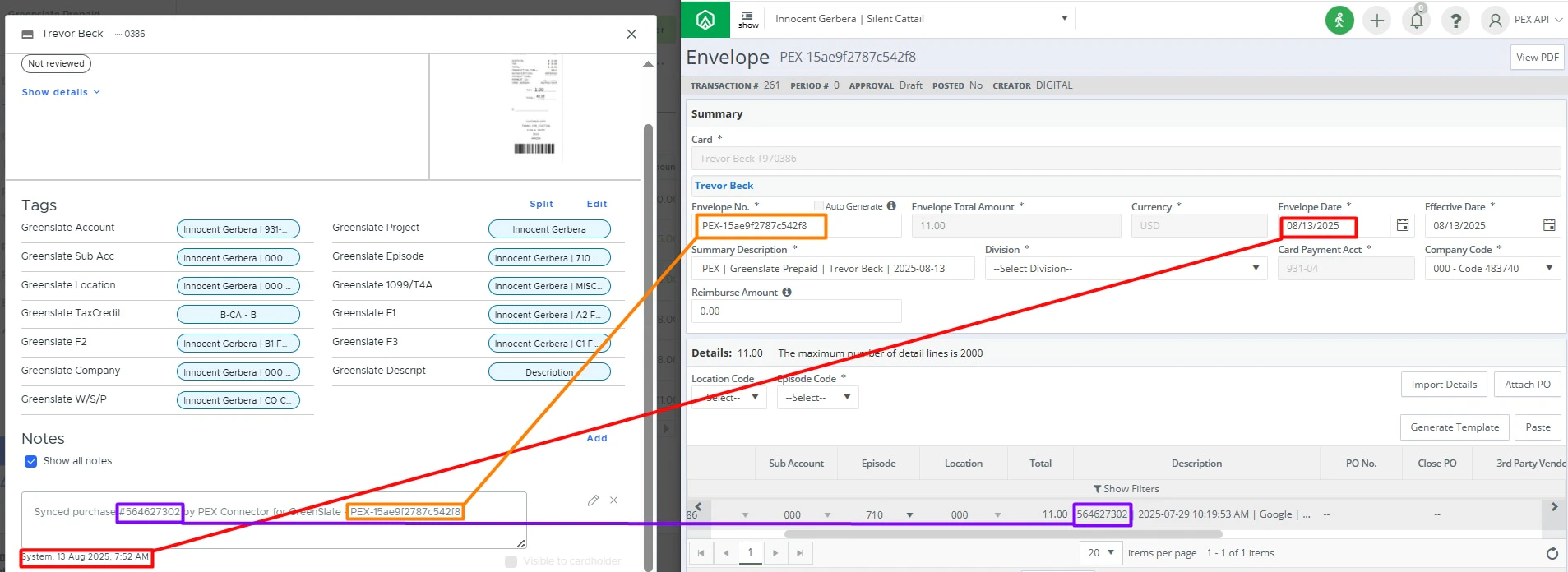
 * Envelope No.
* Transaction ID
* Sync date
* Envelope No.
* Transaction ID
* Sync date
 * Receipt file
 ## FAQ
Receipt images are stored directly in the GreenSlate PCard Envelopes to serve as your system of record.
Auto-sync is not available during the connector BETA period.
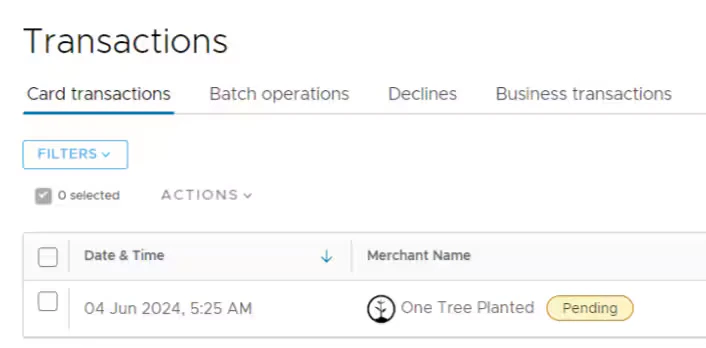
No, only settled transactions are synced. If you see a "Pending" label next to the merchant name as shown on the screen below, then the transaction is still in the pending status.
## FAQ
Receipt images are stored directly in the GreenSlate PCard Envelopes to serve as your system of record.
Auto-sync is not available during the connector BETA period.
No, only settled transactions are synced. If you see a "Pending" label next to the merchant name as shown on the screen below, then the transaction is still in the pending status.
 We strongly recommend using automatic sync of tag options from GreenSlate to PEX. This will keep your PEX tags and GreenSlate fields in sync. For more information, check out the support article ["Create PEX tags for GreenSlate"](/administrator-guide/create-pex-tags-for-greenslate).
 No, if you need to resync a transaction, please contact the PEX support team.
PEX only syncs active cardholders. Any deleted or inactive cardholder transactions will not sync. We recommend syncing all existing purchases before closing/deleting a PEX card.
## Support & Inquiries
For any questions or for more information, please email [appsupport+greenslate@pexcard.com](mailto:appsupport+greenslate@pexcard.com)
No, if you need to resync a transaction, please contact the PEX support team.
PEX only syncs active cardholders. Any deleted or inactive cardholder transactions will not sync. We recommend syncing all existing purchases before closing/deleting a PEX card.
## Support & Inquiries
For any questions or for more information, please email [appsupport+greenslate@pexcard.com](mailto:appsupport+greenslate@pexcard.com)