> ## Documentation Index
> Fetch the complete documentation index at: https://support.pexcard.com/llms.txt
> Use this file to discover all available pages before exploring further.
# Corporate SSO via SAML 2.0
> Single Sign On (SSO) allows users to sign into multiple applications using an identity provider login. PEX supports this functionality via the Security Assertion Markup Language (SAML 2.0) open standard.
**Note:**
This setup process should be performed by an IT administrator.
SSO is currently not supported on mobile devices.
### Prerequisites
You have configured an enterprise workspace that supports SAML 2.0 SSO, and allows you to download a Base64 signing certificate. Common SSO providers include [Okta](https://www.okta.com), [OneLogin](https://www.onelogin.com), [Auth0](https://auth0.com), [Google Workspace](https://workspace.google.com), and [Azure Active Directory](https://azure.microsoft.com/en-us/services/active-directory/?\&ef_id=Cj0KCQiA0eOPBhCGARIsAFIwTs7Lcz8XbG-IcKrdVGbmhQETwnYkH8zzCZ-J8TO9BDhSKuckztpbxDUaAhqmEALw_wcB:G:s\&OCID=AID2200277_SEM_Cj0KCQiA0eOPBhCGARIsAFIwTs7Lcz8XbG-IcKrdVGbmhQETwnYkH8zzCZ-J8TO9BDhSKuckztpbxDUaAhqmEALw_wcB:G:s\&gclid=Cj0KCQiA0eOPBhCGARIsAFIwTs7Lcz8XbG-IcKrdVGbmhQETwnYkH8zzCZ-J8TO9BDhSKuckztpbxDUaAhqmEALw_wcB).
Ensure that your PEX cardholders and administrators set their usernames to be the NameID (typically an email address) associated with your identity provider. PEX users can change their usernames in My Profile.
### How to configure SSO for your PEX account
Create a new application for PEX Dashboard on your identity provider. PEX is currently not available through identity provider application marketplaces, so you will need to create a custom application.
Add all cardholders as users or add a group containing all cardholders to the PEX Dashboard application on your identity provider.
Provide the below PEX URL as both the Identifier (Entity ID) and Reply URL (Assertion Consumer Service URL) on your identity provider SSO - SAML 2.0 configuration screen: \
***[https://coreapi.pexcard.com/internal/v4/sso/saml/login](https://coreapi.pexcard.com/internal/v4/sso/saml/login)***
Download the SAML 2.0 Base64 signing certificate for the PEX application from your identity provider
Log in as an admin to [dashboard.pexcard.com](http://dashboard.pexcard.com?utm_source=support)
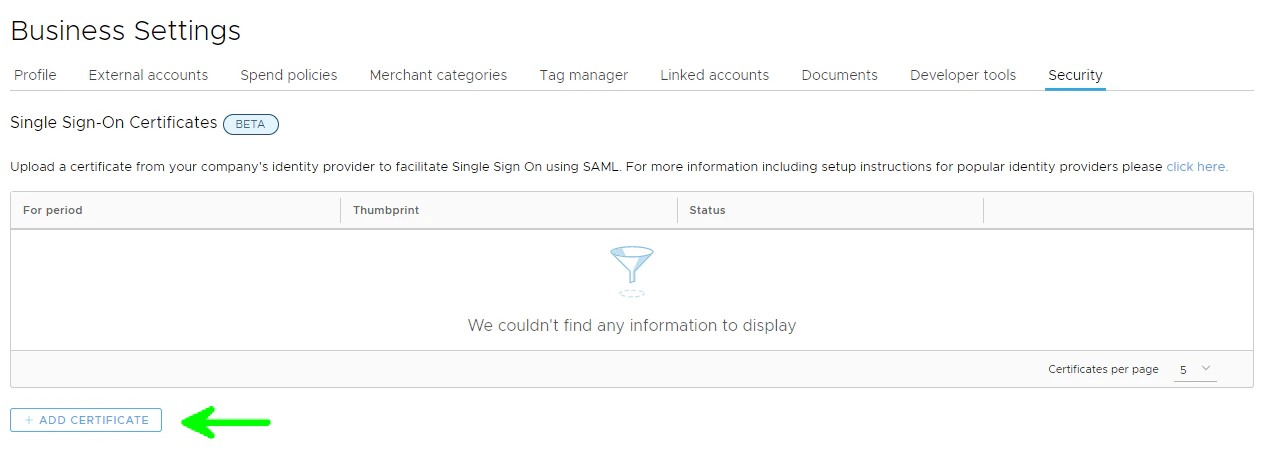
Navigate to Business Settings - Security, [https://dashboard.pexcard.com/business-settings/security](https://dashboard.pexcard.com/business-settings/security?utm_source=support)
Upload the SAML 2.0 signing certificate file downloaded from your identity provider.
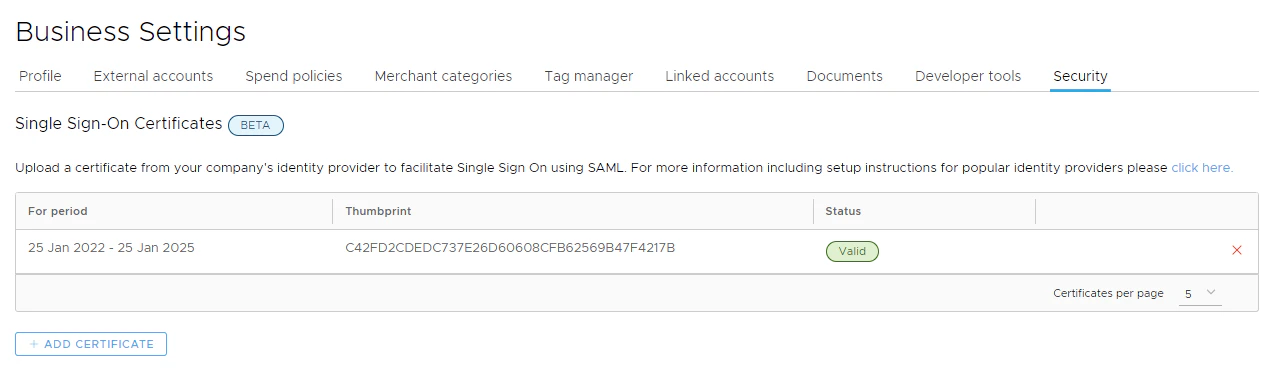
 Your signing certificate should now be associated with your PEX business, and can be managed in the Business Settings - Security section.
 Send users to the SSO applications screen for your identity provider and have them select the PEX Dashboard app to automatically log them into PEX using their SSO.
### Frequently Asked Questions
This feature is not currently supported, but will likely be implemented in the future.
Businesses that use MPA/linked businesses should configure SSO in their “primary” PEX business where users should be set up with the same username as in their identity provider. They should use SSO to log into that business, and use MPA to access linked businesses.
No. PEX does not support Response Signing (Note: Okta turns this on by default).
No. PEX does not support Assertion Encryption.
No. PEX does not support SCIM Connector.
Send users to the SSO applications screen for your identity provider and have them select the PEX Dashboard app to automatically log them into PEX using their SSO.
### Frequently Asked Questions
This feature is not currently supported, but will likely be implemented in the future.
Businesses that use MPA/linked businesses should configure SSO in their “primary” PEX business where users should be set up with the same username as in their identity provider. They should use SSO to log into that business, and use MPA to access linked businesses.
No. PEX does not support Response Signing (Note: Okta turns this on by default).
No. PEX does not support Assertion Encryption.
No. PEX does not support SCIM Connector.