> ## Documentation Index
> Fetch the complete documentation index at: https://support.pexcard.com/llms.txt
> Use this file to discover all available pages before exploring further.
# Email to PEX (Admin guide)
> Email in your receipts to PEX. PEX will auto match the submitted receipts to the corresponding transactions
Submitting receipts is easier than ever. In addition to [texting in receipts](/administrator-guide/text-to-pex-admin-guide), you and your Cardholders can email receipts to PEX. PEX will auto match the submitted receipts to the corresponding transactions.
## Get set up
To get started, ensure that the following is set up:
Go to the **Business settings** menu
Scroll down to the **Settings** section
Click **Edit**
* Check "Remind cardholders when missing receipt(s)"
* If disabled, Cardholders will not receive receipt reminders via email.
* You can disable Cardholders from managing receipt reminder email/push notifications. If you check this checkbox, your Cardholders will not be able to turn off receiving receipt reminder email/push notifications.
* You can set a minimum purchase amount to trigger a receipt reminder to Cardholders. For example, if you select \$100 your Cardholders will receive receipt reminders only when their purchase transaction is above \$100. Leave this empty if you want to send receipt reminders for every purchase.
* Ensure you can see the **Business Attachments** section
* This should be on by default. If disabled, Cardholders will not be able to match receipts.
* Enable **Receipt Matching**
* This should be on by default and will allow PEX AI to automatically match receipts to transactions.
Click **Update**
## Cardholders to enable email reminder
To help get your Cardholders set up, ensure your Cardholders enable receipt reminders in their profiles. They will need to follow these steps:
**Ensure your email is verified:**
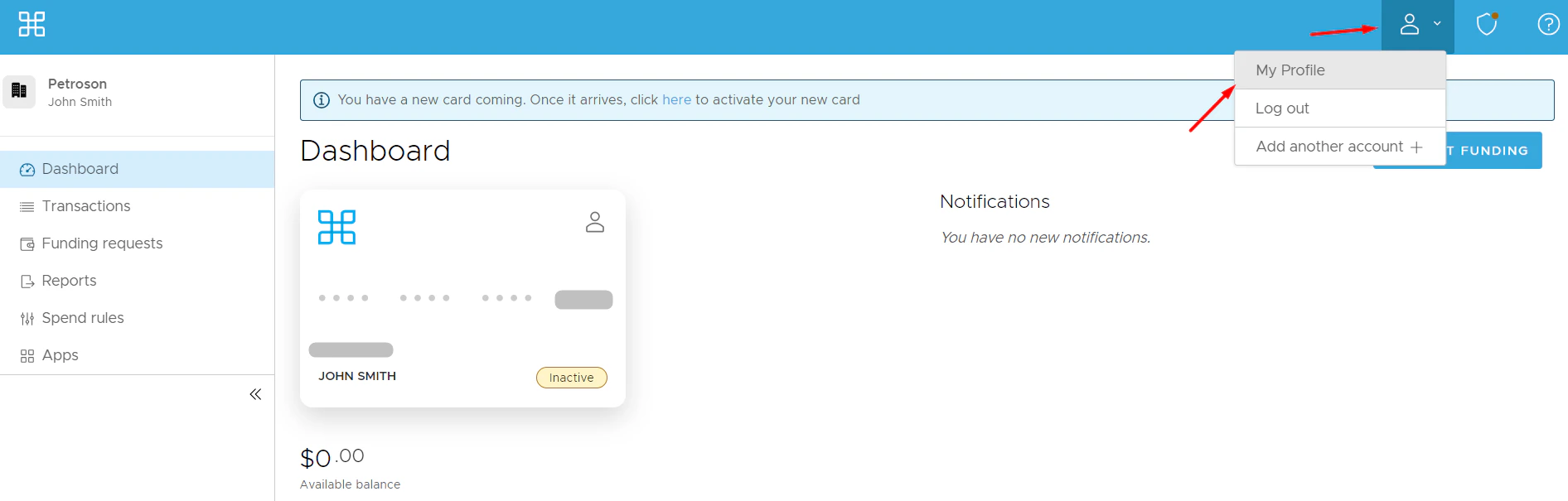
Click on the **Person** icon at the top right → Select [My Profile](https://dashboard.pexcard.com/account/profile)
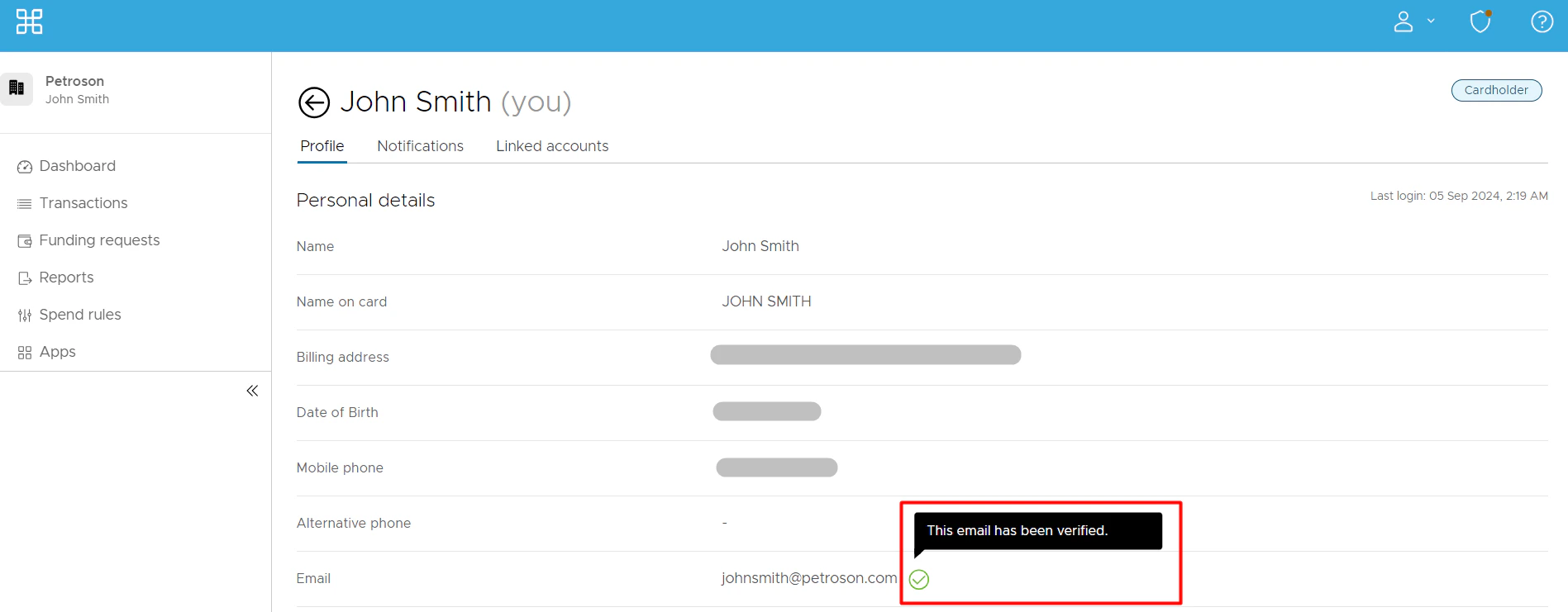 You can add a new email address for receipt reminders:
* Click **Edit Profile**
* Edit your email address
* Click **Update**
* Enter your secure access code you have received
* Click **Continue**
Verify the email you would like to receive email receipt reminders to:
* Click **Verify**
You can add a new email address for receipt reminders:
* Click **Edit Profile**
* Edit your email address
* Click **Update**
* Enter your secure access code you have received
* Click **Continue**
Verify the email you would like to receive email receipt reminders to:
* Click **Verify**
 * Enter the Secure Access Code you have received
* Click **Verify**
**Enable an email receipt reminder:**
Go to the [Notifications](https://dashboard.pexcard.com/account/notifications) tab
Locate the "Receipt reminder" notification
Check the email box across it
Click **Update Notifications**
Cardholders are ready to receive email receipt reminders. Whenever your Cardholders make a purchase, they will receive an email receipt reminder from our PEX email: [receipts@pexcard.com](mailto:receipts@pexcard.com)
Admins or Cardholders simply need to reply to the email with a receipt image. To ensure best matching results, a receipt needs to have a date and total amount paid visible. PEX will auto match the receipt to its corresponding transaction. Once done, we'll send your Cardholder an email confirming the successful auto match.
**Share with cardholders:** [Email to PEX (Cardholder Guide)](/cardholder-guide/email-to-pex-cardholder-guide)
## Send email without reminder
You and your Cardholders can email in receipts without a receipt reminder straight to [receipts@pexcard.com](mailto:receipts@pexcard.com)
* When you email in the receipt image or images (you can send more than one), we will auto match the receipt(s) to its/their corresponding transaction(s). Once done, we'll send you an email confirming the successful auto match.
* When emailing in the receipt image or images, make sure that the email you use is verified. To verify the email:
* Click on the **Person** icon at the top right → Select [My Profile](https://dashboard.pexcard.com/account/profile)
* Locate your email address
* If you want to add a new email address for receipt reminders:
* Click **Edit Profile**
* Edit your email address
* Click **Update**
* Enter your secure access code you have received
* Click **Continue**
**Note:**
All the settings mentioned in the "Get set up" section have to be enabled so you and your Cardholders can email in receipts when you want.
Contact us at [adminsupport@pexcard.com](mailto:adminsupport@pexcard.com) if you want to set up forwarding rules in your email account to automatically forward receipts to PEX.
## PEX email responses
If you email a receipt on behalf of your Cardholder, you might receive these email notifications in response:
* **Success match**
* The receipt has been successfully auto matched.
* **Duplicate receipt**
* The receipt has either been previously submitted or it has already been mapped to a transaction.
* **No match**
* We are having trouble matching your submitted receipt to a transaction. Please manually attach via the dashboard or mobile app.
## FAQ
Yes. You can share this guide with your Cardholders — [Email to PEX (Cardholder Guide)](/cardholder-guide/email-to-pex-cardholder-guide).
No need to email and text. You and your Cardholders can submit in whichever channel you prefer.
Yes. Make sure the receipt has a date and total amount paid visible.
Of course! We will auto match the receipts to their corresponding transactions.
Yes! We will auto match the receipts to their corresponding transactions.
Sure! We will auto match the receipts to their corresponding transactions.
Yes. You can text a photo of your receipt via SMS to PEX at this number: (640) 800-7522. More info here: [Text to PEX (Admin Guide)](/administrator-guide/text-to-pex-admin-guide)
Yes. Send bulk receipt reminders via email to all your Cardholders who have not added receipts to transactions yet:
1. Go to the **Transactions** menu
2. Click **Filters**
3. Select **Attachments**
4. Select **No attachment**
5. Click **Add**
6. Select all transactions in the table or the ones you need
7. Click **Actions**
8. Select **Send receipt reminder** (you can optionally add a note)
9. Click **Send**
Yes.
When you email a receipt, only the receipt is saved to the transaction. However, if the email is missing an inline or attached receipt, we attach the email itself instead.
To ensure best matching results:
* Ensure your receipt has a date and total amount paid visible.
* Submit receipts only for purchases made using your PEX card.
* Enter the Secure Access Code you have received
* Click **Verify**
**Enable an email receipt reminder:**
Go to the [Notifications](https://dashboard.pexcard.com/account/notifications) tab
Locate the "Receipt reminder" notification
Check the email box across it
Click **Update Notifications**
Cardholders are ready to receive email receipt reminders. Whenever your Cardholders make a purchase, they will receive an email receipt reminder from our PEX email: [receipts@pexcard.com](mailto:receipts@pexcard.com)
Admins or Cardholders simply need to reply to the email with a receipt image. To ensure best matching results, a receipt needs to have a date and total amount paid visible. PEX will auto match the receipt to its corresponding transaction. Once done, we'll send your Cardholder an email confirming the successful auto match.
**Share with cardholders:** [Email to PEX (Cardholder Guide)](/cardholder-guide/email-to-pex-cardholder-guide)
## Send email without reminder
You and your Cardholders can email in receipts without a receipt reminder straight to [receipts@pexcard.com](mailto:receipts@pexcard.com)
* When you email in the receipt image or images (you can send more than one), we will auto match the receipt(s) to its/their corresponding transaction(s). Once done, we'll send you an email confirming the successful auto match.
* When emailing in the receipt image or images, make sure that the email you use is verified. To verify the email:
* Click on the **Person** icon at the top right → Select [My Profile](https://dashboard.pexcard.com/account/profile)
* Locate your email address
* If you want to add a new email address for receipt reminders:
* Click **Edit Profile**
* Edit your email address
* Click **Update**
* Enter your secure access code you have received
* Click **Continue**
**Note:**
All the settings mentioned in the "Get set up" section have to be enabled so you and your Cardholders can email in receipts when you want.
Contact us at [adminsupport@pexcard.com](mailto:adminsupport@pexcard.com) if you want to set up forwarding rules in your email account to automatically forward receipts to PEX.
## PEX email responses
If you email a receipt on behalf of your Cardholder, you might receive these email notifications in response:
* **Success match**
* The receipt has been successfully auto matched.
* **Duplicate receipt**
* The receipt has either been previously submitted or it has already been mapped to a transaction.
* **No match**
* We are having trouble matching your submitted receipt to a transaction. Please manually attach via the dashboard or mobile app.
## FAQ
Yes. You can share this guide with your Cardholders — [Email to PEX (Cardholder Guide)](/cardholder-guide/email-to-pex-cardholder-guide).
No need to email and text. You and your Cardholders can submit in whichever channel you prefer.
Yes. Make sure the receipt has a date and total amount paid visible.
Of course! We will auto match the receipts to their corresponding transactions.
Yes! We will auto match the receipts to their corresponding transactions.
Sure! We will auto match the receipts to their corresponding transactions.
Yes. You can text a photo of your receipt via SMS to PEX at this number: (640) 800-7522. More info here: [Text to PEX (Admin Guide)](/administrator-guide/text-to-pex-admin-guide)
Yes. Send bulk receipt reminders via email to all your Cardholders who have not added receipts to transactions yet:
1. Go to the **Transactions** menu
2. Click **Filters**
3. Select **Attachments**
4. Select **No attachment**
5. Click **Add**
6. Select all transactions in the table or the ones you need
7. Click **Actions**
8. Select **Send receipt reminder** (you can optionally add a note)
9. Click **Send**
Yes.
When you email a receipt, only the receipt is saved to the transaction. However, if the email is missing an inline or attached receipt, we attach the email itself instead.
To ensure best matching results:
* Ensure your receipt has a date and total amount paid visible.
* Submit receipts only for purchases made using your PEX card.