> ## Documentation Index
> Fetch the complete documentation index at: https://support.pexcard.com/llms.txt
> Use this file to discover all available pages before exploring further.

# Enabling and Disabling Tags

> Enable or disable PEX tags from Tag Manager so cardholders only see the tags that are currently relevant to your business.

<Frame>
  <iframe src="https://www.youtube.com/embed/qAjkaPyBz38" title="PEX: How to Use Tag Manager" frameborder="0" allow="accelerometer; autoplay; clipboard-write; encrypted-media; gyroscope; picture-in-picture; web-share" referrerpolicy="strict-origin-when-cross-origin" allowfullscreen />
</Frame>

To Disable or Enable a Tag

<Steps>
  <Step>
    Log in to [dashboard.pexcard.com](https://dashboard.pexcard.com?utm_source=support)
  </Step>

  <Step>
    Click on "Business Settings"
  </Step>

  <Step>
    Click on the "Tag manager" tab
  </Step>

  <Step>
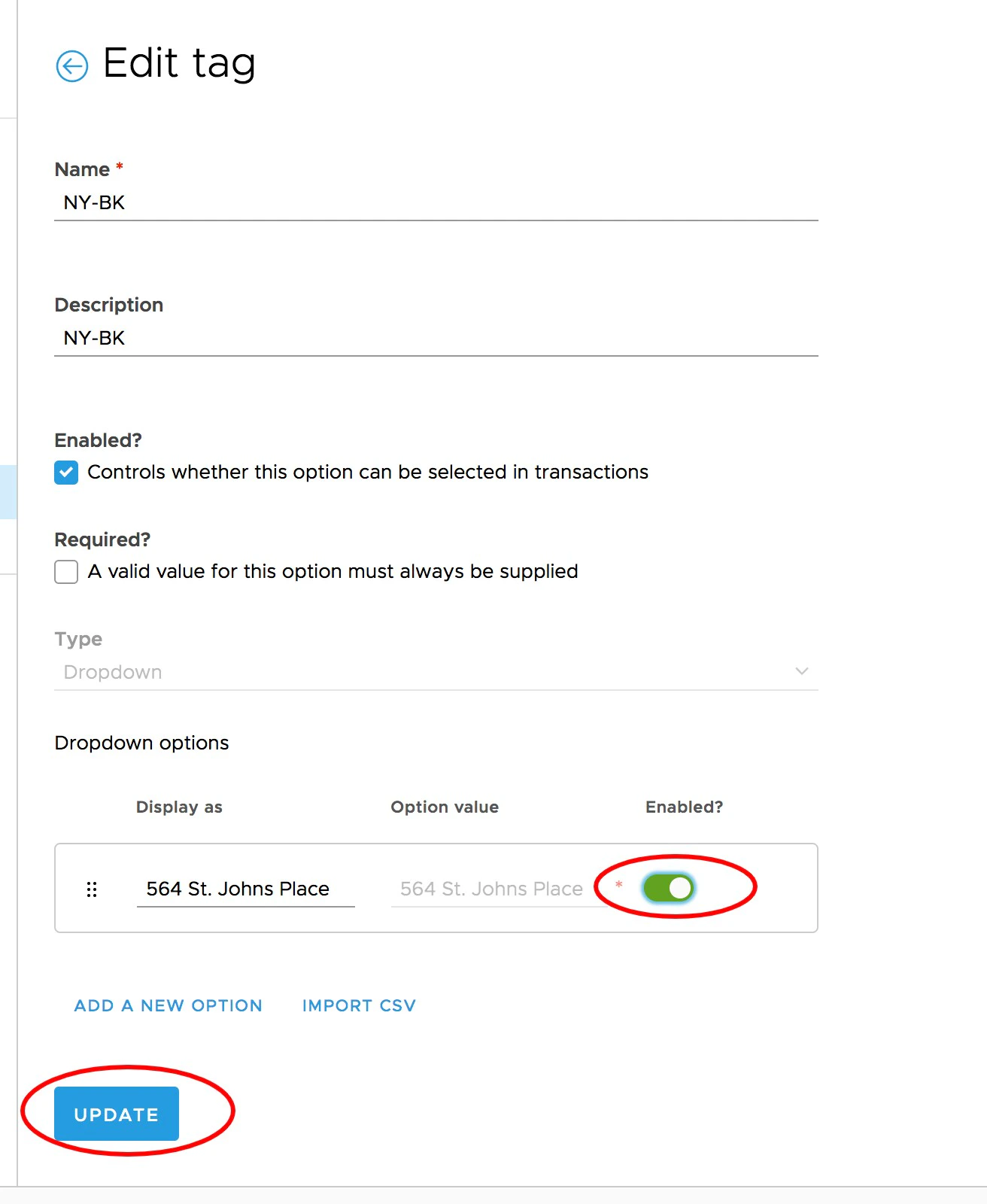
    Locate the tag you wish to Edit, and Click the pencil icon to edit

    <Frame caption="Click the pencil icon to Edit a tag.">
      <img src="https://mintcdn.com/pextest/3rum6SZ_mwr0s7kA/images/administrator-guide/image-34.png?fit=max&auto=format&n=3rum6SZ_mwr0s7kA&q=85&s=1b06ad9e02be3934a9686ea1b7f54f8b" alt="PEX: How to Edit a Tag" width="2196" height="684" data-path="images/administrator-guide/image-34.png" />
    </Frame>
  </Step>

  <Step>
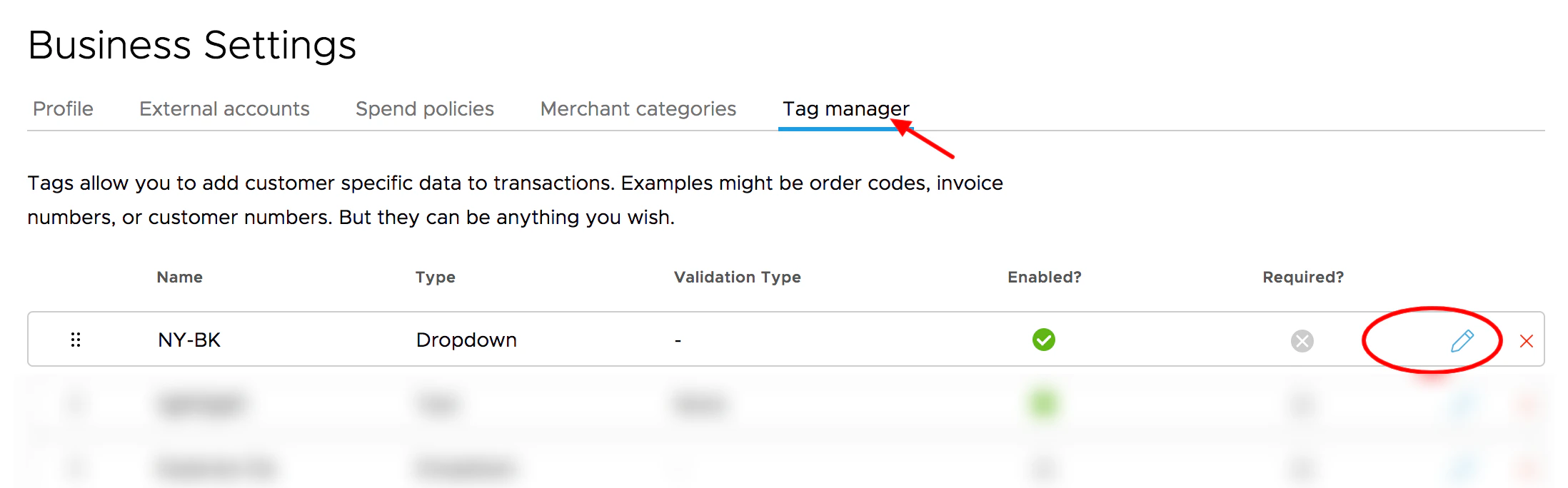
    On the Edit Tag screen, click the toggle to enable or disable

    * Green means the switch is enabled
    * Grey means the switch is disabled
  </Step>

  <Step>
    Click the "Update" button to save your changes

    <Frame caption="Click the enable/disable toggle, then click Update to save changes.">
      <img src="https://mintcdn.com/pextest/3rum6SZ_mwr0s7kA/images/administrator-guide/image-35.png?fit=max&auto=format&n=3rum6SZ_mwr0s7kA&q=85&s=00798c3e7e8012a7706a82f0f2a6a395" alt="PEX: How to Update a Tag" width="1312" height="1600" data-path="images/administrator-guide/image-35.png" />
    </Frame>
  </Step>
</Steps>

<Note>
  **Note:**

  * Enabling or disabling a tag does not change any information for historical transactions.
</Note>