> ## Documentation Index
> Fetch the complete documentation index at: https://support.pexcard.com/llms.txt
> Use this file to discover all available pages before exploring further.
# Enabling Notifications for PEX Requests
> Opt in to email or mobile push notifications so administrators know as soon as cardholders create or cancel funding, reimbursement, and other PEX Requests.
Administrators can opt in to receive emailed or mobile push notifications of new PEX Requests made by cardholders. Administrators can also opt to receive mobile push reminders for unanswered requests. By default, email notifications are disabled and push notifications are enabled.
Admins can receive two types of notifications:
1. A request has been created or has been set to "pending"
2. A "pending" request was canceled by the cardholder
**Note:**
Cardholders cannot opt out of notifications about requests.
[Enabling email notifications](#enabling-email-notifications) | [Enabling mobile push notifications](#disabling-or-enabling-mobile-push-notifications)
## Enabling email notifications
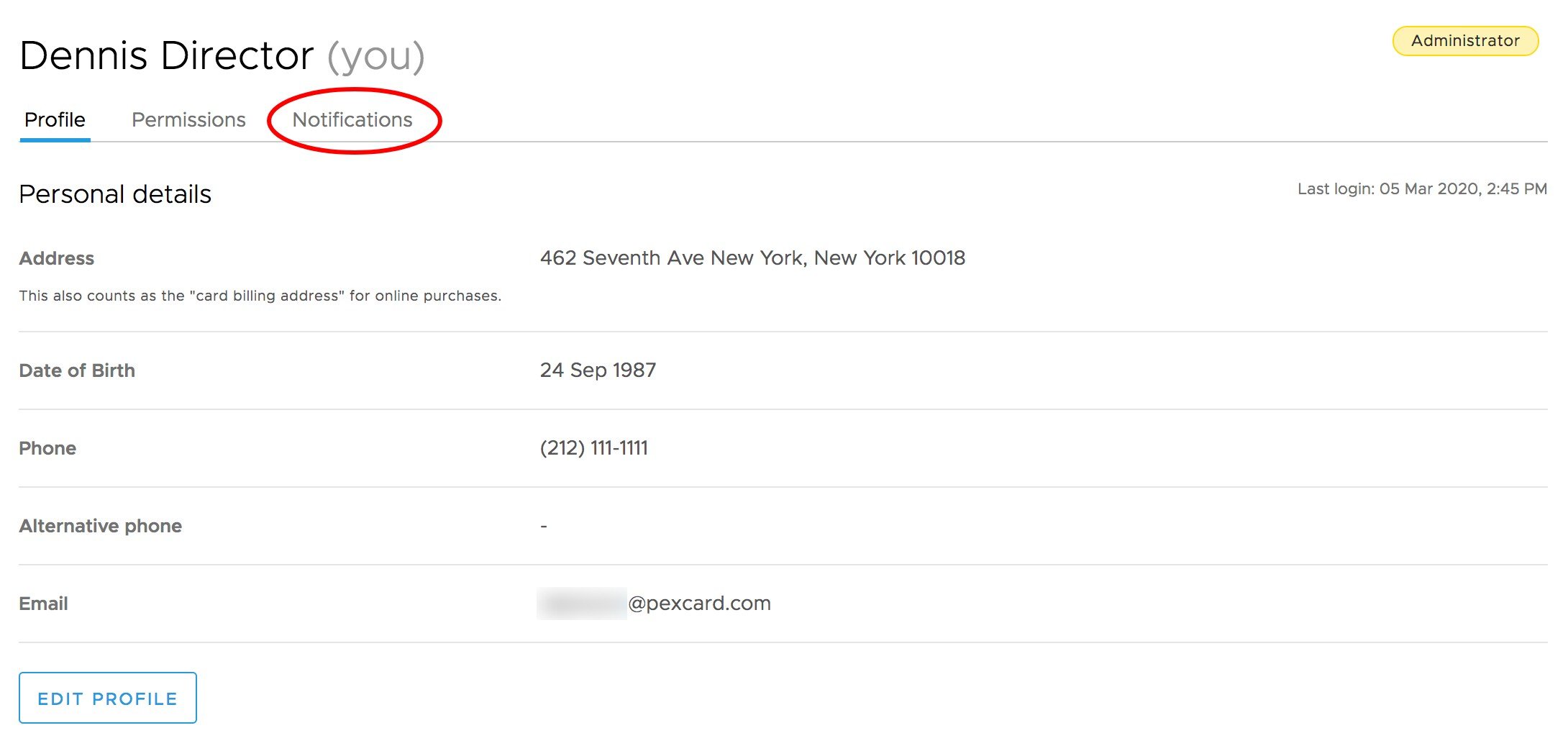
To opt in to receive emailed notifications of new requests and cancelled requests, click the "My Profile" icon in the upper right corner.
 Click the "Notifications" tab on the profile page
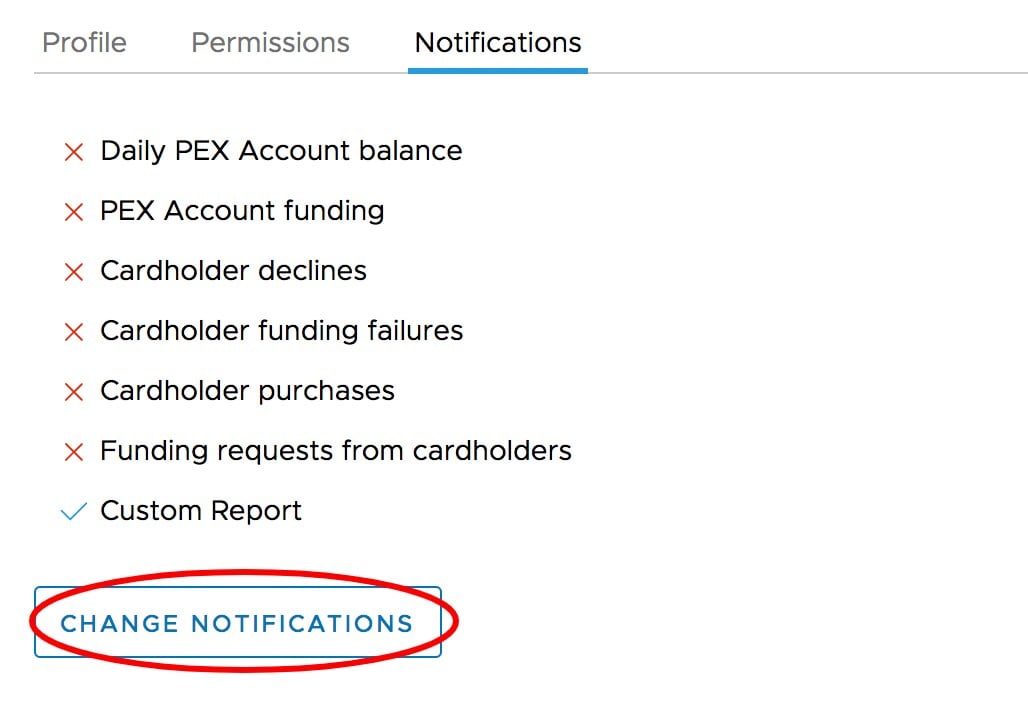
 Click the "Change Notifications" button
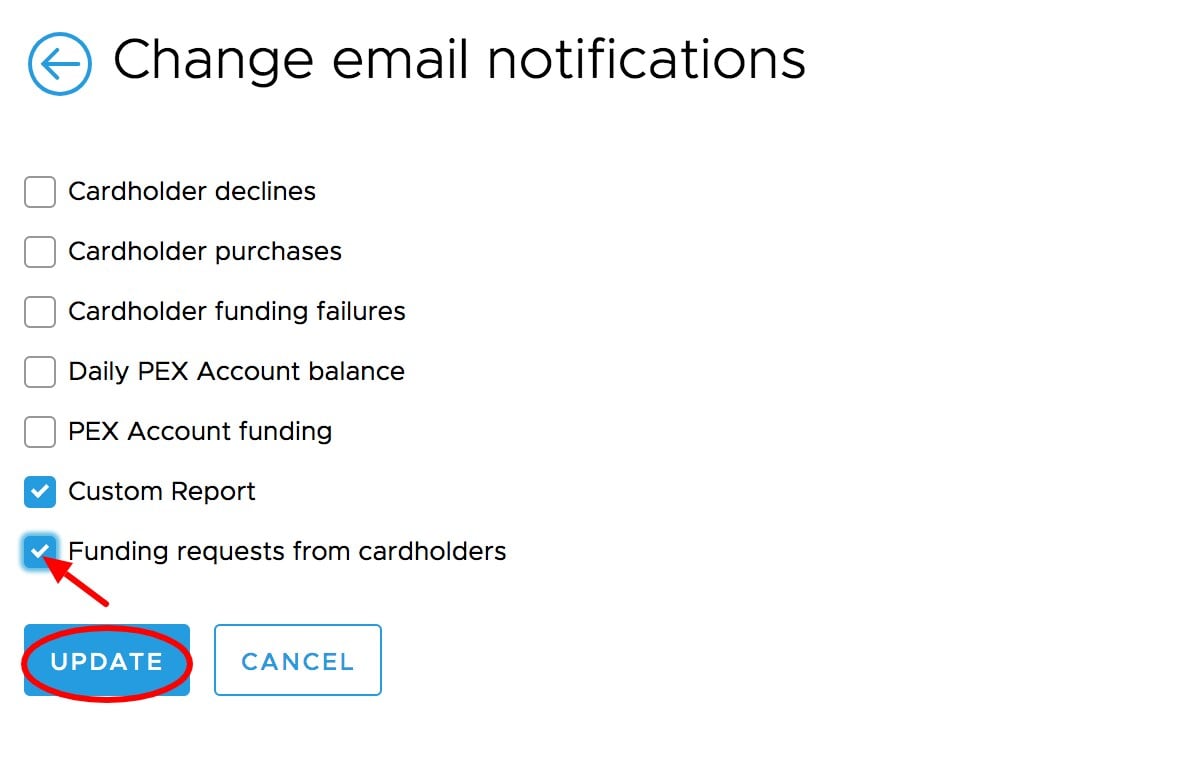
 Check the box titled "Funding requests from cardholders"
Click "Update" to save the changes
**Note:**
Email notifications will be sent to the email address on file in your profile.
Check the box titled "Funding requests from cardholders"
Click "Update" to save the changes
**Note:**
Email notifications will be sent to the email address on file in your profile.
 ## Disabling (or enabling) mobile push notifications
Please note, you must have the [PEX Mobile app for iOS or Android](https://www.pexcard.com/mobile?utm_source=support) to receive push notifications.
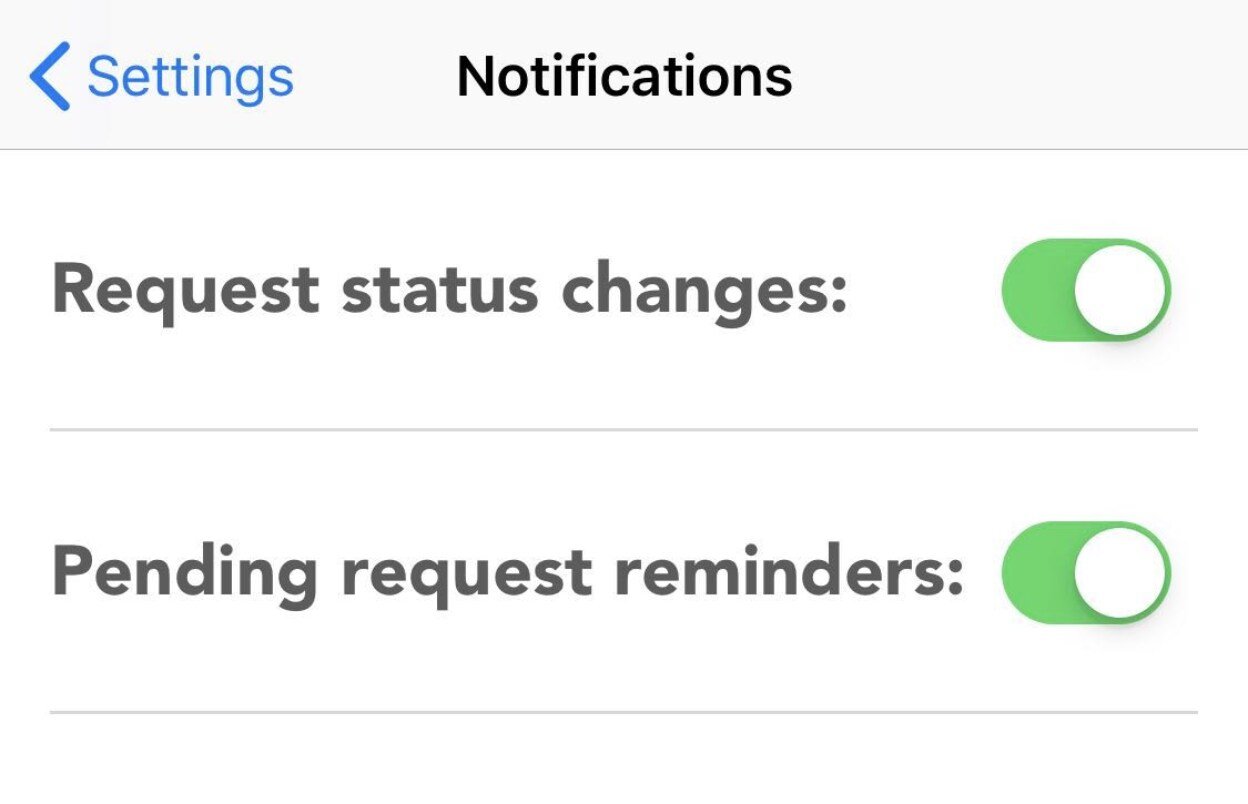
You can also opt to receive notifications of new requests and cancelled requests via your mobile device. Additionally, mobile users can opt to receive a reminder notification if a request has been pending more than 24 hours after it was submitted. Mobile push notifications are enabled by default.
Open the PEX Mobile app and log in using your administrator credentials
Tap the settings icon in the bottom right of the screen.
Tap the menu item titled "Notifications"
Use the toggle buttons to turn the notifications on or off.
## Disabling (or enabling) mobile push notifications
Please note, you must have the [PEX Mobile app for iOS or Android](https://www.pexcard.com/mobile?utm_source=support) to receive push notifications.
You can also opt to receive notifications of new requests and cancelled requests via your mobile device. Additionally, mobile users can opt to receive a reminder notification if a request has been pending more than 24 hours after it was submitted. Mobile push notifications are enabled by default.
Open the PEX Mobile app and log in using your administrator credentials
Tap the settings icon in the bottom right of the screen.
Tap the menu item titled "Notifications"
Use the toggle buttons to turn the notifications on or off.