> ## Documentation Index
> Fetch the complete documentation index at: https://support.pexcard.com/llms.txt
> Use this file to discover all available pages before exploring further.
# Enabling SMS Multi-Factor Authentication on All Programs
> PEX offers Multi-Factor Authentication (MFA) to protect your account by sending you a one-time secure access code to use at login. If your organization has MFA enabled, you will be able to opt in to receive your secure access code via email or text/SMS. If you would prefer to receive your access code via text, follow the steps below to enroll your mobile device in MFA.
## 1. Verify your phone number
You can verify your phone number in two places.
### Verify via login:
Log into your dashboard via dashboard.pexcard.com
Select your phone number
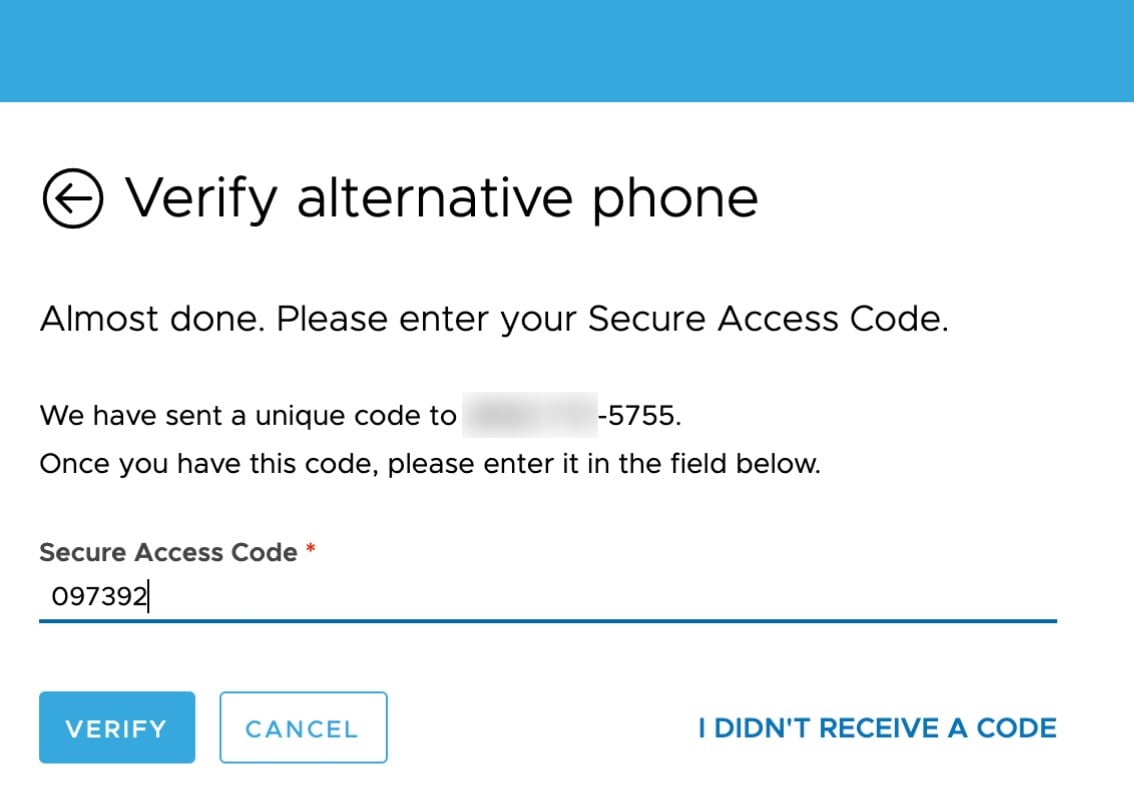
When prompted, enter the secure access code sent to your phone number
### Verify via dashboard:
Log into your dashboard via dashboard.pexcard.com
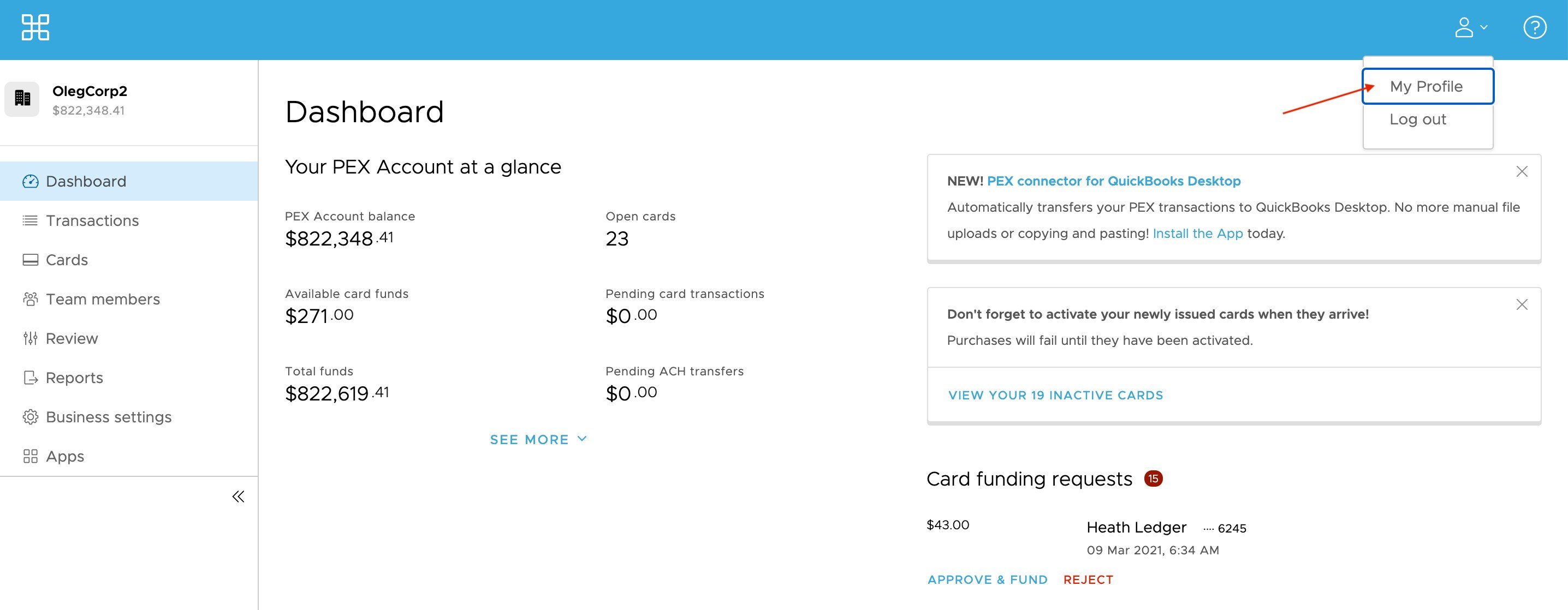
Visit *My Profile*
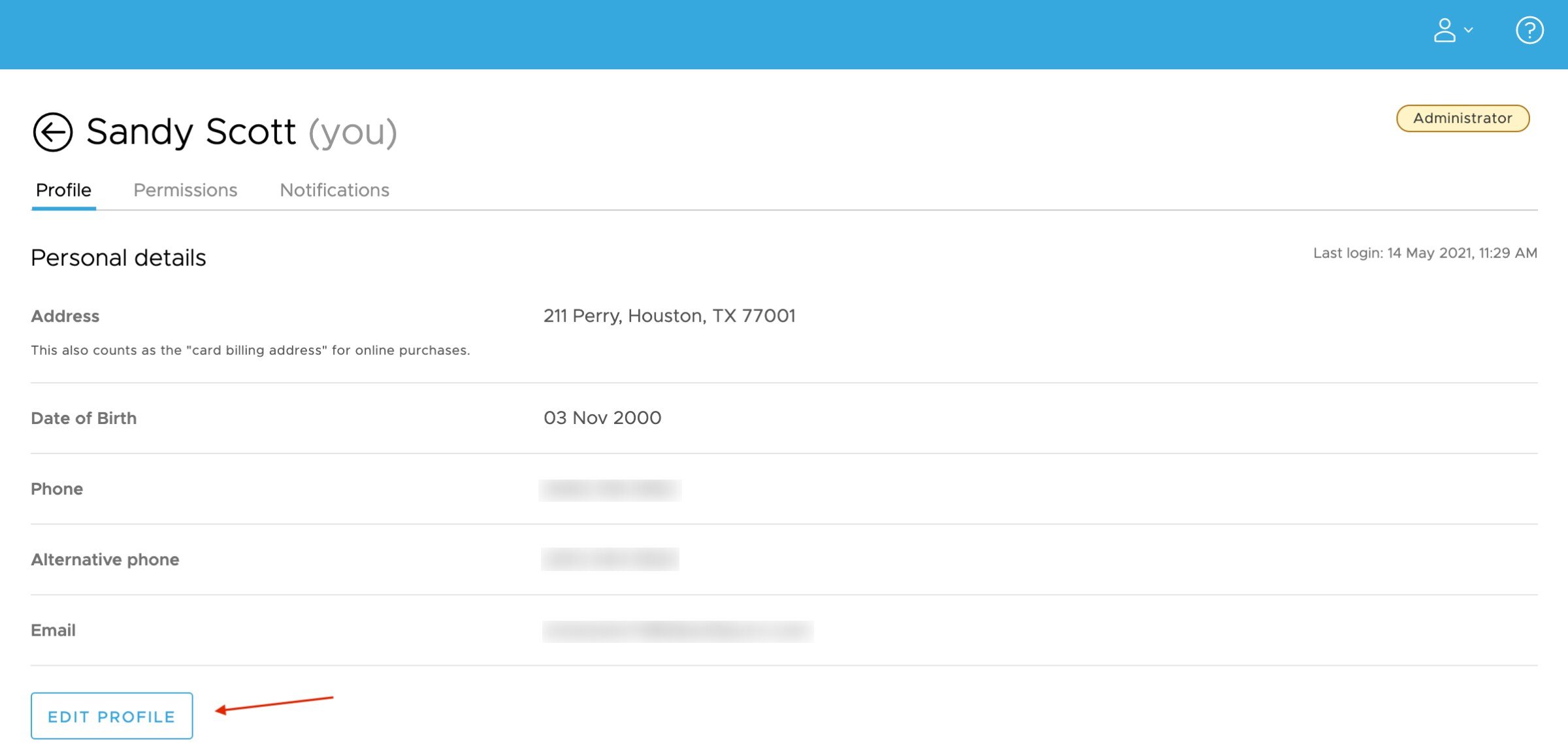
 Edit or add your phone number where you would like to receive SMS MFA notifications
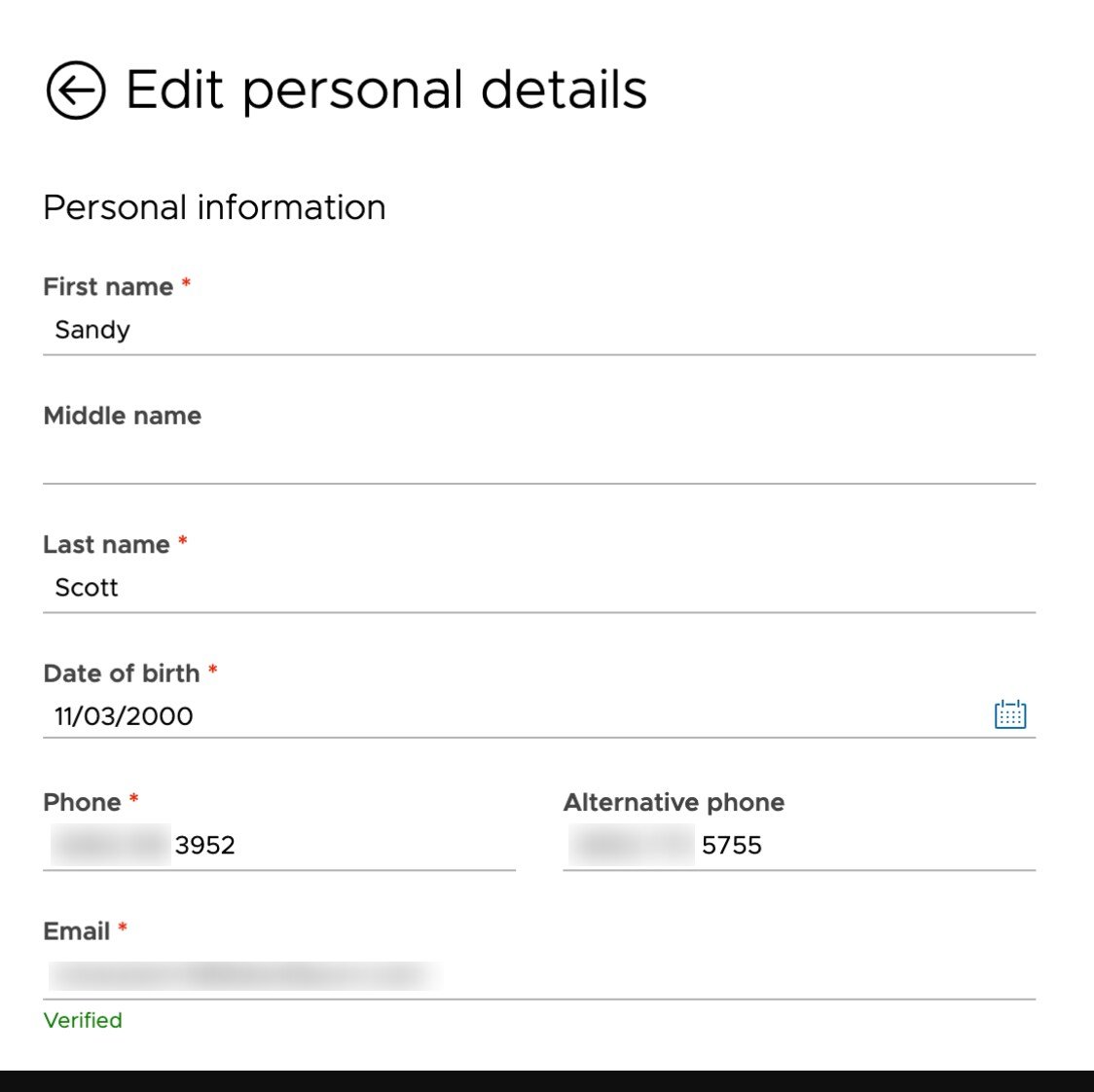 Verify your phone number
 When prompted, enter the secure access code sent to your phone number
 ## 2. Opt into SMS/Text to receive your secure access code
Once your phone number is verified, you can opt in to receive your secure access code via SMS/Text instead of email.
## 2. Opt into SMS/Text to receive your secure access code
Once your phone number is verified, you can opt in to receive your secure access code via SMS/Text instead of email.
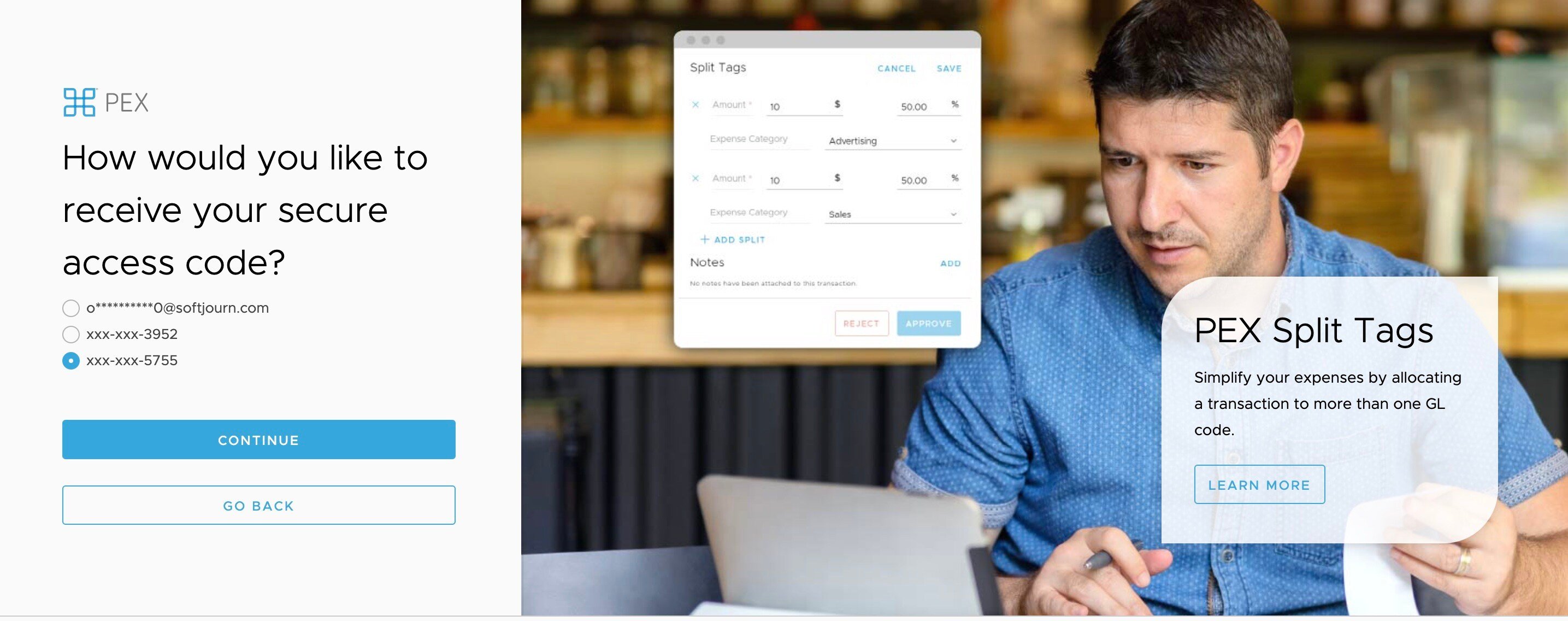
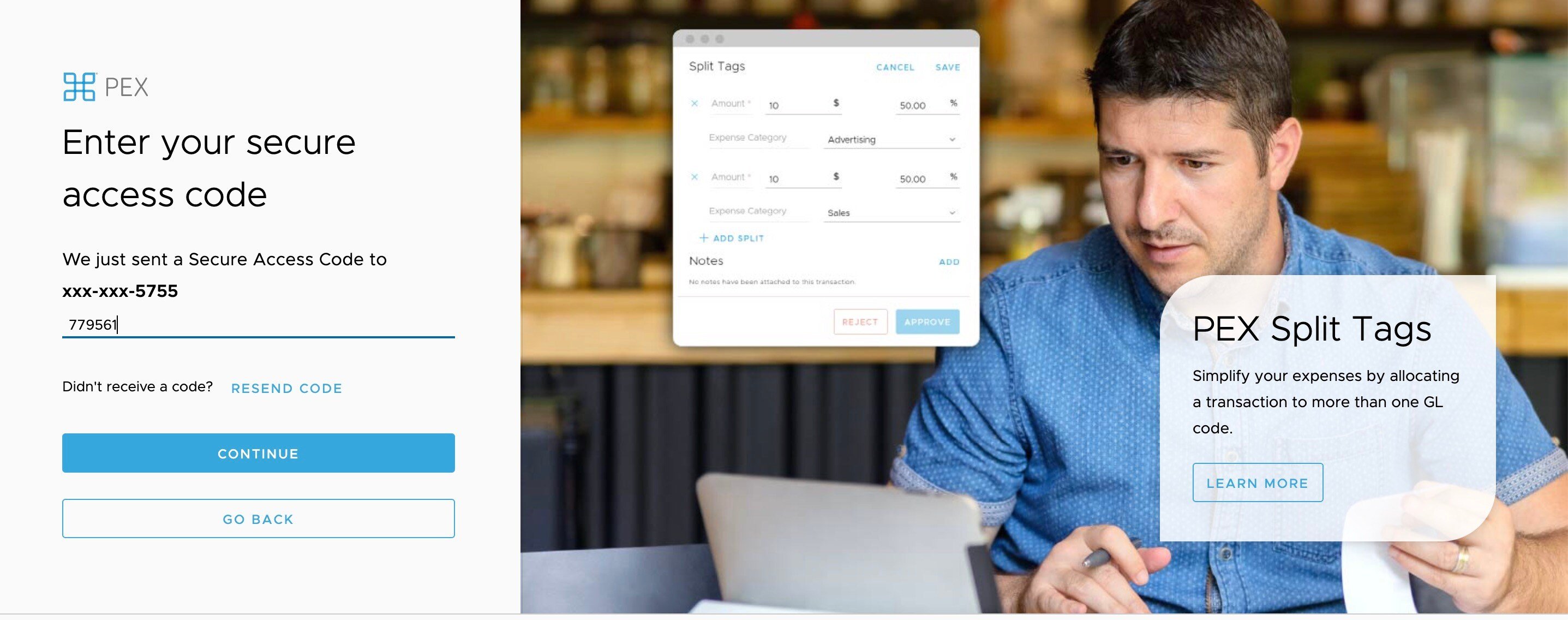 The next time you log in from an unfamiliar device or are resetting your password, and are prompted to enter a secure access code, you will be able to choose SMS/Text as your method of choice for receiving access codes in the future each time you require the code to login.