> ## Documentation Index
> Fetch the complete documentation index at: https://support.pexcard.com/llms.txt
> Use this file to discover all available pages before exploring further.
# How to Add Notes to a Card Transaction (Administrator Site)
> Administrators can add Transaction Notes to cardholder transactions. Notes can add detail to a transaction (e.g., P.O. number, project name, event, etc.) or leave a comment for future reference.
**Note:**
Administrators may not edit or remove a cardholder's note. Cardholders may edit or remove their own notes.
Cardholders cannot see notes left by Administrators, unless the Administrator gives permission.
## How to add transaction notes
Log in to [dashboard.pexcard.com](https://dashboard.pexcard.com?utm_source=support)
Click the "Cards" tab
Locate the cardholder's name (use find in this table or filters if needed)
Click on the cardholder's name
Locate the cardholder transaction (review filters if needed) and click on the transaction
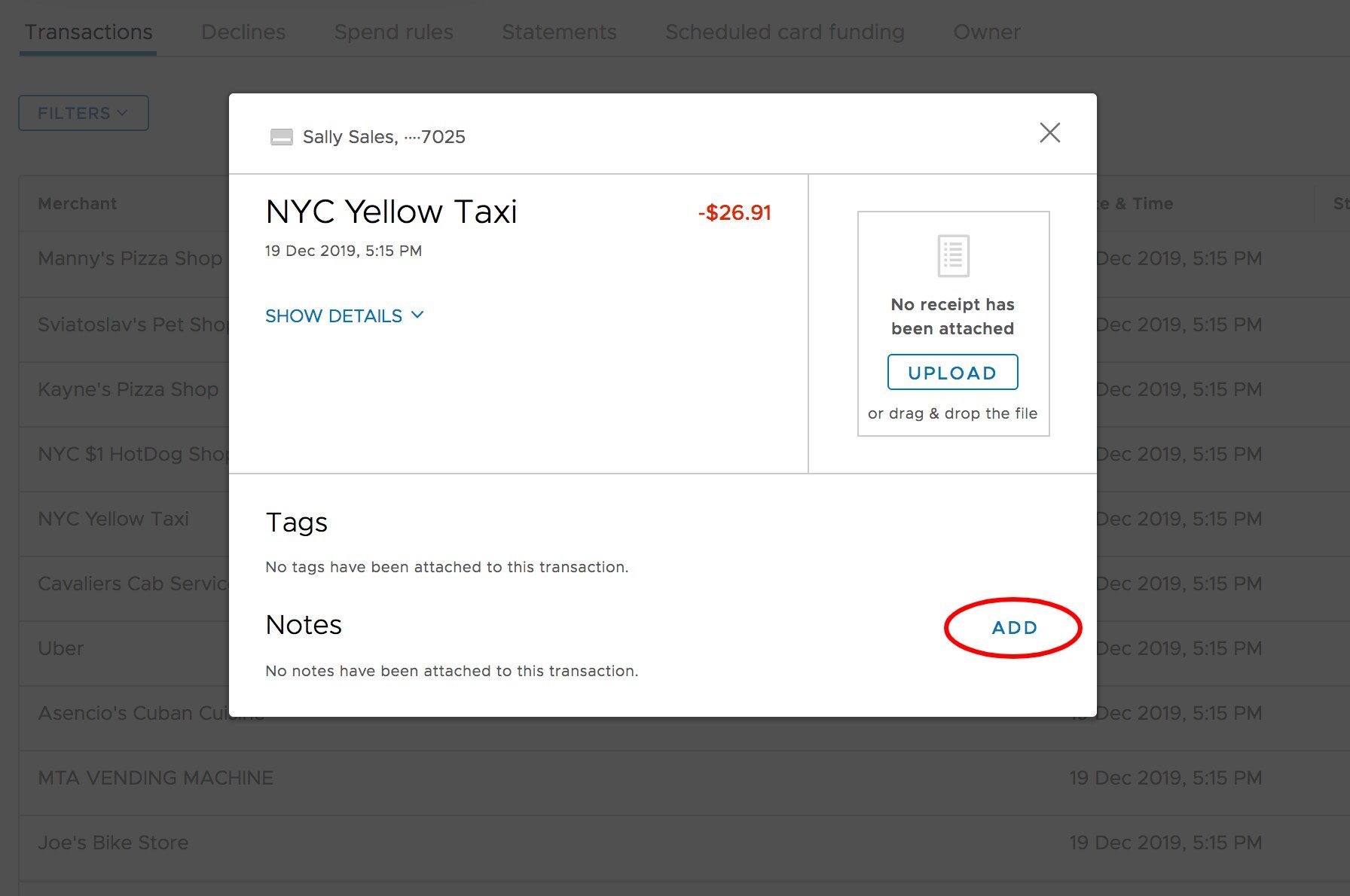
Click "Add" button beside Notes at the bottom right of the transaction window
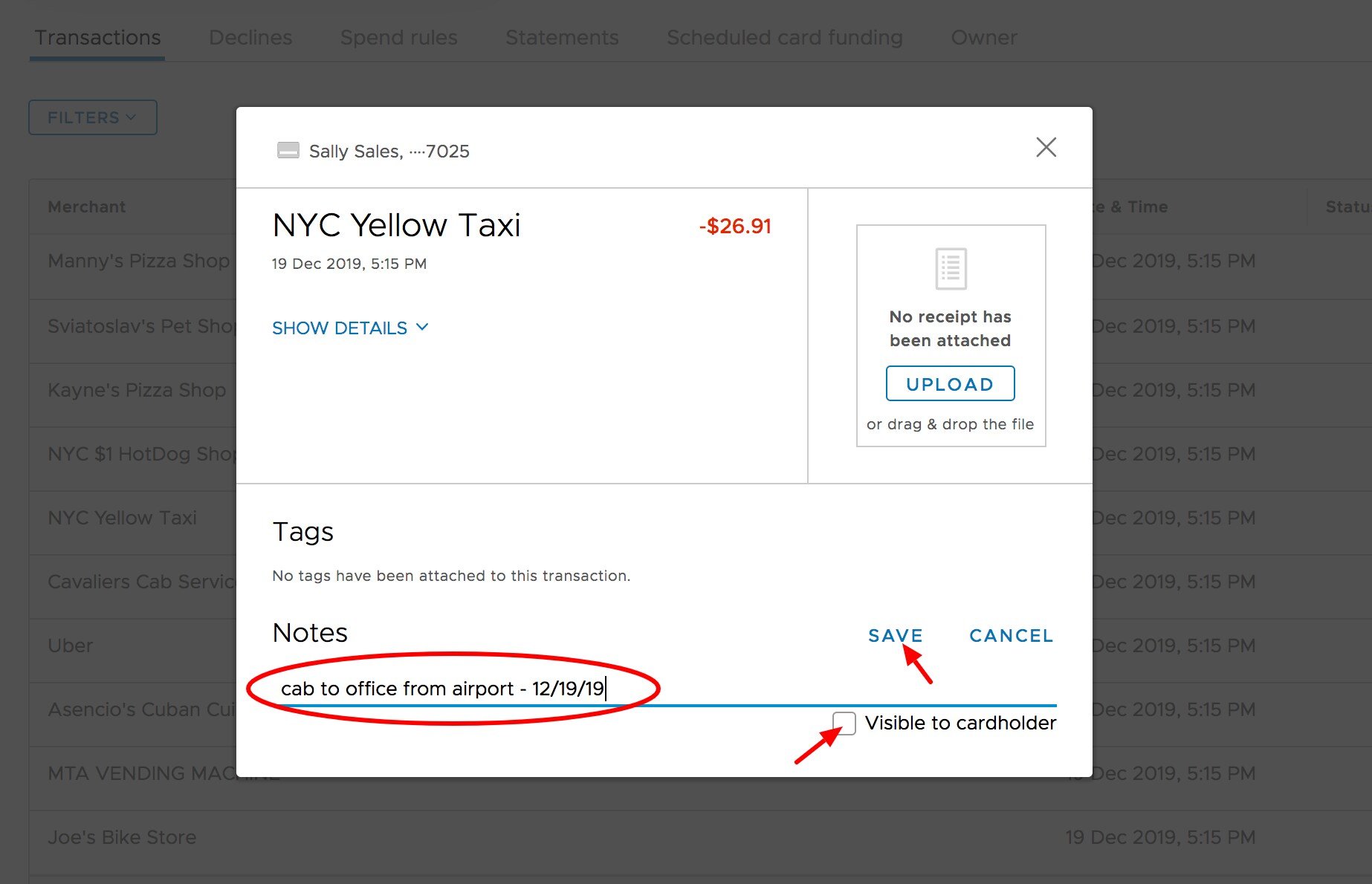
 Type your comments in the Note field
Click "Save" button
* Check the box to make the Note visible to the Cardholder
Type your comments in the Note field
Click "Save" button
* Check the box to make the Note visible to the Cardholder