> ## Documentation Index
> Fetch the complete documentation index at: https://support.pexcard.com/llms.txt
> Use this file to discover all available pages before exploring further.
# How to Block a Card on All Programs
> Temporarily block a PEX card from the dashboard or mobile app to prevent any charges while a cardholder is away, without closing the card.
When a cardholder will not be using the PEX card for a period of time — while on vacation, for instance, or during a leave of absence — the administrator can block the card from use. This will prevent any unauthorized charges from accruing against that card.
Administrators can block cards through the PEX Web App and through the Mobile App.
Download the Mobile App:
* Download the [iOS app from the App Store](https://itunes.apple.com/app/id584331280)
* Download the [Android app from the Google Play Store](https://play.google.com/store/apps/details?id=com.softjourn.pexcardholder)
* The download is free but carrier data rates may apply
[Instructions for the PEX Dashboard site](#how-to-block-a-card-through-the-dashboard-site) | [Instructions for the Mobile App](#how-to-block-a-card-using-the-mobile-app)
## How to block a card through the Dashboard site
Log in to [dashboard.pexcard.com](https://dashboard.pexcard.com?utm_source=support)
Click the "Cards" tab
Locate the cardholder you wish to block, and click on their name
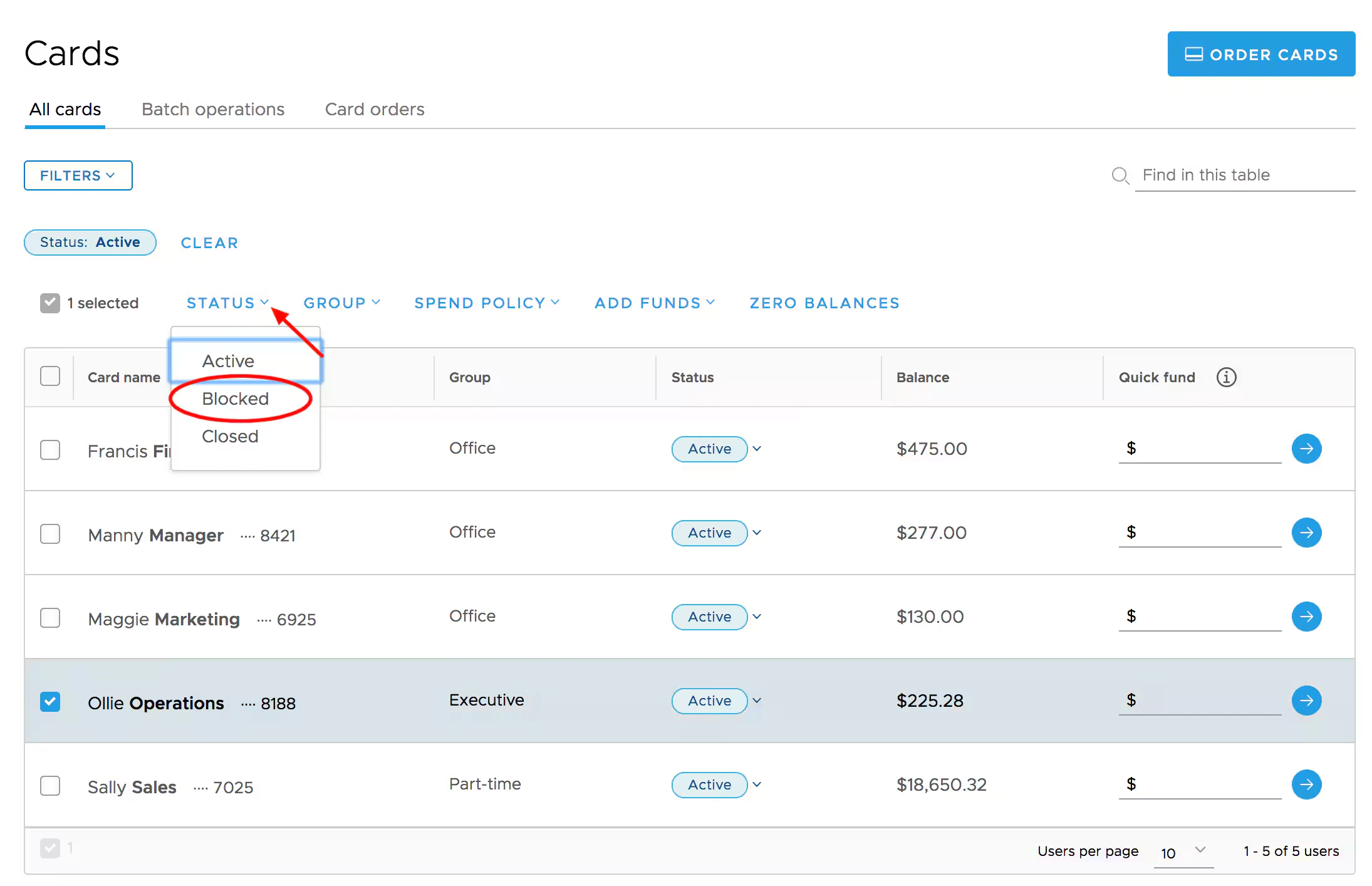
* You can also click the checkbox next to the individual cardholder, or select multiple cards on the cards list (to perform a bulk action)
* Click the "Status" button above the list and select "Blocked" from the dropdown
* Review and click "Change Status" on the confirmation screen when performing a bulk action
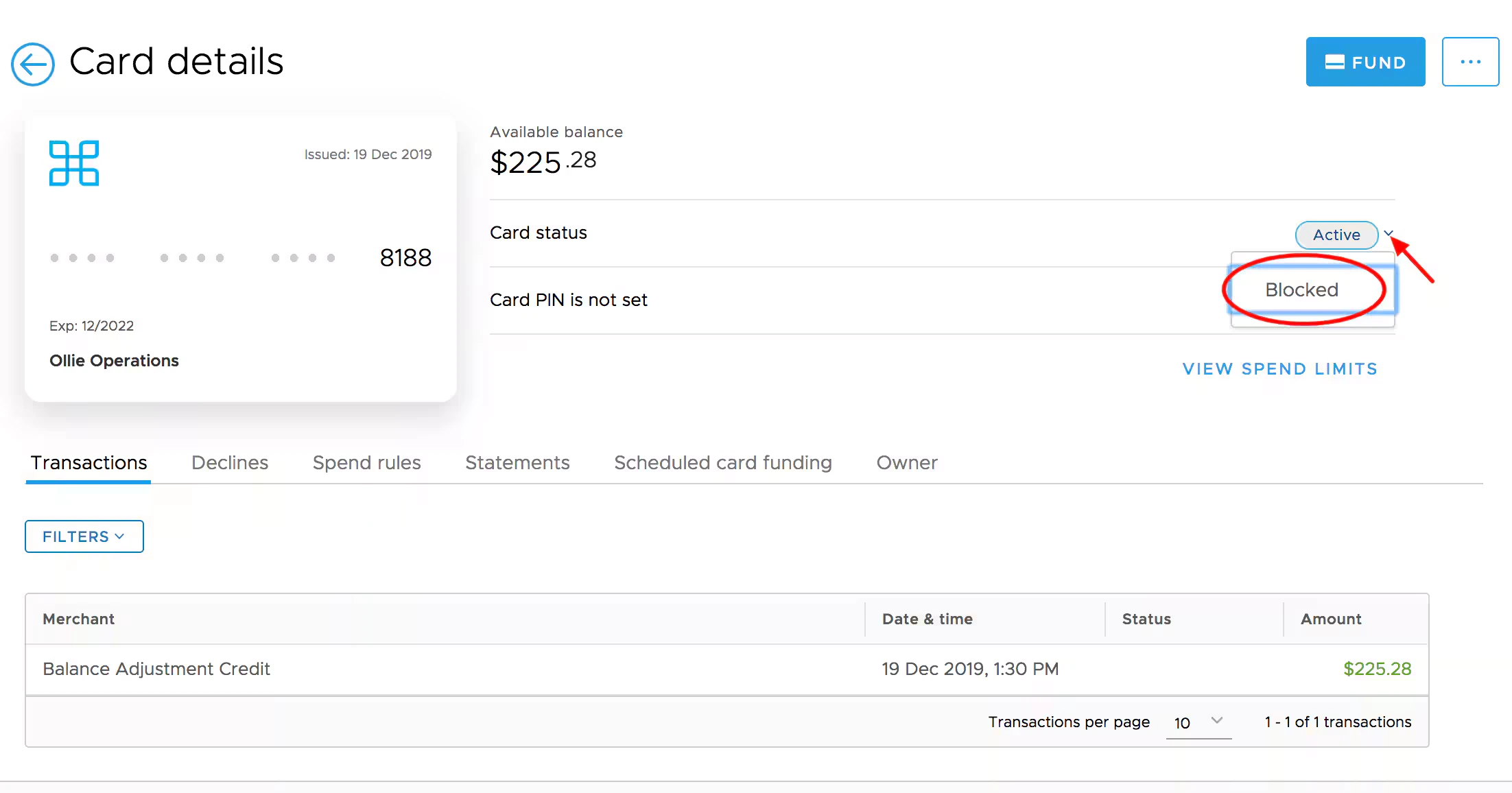
 On the card details screen, click the dropdown next to Card Status
Select "Blocked" from the dropdown
* The status will change instantly. You may need to refresh your web browser to see the new Blocked status in effect.
On the card details screen, click the dropdown next to Card Status
Select "Blocked" from the dropdown
* The status will change instantly. You may need to refresh your web browser to see the new Blocked status in effect.
 ## How to block a card using the Mobile App
Log into the Mobile App
Click the "Cards" icon at the bottom of the screen
Click on the cardholder's name
## How to block a card using the Mobile App
Log into the Mobile App
Click the "Cards" icon at the bottom of the screen
Click on the cardholder's name
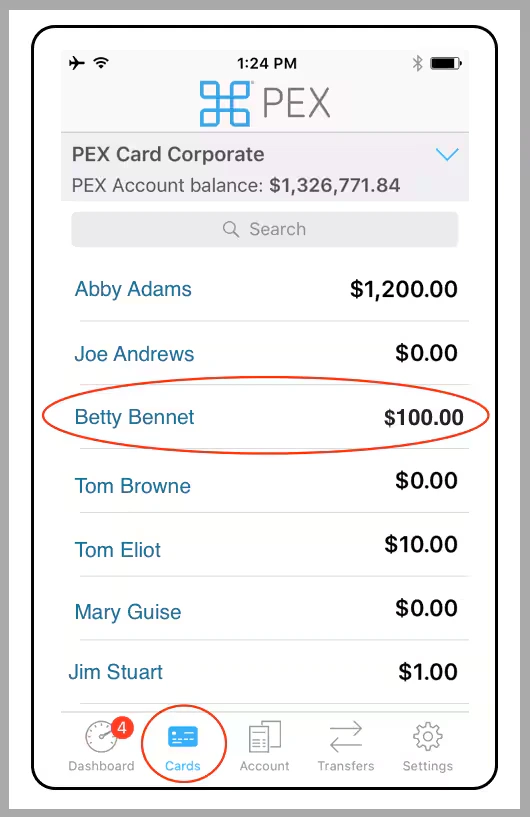 *Click the "Cards" icon. Click on the cardholder's name.*
Under Status, click "Blocked"
*Click the "Cards" icon. Click on the cardholder's name.*
Under Status, click "Blocked"
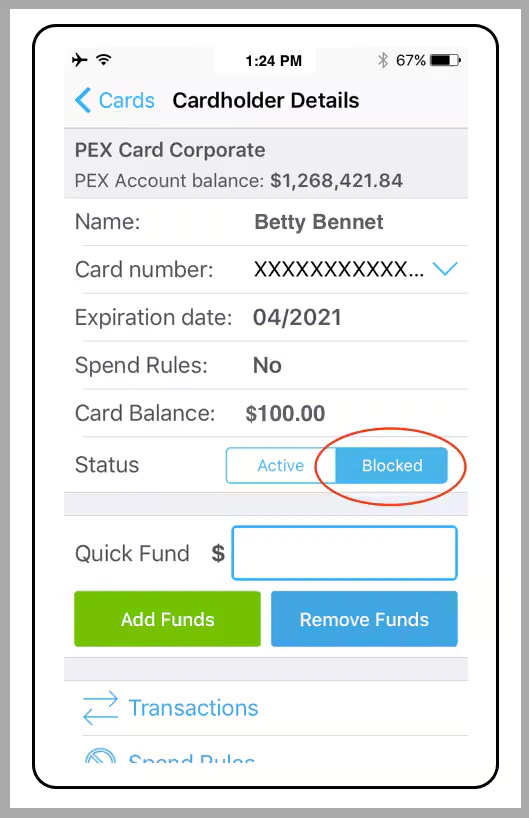 *Click "Blocked"*
**Note:**
* Blocked cards are still considered to be "Open" and will be subject to monthly card fees
* If a cardholder will no longer use the card at all (e.g., if the cardholder leaves the company) you should permanently close the card. Please see [How to Close (Terminate) a Card](/administrator-guide/how-to-close-a-card)
You can also search cards by Status or other criteria. See [Searching for a card](/administrator-guide/searching-for-a-card).
*Click "Blocked"*
**Note:**
* Blocked cards are still considered to be "Open" and will be subject to monthly card fees
* If a cardholder will no longer use the card at all (e.g., if the cardholder leaves the company) you should permanently close the card. Please see [How to Close (Terminate) a Card](/administrator-guide/how-to-close-a-card)
You can also search cards by Status or other criteria. See [Searching for a card](/administrator-guide/searching-for-a-card).