> ## Documentation Index
> Fetch the complete documentation index at: https://support.pexcard.com/llms.txt
> Use this file to discover all available pages before exploring further.
# How to Delete a Receipt (Administrator)
> The PEX platform allows both cardholders and administrators to attach an image of a receipt directly to a merchant transaction.
Once an administrator approves a receipt, however, it becomes un-editable by the cardholder, who can no longer delete it or amend it. Administrators can delete any receipt, whether it's been approved or not.
Administrators can use the PEX Mobile App and the Administrator Site to delete receipts.
[Instructions for Mobile App](/administrator-guide/how-to-delete-a-receipt-administrator#how-to-delete-a-receipt-using-the-mobile-app) | [Instructions for the PEX 2020 site](/administrator-guide/how-to-delete-a-receipt-administrator#how-to-delete-a-receipt-using-the-pex-site)
To download the PEX mobile app
* Download the [iOS app from the App Store](https://itunes.apple.com/app/id584331280)
* Download the [Android app from the Google Play Store](https://play.google.com/store/apps/details?id=com.softjourn.pexcardholder)
* The download is free but carrier data rates may apply
## How to Delete a Receipt Using the Mobile App
Log into the Mobile App
Click on the "Cards" icon
Click on the cardholder's name
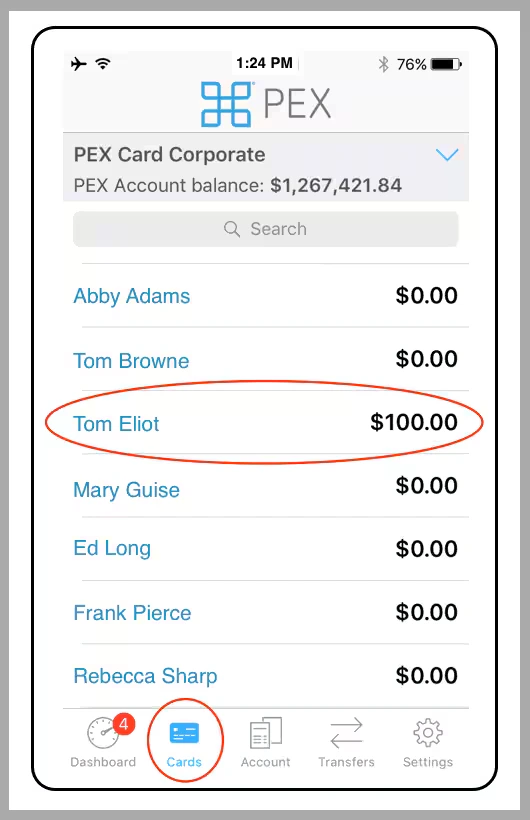 *Click on the "Cards" icon. Click on the cardholder's name.*
Click on "Transactions"
Navigate to the transaction
Click on the transaction
*Click on the "Cards" icon. Click on the cardholder's name.*
Click on "Transactions"
Navigate to the transaction
Click on the transaction
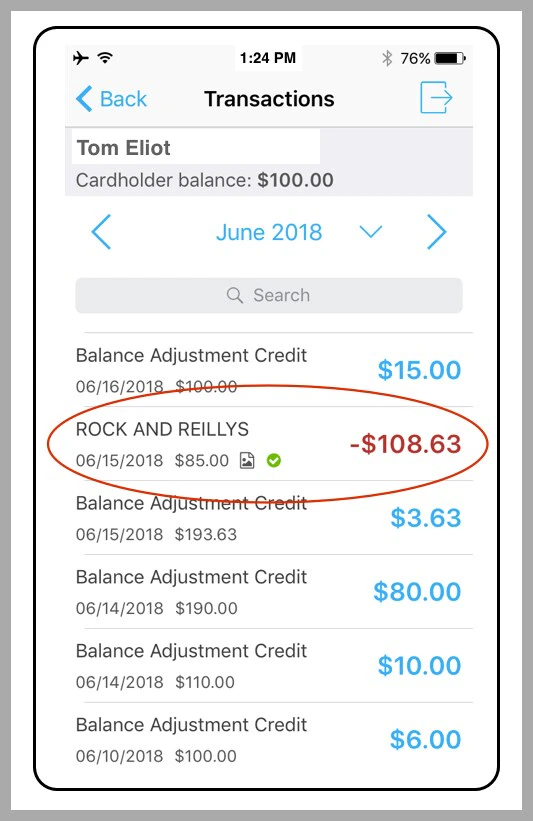 *Click on the transaction*
Click on the receipt icon in the Transaction Details
*Click on the transaction*
Click on the receipt icon in the Transaction Details
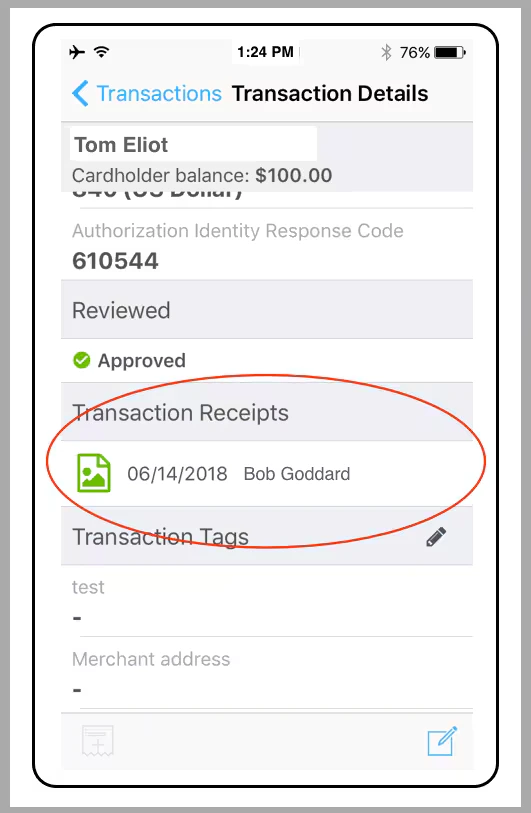 *Click on the receipt icon*
Click on the Trash Can icon at lower right
*Click on the receipt icon*
Click on the Trash Can icon at lower right
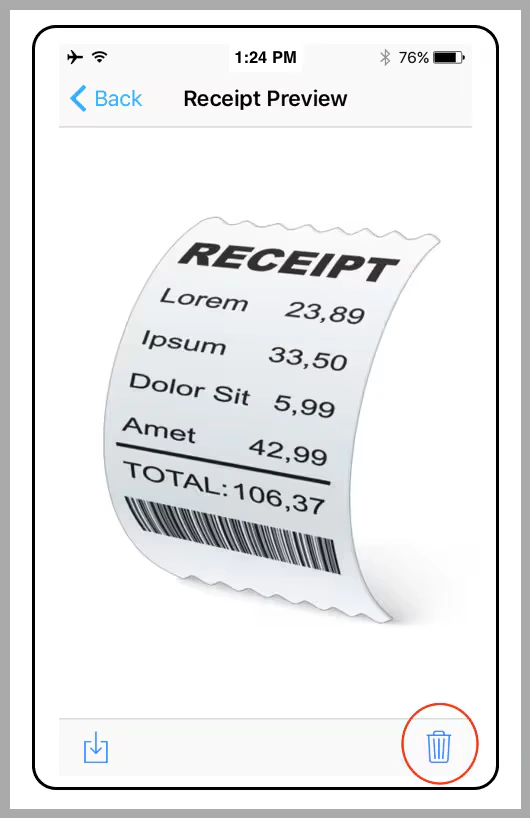 *Click on the Trash Can icon*
Click "Delete" in the confirmation dialogue box
**Note:**
* Deleting a receipt does not delete any transaction Notes
* Once you delete the receipt, you can attach a new file to the transaction
## How to Delete a Receipt Using the PEX Site
Log in to [dashboard.pexcard.com](https://dashboard.pexcard.com?utm_source=support)
Click the Cards tab
Locate the name of the cardholder, and click on it
*Click on the Trash Can icon*
Click "Delete" in the confirmation dialogue box
**Note:**
* Deleting a receipt does not delete any transaction Notes
* Once you delete the receipt, you can attach a new file to the transaction
## How to Delete a Receipt Using the PEX Site
Log in to [dashboard.pexcard.com](https://dashboard.pexcard.com?utm_source=support)
Click the Cards tab
Locate the name of the cardholder, and click on it
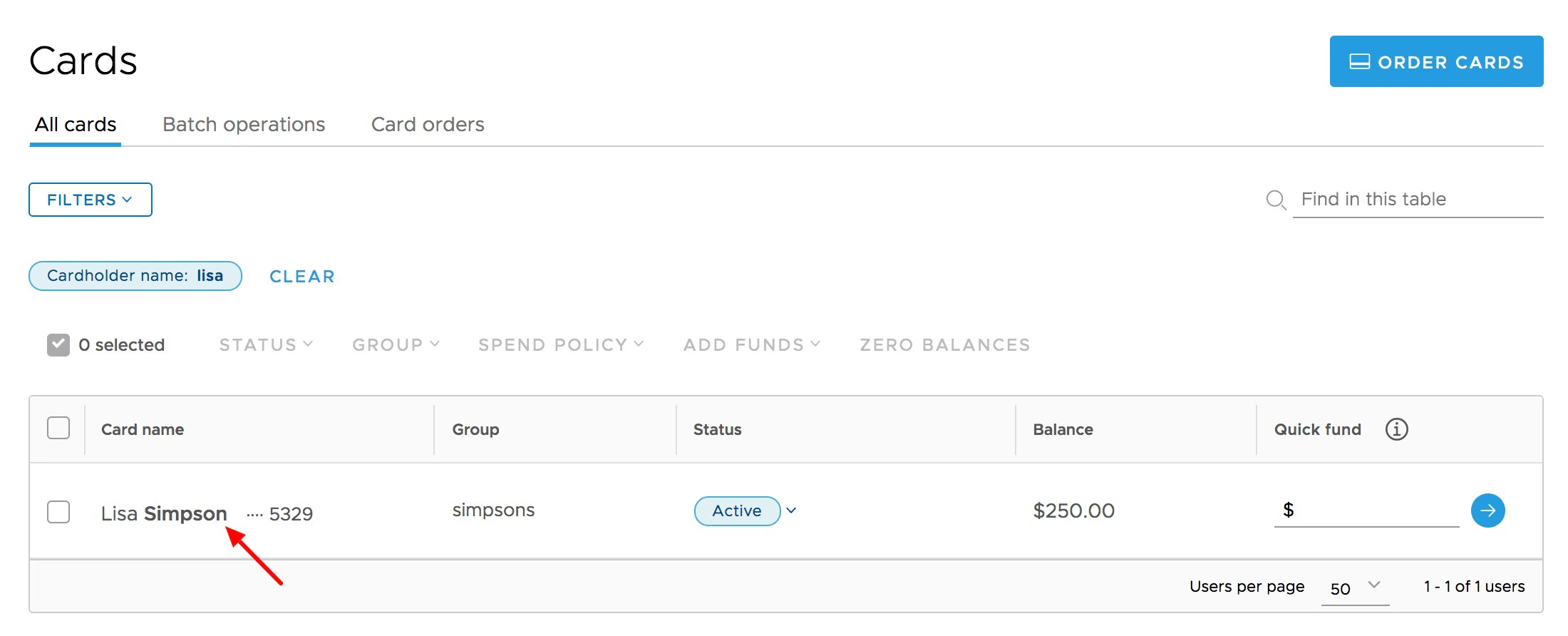 In the transaction list, Click on the transaction for which you wish to delete its attached receipt file
* If a receipt is uploaded, it will be visible on the upper right side of the transaction window
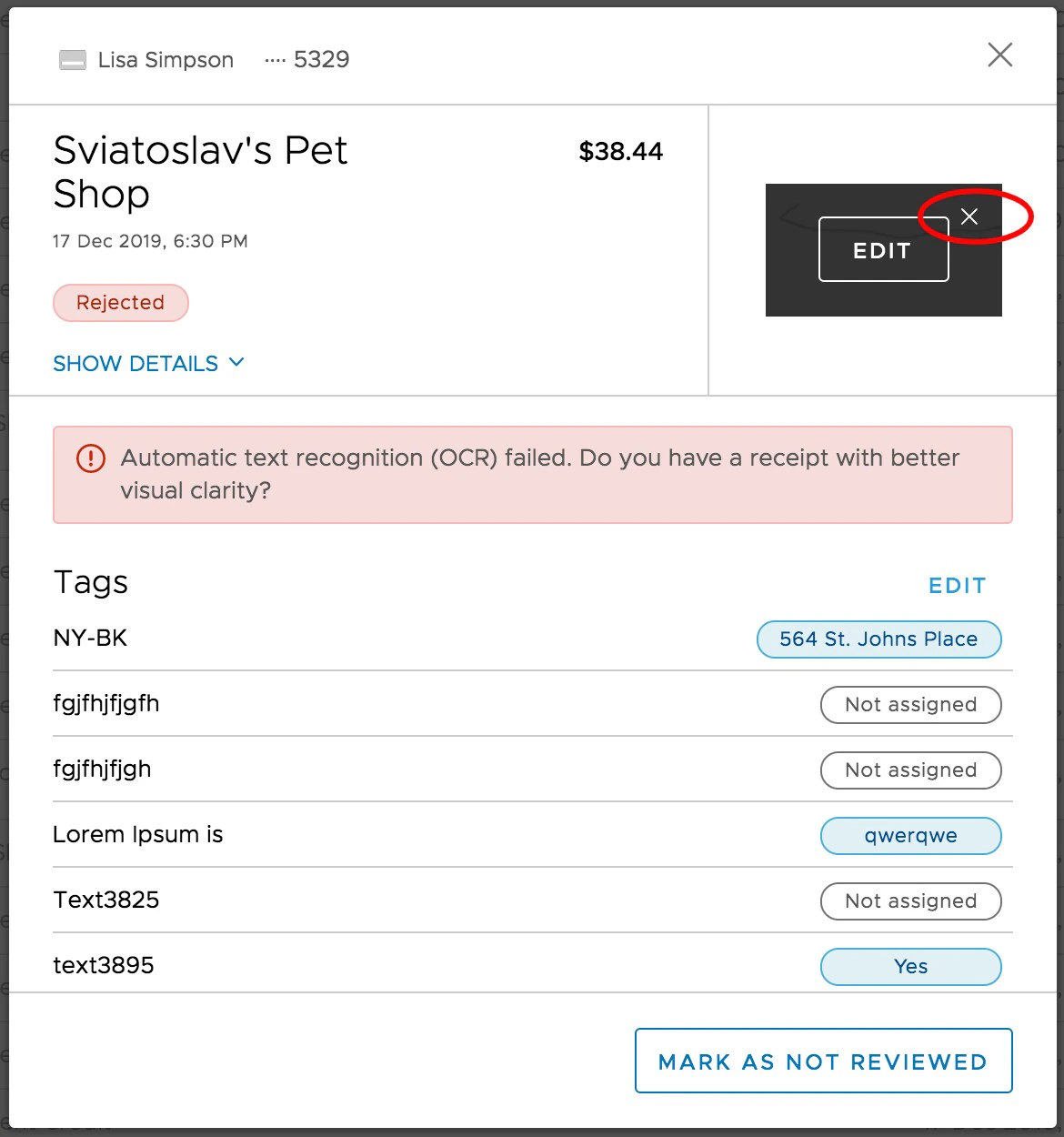
Click the "X" in the upper right corner of the receipt image when you hover your cursor over the box to edit or delete
In the transaction list, Click on the transaction for which you wish to delete its attached receipt file
* If a receipt is uploaded, it will be visible on the upper right side of the transaction window
Click the "X" in the upper right corner of the receipt image when you hover your cursor over the box to edit or delete
 Click the "Delete" button on the confirmation screen
Alternatively, you can also open the receipt to edit it and click the "trash can" icon on the left of the receipt panel.
**Note:**
* Deleting a receipt does not delete any transaction Notes
* Once you delete the receipt, you can attach a new file to the transaction
Click the "Delete" button on the confirmation screen
Alternatively, you can also open the receipt to edit it and click the "trash can" icon on the left of the receipt panel.
**Note:**
* Deleting a receipt does not delete any transaction Notes
* Once you delete the receipt, you can attach a new file to the transaction