> ## Documentation Index
> Fetch the complete documentation index at: https://support.pexcard.com/llms.txt
> Use this file to discover all available pages before exploring further.

# How To Find Cards using Filters on All Programs

> You can use the Filters on the Cards list to find and manage multiple cards at the same time.

## How to manage cards using filters

<Steps>
  <Step>
    Log in to [dashboard.pexcard.com](https://dashboard.pexcard.com?utm_source=support)
  </Step>

  <Step>
    Click the "Cards" tab
  </Step>

  <Step>
    Click "Filters"
  </Step>

  <Step>
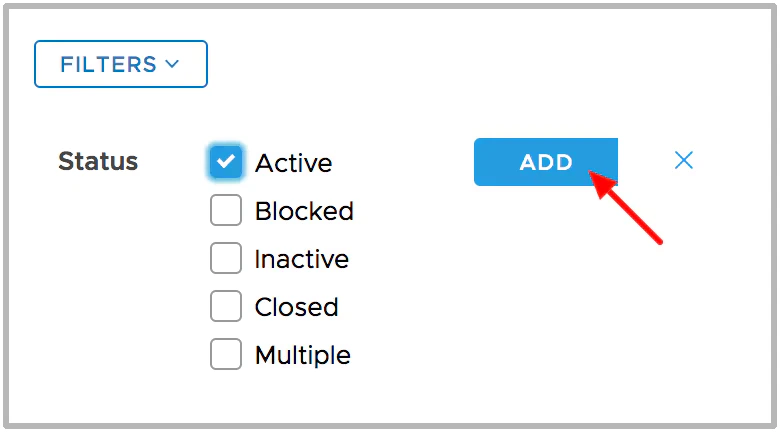
    Select your desired parameters from the dropdown menus. Available filters include:

    * Cardholder name
    * Card number
    * Card ID
    * Group
    * Spend policy
    * Status
    * Has PIN?
    * Balance
    * Date issued
    * Expiration date
    * Date last used
  </Step>

  <Step>
    Type relevant details in the blank fields for each filter (if applicable)
  </Step>

  <Step>
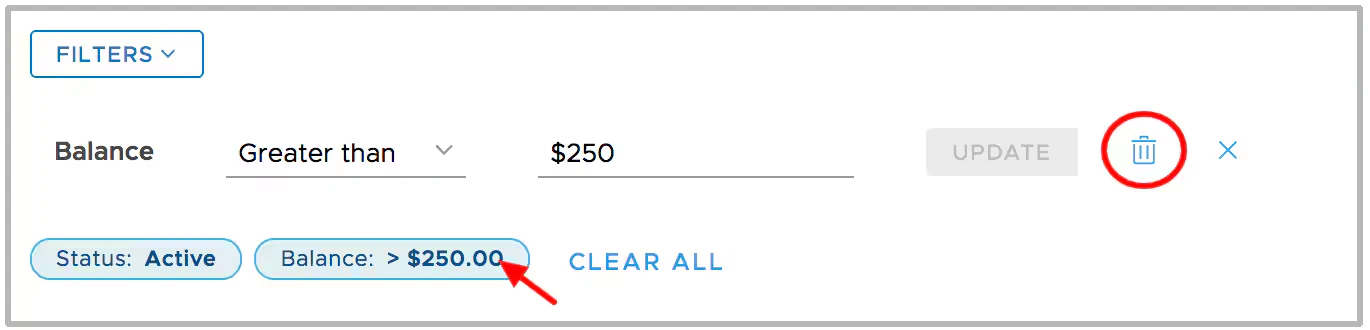
    Click **Add** or the trash can icon to add or remove filters when applying multiple filters

    * Click on an existing filter badge to edit the filter
    * The "x" closes the filter edit window
    * Use the "Clear All" button to clear all filters and start over
  </Step>

  <Step>
    After clicking "Add", the list displayed is the filtered list

    * There is no limit to the number of filters you can apply to a list
  </Step>
</Steps>

<Frame>
  <img src="https://mintcdn.com/pextest/xypx-ybj5g7dsVoG/images/administrator-guide/managing-cards/image-56.avif?fit=max&auto=format&n=xypx-ybj5g7dsVoG&q=85&s=af25c4ed0b9b5f8ad585bdd6e7b82794" alt="" width="780" height="436" data-path="images/administrator-guide/managing-cards/image-56.avif" />
</Frame>

<Frame>
  <img src="https://mintcdn.com/pextest/xypx-ybj5g7dsVoG/images/administrator-guide/managing-cards/image-57.avif?fit=max&auto=format&n=xypx-ybj5g7dsVoG&q=85&s=93df64f3b0b2501e88c2e554c6933da4" alt="" width="1370" height="330" data-path="images/administrator-guide/managing-cards/image-57.avif" />
</Frame>

To learn more about applying bulk actions to the card list, see below:

<CardGroup>
  <Card title="How to activate multiple cards" href="/administrator-guide/how-to-activate-multiple-cards" icon="check-double" horizontal />

  <Card title="How to fund multiple PEX cards at the same time" href="/administrator-guide/how-to-fund-multiple-pex-cards-at-the-same-time" icon="coins" horizontal />

  <Card title="How to remove funds from multiple cards" href="/administrator-guide/how-to-remove-funds-from-multiple-cards" icon="minus" horizontal />

  <Card title="How to close multiple cards at once" href="/administrator-guide/how-to-close-multiple-cards-at-once-on-all-programs" icon="layer-group" horizontal />

  <Card title="How to assign cardholders to groups" href="/administrator-guide/how-to-assign-cardholders-to-groups-and-how-to-create-new-groups" icon="users" horizontal />
</CardGroup>