> ## Documentation Index
> Fetch the complete documentation index at: https://support.pexcard.com/llms.txt
> Use this file to discover all available pages before exploring further.
# How to Fund Multiple PEX Cards at the Same Time
> The PEX system allows you to bulk fund cards / quickly fund multiple cards at once.
## How to fund multiple cards at the same time
Log into [dashboard.pexcard.com](https://dashboard.pexcard.com?utm_source=support)
Click the "Cards" tab
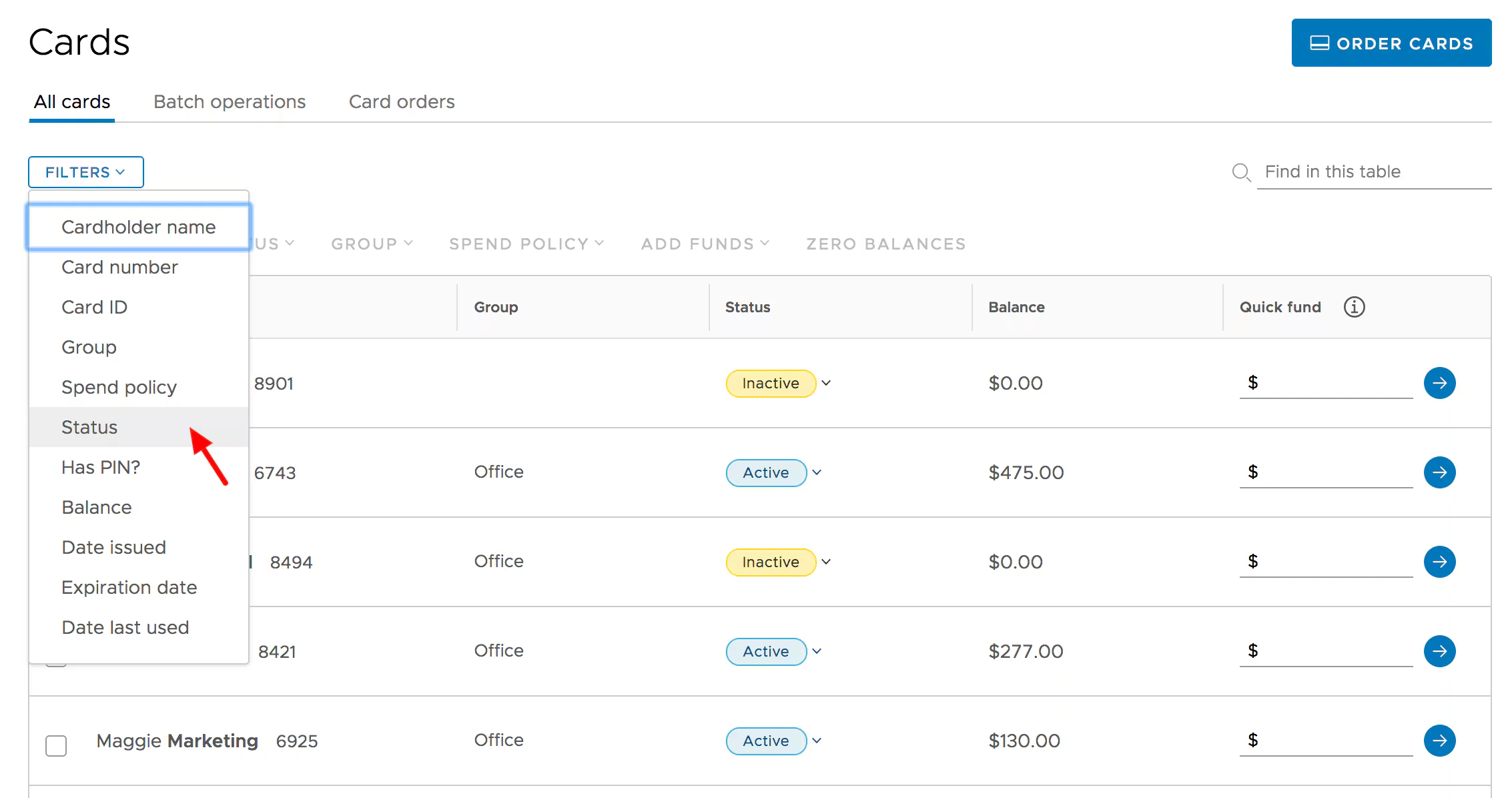
Click the "Filters" button and select "Status"
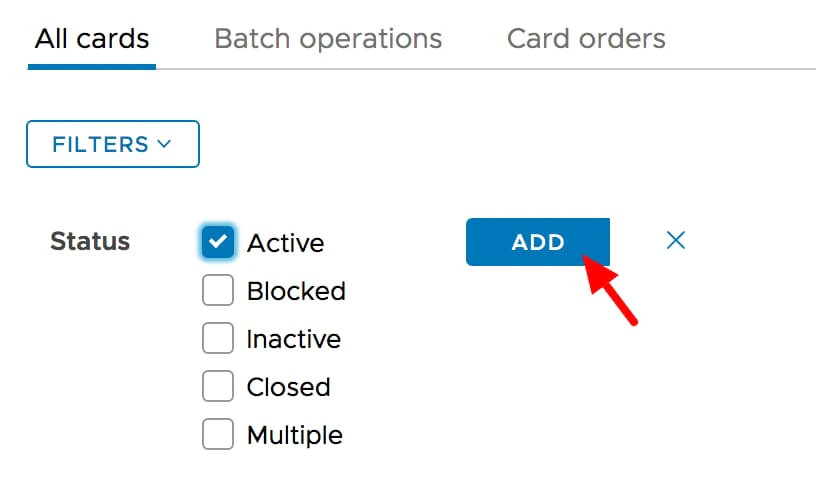
*Filter "Active" cards to find the cards you want to fund*
* Check the boxes to the left of names of cards you want to fund
* Select a value from the drop down menu in the "Add Funds" column
* Review the values entered in the confirmation screen
* Click the "Fund Cardholders" button on the confirmation screen\
Funds will be added to the selected cards, and removed from your main PEX account
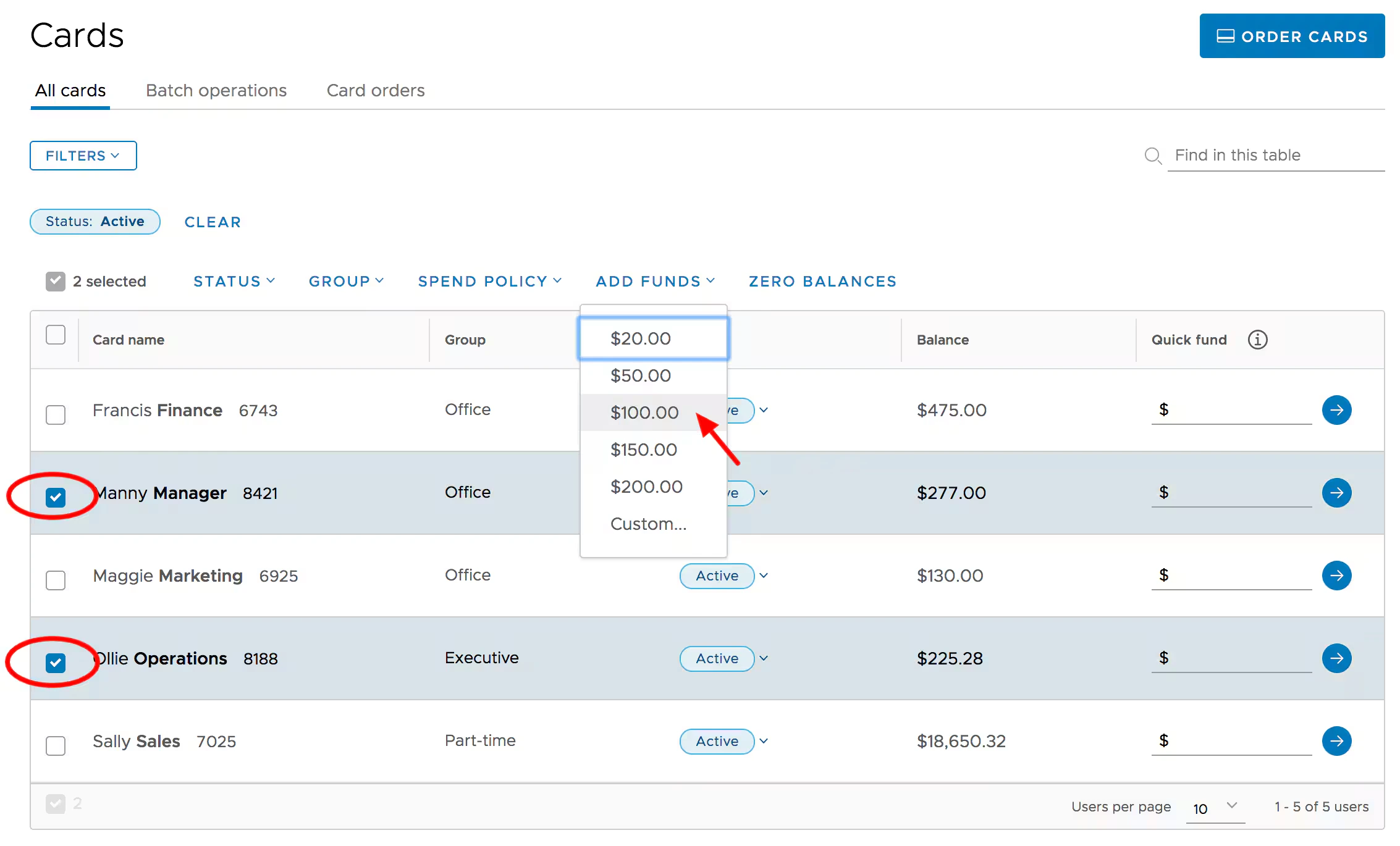
*Check the boxes next to the cardholders' names. Use the "Add Funds" column dropdown to add funds to those cards.*
*Confirm the amounts you wish to fund, and click "Fund Cardholders"*
You may find this article useful when you need to defund or remove funding from multiple PEX Business Prepaid cards: "[How to Defund Multiple Cards"](/administrator-guide/how-to-remove-funds-from-multiple-cards)
You can also use the search functionality to find multiple cards to fund or remove funding from. Please see "[How to Search Cards](/administrator-guide/searching-for-a-card)"
 *Filter "Active" cards to find the cards you want to fund*
* Check the boxes to the left of names of cards you want to fund
* Select a value from the drop down menu in the "Add Funds" column
* Review the values entered in the confirmation screen
* Click the "Fund Cardholders" button on the confirmation screen\
Funds will be added to the selected cards, and removed from your main PEX account
*Filter "Active" cards to find the cards you want to fund*
* Check the boxes to the left of names of cards you want to fund
* Select a value from the drop down menu in the "Add Funds" column
* Review the values entered in the confirmation screen
* Click the "Fund Cardholders" button on the confirmation screen\
Funds will be added to the selected cards, and removed from your main PEX account
 *Check the boxes next to the cardholders' names. Use the "Add Funds" column dropdown to add funds to those cards.*