> ## Documentation Index
> Fetch the complete documentation index at: https://support.pexcard.com/llms.txt
> Use this file to discover all available pages before exploring further.
# How to limit tag values with Tag Restrictions
> Control which tags are visible to different groups or departments, reducing errors and simplifying coding.
*Note:*
* *Tag restrictions are available when the "Use Tag Option Group Restrictions" setting is enabled. Contact PEX support if you’re unable to create groups.*
* *Cardholder Groups are only available with [selected plans](https://www.pexcard.com/credit-prepaid-expense-pricing/?utm_source=support).*
* *This feature applies to [Dropdown](/administrator-guide/how-to-setup-and-create-tags-with-tag-manager#dropdown) tags only.*
* *To see the 'Tag Manager' tab and edit tags, you must have either the 'Manage Cardholders' or 'Edit Business Settings & Apps' permission.*
## Set tag availability
Follow the steps to determine which groups can view each tag:
* Navigate to [Business Settings -> Tag Manager](https://dashboard.pexcard.com/business-settings/tag-manager?utm_source=support).
* Add or edit an existing tag.
* Edit the "Available to" column.
The "Available to" column lists all your groups. By default, every tag option is available to all cardholders. From the dropdown, select the relevant group(s) to limit the option's visibility and availability to those specific cardholders. You can select multiple groups.
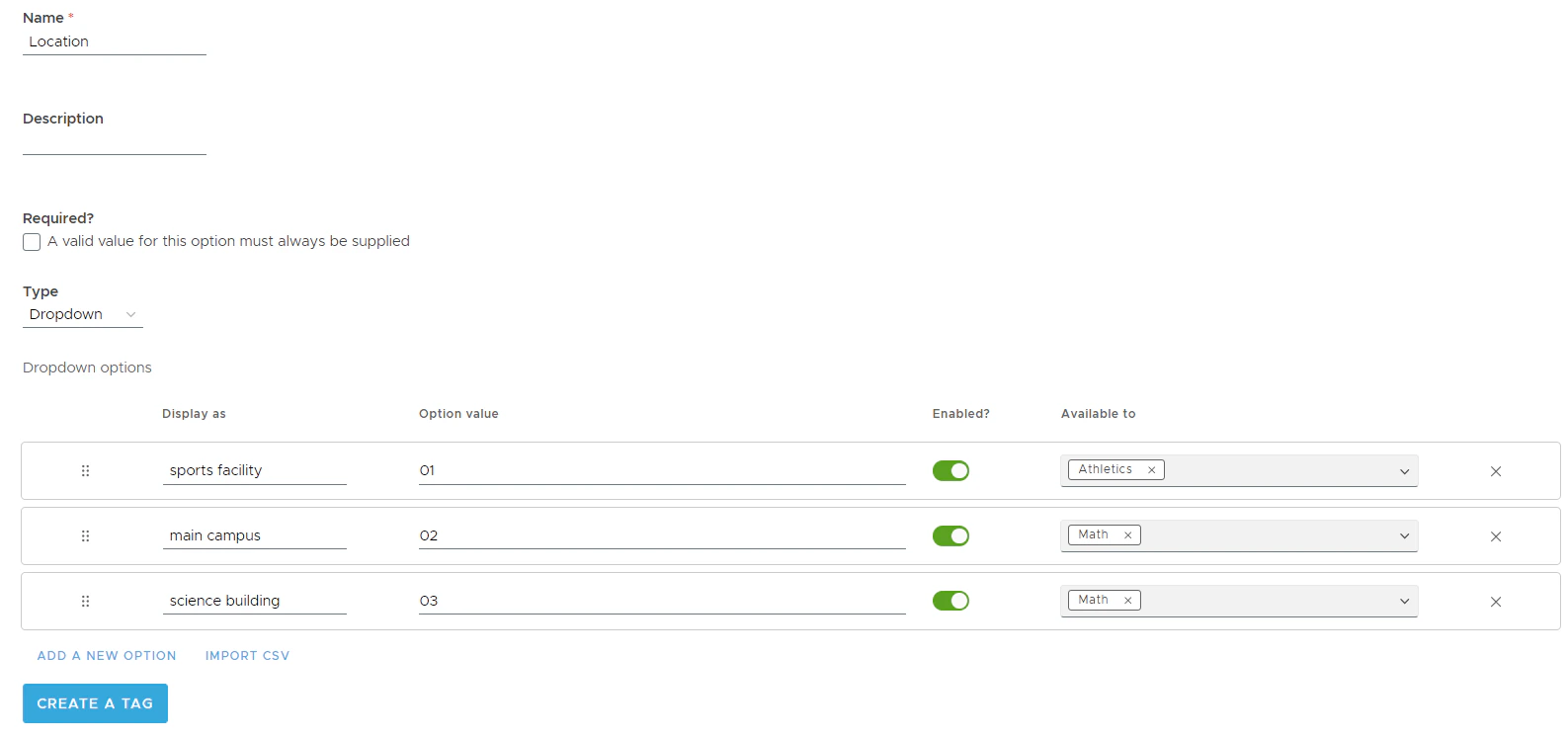 For example, if you have Kennan who is part of the Athletics department and John from the Science department you may want to:
* Create two groups: Athletics and Science.
* Add Kennan to the Athletics group.
* Add John to the Science group.
* Update the location based on the department.
* Restrict "sports facility" to only the members of the Athletics group.
* Set the visibility of the "main campus" and "science building" tag options to only the members of the Science group.
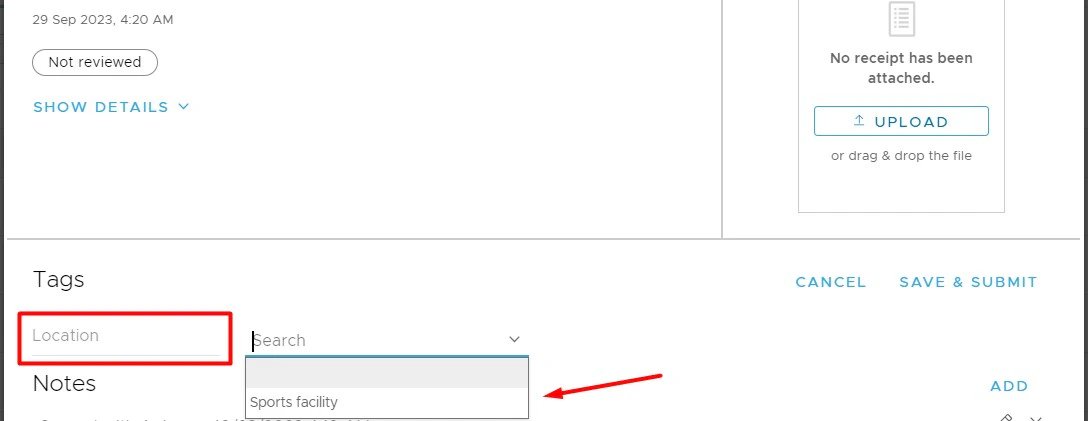
Kennan and other Athletics group members will only see the "sports facility" tag option in the dropdown list for the Location tag when tagging their purchases. They will not see the "main campus" and "science building" tag options as shown on the screen below.
For example, if you have Kennan who is part of the Athletics department and John from the Science department you may want to:
* Create two groups: Athletics and Science.
* Add Kennan to the Athletics group.
* Add John to the Science group.
* Update the location based on the department.
* Restrict "sports facility" to only the members of the Athletics group.
* Set the visibility of the "main campus" and "science building" tag options to only the members of the Science group.
Kennan and other Athletics group members will only see the "sports facility" tag option in the dropdown list for the Location tag when tagging their purchases. They will not see the "main campus" and "science building" tag options as shown on the screen below.
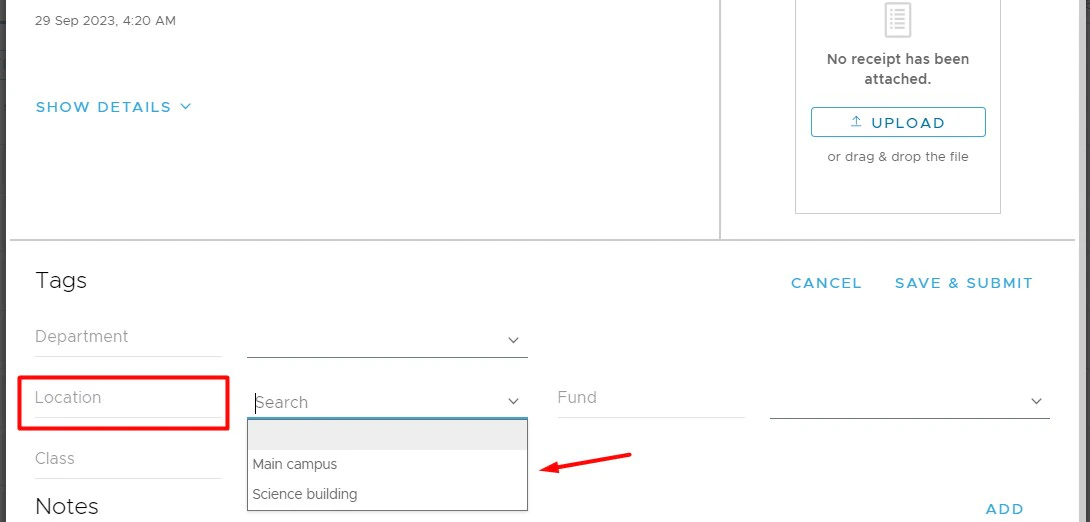
 John and other Science group members will only see the "main campus" and "science building" tag options in the dropdown list for the Location tag when tagging their purchases. They will not see the "sports facility" tag option as shown on the screen below.
 ## Add user group
* More information on creating User groups can be found [here](/administrator-guide/how-to-assign-cardholders-to-groups-and-how-to-create-new-groups).
## CSV Import
Admins have the option to bulk upload their chart of accounts with set Tag Restrictions using a .CSV (Comma Separated Values) formatted file. Keep the following in mind:
1. By default, every tag value is available to all Admins and Cardholders.
2. To restrict certain values, include the group name in the "AVAILABLE\_TO" column.
3. User or Cardholder group can be added in the "AVAILABLE\_TO" column.
4. Ensure the group name in the .csv file matches exactly with the one in your PEX account. If the group name doesn't match exactly, the tag option won't be available to that group.
5. To add multiple groups, use commas with no spaces. For example: Math,Athletics
## FAQ
Tag restrictions do not impact Admins. Every Admin can view and use tag options, regardless of restrictions.
**In this scenario, the tag option is available only to Admins:**
* Create "Group A".
* Add members to "Group A".
* Create a tag.
* Add a tag option "B".
* Assign tag option "B" to "Group A".
* Remove all members from "Group A".
## Add user group
* More information on creating User groups can be found [here](/administrator-guide/how-to-assign-cardholders-to-groups-and-how-to-create-new-groups).
## CSV Import
Admins have the option to bulk upload their chart of accounts with set Tag Restrictions using a .CSV (Comma Separated Values) formatted file. Keep the following in mind:
1. By default, every tag value is available to all Admins and Cardholders.
2. To restrict certain values, include the group name in the "AVAILABLE\_TO" column.
3. User or Cardholder group can be added in the "AVAILABLE\_TO" column.
4. Ensure the group name in the .csv file matches exactly with the one in your PEX account. If the group name doesn't match exactly, the tag option won't be available to that group.
5. To add multiple groups, use commas with no spaces. For example: Math,Athletics
## FAQ
Tag restrictions do not impact Admins. Every Admin can view and use tag options, regardless of restrictions.
**In this scenario, the tag option is available only to Admins:**
* Create "Group A".
* Add members to "Group A".
* Create a tag.
* Add a tag option "B".
* Assign tag option "B" to "Group A".
* Remove all members from "Group A".