> ## Documentation Index
> Fetch the complete documentation index at: https://support.pexcard.com/llms.txt
> Use this file to discover all available pages before exploring further.
# How to Reset Your Password
> You can reset your PEX password a few different ways. Both administrators and cardholders can reset their own password through the PEX website (self-service) — if you get stuck, contact PEX for help. Administrators can also reset the password for any of their cardholders (listed under the Team Members tab).
Jump to: [Reset your own password (self-service)](#reset-your-password-self-service) | [Reset a cardholder's password (admins only)](#reset-the-password-for-one-of-your-cardholder-team-members-admins-only)
## Reset your password (self-service)
1. Navigate to the login page: [dashboard.pexcard.com](http://dashboard.pexcard.com)
2. Click the link titled "Forgot your username or password"
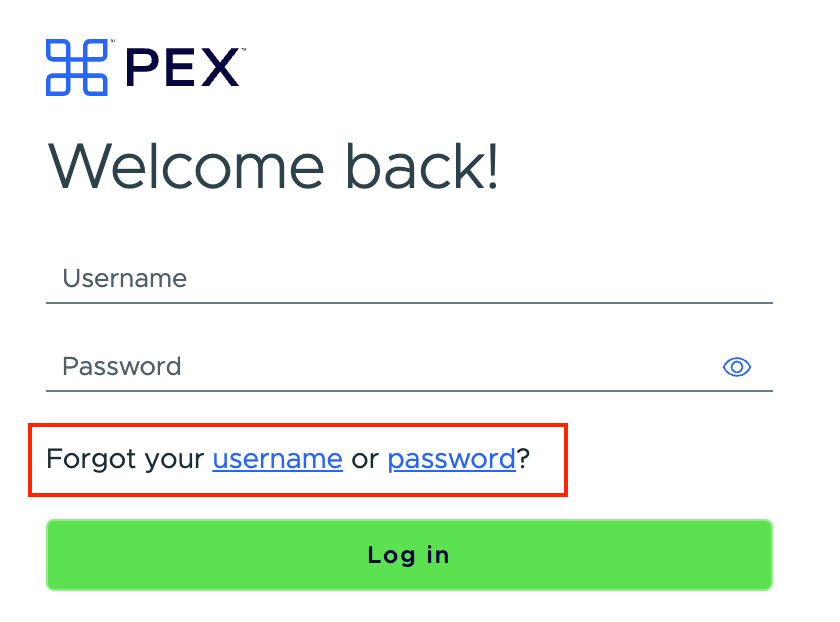 3. Enter your username
* If you've forgotten your username, click the link to receive a username reminder by email
4. The password reset link is sent to your email
5. Check your email and follow the reset link
6. Click the "Continue" button on the "Verify your identity" page
7. An OTP code is sent to your mobile device Note: if you have more than one phone number saved to your profile, you can choose which one to use for verifying your identity
8. When you receive the code, enter it in the "Secure Access Code" field
* Don't enter any spaces or additional characters
* The code is valid for one-time use only
* If you're resetting your password from a new device and don't receive a "Secure Access Code," [contact our Customer Support team](/administrator-guide/contact-administrator-support)
9. Click "Continue" to proceed
10. On the "Reset password" page, enter and confirm your new password. Passwords must meet the following requirements:
* At least 8 characters long
* At least one digit (0–9)
* Can't begin with a hash symbol (#)
* Palindromes (such as "123aba321") are rejected
* Can't contain your username
## Reset the password for one of your cardholder team members (admins only)
1. Log in to [dashboard.pexcard.com](http://dashboard.pexcard.com)
2. On the Team Members tab, find and click the name of the cardholder whose password needs to be reset
3. Click the "Reset Password" button at the bottom of the page
4. Review the email address shown for the cardholder - clicking "Reset Password" sends a temporary password to that email address
3. Enter your username
* If you've forgotten your username, click the link to receive a username reminder by email
4. The password reset link is sent to your email
5. Check your email and follow the reset link
6. Click the "Continue" button on the "Verify your identity" page
7. An OTP code is sent to your mobile device Note: if you have more than one phone number saved to your profile, you can choose which one to use for verifying your identity
8. When you receive the code, enter it in the "Secure Access Code" field
* Don't enter any spaces or additional characters
* The code is valid for one-time use only
* If you're resetting your password from a new device and don't receive a "Secure Access Code," [contact our Customer Support team](/administrator-guide/contact-administrator-support)
9. Click "Continue" to proceed
10. On the "Reset password" page, enter and confirm your new password. Passwords must meet the following requirements:
* At least 8 characters long
* At least one digit (0–9)
* Can't begin with a hash symbol (#)
* Palindromes (such as "123aba321") are rejected
* Can't contain your username
## Reset the password for one of your cardholder team members (admins only)
1. Log in to [dashboard.pexcard.com](http://dashboard.pexcard.com)
2. On the Team Members tab, find and click the name of the cardholder whose password needs to be reset
3. Click the "Reset Password" button at the bottom of the page
4. Review the email address shown for the cardholder - clicking "Reset Password" sends a temporary password to that email address