> ## Documentation Index
> Fetch the complete documentation index at: https://support.pexcard.com/llms.txt
> Use this file to discover all available pages before exploring further.
# How to Run Reports
> Administrators can generate a wide variety of reports through the Administrator Site.
To access most reports, the *View Card Transactions* permission is required. The *Funding of Cards* permission may also be required to access certain reports.
***Watch a step-by-step demonstration [here](https://pex.navattic.com/i9o02qv)!***
Reports include:
1. Cardholder Activity Reports
2. Cardholder Status Reports
3. Business Account Activity Reports
Reports on transaction activity are **defaulted to 3 months** worth of activity per report or **1.1 million** records.\
If you need more than 3 months of exports please reach out to [adminsupport@pexcard.com](mailto:adminsupport@pexcard.com) and they can assist with extension. \
You can use additional filters for the reconciliation and cardholder transaction details reports.
* All report types may be sourced from the time the account was approved to present day in 3-month increments from the admin dashboard.
## How To Run Reports
Log in to [dashboard.pexcard.com](https://dashboard.pexcard.com?utm_source=support)
Click on "Reports" on the left navigation
Click the "Generate" tab.
Select the "Run now" radio button if you want to run your report now
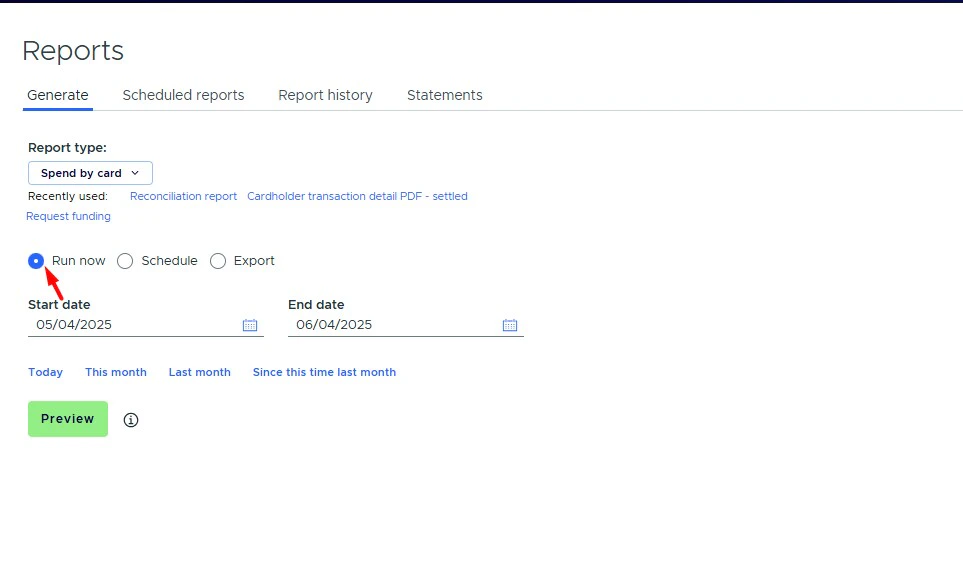 *Click the "Run now" radio button to run a report immediately*
Click on the "Report type" drop down to see the reports available to you
Click on the report you want
Select the Start Date and End Date for the report period
Or select from the following "Quick set" time parameters:
* Today
* This month
* Last month
* Since this time last month
Click on the *"Additional filters (optional)"* if you want to filter your reports by specific tag values.
* Available for the ***Reconciliation*** and ***Cardholder Transaction Details PDF*** reports
* Filtering by all types of tags is available (dropdown, text, decimal, yes/no, sales tax).
* Available for Run now, Schedule, and Export
* Available for the Preview mode
* Displayed on the *"Scheduled reports"* and *"Report history"* tabs
* Additional filters functionality is available if your business account has the 'Tag Manager' feature enabled.
*Click the "Run now" radio button to run a report immediately*
Click on the "Report type" drop down to see the reports available to you
Click on the report you want
Select the Start Date and End Date for the report period
Or select from the following "Quick set" time parameters:
* Today
* This month
* Last month
* Since this time last month
Click on the *"Additional filters (optional)"* if you want to filter your reports by specific tag values.
* Available for the ***Reconciliation*** and ***Cardholder Transaction Details PDF*** reports
* Filtering by all types of tags is available (dropdown, text, decimal, yes/no, sales tax).
* Available for Run now, Schedule, and Export
* Available for the Preview mode
* Displayed on the *"Scheduled reports"* and *"Report history"* tabs
* Additional filters functionality is available if your business account has the 'Tag Manager' feature enabled.
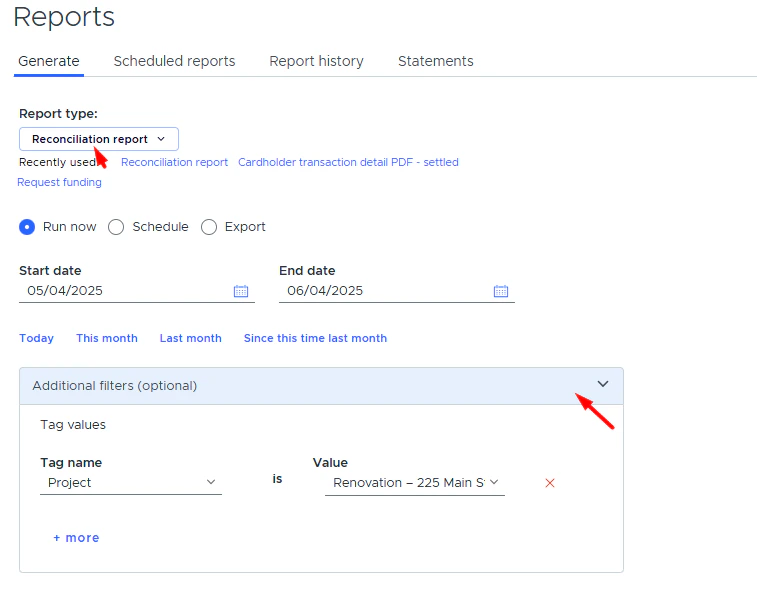 Click on the "Preview" button to see the report on your screen (HTML format)
Click the "Generate CSV" button to download the report, or "Print Report" button
### How to Schedule a Report
Log in to [dashboard.pexcard.com](https://dashboard.pexcard.com?utm_source=support)
Click on "Reports"
Click the "Generate" tab
Click the "Schedule" radio button
Click the dropdown to select the report you want, and when you want it to run
Click on the *"Additional filters (optional)"* if you want to filter your reports by specific tag values.
* Available for the ***Reconciliation*** and ***Cardholder Transaction Details PDF*** reports
* Filtering by all types of tags is available (dropdown, text, decimal, yes/no, sales tax).
* Available for Run now, Schedule, and Export
* Available for the Preview mode
* Displayed on the *"Scheduled reports"* and *"Report history"* tabs
* Additional filters functionality is available if your business account has the 'Tag Manager' feature enabled.
Click the "Schedule report" button
Click on the "Preview" button to see the report on your screen (HTML format)
Click the "Generate CSV" button to download the report, or "Print Report" button
### How to Schedule a Report
Log in to [dashboard.pexcard.com](https://dashboard.pexcard.com?utm_source=support)
Click on "Reports"
Click the "Generate" tab
Click the "Schedule" radio button
Click the dropdown to select the report you want, and when you want it to run
Click on the *"Additional filters (optional)"* if you want to filter your reports by specific tag values.
* Available for the ***Reconciliation*** and ***Cardholder Transaction Details PDF*** reports
* Filtering by all types of tags is available (dropdown, text, decimal, yes/no, sales tax).
* Available for Run now, Schedule, and Export
* Available for the Preview mode
* Displayed on the *"Scheduled reports"* and *"Report history"* tabs
* Additional filters functionality is available if your business account has the 'Tag Manager' feature enabled.
Click the "Schedule report" button
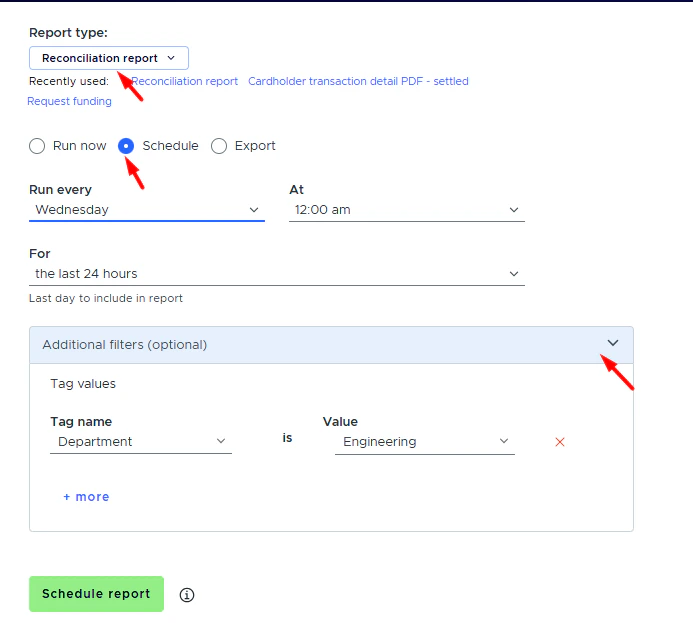 *Click the "Schedule" radio button to schedule when reports are run*
## How to See Completed and Scheduled Reports
Log in to [dashboard.pexcard.com](https://dashboard.pexcard.com?utm_source=support)
Click on "Reports"
Click the "Report History" tab to download completed reports
Click the "Scheduled Reports" tab to see (and edit) scheduled reports
*Click the "Schedule" radio button to schedule when reports are run*
## How to See Completed and Scheduled Reports
Log in to [dashboard.pexcard.com](https://dashboard.pexcard.com?utm_source=support)
Click on "Reports"
Click the "Report History" tab to download completed reports
Click the "Scheduled Reports" tab to see (and edit) scheduled reports
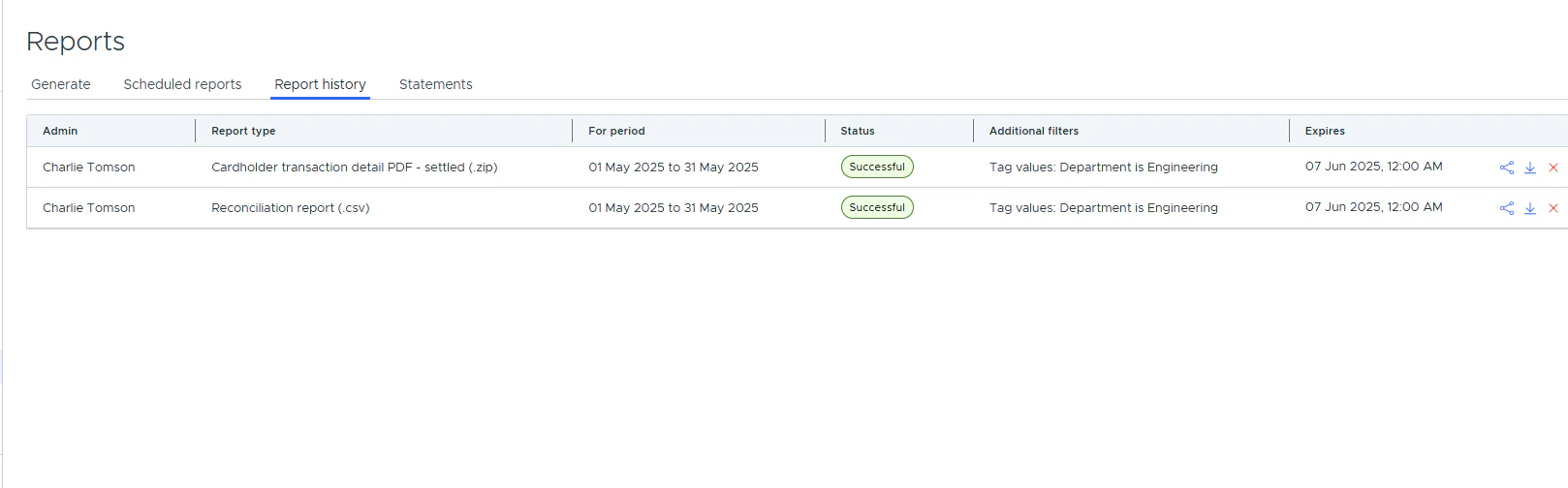 *Click "Report History" to see completed reports*
## How to Customize Reports
After you click the "Preview" button to generate a report:
1. Select which columns you want to see on the HTML report
* Click the \[data table] icon at the left bottom corner of the report
* From the menu, choose which columns you want to display. The data fields will be added or removed instantly as you click the checkboxes
* Click the "X" to close the menu
*Click "Report History" to see completed reports*
## How to Customize Reports
After you click the "Preview" button to generate a report:
1. Select which columns you want to see on the HTML report
* Click the \[data table] icon at the left bottom corner of the report
* From the menu, choose which columns you want to display. The data fields will be added or removed instantly as you click the checkboxes
* Click the "X" to close the menu
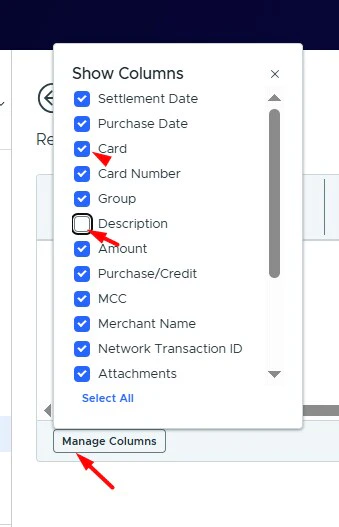 *Click the \[data table] icon. Select checkboxes to customize a report*
**Report Types**
The PEX system can generate a wide range of useful reports:
**Settlements**
1. Spend by card - *List transactions grouped by card*
2. Spend by category - *List transactions grouped by spend category*
3. Spend by group - *List all transactions by cardholder group*
4. Spend by transaction - *List all transactions by date*
5. Settlement detail - *List all transactions by date*
6. Authorized amount vs settled amount - *Compare authorization amount and final settlement amount for all transactions*
**Authorizations**
1. Authorization detail - *List all card-authorization transactions by date*
2. Declined authorizations - *List all card-declined transactions by date*
3. Expired authorizations - *Authorizations that expired without being settled*
4. Outstanding authorizations - *Authorizations that have not yet been settled*
**Funding**
1. Business account funding transactions - *List all business account fund transactions by date*
2. Card funding transactions - *List all card funding transactions by date*
**Status**
1. Cardholder available balance - *List all cardholders and their available balance and status*
*Click the \[data table] icon. Select checkboxes to customize a report*
**Report Types**
The PEX system can generate a wide range of useful reports:
**Settlements**
1. Spend by card - *List transactions grouped by card*
2. Spend by category - *List transactions grouped by spend category*
3. Spend by group - *List all transactions by cardholder group*
4. Spend by transaction - *List all transactions by date*
5. Settlement detail - *List all transactions by date*
6. Authorized amount vs settled amount - *Compare authorization amount and final settlement amount for all transactions*
**Authorizations**
1. Authorization detail - *List all card-authorization transactions by date*
2. Declined authorizations - *List all card-declined transactions by date*
3. Expired authorizations - *Authorizations that expired without being settled*
4. Outstanding authorizations - *Authorizations that have not yet been settled*
**Funding**
1. Business account funding transactions - *List all business account fund transactions by date*
2. Card funding transactions - *List all card funding transactions by date*
**Status**
1. Cardholder available balance - *List all cardholders and their available balance and status*