> ## Documentation Index
> Fetch the complete documentation index at: https://support.pexcard.com/llms.txt
> Use this file to discover all available pages before exploring further.
# How to Set Time-Based Spend Limits (Administrator Site)
> Set daily, weekly, monthly, annual, or lifetime spending limits for cardholders from the PEX administrator dashboard.
The PEX system gives Administrators powerful tools for controlling cardholder spending — by setting limits on how much a cardholder can spend in a certain period of time:
* Daily (24 hour period — Midnight to Midnight ET)
* Weekly (Sunday to Saturday)
* Monthly (1st to 31st)
* Annual (Jan 1st to Dec 31st)
* Lifetime
**Note:**
Different Plans have different features. Please check your PEX Plan (contact your Account Manager for details):
* CORE
* PRO
* INFINITE
## How to set time-based spend limits through the Administrator Site
Log in to [dashboard.pexcard.com](https://dashboard.pexcard.com?utm_source=support)
Click the "Cards" tab on the left side of the page
Locate and click on the cardholder's name to open the card details page
Click on "Spend Rules" on the card details page
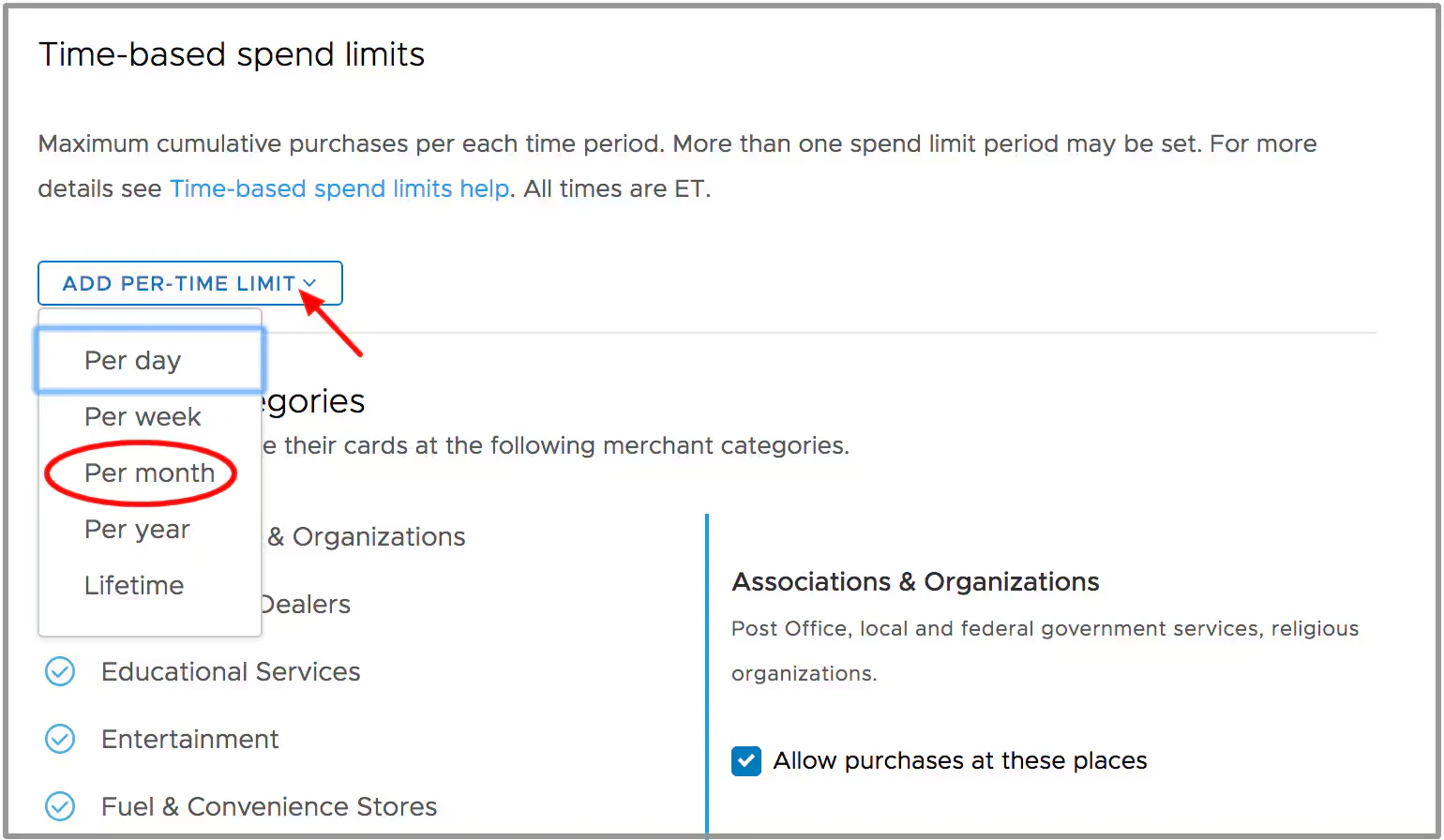
Click on the "Add Per-Time Limit" button to select from a dropdown menu the time period(s) where you will limit spending (as your Plan allows):
* Daily
* Weekly
* Monthly
* Annual
* Lifetime
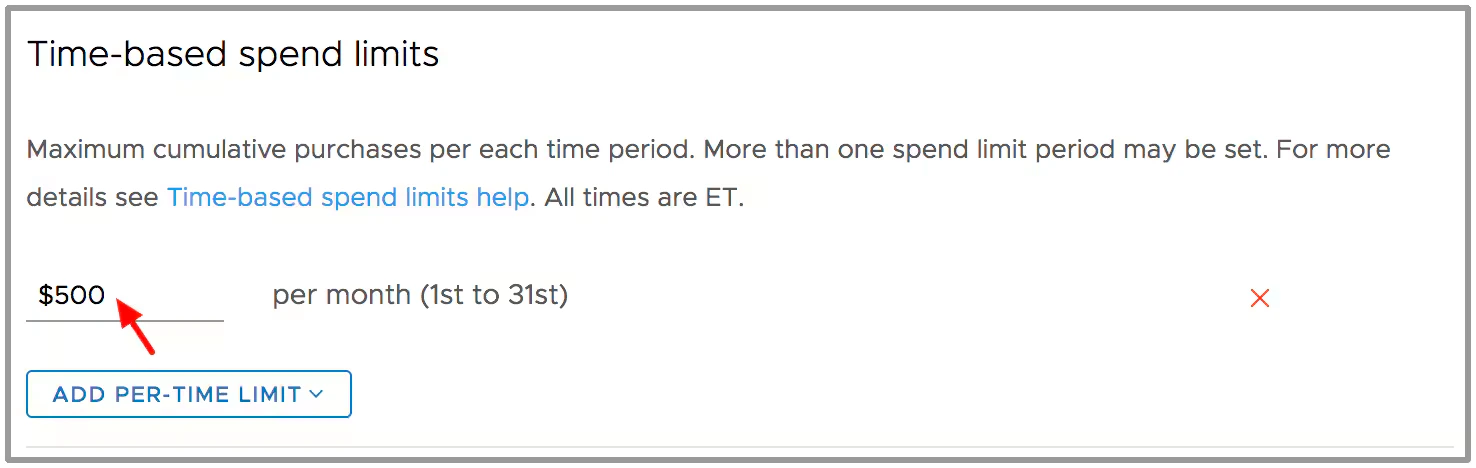
 Enter a value in the field and hit enter.
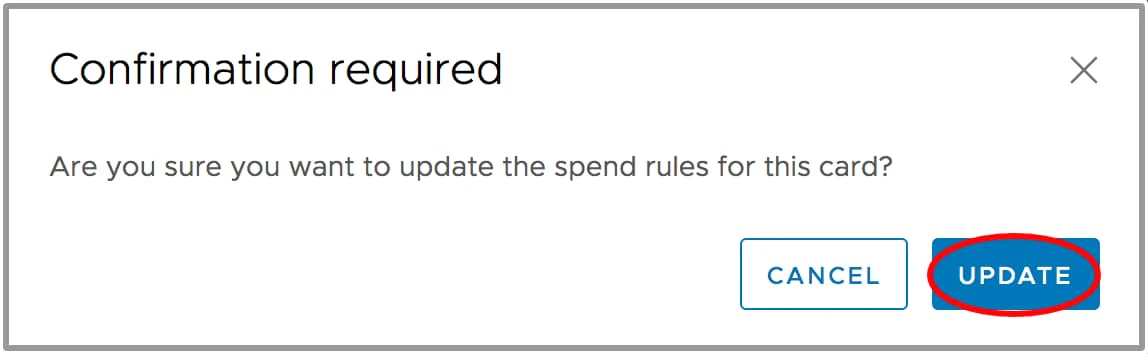
 A confirmation window will open for you to confirm the update to the cardholder spend rules.
**Note:**
a Time-Based Spend Limit can be deleted by clicking the red "X" next to the rule.
A confirmation window will open for you to confirm the update to the cardholder spend rules.
**Note:**
a Time-Based Spend Limit can be deleted by clicking the red "X" next to the rule.