> ## Documentation Index
> Fetch the complete documentation index at: https://support.pexcard.com/llms.txt
> Use this file to discover all available pages before exploring further.

# How to Update a Cardholder Profile

> Administrators can update cardholder profiles:

* Through the PEX Web App (desktop)
* Through the Mobile App
  * Download the [iOS app from the App Store](https://itunes.apple.com/app/id584331280)
  * Download the [Android app from the Google Play Store](https://play.google.com/store/apps/details?id=com.softjourn.pexcardholder)
  * The download is free but carrier data rates may apply

<Frame>
  <iframe className="w-full aspect-video rounded-xl" src="https://www.youtube.com/embed/aJ2BHLjESHE" title="PEX: Cardholder Training" allow="accelerometer; autoplay; clipboard-write; encrypted-media; gyroscope; picture-in-picture" allowFullScreen />
</Frame>

## How to update a cardholder profile through the Web App / Dashboard

<Steps>
  <Step>
    Log in to dashboard.pexcard.com
  </Step>

  <Step>
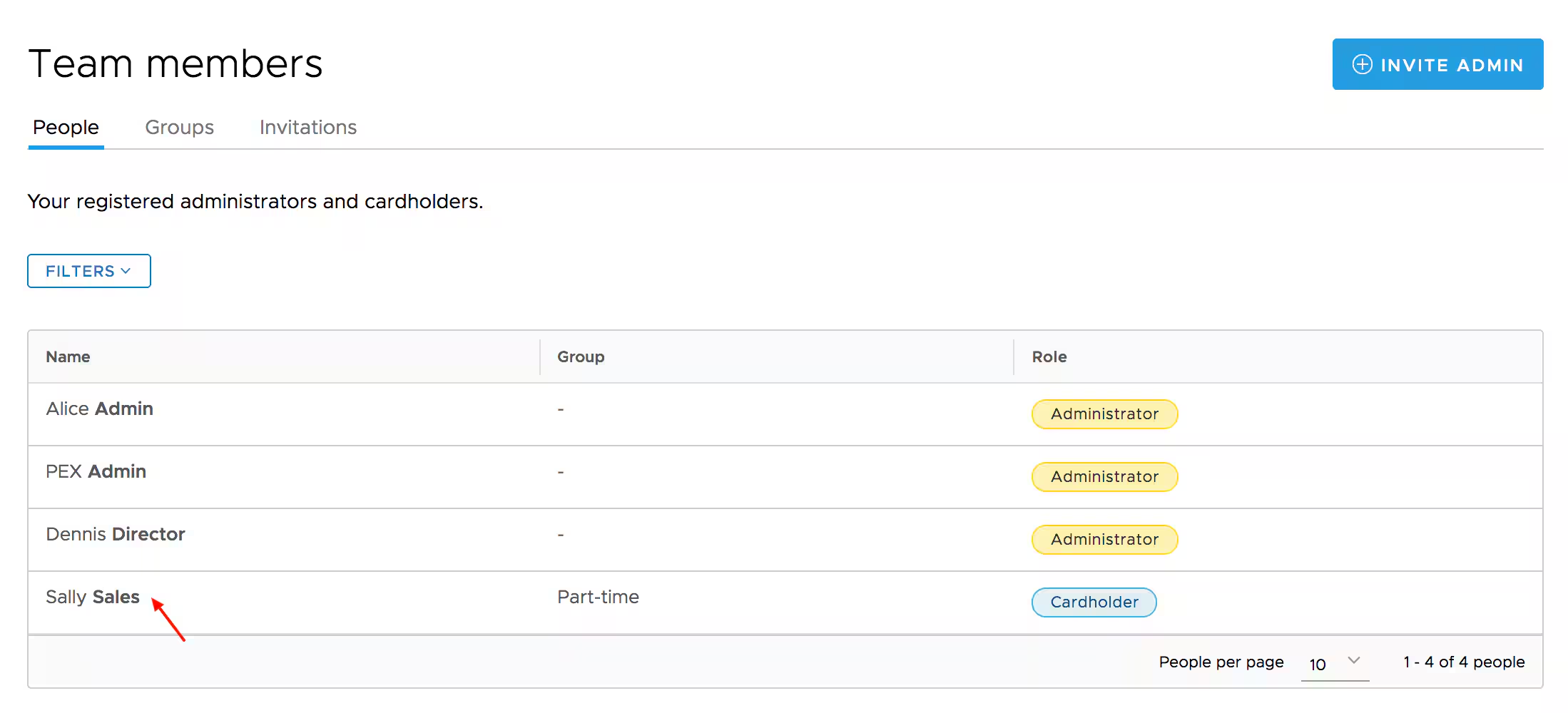
    Click the "Team Members" tab
  </Step>

  <Step>
    Locate the cardholder
  </Step>

  <Step>
    Click on the cardholder's name

    <Frame>
      <img src="https://mintcdn.com/pextest/JcSYjWowEW0UYuqG/images/administrator-guide/managing-cards/image-27.avif?fit=max&auto=format&n=JcSYjWowEW0UYuqG&q=85&s=1eaacabd3763977bff36e8f0103817d1" alt="" width="2198" height="1000" data-path="images/administrator-guide/managing-cards/image-27.avif" />
    </Frame>
  </Step>

  <Step>
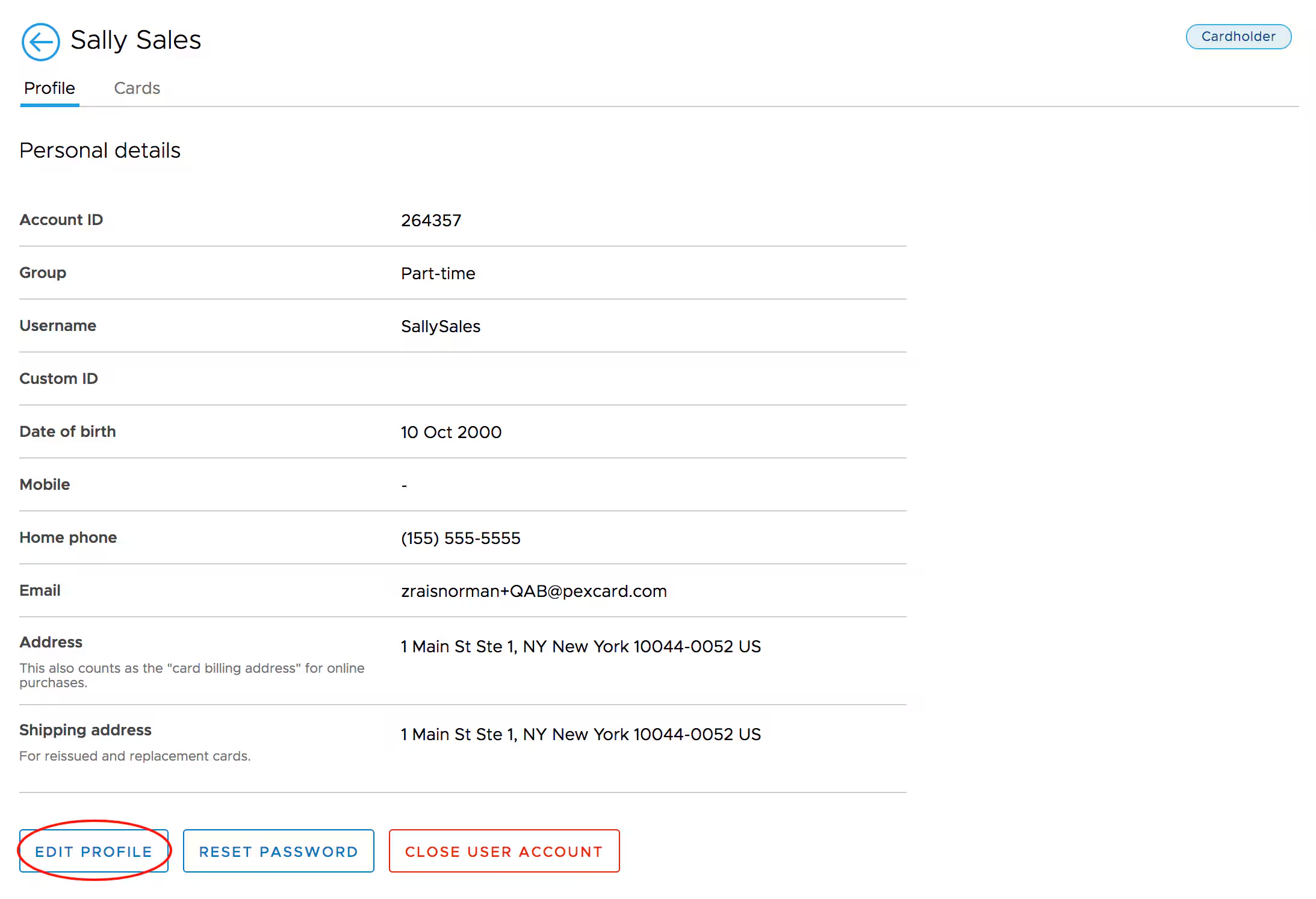
    Click the "Edit Profile" button at the bottom

    <Frame>
      <img src="https://mintcdn.com/pextest/JcSYjWowEW0UYuqG/images/administrator-guide/managing-cards/image-28.avif?fit=max&auto=format&n=JcSYjWowEW0UYuqG&q=85&s=da5f652a5aa4537ac0485aba08e7496f" alt="" width="2186" height="1494" data-path="images/administrator-guide/managing-cards/image-28.avif" />
    </Frame>
  </Step>

  <Step>
    Edit "Personal address" (this also counts as the "Card Billing Address" for online purchases)
  </Step>

  <Step>
    Edit "Shipping Address" (for reissued and replacement cards)
  </Step>

  <Step>
    Click the "Update" button to save changes
  </Step>
</Steps>

## How to update a cardholder profile through the Mobile App

<Steps>
  <Step>
    Log in to the Mobile App
  </Step>

  <Step>
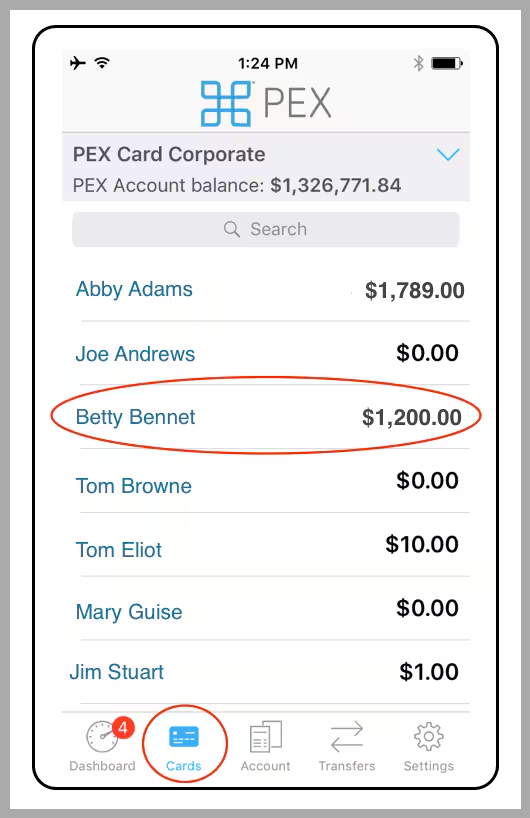
    Click the "Cards" icon at the bottom of the screen
  </Step>

  <Step>
    Click on the cardholder's name

    <Frame>
      <img src="https://mintcdn.com/pextest/JcSYjWowEW0UYuqG/images/administrator-guide/managing-cards/image-29.avif?fit=max&auto=format&n=JcSYjWowEW0UYuqG&q=85&s=f2c9361f1634b9b213e83290cde1caa2" alt="" width="530" height="818" data-path="images/administrator-guide/managing-cards/image-29.avif" />
    </Frame>

    *Click the "Cards" icon. Click on the cardholder's name.*
  </Step>

  <Step>
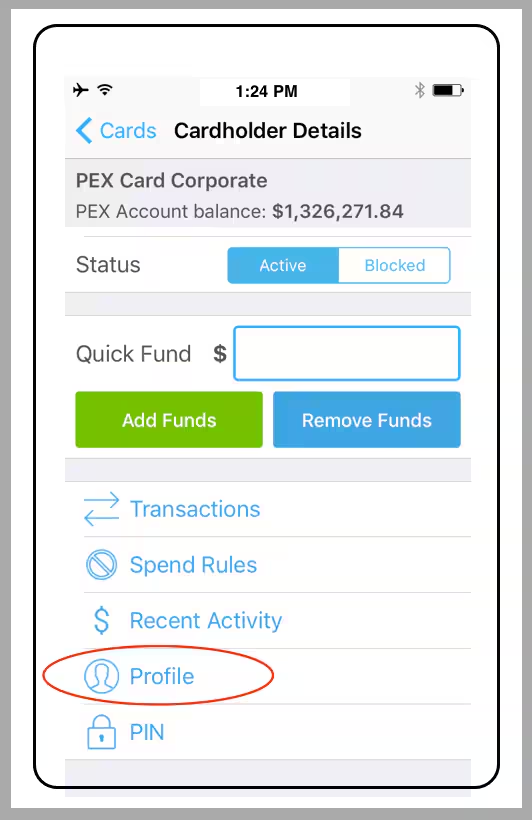
    Click on "Profile" in Cardholder Details

    <Frame>
      <img src="https://mintcdn.com/pextest/JcSYjWowEW0UYuqG/images/administrator-guide/managing-cards/image-30.avif?fit=max&auto=format&n=JcSYjWowEW0UYuqG&q=85&s=456142de1c57773ed09a11c2424fa73e" alt="" width="532" height="820" data-path="images/administrator-guide/managing-cards/image-30.avif" />
    </Frame>

    *Click on "Profile"*
  </Step>

  <Step>
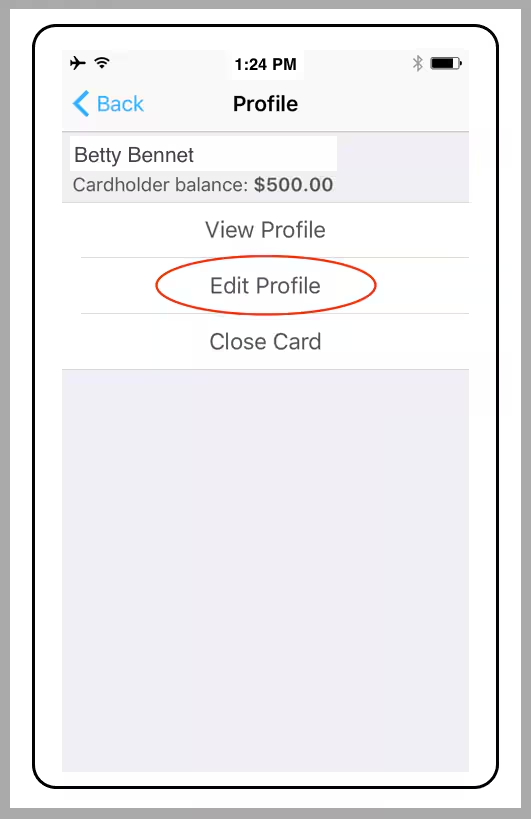
    Click on "Edit Profile"

    <Frame>
      <img src="https://mintcdn.com/pextest/JcSYjWowEW0UYuqG/images/administrator-guide/managing-cards/image-31.avif?fit=max&auto=format&n=JcSYjWowEW0UYuqG&q=85&s=82793bb0bc3b0e33d4702a5ff910e6d4" alt="" width="531" height="819" data-path="images/administrator-guide/managing-cards/image-31.avif" />
    </Frame>

    *Click on "Edit Profile"*
  </Step>

  <Step>
    Make changes to the Profile
  </Step>

  <Step>
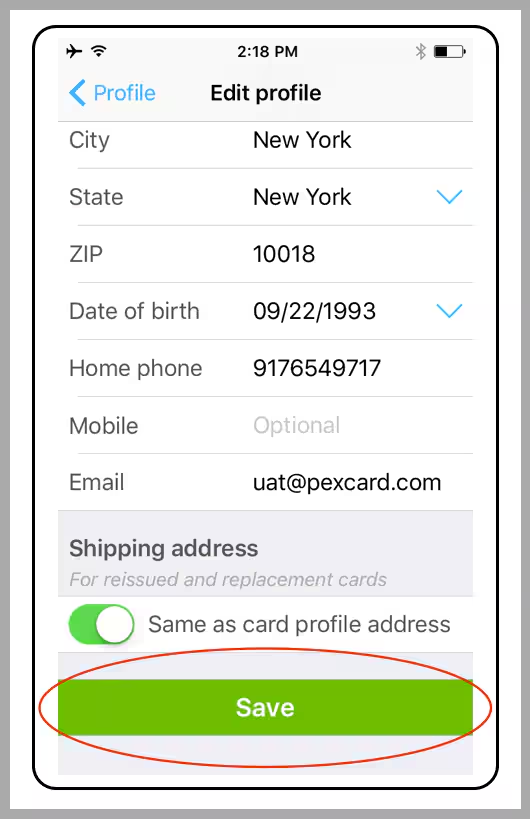
    Click the green "Save" button at the end of the Edit Profile section

    <Frame>
      <img src="https://mintcdn.com/pextest/JcSYjWowEW0UYuqG/images/administrator-guide/managing-cards/image-32.avif?fit=max&auto=format&n=JcSYjWowEW0UYuqG&q=85&s=636e2e14ffd359335c8430ab5ac1023b" alt="" width="530" height="819" data-path="images/administrator-guide/managing-cards/image-32.avif" />
    </Frame>

    *Click the green "Save" button*
  </Step>
</Steps>