> ## Documentation Index
> Fetch the complete documentation index at: https://support.pexcard.com/llms.txt
> Use this file to discover all available pages before exploring further.
# How to View a Card Number
> The card preview functionality is an easy way for administrators to be able to view card details after ordering physical plastic cards, while those cards are being produced and shipped.
**Note:**
[Multi-factor authentication](/cardholder-guide/enabling-sms-multifactor-authentication-for-cardholders) must be enabled for administrators and cardholders. The card must be set to **Active.** Administrators and cardholders must also have the following permissions in order to view card numbers.
**Admin**
* *Funding of Cards* permission
* *View Cards Usage* permission
**Cardholders**
* *Card Details Viewing: Allow* (admins can change this setting on the dashboard under Card Details)
**IMPORTANT:**
**You must not save card details on your local machine or transmit details via email.** You can copy/paste the card details into a secure website for immediate online payments.
## Viewing a card number
For security reasons, all views of card numbers are logged and an email notification will be sent to all other administrators on the account.
**Note:**
These email notifications are mandatory and cannot be disabled.
Log in to the PEX admin site.
Navigate to the card list screen by clicking "Cards" in the left menu
Find the card you are interested in viewing.
**Note:**
The card status must be "Active". You cannot view card details for "Inactive", "Blocked" or "Closed" cards.
Hover over the card. You will see a button "View Card Details". Click the button.
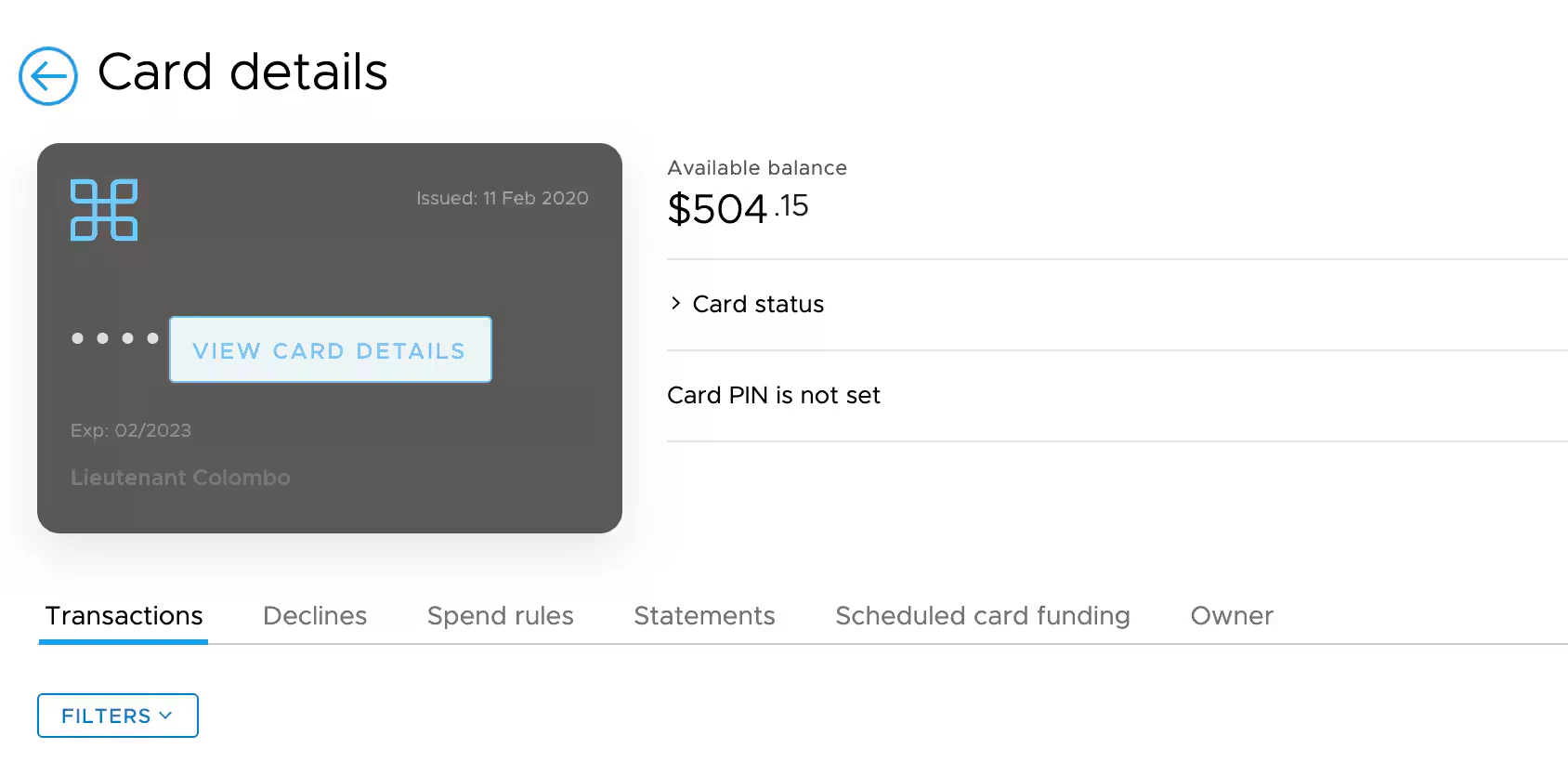 A confirmation modal will appear. Viewing a card number will send a notification to all administrators on the account.
Click "View card details" and you will be able to see the full card number as well as the 3 digit code on the back of the physical plastic card.
After viewing the card number, you can use the card for online transactions or add the card to a digital wallet such as Apple Pay, Google Pay or Samsung Pay. Please see [Adding a PEX Card to a Digital Wallet](/administrator-guide/adding-a-pex-card-to-a-digital-wallet-admin-guide) for additional details.
A confirmation modal will appear. Viewing a card number will send a notification to all administrators on the account.
Click "View card details" and you will be able to see the full card number as well as the 3 digit code on the back of the physical plastic card.
After viewing the card number, you can use the card for online transactions or add the card to a digital wallet such as Apple Pay, Google Pay or Samsung Pay. Please see [Adding a PEX Card to a Digital Wallet](/administrator-guide/adding-a-pex-card-to-a-digital-wallet-admin-guide) for additional details.