> ## Documentation Index
> Fetch the complete documentation index at: https://support.pexcard.com/llms.txt
> Use this file to discover all available pages before exploring further.
# How to view account history
> Track important changes made to your PEX account over time — approval policy updates, user permission changes, card status changes, and other administrative actions.
The **Account history** page helps you track important changes made to your account over time. It shows when and what was updated, such as approval policy changes, user permission updates, card status changes, and other administrative actions.
**Required permissions:**
To access the Account history page, you need both the **Add/edit/terminate administrator** and **Edit business settings & apps** permissions. See [Setting Administrator Permissions on All Programs](/administrator-guide/setting-administrator-permissions-on-all-programs) for how to grant these.
## View account history
Sign in at [https://dashboard.pexcard.com](https://dashboard.pexcard.com).
Click the **Account security** icon (the shield) in the top-right corner of the page, then select **Account history** from the drop-down menu.
 On the **Account history** page, you can review events such as:
* Approval policy updates
* User permission changes
* Card status changes
* New admin user created
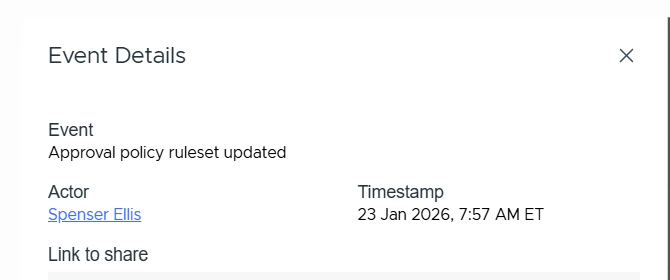
Click any event to see more details, then click **GET AI analysis** for a detailed AI-generated description of the event.
On the **Account history** page, you can review events such as:
* Approval policy updates
* User permission changes
* Card status changes
* New admin user created
Click any event to see more details, then click **GET AI analysis** for a detailed AI-generated description of the event.
 **Tip:**
Use the **Link to share** field to copy a direct link to the event so you can share it with a colleague. Only users with the **Add/edit/terminate administrator** and **Edit business settings & apps** permissions can open the shared link or access the Account history page.
**Tip:**
Use the **Link to share** field to copy a direct link to the event so you can share it with a colleague. Only users with the **Add/edit/terminate administrator** and **Edit business settings & apps** permissions can open the shared link or access the Account history page.