> ## Documentation Index
> Fetch the complete documentation index at: https://support.pexcard.com/llms.txt
> Use this file to discover all available pages before exploring further.
# How to View MCCs in a Merchant Category
> View the list of merchant category codes (MCCs) included in each PEX merchant category from Business Settings.
## How to See the MCCs (Merchant Category Codes) in a Merchant Category
 Log into the Admin site
Click the "Business Settings" tab
Click "Merchant Categories" in the Business Settings
* The 13 original PEX Merchant Categories will be listed first
* Any Custom Categories will appear after the original PEX Merchant Categories
Log into the Admin site
Click the "Business Settings" tab
Click "Merchant Categories" in the Business Settings
* The 13 original PEX Merchant Categories will be listed first
* Any Custom Categories will appear after the original PEX Merchant Categories
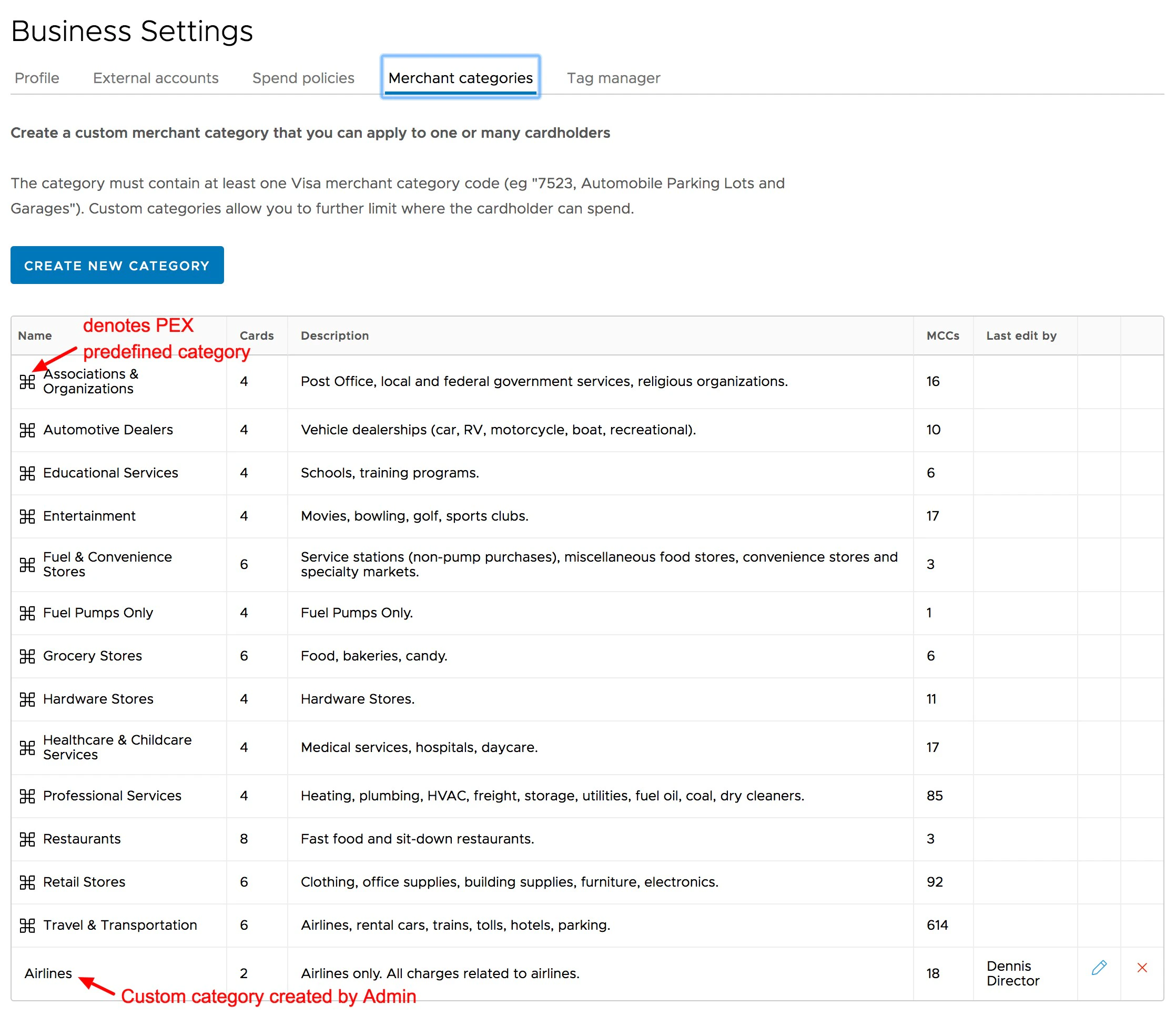 *Click "Merchant categories." The original PEX Categories appear first, followed by Custom Merchant Categories*
Click on the name of the original PEX Category to open the list of Visa MCCs in that Category
*Click "Merchant categories." The original PEX Categories appear first, followed by Custom Merchant Categories*
Click on the name of the original PEX Category to open the list of Visa MCCs in that Category
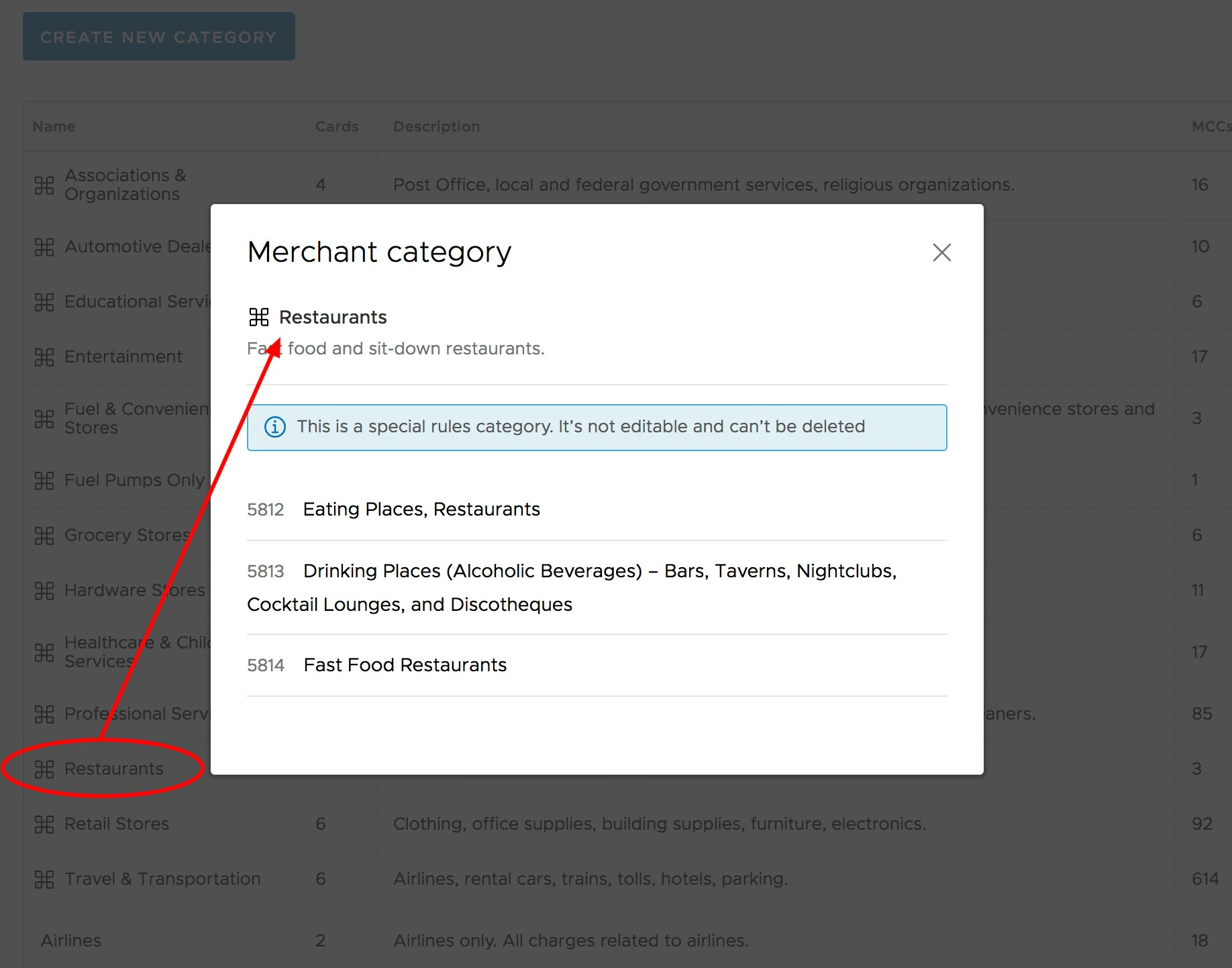 *Click on the Merchant Category to see the MCCs in that Category*
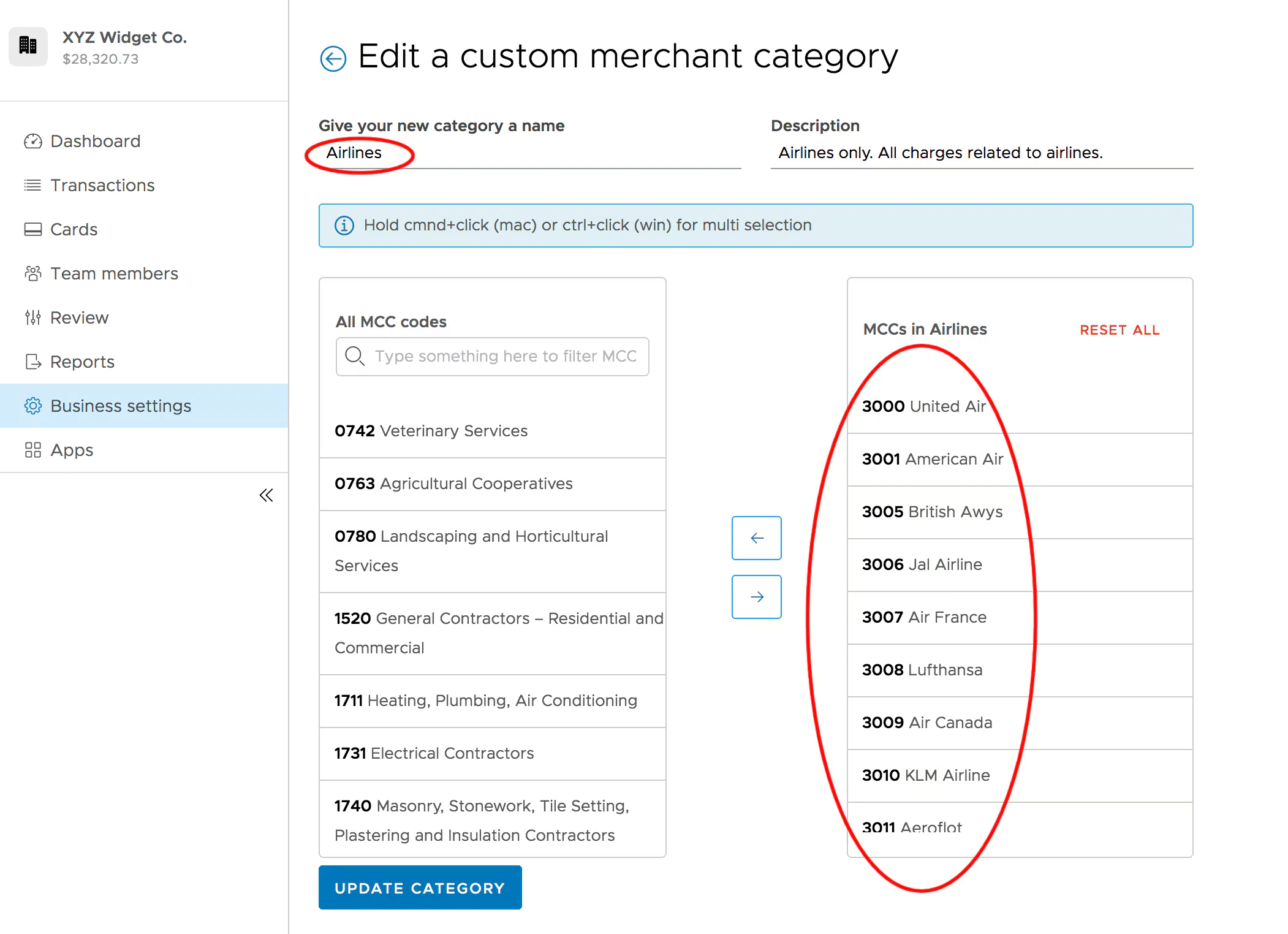
Click on the name of any Custom Category
* You can see the MCCs in the Custom Category in the next screen
* You can also edit the MCCs in the Custom Category in the next screen
* *Click on the name of a Custom Category to see and edit the MCCs in the Custom Category*
*Click on the Merchant Category to see the MCCs in that Category*
Click on the name of any Custom Category
* You can see the MCCs in the Custom Category in the next screen
* You can also edit the MCCs in the Custom Category in the next screen
* *Click on the name of a Custom Category to see and edit the MCCs in the Custom Category*