> ## Documentation Index
> Fetch the complete documentation index at: https://support.pexcard.com/llms.txt
> Use this file to discover all available pages before exploring further.
# Limiting Spend by State (US)
> For organizations with limited geographical operations, you can reduce your risk of fraud by limiting spend by state. For example, if your organization primarily operates in California, you may wish to prevent spend in other states, especially those on the East Coast. Spend that takes place out of permissible state(s) will be automatically declined.
**Note:**
Any geographical or state specific spend rules only apply to "card present" use.
## How to limit spend by state
Log in to the PEX administrator site and choose "Cards" from the left navigation
Choose the card for which you wish to limit spend
Click the tab titled "Spend rules"
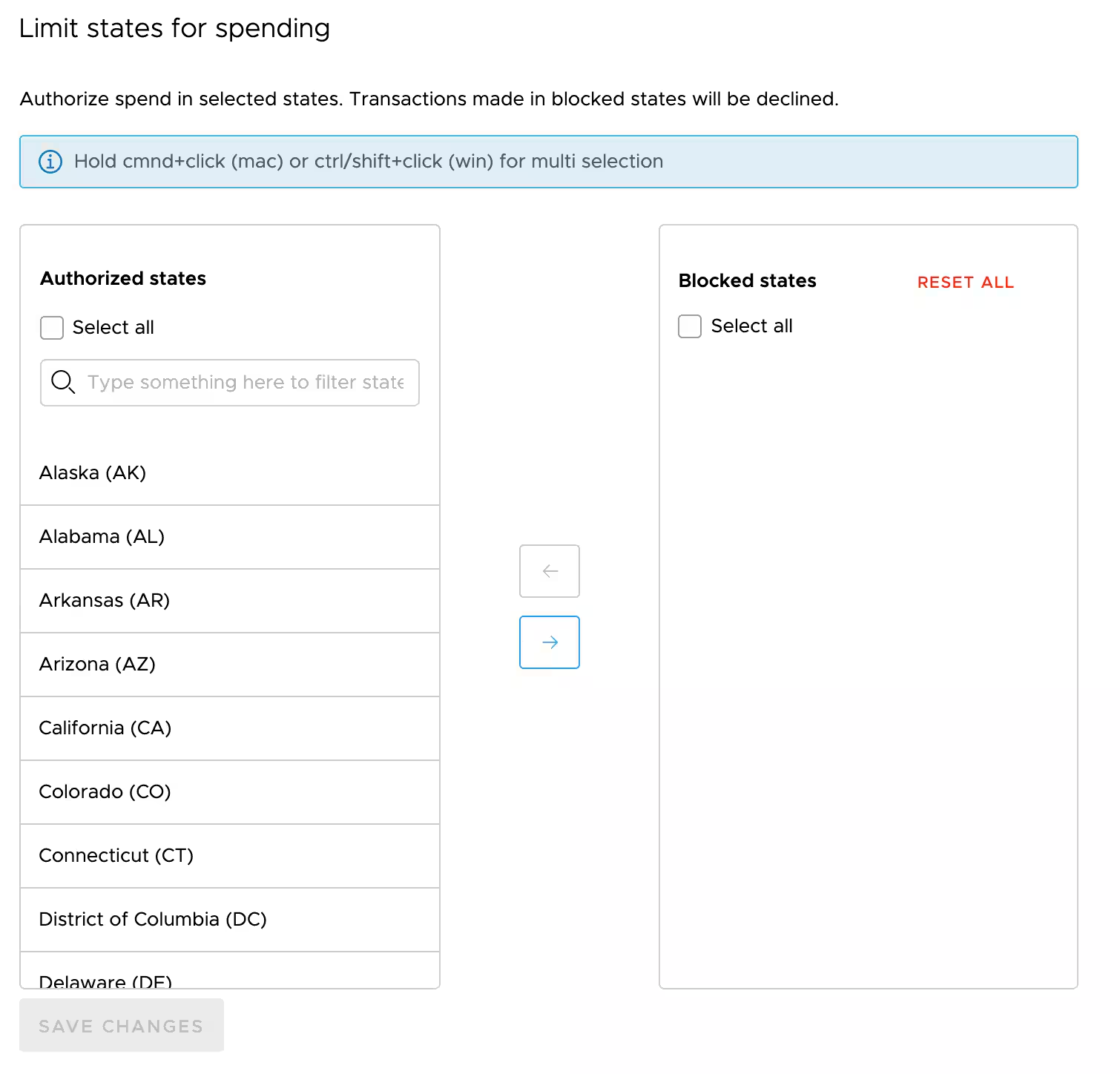
Scroll down until you see a section titled "Limit states for spending"
Use the arrow buttons to move states from the "approved states" list to the "blocked states" list and vice versa.
**Tip:**
Hold **⌘ + click** (Mac) or **Ctrl / Shift + click** (Windows) to select multiple states
Customers on selected plans can also limit spend by state as part of a spend policy.