> ## Documentation Index
> Fetch the complete documentation index at: https://support.pexcard.com/llms.txt
> Use this file to discover all available pages before exploring further.
# Lost-receipt affidavit
> Let Cardholders submit a signed affidavit when a receipt is unavailable and control which transaction amounts are eligible
When a receipt is unavailable, a lost-receipt affidavit lets a Cardholder submit a signed statement in its place. The transaction stays documented and can continue through your normal review and reconciliation process.
This article explains how to manage the feature, set a transaction limit and submit an affidavit.
## What a lost-receipt affidavit is
A lost-receipt affidavit is a signed declaration that a Cardholder completes when they can't provide a receipt for a card purchase. They select a reason, describe the business purpose and confirm that the expense is valid.
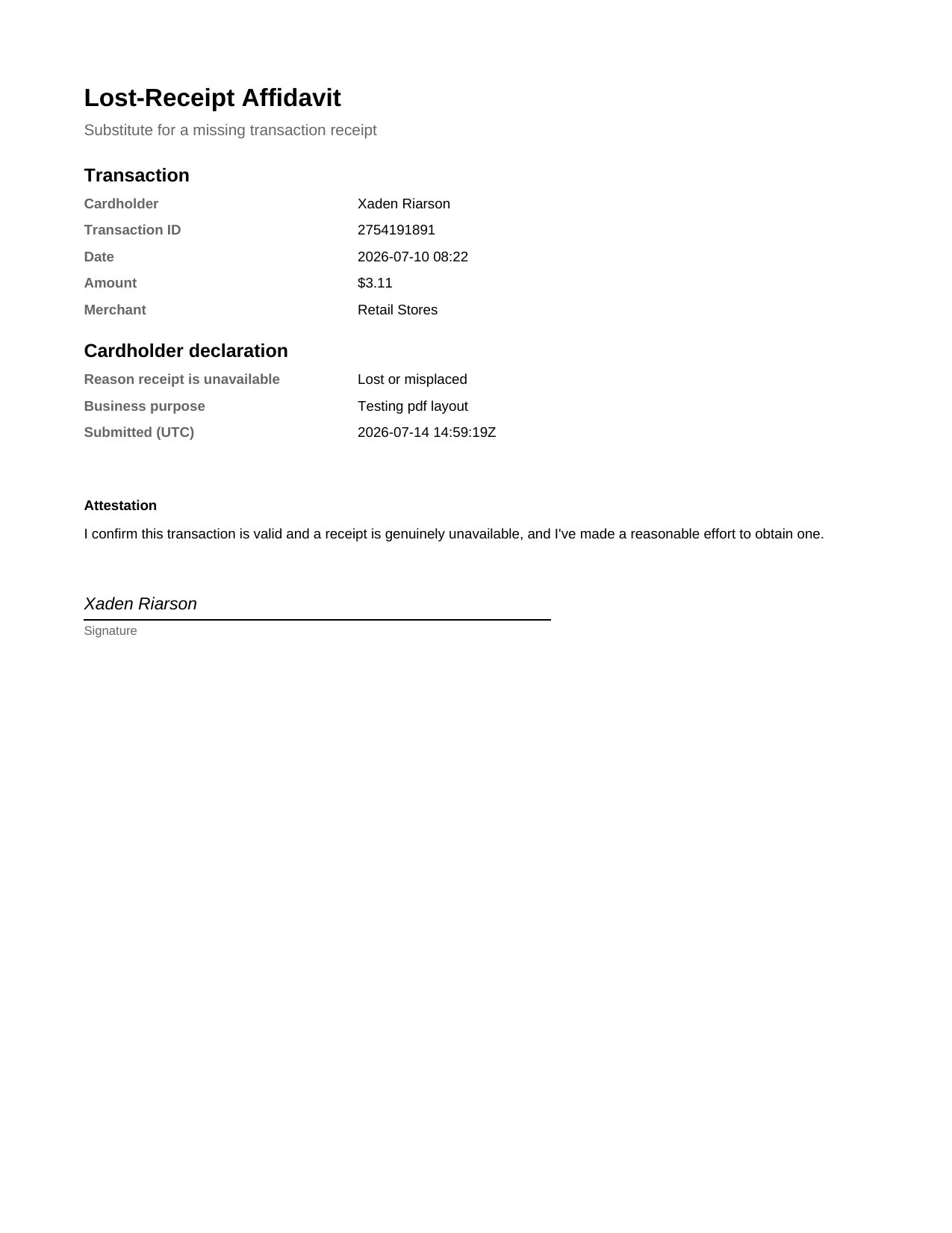
PEX creates a signed affidavit PDF and attaches it to the transaction. The affidavit then acts as the receipt and follows your normal review and approval process.
 ## Turn lost-receipt affidavits on or off
An account administrator can enable or disable the feature.
Go to **Business settings → Workflows → Workflow settings**.
Select **Edit**.
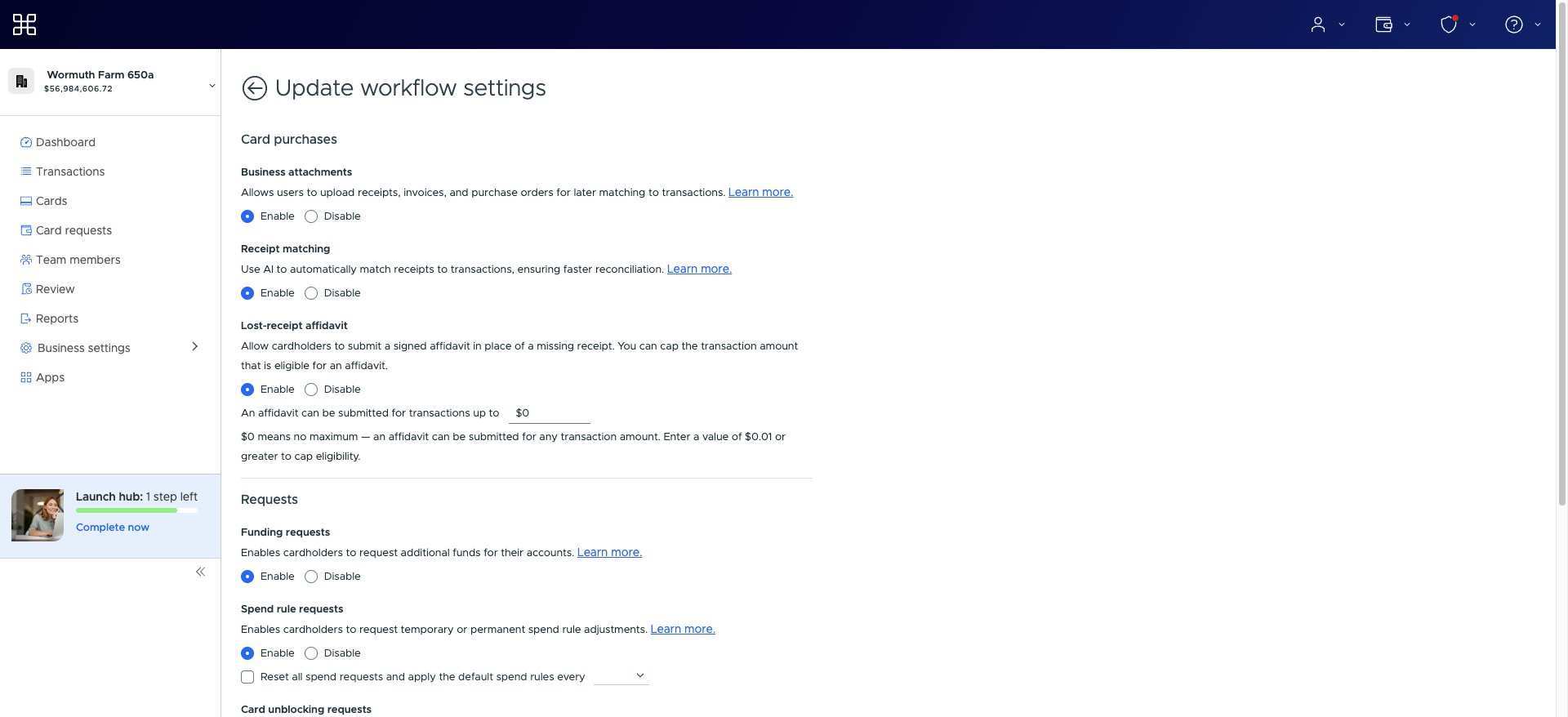
In the **Card purchases** section, find **Lost-receipt affidavit**.
Select **Enable** or **Disable**.
Select **Update**.
## Turn lost-receipt affidavits on or off
An account administrator can enable or disable the feature.
Go to **Business settings → Workflows → Workflow settings**.
Select **Edit**.
In the **Card purchases** section, find **Lost-receipt affidavit**.
Select **Enable** or **Disable**.
Select **Update**.
 When the feature is enabled, Cardholders see the affidavit option on eligible transactions. When it's disabled, the option is hidden.
**Note:**
If the **Lost-receipt affidavit** setting isn't available, [contact PEX administrator support](/administrator-guide/contact-administrator-support) for help enabling the feature on your account.
## Set a maximum transaction amount
You can limit affidavits to purchases at or below a specific amount. Larger purchases will still require a receipt.
When the feature is enabled, enter an amount in **An affidavit can be submitted for transactions up to \$**:
* Leave the amount at **\$0** to allow an affidavit for a transaction of any amount
* Enter **\$0.01** or more to set a maximum, such as **\$75.00**
Select **Update** to save the change. Cardholders can't submit an affidavit for a transaction above the maximum.
## Check your current settings
The **Workflow settings** tab shows the current lost-receipt affidavit setup:
* **Enabled** and **No maximum transaction amount** means affidavits are available for transactions of any amount
* **Enabled** and **Up to \$X.XX** means affidavits are available at or below that amount
* **Disabled** means the feature isn't available
## Submit a lost-receipt affidavit
When the feature is enabled, a Cardholder can submit an affidavit from an eligible transaction.
Go to **Transactions** and select the transaction.
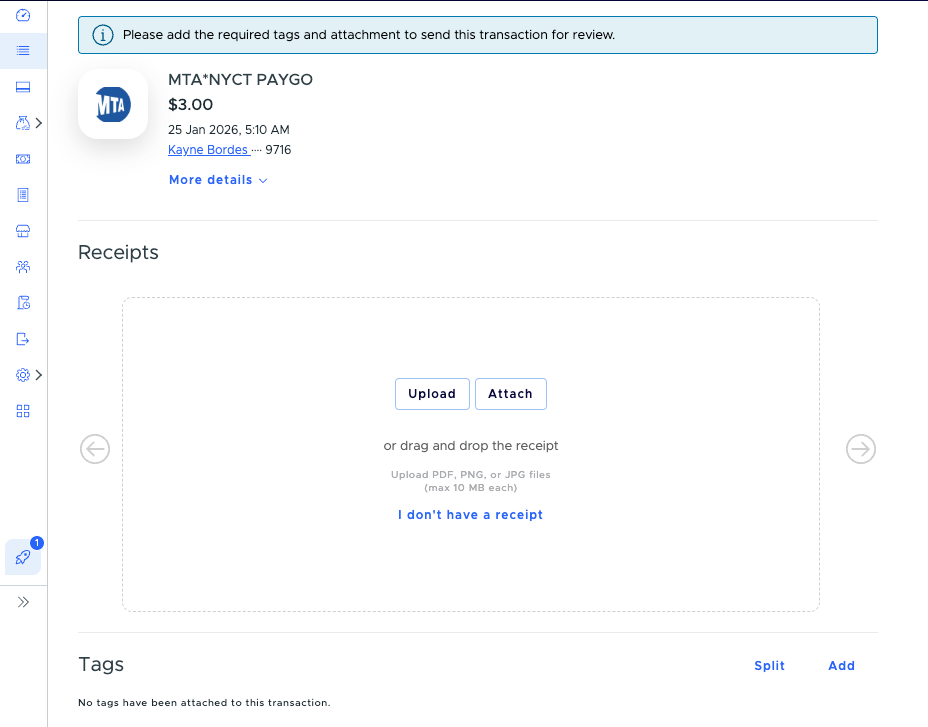
In the **Receipts** section, select **I don't have a receipt**.
When the feature is enabled, Cardholders see the affidavit option on eligible transactions. When it's disabled, the option is hidden.
**Note:**
If the **Lost-receipt affidavit** setting isn't available, [contact PEX administrator support](/administrator-guide/contact-administrator-support) for help enabling the feature on your account.
## Set a maximum transaction amount
You can limit affidavits to purchases at or below a specific amount. Larger purchases will still require a receipt.
When the feature is enabled, enter an amount in **An affidavit can be submitted for transactions up to \$**:
* Leave the amount at **\$0** to allow an affidavit for a transaction of any amount
* Enter **\$0.01** or more to set a maximum, such as **\$75.00**
Select **Update** to save the change. Cardholders can't submit an affidavit for a transaction above the maximum.
## Check your current settings
The **Workflow settings** tab shows the current lost-receipt affidavit setup:
* **Enabled** and **No maximum transaction amount** means affidavits are available for transactions of any amount
* **Enabled** and **Up to \$X.XX** means affidavits are available at or below that amount
* **Disabled** means the feature isn't available
## Submit a lost-receipt affidavit
When the feature is enabled, a Cardholder can submit an affidavit from an eligible transaction.
Go to **Transactions** and select the transaction.
In the **Receipts** section, select **I don't have a receipt**.
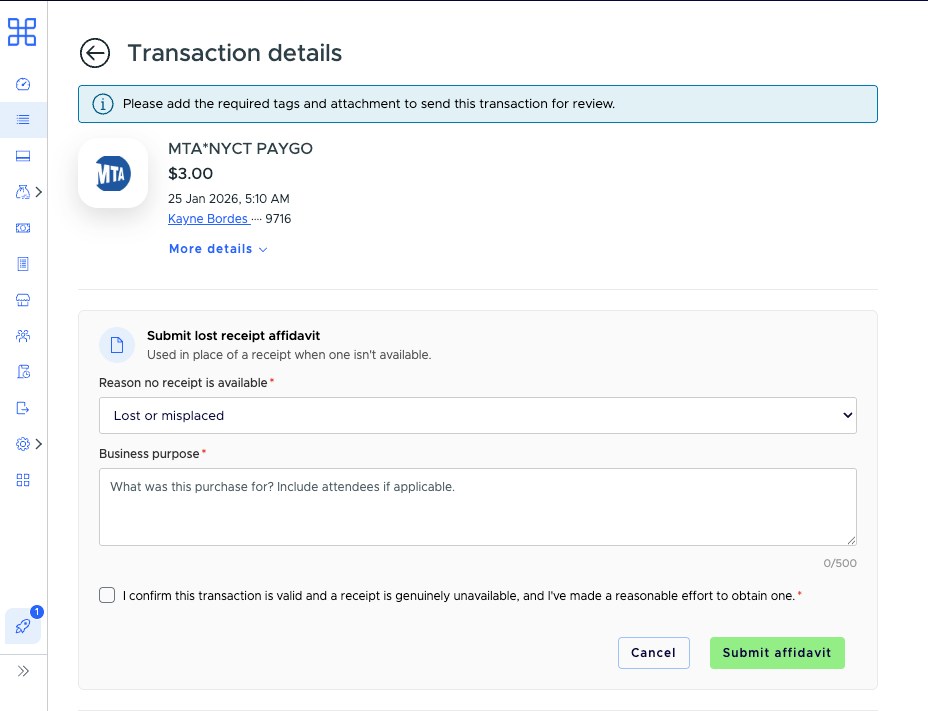
 Choose why the receipt isn't available, such as **Lost or misplaced**, **Never received from the merchant**, **Digital-only** or **Other**.
Describe what the purchase was for. Include attendees when applicable.
Select the checkbox confirming that the transaction is valid, the receipt is genuinely unavailable and you made a reasonable effort to obtain one.
Select **Submit affidavit**.
Choose why the receipt isn't available, such as **Lost or misplaced**, **Never received from the merchant**, **Digital-only** or **Other**.
Describe what the purchase was for. Include attendees when applicable.
Select the checkbox confirming that the transaction is valid, the receipt is genuinely unavailable and you made a reasonable effort to obtain one.
Select **Submit affidavit**.
 PEX generates the signed affidavit PDF and attaches it to the transaction as its receipt.
The **I don't have a receipt** option only appears when:
* The feature is enabled
* The transaction is a card purchase that still needs a receipt
* The transaction amount doesn't exceed the configured maximum
After a receipt or affidavit is attached, the option is no longer available. Administrators can still approve or reject the transaction through the normal review process.
PEX generates the signed affidavit PDF and attaches it to the transaction as its receipt.
The **I don't have a receipt** option only appears when:
* The feature is enabled
* The transaction is a card purchase that still needs a receipt
* The transaction amount doesn't exceed the configured maximum
After a receipt or affidavit is attached, the option is no longer available. Administrators can still approve or reject the transaction through the normal review process.