> ## Documentation Index
> Fetch the complete documentation index at: https://support.pexcard.com/llms.txt
> Use this file to discover all available pages before exploring further.
# Odometer tags
> Record vehicle odometer readings on card transactions with an Odometer tag that drivers can type or scan from an iPhone
An Odometer tag records a vehicle's odometer reading on a card transaction. Use it to keep a mileage record with each fuel or vehicle purchase, right next to the spend. Cardholders can type the reading or scan it with the camera on a supported iPhone.
## Create an Odometer tag
You need the **Manage workflows** permission to create tags. See [How to manage permissions](/administrator-guide/how-to-manage-permissions).
Log in to [dashboard.pexcard.com](https://dashboard.pexcard.com?utm_source=support).
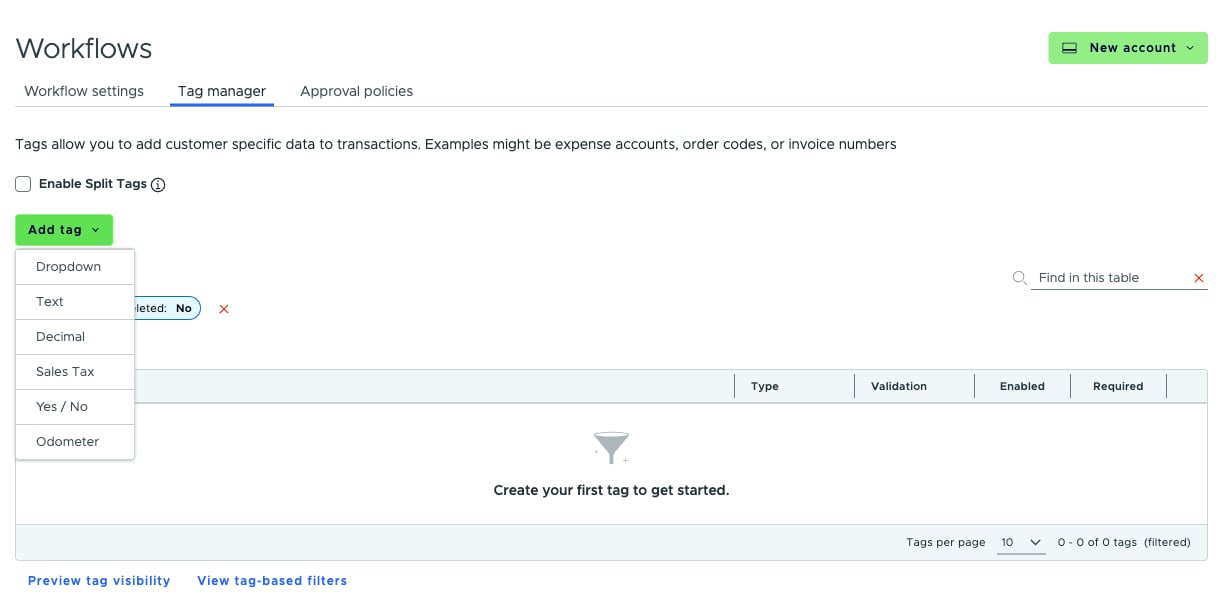
Go to **Business settings** > **Workflows** > **Tag manager**.
Click **Add tag** and select **Odometer**.
 On the **New odometer tag** form, enter a **Name**. This is the name Admins and Cardholders see in the Tags section on a transaction (for example, "Mileage").
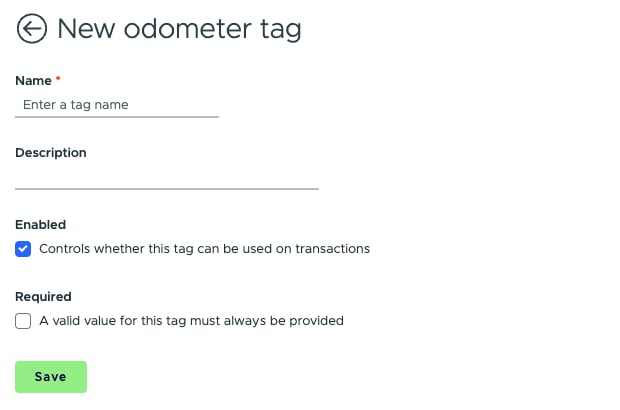 Optionally, add a **Description**.
Leave **Enabled** checked so the tag can be used on transactions.
Check **Required** if a valid value for this tag must always be provided.
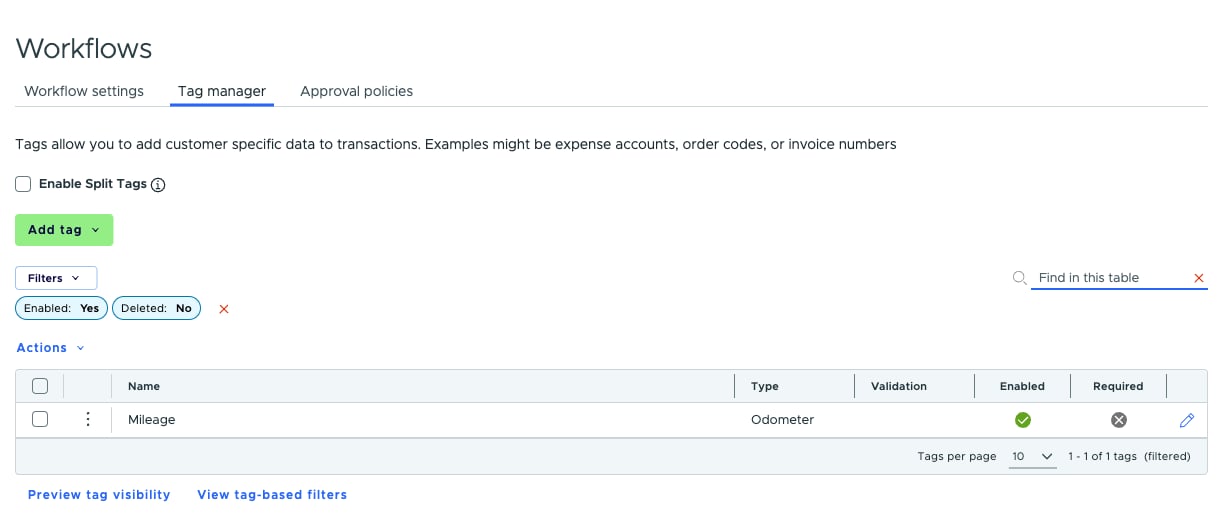
Click **Save**. You'll see "Tag created." and the tag appears in Tag manager with the type **Odometer**.
Optionally, add a **Description**.
Leave **Enabled** checked so the tag can be used on transactions.
Check **Required** if a valid value for this tag must always be provided.
Click **Save**. You'll see "Tag created." and the tag appears in Tag manager with the type **Odometer**.
 **Tip:**
**Required** applies to every transaction, not just fuel. Make the tag **Required** only if every purchase needs a reading — for example, on cards used only for fuel. Required tags show an asterisk (\*) and must be filled in before tags can be saved on a transaction.
Odometer tags have no validation settings and no options to manage, unlike Text and Dropdown tags.
## Entering readings
An Odometer tag accepts whole numbers of 0 or more. Decimals, negative numbers and commas aren't accepted, so leave off the tenths digit. For example, enter `45678` rather than `45,678.9`.
Admins can enter a reading on the web from:
* The transaction page
* Split tags
* Bulk set tag value
Admins and Cardholders can enter a reading in the PEX mobile app for iOS and Android. On the purchase, tap **Add tag(s)** or **Edit tag(s)** to open the **Edit tags** screen.
**Enabled** and **Required** work the same way as they do for other tag types.
## Scanning a reading on iPhone
In the PEX mobile app, a camera button appears next to an Odometer tag on the **Edit tags** screen. Tapping it lets Cardholders and Admins photograph the odometer instead of typing the number.
* **Requirements:** an iPhone 15 Pro, iPhone 15 Pro Max or any iPhone 16 or later, running iOS 26 or later with Apple Intelligence turned on in **Settings**. The base iPhone 15 and earlier models don't support Apple Intelligence. On other iPhones and on Android there is no camera button, so type the reading instead.
* **How it works:** take a photo of the odometer and crop it. The app reads the number on the phone and fills in the field. Check the number and edit it if needed before saving.
* **Camera access:** the first scan asks for camera access. If access was denied earlier, the app shows an alert with a button to open Settings.
* **If the number can't be read:** the field stays as it was and the app shows "Couldn't read the odometer. Enter it manually."
### The scan photo
When you tap **Save** on a transaction, the photo from the last successful scan is added as a receipt. No photo is added if you leave without saving, if the transaction can't take another receipt, if you scan on a reimbursement or if you type the reading by hand.
For the Cardholder steps, see [Adding an odometer reading to a purchase](/cardholder-guide/scanning-an-odometer-reading-with-the-pex-mobile-app).
## FAQ
No. Mileage reimbursement requests have their own **Starting odometer** and **Ending odometer** fields. An Odometer tag is a separate tag entered in the Tags section. A reading in one never fills in the other.
## Related topics
- [How to Setup and Create Tags with Tag Manager](/administrator-guide/how-to-setup-and-create-tags-with-tag-manager.md)
- [Auto Enforcer](/administrator-guide/auto-enforcer.md)
- [How to review transactions with receipts, tags and user notes](/administrator-guide/how-to-review-transactions-with-receipts-tags-and-user-notes.md)
This documentation is built and hosted on [Mintlify](https://mintlify.com), a developer documentation platform.
**Tip:**
**Required** applies to every transaction, not just fuel. Make the tag **Required** only if every purchase needs a reading — for example, on cards used only for fuel. Required tags show an asterisk (\*) and must be filled in before tags can be saved on a transaction.
Odometer tags have no validation settings and no options to manage, unlike Text and Dropdown tags.
## Entering readings
An Odometer tag accepts whole numbers of 0 or more. Decimals, negative numbers and commas aren't accepted, so leave off the tenths digit. For example, enter `45678` rather than `45,678.9`.
Admins can enter a reading on the web from:
* The transaction page
* Split tags
* Bulk set tag value
Admins and Cardholders can enter a reading in the PEX mobile app for iOS and Android. On the purchase, tap **Add tag(s)** or **Edit tag(s)** to open the **Edit tags** screen.
**Enabled** and **Required** work the same way as they do for other tag types.
## Scanning a reading on iPhone
In the PEX mobile app, a camera button appears next to an Odometer tag on the **Edit tags** screen. Tapping it lets Cardholders and Admins photograph the odometer instead of typing the number.
* **Requirements:** an iPhone 15 Pro, iPhone 15 Pro Max or any iPhone 16 or later, running iOS 26 or later with Apple Intelligence turned on in **Settings**. The base iPhone 15 and earlier models don't support Apple Intelligence. On other iPhones and on Android there is no camera button, so type the reading instead.
* **How it works:** take a photo of the odometer and crop it. The app reads the number on the phone and fills in the field. Check the number and edit it if needed before saving.
* **Camera access:** the first scan asks for camera access. If access was denied earlier, the app shows an alert with a button to open Settings.
* **If the number can't be read:** the field stays as it was and the app shows "Couldn't read the odometer. Enter it manually."
### The scan photo
When you tap **Save** on a transaction, the photo from the last successful scan is added as a receipt. No photo is added if you leave without saving, if the transaction can't take another receipt, if you scan on a reimbursement or if you type the reading by hand.
For the Cardholder steps, see [Adding an odometer reading to a purchase](/cardholder-guide/scanning-an-odometer-reading-with-the-pex-mobile-app).
## FAQ
No. Mileage reimbursement requests have their own **Starting odometer** and **Ending odometer** fields. An Odometer tag is a separate tag entered in the Tags section. A reading in one never fills in the other.
## Related topics
- [How to Setup and Create Tags with Tag Manager](/administrator-guide/how-to-setup-and-create-tags-with-tag-manager.md)
- [Auto Enforcer](/administrator-guide/auto-enforcer.md)
- [How to review transactions with receipts, tags and user notes](/administrator-guide/how-to-review-transactions-with-receipts-tags-and-user-notes.md)
This documentation is built and hosted on [Mintlify](https://mintlify.com), a developer documentation platform.