> ## Documentation Index
> Fetch the complete documentation index at: https://support.pexcard.com/llms.txt
> Use this file to discover all available pages before exploring further.
# PEX Connector for Airtable
> The PEX Connector for Airtable allows Admins to sync settled PEX transactions to Airtable. You should create the Airtable table beforehand in your Airtable account.
## Creating Airtable Table
[Sign in](https://airtable.com/login) your Airtable Account.
Add a base. The Airtable table will be automatically created in the base.
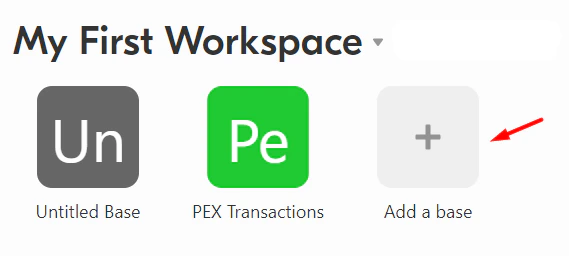 Name the base and the table.
## Airtable Table Format
In order to sync transaction data from PEX, the Airtable table should have the following columns and strictly adhere to the below listed data format.
**Note:**
Column headers should be named exactly the same because the sync is case-sensitive.
| Columns | Data type |
| ---------------------- | ---------------------------------------------------------------------------------------------------------------------------------------------------------- |
| Transaction ID | Number
Name the base and the table.
## Airtable Table Format
In order to sync transaction data from PEX, the Airtable table should have the following columns and strictly adhere to the below listed data format.
**Note:**
Column headers should be named exactly the same because the sync is case-sensitive.
| Columns | Data type |
| ---------------------- | ---------------------------------------------------------------------------------------------------------------------------------------------------------- |
| Transaction ID | Number
Format: Decimal places (0)
Allow negative numbers OFF |
| Merchant ID | Single line text |
| MCC | Single line text |
| Merchant Name | Single line text |
| Transaction Time (EST) | Date
Date format: ISO
Include time ON
Time format: 12 hour
Use the same time zone for all collaborators OFF
Display time zone OFF |
| Settlement Time (EST) | Date
Date format: ISO
Include time ON
Time format: 12 hour
Use the same time zone for all collaborators OFF
Display time zone OFF |
| Cardholder ID | Number
Format: Decimal places (0)
Allow negative numbers OFF |
| Cardholder Name | Single line text |
| Card Number | Single line text |
| Description | Single line text |
| Amount | Currency
Currency symbol: $
Precision: $1.00
Allow negative numbers ON |
| Cardholder Group | Single line text |
 ## Accessing App
To access the app:
Log in to your account [dashboard.pexcard.com](http://dashboard.pexcard.com/?utm_source=support)
Navigate to Apps on the left side of your PEX menu.
Select the "**Available**" tab.
Scroll to locate PEX Connector for Airtable.
Click "**More info**" on the tile.
Click "**Install**".
Click "**Launch**".
**Note:**
To install the app, you need to enable the following permissions: *Edit business settings & apps*, *View card transactions*. You can enable them in [My Profile -> Permissions](https://dashboard.pexcard.com/account/permissions?utm_source=support).
## Initializing App
Once the app has launched, follow the steps:
Click "**Connect**" to link your PEX account to your Airtable account.
## Accessing App
To access the app:
Log in to your account [dashboard.pexcard.com](http://dashboard.pexcard.com/?utm_source=support)
Navigate to Apps on the left side of your PEX menu.
Select the "**Available**" tab.
Scroll to locate PEX Connector for Airtable.
Click "**More info**" on the tile.
Click "**Install**".
Click "**Launch**".
**Note:**
To install the app, you need to enable the following permissions: *Edit business settings & apps*, *View card transactions*. You can enable them in [My Profile -> Permissions](https://dashboard.pexcard.com/account/permissions?utm_source=support).
## Initializing App
Once the app has launched, follow the steps:
Click "**Connect**" to link your PEX account to your Airtable account.
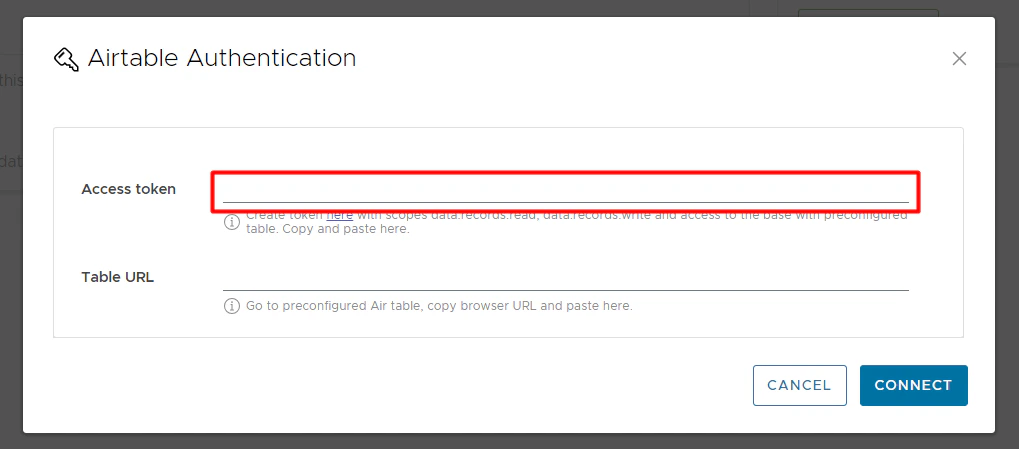
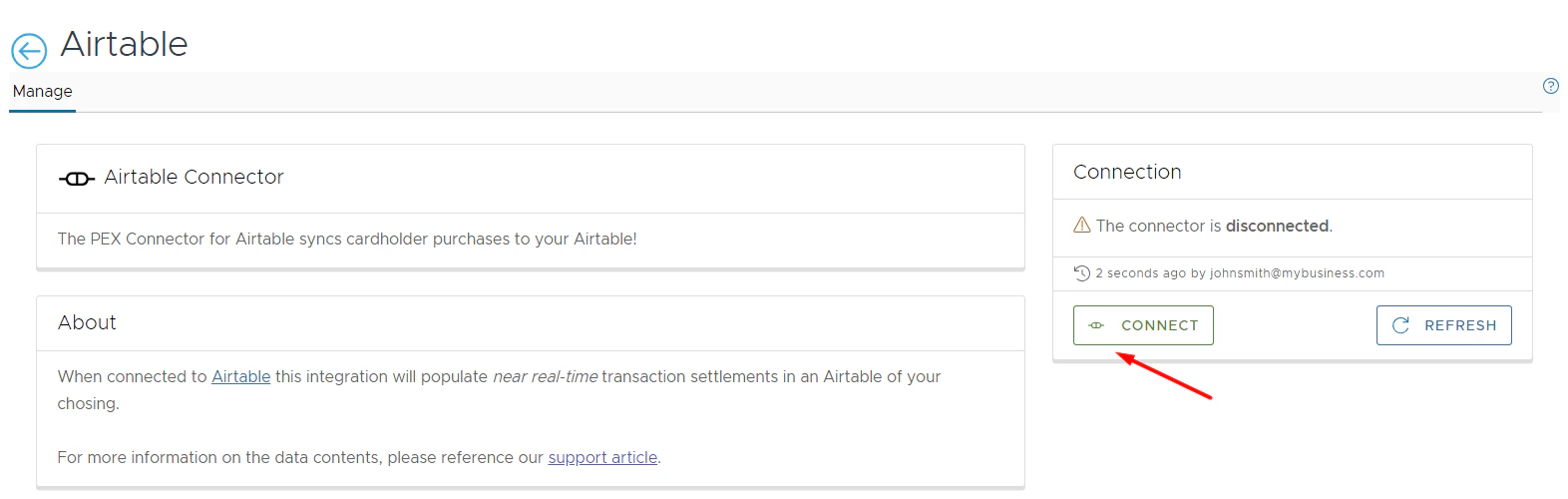 Enter your Access token and Table URL.
* To create a token:
* Go to [https://airtable.com/create/tokens/new](https://airtable.com/create/tokens/new)
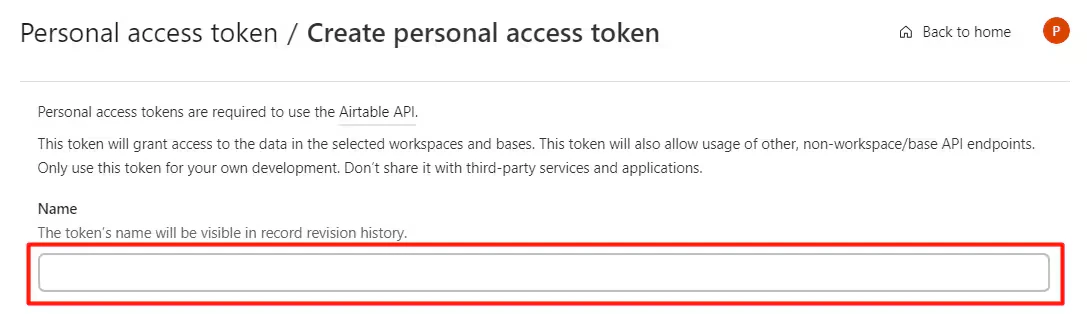
* Name a token.
Enter your Access token and Table URL.
* To create a token:
* Go to [https://airtable.com/create/tokens/new](https://airtable.com/create/tokens/new)
* Name a token.
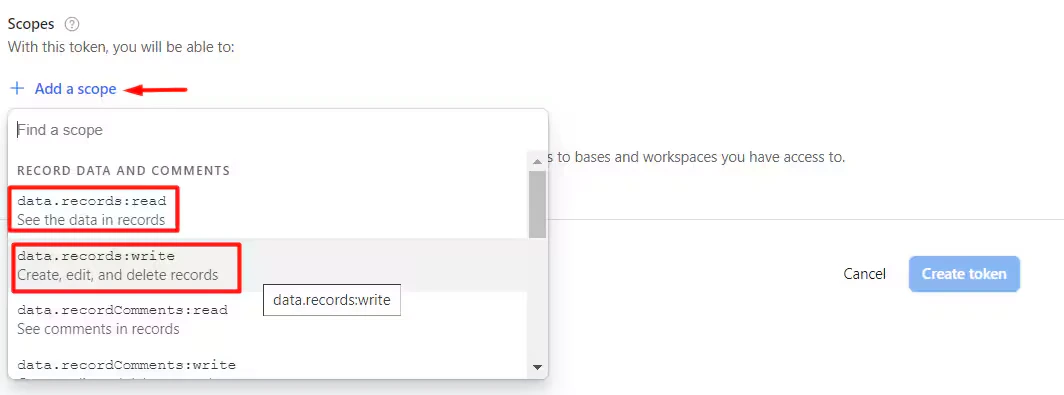
 * Click "**+ Add a scope**".
* Select two permissions: *data.records:read*, *data.records:write*
* Click "**+ Add a scope**".
* Select two permissions: *data.records:read*, *data.records:write*
 * Click "**+ Add a base**" and select the table you created to sync transactions to.
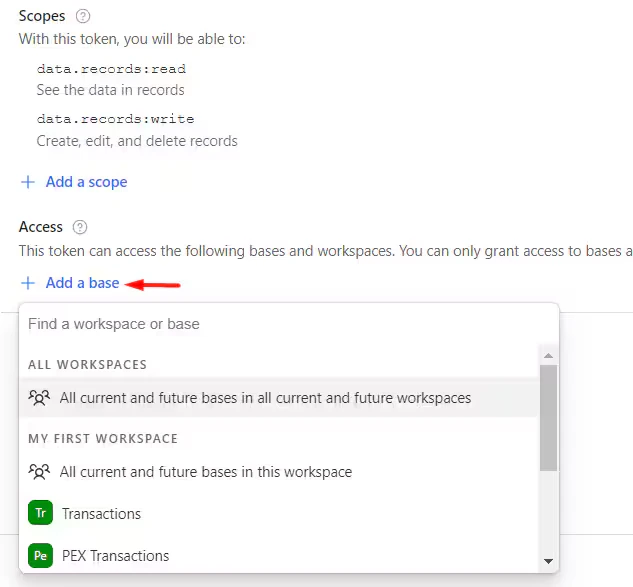 * Click "**Create token**".
* Click on the "**Copy**" icon.
* Click "**Create token**".
* Click on the "**Copy**" icon.
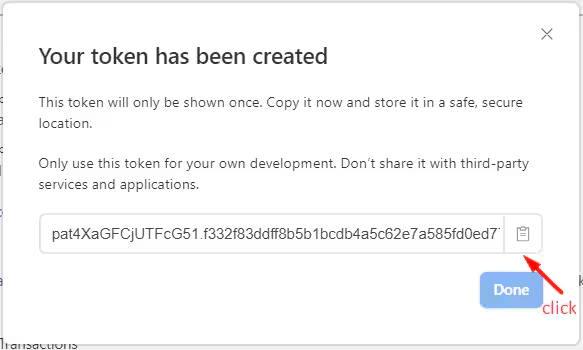 * Paste the copied token into the **Access Token** field.
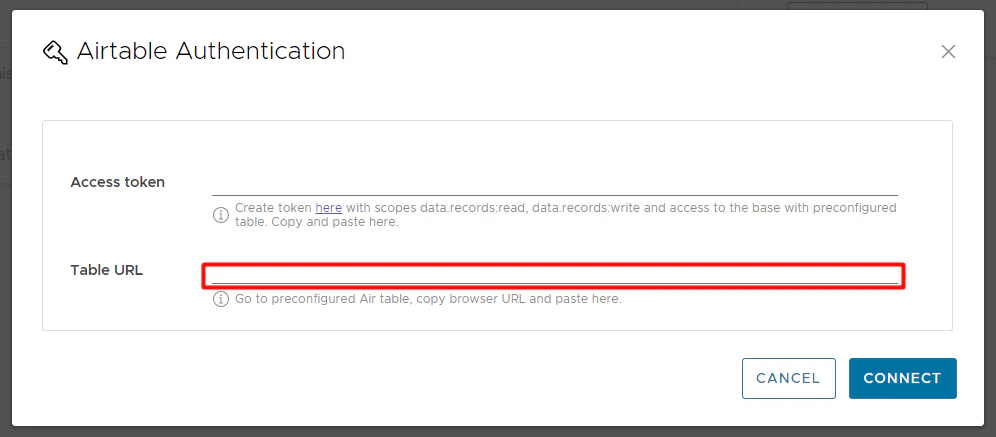
 * Open your the table you created to sync transactions to.
* Copy its link.
* Open your the table you created to sync transactions to.
* Copy its link.
 * Paste the copied link into the **Table URL** field.
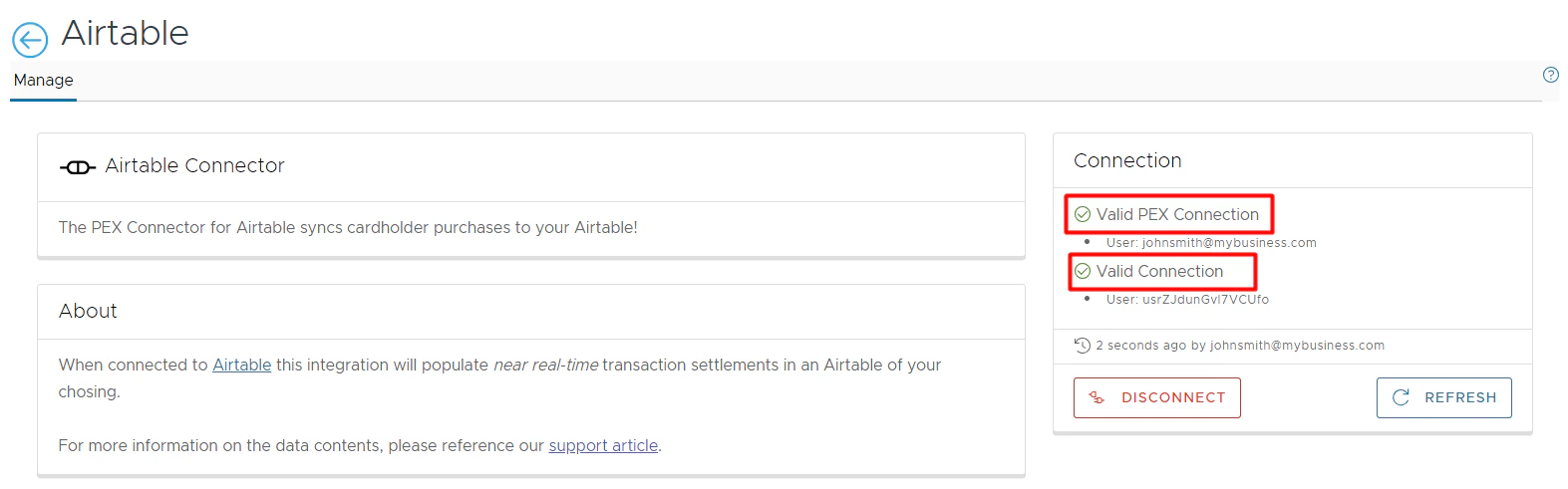
 Click "**Connect**".
Once connected, you will see a valid connection status.
Click "**Connect**".
Once connected, you will see a valid connection status.
 ## Using App
To view your synced transactions:
[Sign in](https://airtable.com/login) your Airtable Account.
Locate your Airtable base and table that you sync transactions to.
Click on it.
View your synced settled transactions.
When a new transaction is settled, its record will appear in your Airtable Table as a new row.
**Note:**
The PEX Connector syncs:
1. Only settled transactions.
2. No past transactions.
## How PEX shares data with Airtable
Connecting PEX to your Airtable account is required to sync transaction data into your Airtable table. The PEX Connector for Airtable will only read and write data to your linked Airtable table. For more information on the PEX Privacy Policy, please navigate [here](https://www.pexcard.com/legal/privacy-policy/?utm_source=support).
## Support & Inquiries
For any questions related to your connector, please email [appsupport+airtable@pexcard.com](mailto:appsupport+airtable@pexcard.com)
## Using App
To view your synced transactions:
[Sign in](https://airtable.com/login) your Airtable Account.
Locate your Airtable base and table that you sync transactions to.
Click on it.
View your synced settled transactions.
When a new transaction is settled, its record will appear in your Airtable Table as a new row.
**Note:**
The PEX Connector syncs:
1. Only settled transactions.
2. No past transactions.
## How PEX shares data with Airtable
Connecting PEX to your Airtable account is required to sync transaction data into your Airtable table. The PEX Connector for Airtable will only read and write data to your linked Airtable table. For more information on the PEX Privacy Policy, please navigate [here](https://www.pexcard.com/legal/privacy-policy/?utm_source=support).
## Support & Inquiries
For any questions related to your connector, please email [appsupport+airtable@pexcard.com](mailto:appsupport+airtable@pexcard.com)