> ## Documentation Index
> Fetch the complete documentation index at: https://support.pexcard.com/llms.txt
> Use this file to discover all available pages before exploring further.
# PEX Exporter for ACS Technologies
> Convert PEX transactions into an ACS Technologies Realm–compatible format for faster expense reporting. For nonprofits and religious organizations that use Realm for accounting.
## Access app
To access the app:
* Log in to [http://dashboard.pexcard.com/](http://dashboard.pexcard.com/?utm_source=support)
* Go to [Apps → Available](https://dashboard.pexcard.com/apps/available?utm_source=support)
* Locate **PEX Exporter for ACST**.
* Click **More info**, then **Install**, then **Launch**.
***Note:***
To install the exporter, you need to enable the following permissions: *Edit business settings & apps*, *Manage cardholder*, *View card transactions*. You can enable them in [My Profile -> Permissions](https://dashboard.pexcard.com/account/permissions?utm_source=support).
## Configure app
Once the app has launched, you will be directed to set up the app.
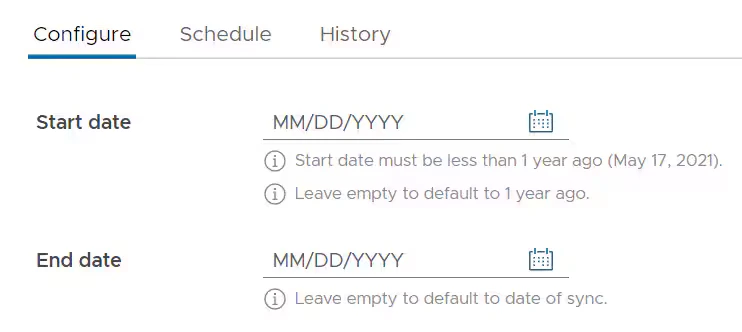
Select the earliest transaction date using the date picker (up to 1 year ago).
Enter an end date or leave it blank.
 You will be presented the option to sync Purchases, Transfers, and/or Fees.
Select the toggle to activate Purchases, which will update the toggle from grey to green.
You will be presented the option to sync Purchases, Transfers, and/or Fees.
Select the toggle to activate Purchases, which will update the toggle from grey to green.
 Select if you would like to Export All transactions or only Approved transactions from the dropdown.
**Note:**
It's recommend to select Approved transactions only.
Select if you would like to Export All transactions or only Approved transactions from the dropdown.
**Note:**
It's recommend to select Approved transactions only.
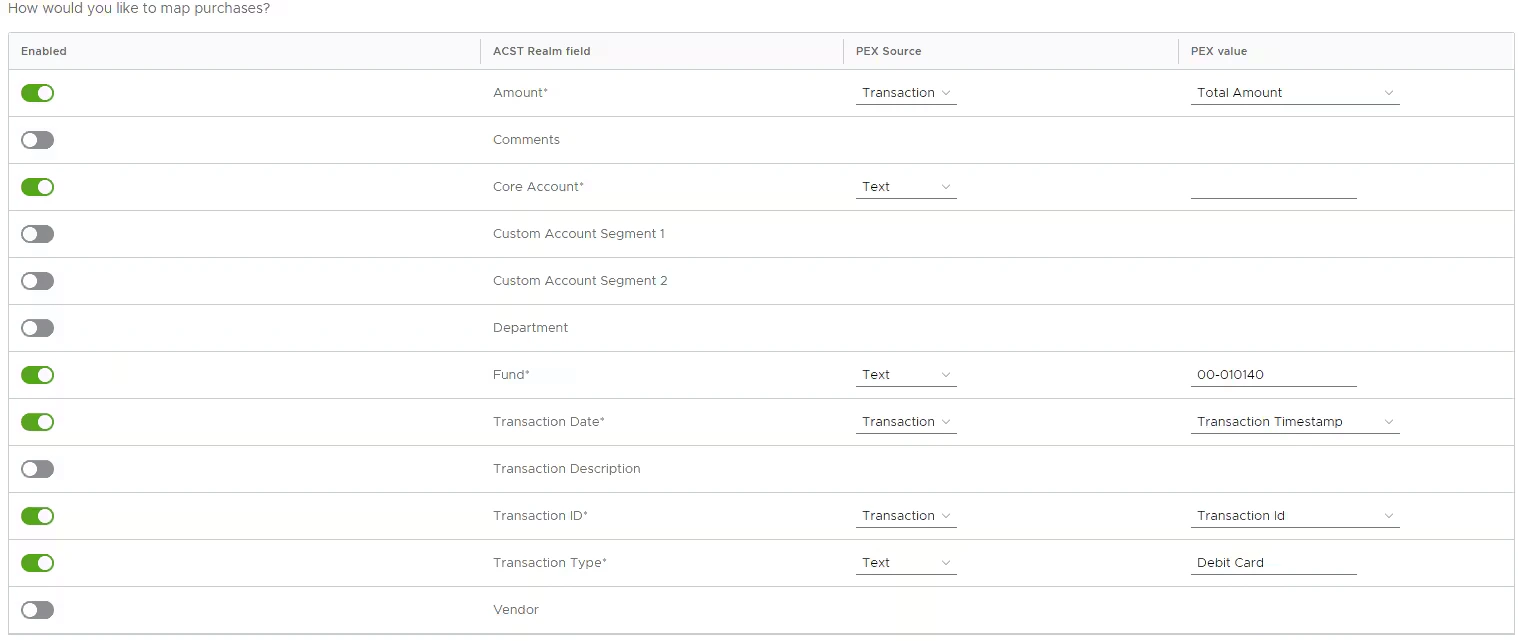
 Begin mapping PURCHASES for each of the fields. All required fields denoted with \* will be enabled by default. The **Target field** maps to Realm. The **Source** options include Text, Tag, and Transaction. The **Source value** will change based on the **Source** option selected. All options included as a default can be updated based on your preferences.
**Note:**
*Custom Account Segments are used as additional categories within Realm. Examples include 01 General Fund - 5000 Core Account Food - 01 Children's Department. Additionally, Tags selected are based on your business' active PEX tags. To manage tags, navigate to Business settings > Tag manager.*
Begin mapping PURCHASES for each of the fields. All required fields denoted with \* will be enabled by default. The **Target field** maps to Realm. The **Source** options include Text, Tag, and Transaction. The **Source value** will change based on the **Source** option selected. All options included as a default can be updated based on your preferences.
**Note:**
*Custom Account Segments are used as additional categories within Realm. Examples include 01 General Fund - 5000 Core Account Food - 01 Children's Department. Additionally, Tags selected are based on your business' active PEX tags. To manage tags, navigate to Business settings > Tag manager.*
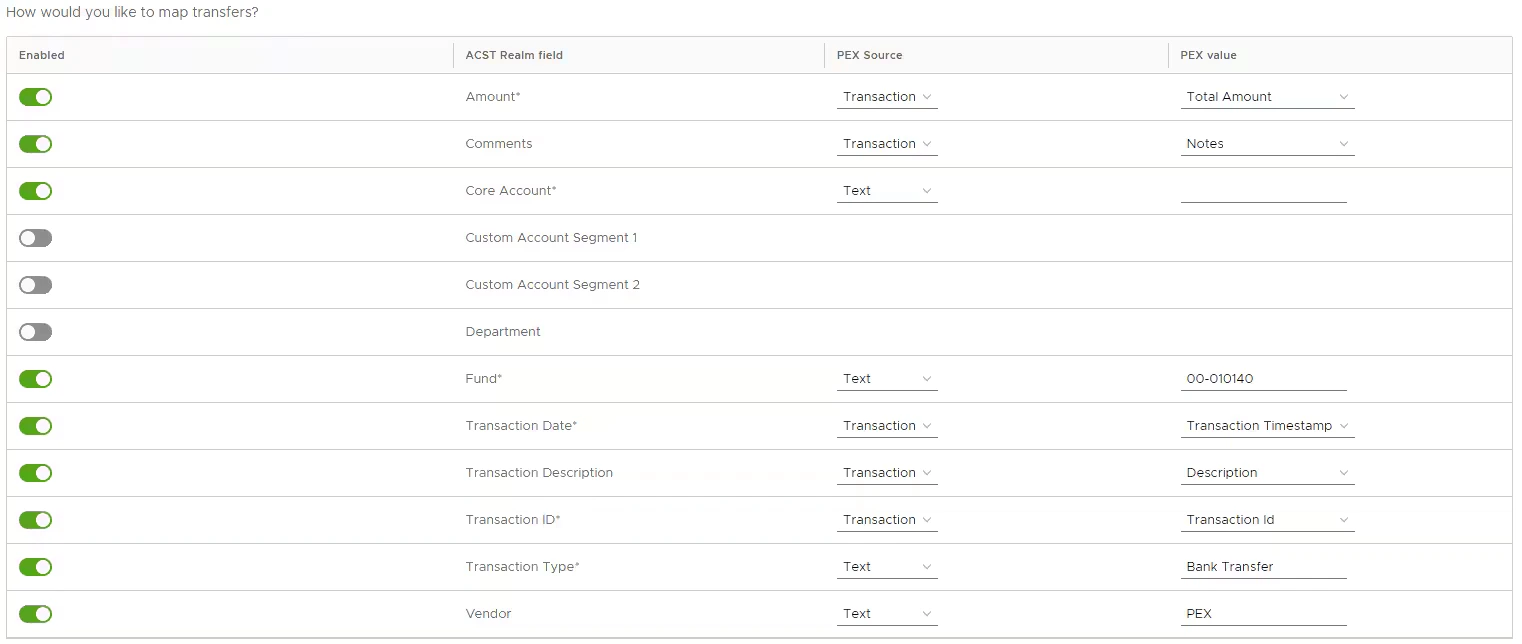
 If you would like to map TRANSFERS, follow the step for each of the fields. All required fields denoted with \* will be enabled by default. The **Target field** maps to Realm. The **Source** options include Text, Tag, and Transaction. The **Source value** will change based on the **Source** option selected. All options included as a default can be updated based on your preferences.
**Note:**
*Account No.* is the bank account your business uses to fund transactions.
If you would like to map TRANSFERS, follow the step for each of the fields. All required fields denoted with \* will be enabled by default. The **Target field** maps to Realm. The **Source** options include Text, Tag, and Transaction. The **Source value** will change based on the **Source** option selected. All options included as a default can be updated based on your preferences.
**Note:**
*Account No.* is the bank account your business uses to fund transactions.
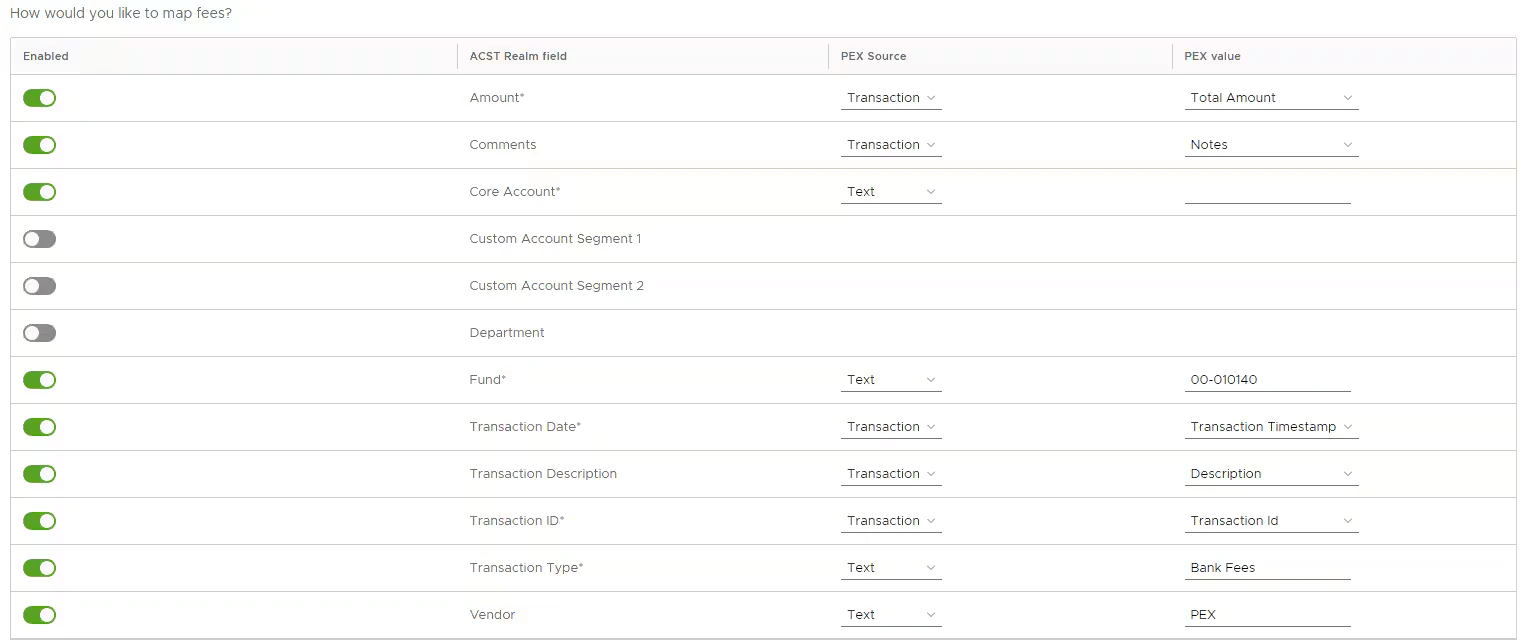
 If you would like to map FEES, follow the step for each of the fields. All required fields denoted with \* will be enabled by default. The **Target field** maps to Realm. The **Source** options include Text, Tag, and Transaction. The **Source value** will change based on the **Source** option selected. All options included as a default can be updated based on your preferences.
**Note:**
*Account No.* is the bank account where you pay FEES for the PEX platform.
If you would like to map FEES, follow the step for each of the fields. All required fields denoted with \* will be enabled by default. The **Target field** maps to Realm. The **Source** options include Text, Tag, and Transaction. The **Source value** will change based on the **Source** option selected. All options included as a default can be updated based on your preferences.
**Note:**
*Account No.* is the bank account where you pay FEES for the PEX platform.
 Once all required fields are populated, press 'Submit'.
 ## Schedule export
*One time sync:* To run a one time report, select a date and time to run the report and press 'Save'.
## Schedule export
*One time sync:* To run a one time report, select a date and time to run the report and press 'Save'.
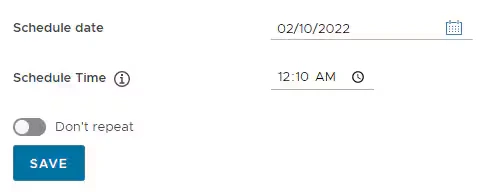 *Recurring sync:* To run this report on a recurring basis, select the frequency and end date for the scheduled report.
 *Run Now:* Coming soon you'll have the ability to run this instantly.
## View history
The History tab shows you a list of prior exports including the date range selected, status, # transactions found, # transactions eligible, and # transactions exported. The Action tab will have a download button once the transactions can be downloaded (see below). If you selected a small date range with a low number of transactions, the download should be ready in less than a minute. If the date range contains a large number of transactions, it may take a few minutes to populate. Simply refresh the screen to get the latest update.
**Note:**
if you selected *Approved* transactions only on the Configure screen, only approved transactions will be visible.
*Run Now:* Coming soon you'll have the ability to run this instantly.
## View history
The History tab shows you a list of prior exports including the date range selected, status, # transactions found, # transactions eligible, and # transactions exported. The Action tab will have a download button once the transactions can be downloaded (see below). If you selected a small date range with a low number of transactions, the download should be ready in less than a minute. If the date range contains a large number of transactions, it may take a few minutes to populate. Simply refresh the screen to get the latest update.
**Note:**
if you selected *Approved* transactions only on the Configure screen, only approved transactions will be visible.
 ## FAQ
The PEX Exporter for ACS Technologies supports .CSV and .XLS
At this time, split tags are not supported.
Every exported purchase has a "Synced to PEX Connector for ACS Technologies" note. If you remove this note, the purchase will be re-exported.
For any questions, please email [appsupport+acst@pexcard.com](mailto:appsupport+acst@pexcard.com)
## FAQ
The PEX Exporter for ACS Technologies supports .CSV and .XLS
At this time, split tags are not supported.
Every exported purchase has a "Synced to PEX Connector for ACS Technologies" note. If you remove this note, the purchase will be re-exported.
For any questions, please email [appsupport+acst@pexcard.com](mailto:appsupport+acst@pexcard.com)