> ## Documentation Index
> Fetch the complete documentation index at: https://support.pexcard.com/llms.txt
> Use this file to discover all available pages before exploring further.
# PEX Spend Analytics
> **PEX Spend Analytics** provides insights on your company's PEX spend including spend over the current vs. prior month, your top merchants and MCC codes, and more.
## Accessing app
To access the app:
Log in to [http://dashboard.pexcard.com/](http://dashboard.pexcard.com/?utm_source=support)
Navigate to [Apps > Available](https://dashboard.pexcard.com/apps/available?utm_source=support)
Locate **PEX Spend Analytics**.
Click **More info** > **Install** > **Launch**.
## Selecting your report
From the dropdown, select the report you wish to view and click launch. View details below on each report.
## Cardholder spend
The Cardholder spend report displays an overview by cardholder. Here you can see the following information:
1. Total cardholder spend over the past 2 months.
2. Last 4 digits, the total amount, total # of transactions and average spend in the current month.
Click on the export filter at the top to filter the report by date or export to Excel.
 ## Total spend
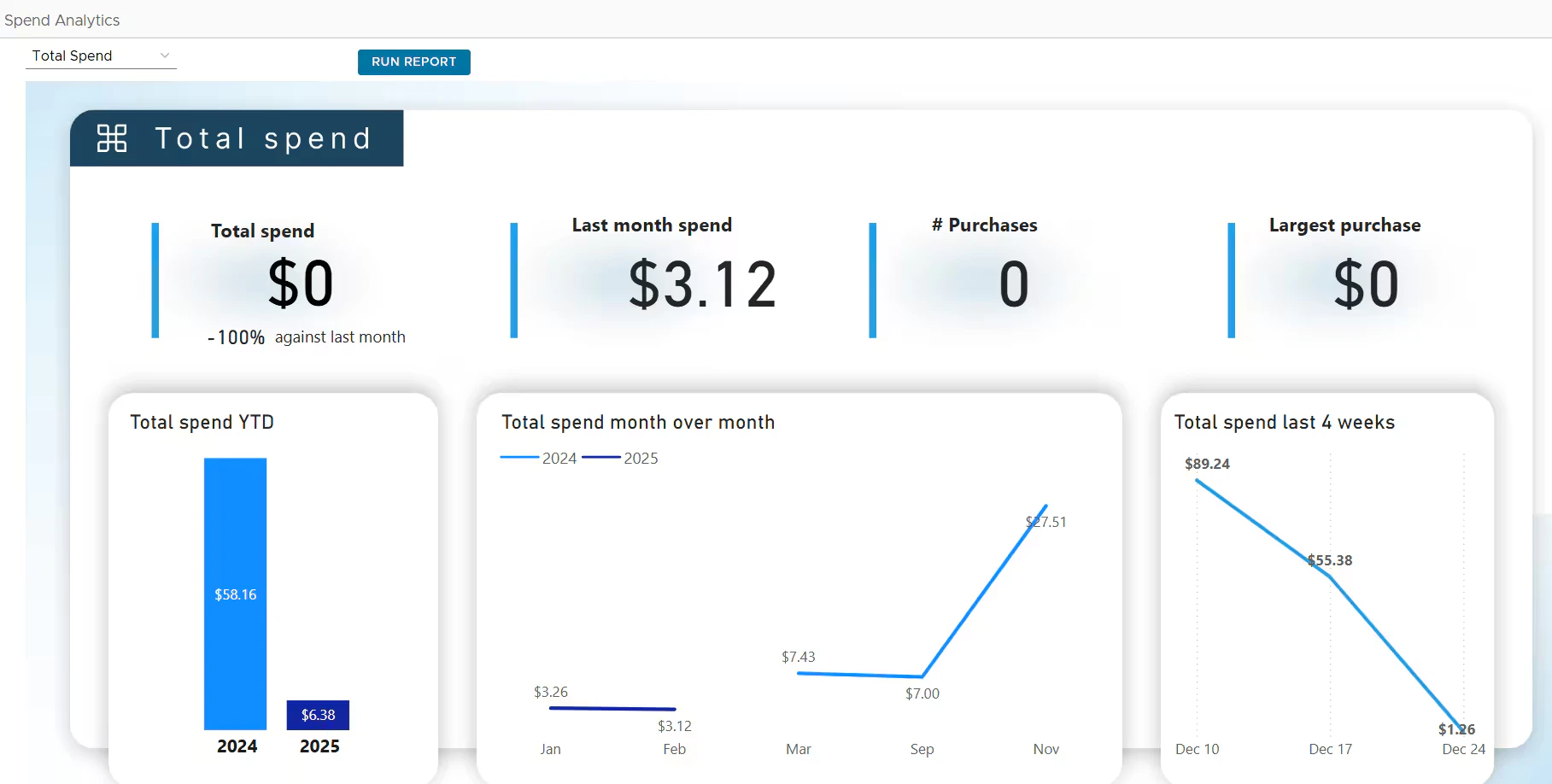
The Total spend report displays an overview of your PEX spend for the current and prior month. Here you can see the following information:
1. Total spend and % compared to the prior month
2. Last month spend
3. \# of transactions
4. The amount and merchant for your largest purchase
5. Total spend year to date (YTD)
6. Total spend over month
7. Total spend last 4 weeks
Click on the export filter at the top to filter the report by date or export to Excel.
## Total spend
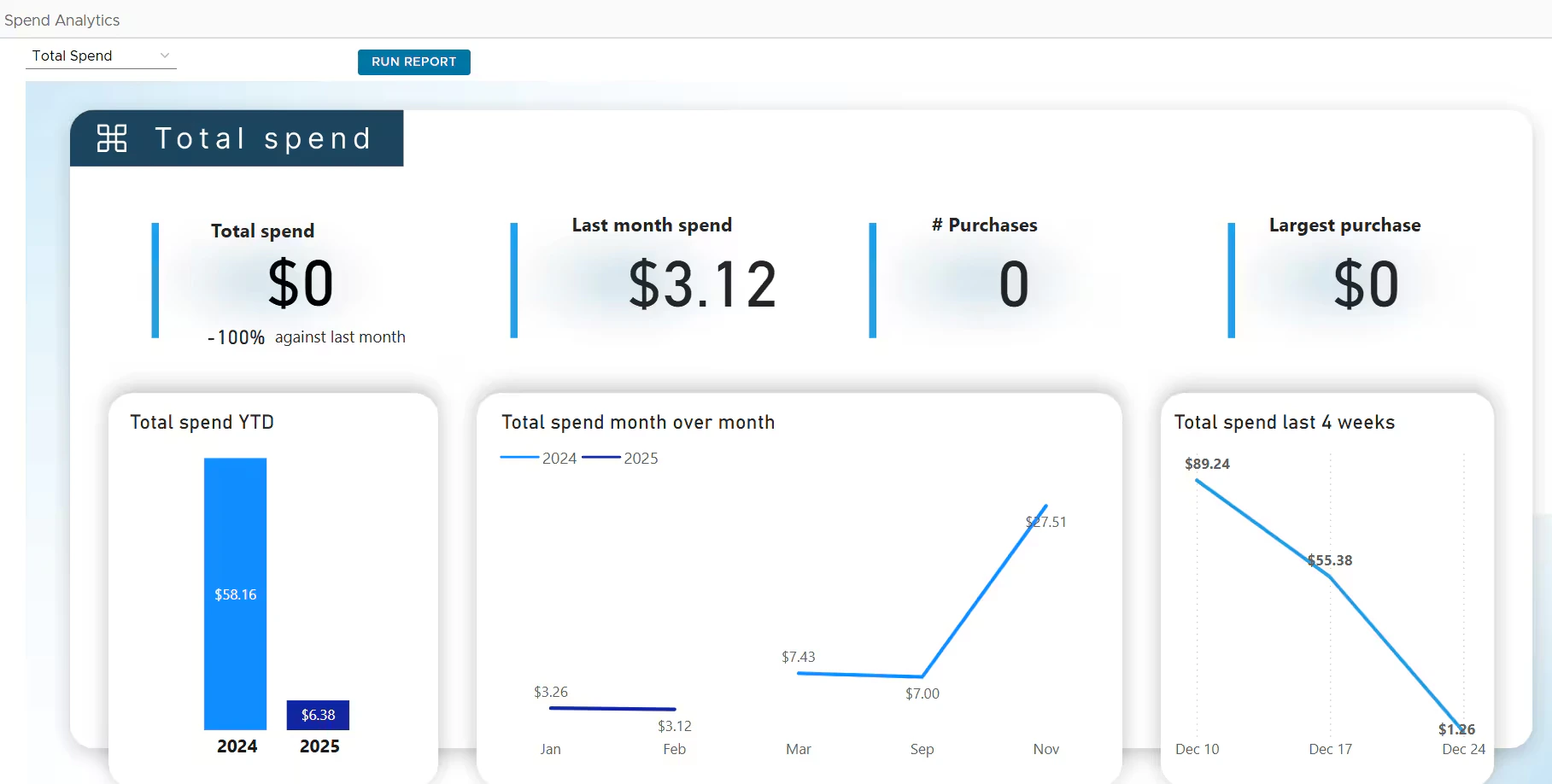
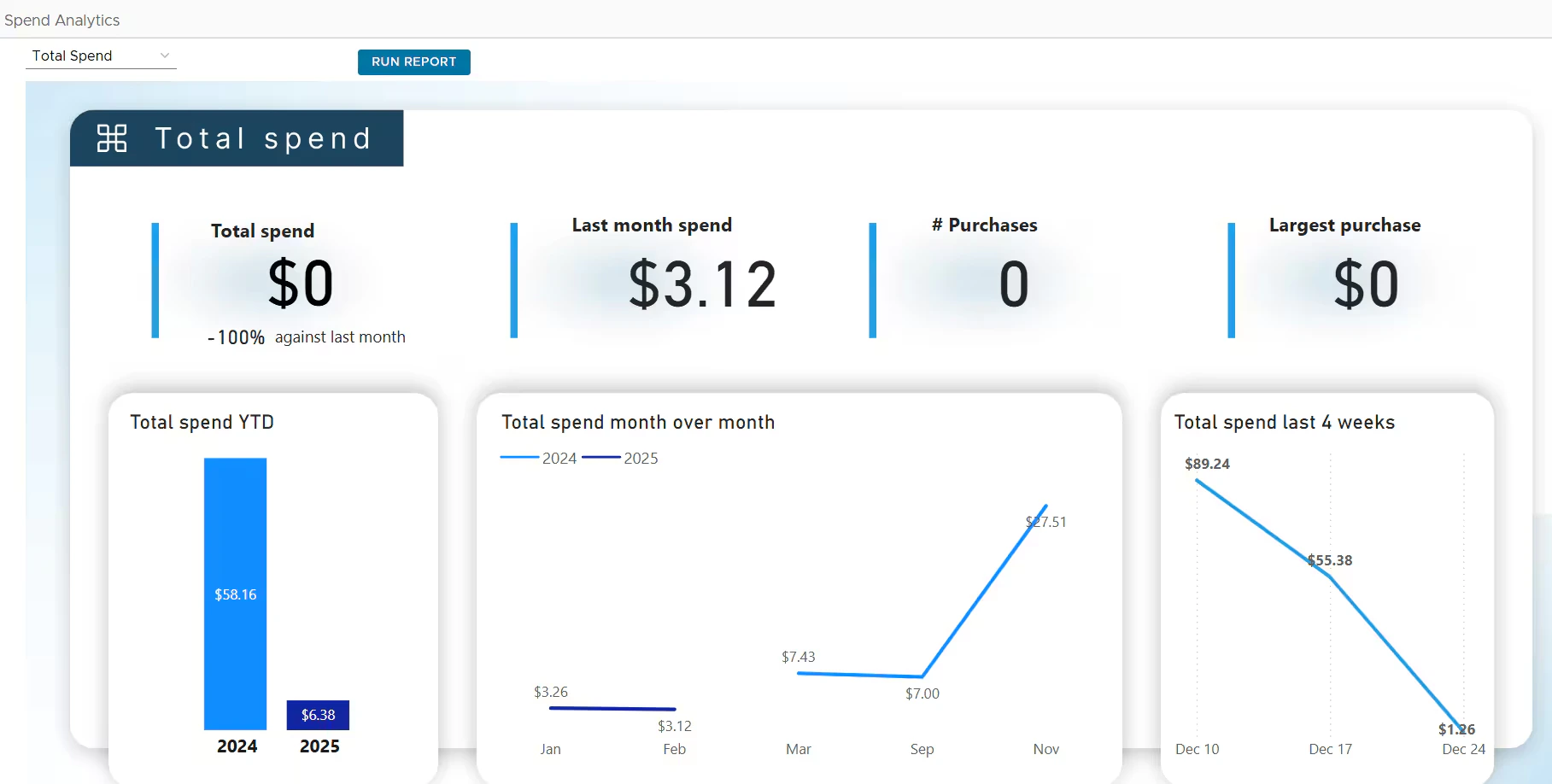
The Total spend report displays an overview of your PEX spend for the current and prior month. Here you can see the following information:
1. Total spend and % compared to the prior month
2. Last month spend
3. \# of transactions
4. The amount and merchant for your largest purchase
5. Total spend year to date (YTD)
6. Total spend over month
7. Total spend last 4 weeks
Click on the export filter at the top to filter the report by date or export to Excel.
 ## Merchant spend
The Merchant spend report displays an overview of your spend by merchant category for the current month. Here you can see the following information:
1. Spend by merchant category (sorted descending)
2. A table of merchants including total amount, total transactions and average spend.
Click on the export filter at the top to filter the report by date or export to Excel.
## Merchant spend
The Merchant spend report displays an overview of your spend by merchant category for the current month. Here you can see the following information:
1. Spend by merchant category (sorted descending)
2. A table of merchants including total amount, total transactions and average spend.
Click on the export filter at the top to filter the report by date or export to Excel.
 ## MCC spend
The MCC Spend report lists the merchant categories that your business has purchased using your PEX card over the past month. Here you can see the following information:
1. Spend by MCC Name & Code (including % of your total spend and dollar amount)
Click on the export filter at the top to filter the report by date or export to Excel.
## MCC spend
The MCC Spend report lists the merchant categories that your business has purchased using your PEX card over the past month. Here you can see the following information:
1. Spend by MCC Name & Code (including % of your total spend and dollar amount)
Click on the export filter at the top to filter the report by date or export to Excel.
 ## FAQ
Your spend information is updated 4 times a day.
Data is visible from January 1, 2022.
The totals include settled transactions only. Pending transactions are not included.
All charts are exportable to Excel. Simply navigate to the Export button on the top bar.
At this time, you can only view analytics for an individual account. We are working to add this across multiple accounts in the future.
For any questions related to Spend Analytics including any other information you would like to see, please email [appsupport+spendanalytics@pexcard.com](mailto:appsupport+spendanalytics@pexcard.com)
## FAQ
Your spend information is updated 4 times a day.
Data is visible from January 1, 2022.
The totals include settled transactions only. Pending transactions are not included.
All charts are exportable to Excel. Simply navigate to the Export button on the top bar.
At this time, you can only view analytics for an individual account. We are working to add this across multiple accounts in the future.
For any questions related to Spend Analytics including any other information you would like to see, please email [appsupport+spendanalytics@pexcard.com](mailto:appsupport+spendanalytics@pexcard.com)