> ## Documentation Index
> Fetch the complete documentation index at: https://support.pexcard.com/llms.txt
> Use this file to discover all available pages before exploring further.
# PEX Split Tags
> Allocate a single PEX expense across multiple account codes or funding sources using Split Tags on Pro and higher plans.
PEX Split Tags enables you to allocate a single expense to multiple account codes or funding sources. This article guides you through the steps on how to use PEX Split Tags.
## Permissions
Your account need to be enrolled in PEX Pro pricing plan or higher to take advantage of PEX Tags and Split Tag functionality. If you are already using PEX tags with your PEX account, it's easy to get the Split tag feature turned on. Please contact [adminsupport@pexcard.com](mailto:adminsupport@pexcard.com).
## How to enable Split Tags
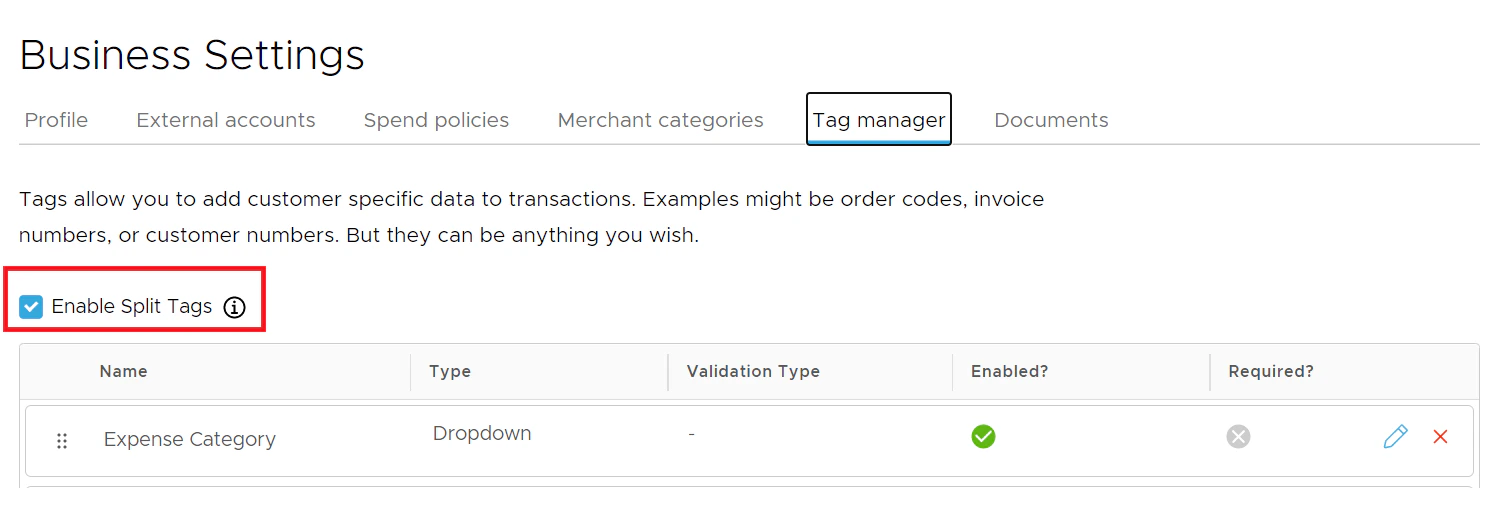
Once your account is enabled for the Split tag by admin support, you will find the "Enable Split Tags" check box in Tag manager. Check the box.
## How to use Split Tags
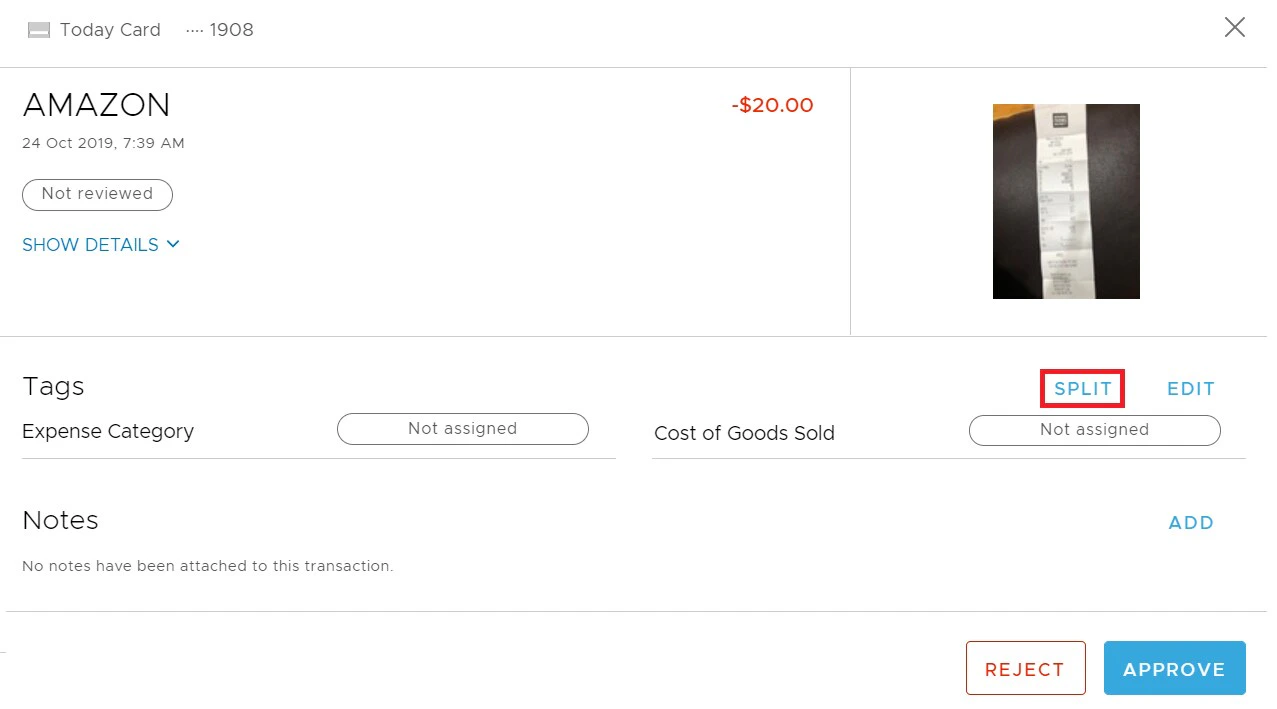
On each transaction, the "Split" option will be visible in the Tags section.
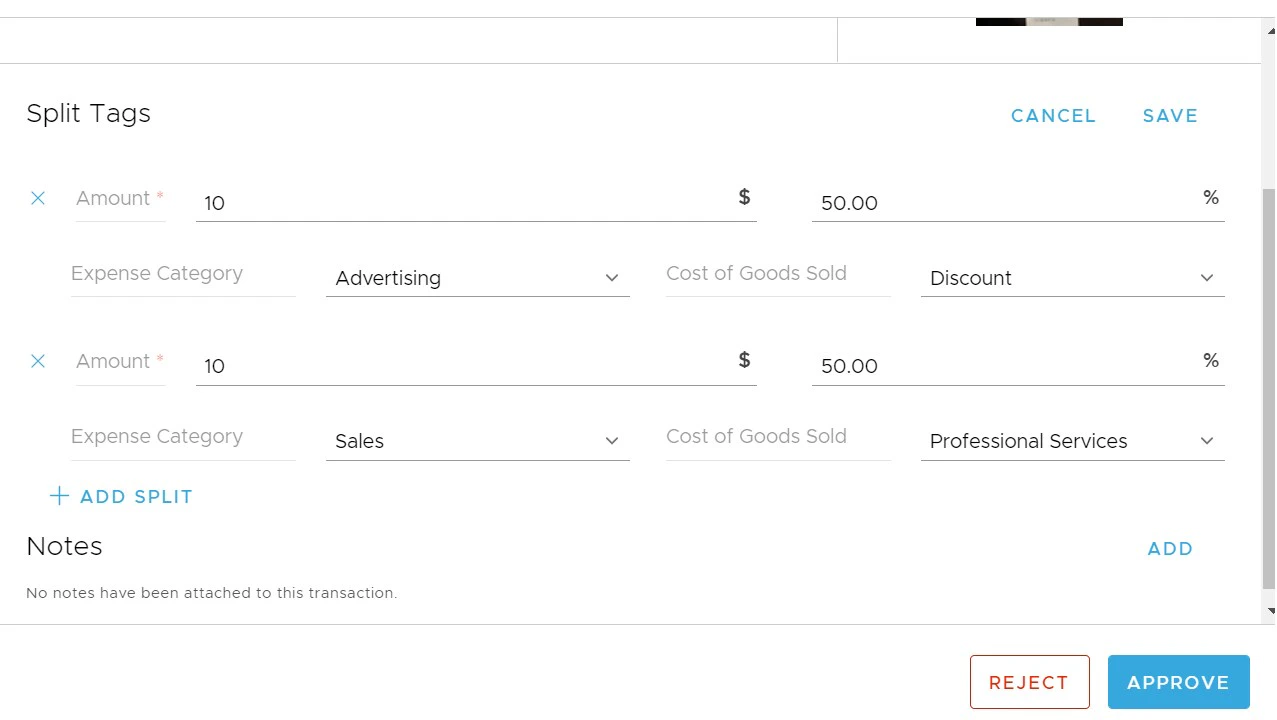
When you click "Split", the set of tags will be replicated with a 50% split of the transaction amount as default. The transaction can be split multiple times. Users can edit the amount or the percentage allocation for each split. **Sum of the all split amounts should match the Transaction amount**.
Click on the "Save" button to save the tags.
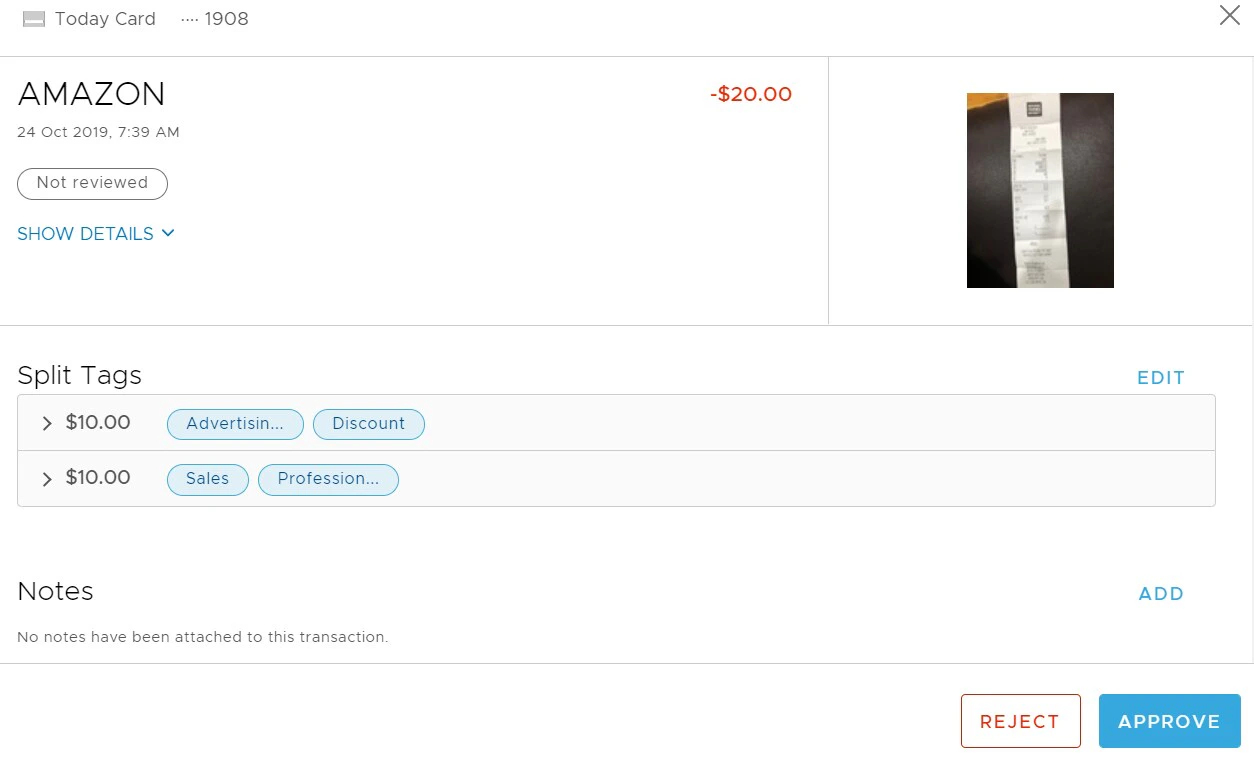
You can verify the allocation tag values and the amounts for each allocation.
 ## How to use Split Tags
On each transaction, the "Split" option will be visible in the Tags section.
## How to use Split Tags
On each transaction, the "Split" option will be visible in the Tags section.
 When you click "Split", the set of tags will be replicated with a 50% split of the transaction amount as default. The transaction can be split multiple times. Users can edit the amount or the percentage allocation for each split. **Sum of the all split amounts should match the Transaction amount**.
Click on the "Save" button to save the tags.
When you click "Split", the set of tags will be replicated with a 50% split of the transaction amount as default. The transaction can be split multiple times. Users can edit the amount or the percentage allocation for each split. **Sum of the all split amounts should match the Transaction amount**.
Click on the "Save" button to save the tags.
 You can verify the allocation tag values and the amounts for each allocation.