> ## Documentation Index
> Fetch the complete documentation index at: https://support.pexcard.com/llms.txt
> Use this file to discover all available pages before exploring further.
# Removing Funds from a Card
> You can quickly remove funds from individual cards:
* Through the Administrator Site
* Through the Mobile App
* Download the [iOS app from the App Store](https://itunes.apple.com/app/id584331280)
* Download the [Android app from the Google Play Store](https://play.google.com/store/apps/details?id=com.softjourn.pexcardholder)
* The download is free but carrier data rates may apply
* The funds will go back into your main PEX account
* **Note:** *Defunding cards is not an available feature on cardholder owned Disburse account programs*
## How to remove funds from a card using the Administrator Site
Log in to [dashboard.pexcard.com](https://dashboard.pexcard.com?utm_source=support)
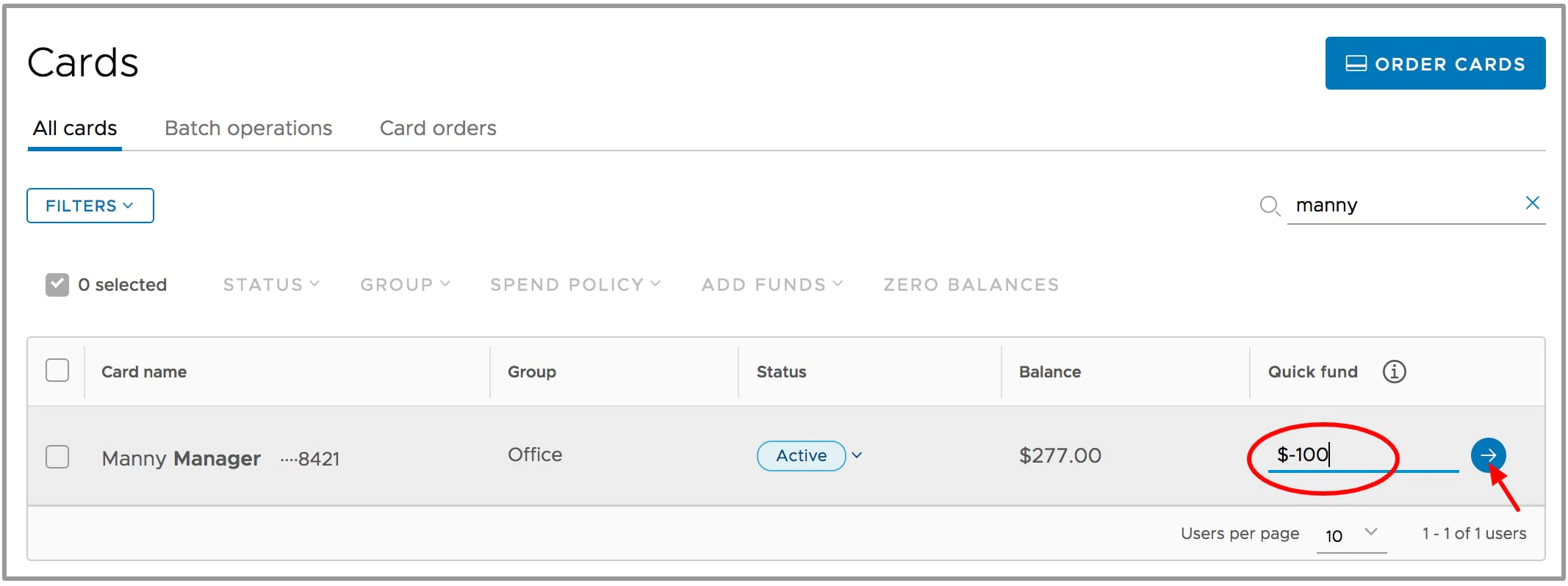
Click the "Cards" tab
Locate the cardholder's name
In the "Quick Fund" box at right, enter the amount to remove as a negative number (e.g., "-200")
Click the blue "Arrow" button. The removed balance instantly reverts back to the business account balance reflected in the upper left corner of the dashboard.
 ## How to remove funds from a card using the Mobile App
Log into the Mobile App
Click the "Cards" icon at the bottom of the screen
Navigate to the cardholder
Click on the cardholder's name
## How to remove funds from a card using the Mobile App
Log into the Mobile App
Click the "Cards" icon at the bottom of the screen
Navigate to the cardholder
Click on the cardholder's name
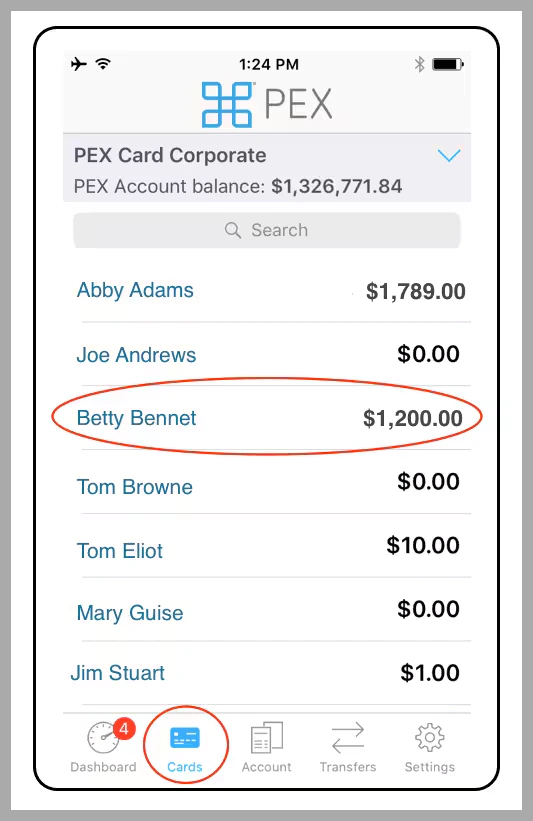 *Click the "Cards" icon. Click on the cardholder's name.*
In the "Quick Fund" box, enter the amount to remove from the card (as a positive number, e.g., 200)
Click the blue "Remove Funds" button
*Click the "Cards" icon. Click on the cardholder's name.*
In the "Quick Fund" box, enter the amount to remove from the card (as a positive number, e.g., 200)
Click the blue "Remove Funds" button
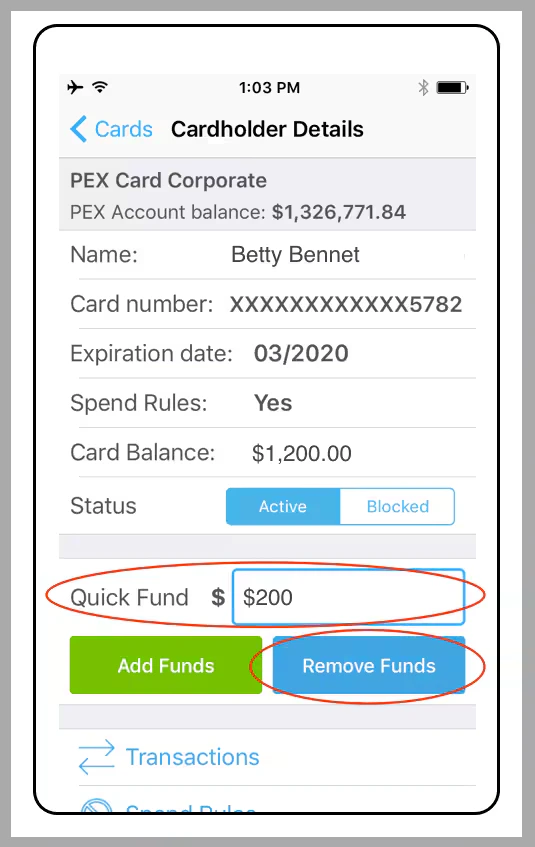 *In the "Quick Fund" box, enter the amount to remove. Click the blue "Remove Funds" button.*
Click "Transfer" in the confirmation dialogue box to remove funds from the card
*In the "Quick Fund" box, enter the amount to remove. Click the blue "Remove Funds" button.*
Click "Transfer" in the confirmation dialogue box to remove funds from the card
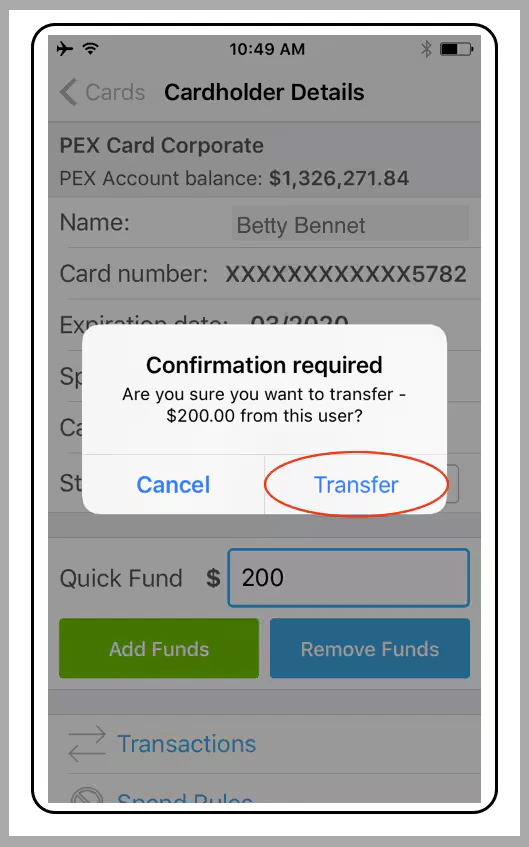 *Click "Transfer" in the confirmation dialogue box*
You might find this article useful, if you want to remove funds from multiple cards: "[How to Remove Funds from Multiple Cards](/administrator-guide/how-to-remove-funds-from-multiple-cards)"
You might find this article useful, if you want to learn how to search cards based on certain criteria: "[How to Search Cards](/administrator-guide/searching-for-a-card)"
*Click "Transfer" in the confirmation dialogue box*
You might find this article useful, if you want to remove funds from multiple cards: "[How to Remove Funds from Multiple Cards](/administrator-guide/how-to-remove-funds-from-multiple-cards)"
You might find this article useful, if you want to learn how to search cards based on certain criteria: "[How to Search Cards](/administrator-guide/searching-for-a-card)"