> ## Documentation Index
> Fetch the complete documentation index at: https://support.pexcard.com/llms.txt
> Use this file to discover all available pages before exploring further.
# Repayment for Credit Expense Programs
> For credit expense programs, repayment is due in full at the end of the statement period.
* PEX will automatically initiate a Same Day ACH transfer for the sum of the business's settled transactions from the designated linked external bank account.
* To ensure your first payment is successful, you must allow PEX to debit your linked external bank account. Find the PEX Company ID by logging on to PEX Dashboard and navigating to tab 'External accounts' under 'Business settings' - inform your bank to allow PEX debits originating from that Company ID.
* Note: If you have a Charge Card program, you must allow for debits up to your credit line.
* The credit line replenishment date can be viewed from the pending tab information bubble below the Payment history tab. Please allow 1 day for the credit line to replenish from the repayment post date.
 ## Early Repayment
Customers can also manually initiate early repayment on the dashboard site. Once the repayment transaction has settled, the amount repaid will be added to the available credit. Repayment in excess of the current balance of settled transactions for a business is not allowed.
## **Early Repayment and Resetting the Cardholders Spend Counter**
If you wish to reset the Cardholder's spend counter after an early repayment, there are 3 options. All Cardholder's spend counters will reset automatically at the end of the billing cycle.
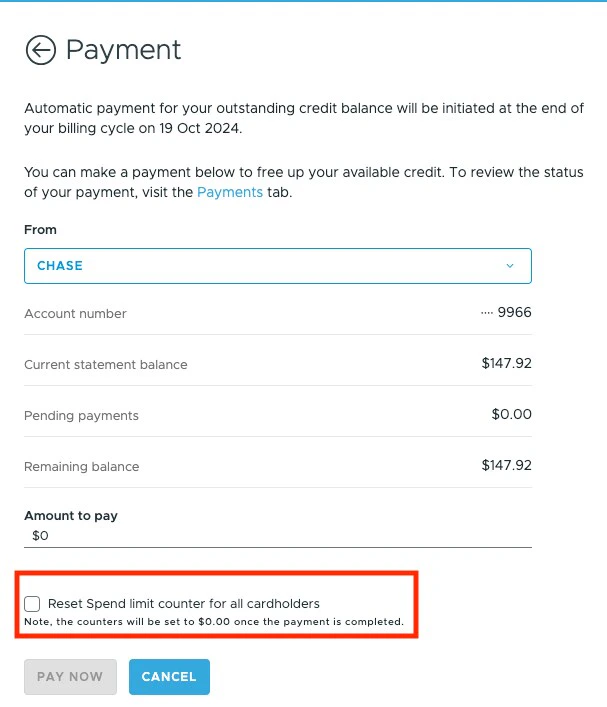
Option # 1 Reset the limit counter during early repayment for all cardholder accounts.\
The Payments tab can be located on the navigation listed on the left side of your administrator dashboard.
## Early Repayment
Customers can also manually initiate early repayment on the dashboard site. Once the repayment transaction has settled, the amount repaid will be added to the available credit. Repayment in excess of the current balance of settled transactions for a business is not allowed.
## **Early Repayment and Resetting the Cardholders Spend Counter**
If you wish to reset the Cardholder's spend counter after an early repayment, there are 3 options. All Cardholder's spend counters will reset automatically at the end of the billing cycle.
Option # 1 Reset the limit counter during early repayment for all cardholder accounts.\
The Payments tab can be located on the navigation listed on the left side of your administrator dashboard.
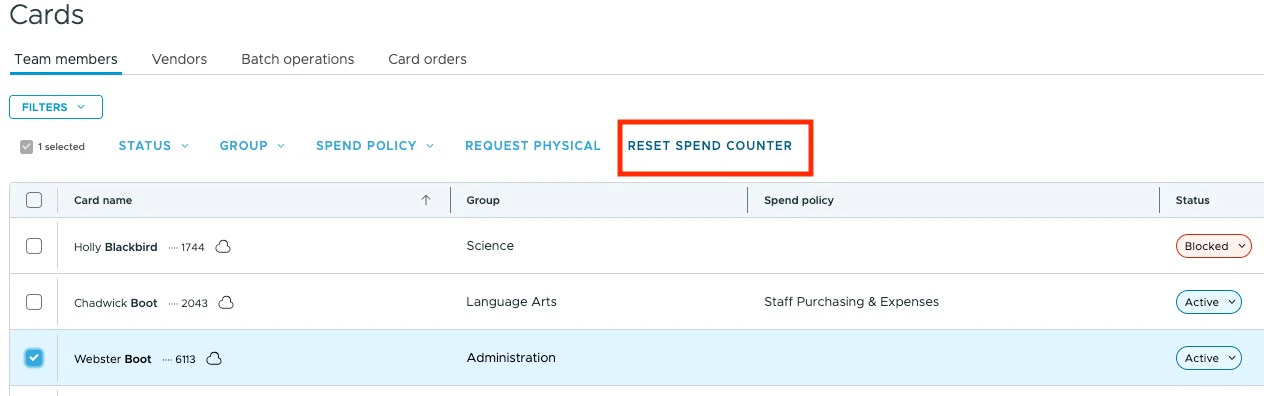
 Options #2 Select a group of Cardholder accounts on the main Card tab and then click on the Reset Spend Counter button.
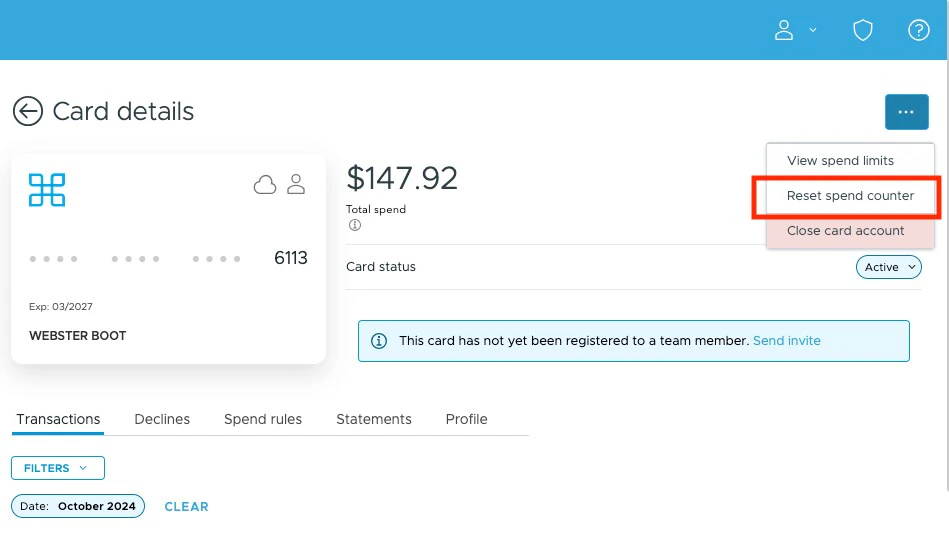
 Options #3 Go into the Cardholder's account and use the menu icon to select Reset spend counter for that individual cardholder's account.