> ## Documentation Index
> Fetch the complete documentation index at: https://support.pexcard.com/llms.txt
> Use this file to discover all available pages before exploring further.
# Adding a PEX Card to Apple Pay
> Add your PEX card to Apple Pay on your iPhone or Apple Watch so you can tap to pay at participating merchants.
**Important**:
You **must** have a registered PEX cardholder account to add your card to a digital wallet. To set up a PEX cardholder account, please visit [https://dashboard.pexcard.com/registration](https://dashboard.pexcard.com/registration?utm_source=support)
PEX supports the following digital wallets:
1. [Apple Pay](#adding-a-pex-card-to-apple-pay)
2. [Google Pay](/cardholder-guide/adding-your-pex-card-to-google-pay)
3. [Samsung Pay](/cardholder-guide/adding-a-pex-card-to-samsung-pay-on-all-programs)
Not all cardholders are eligible to add a card to a digital wallet. Your business administrator controls if a cardholder is able to add a PEX card to a digital wallet. If you are not sure if you are eligible, please contact your business administrator.
## Adding a PEX card to Apple Pay
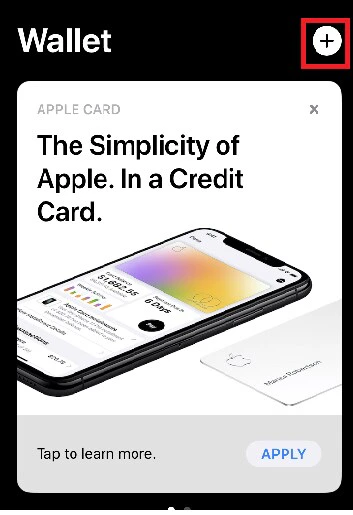
Open the Wallet app
Click on + to add a new card
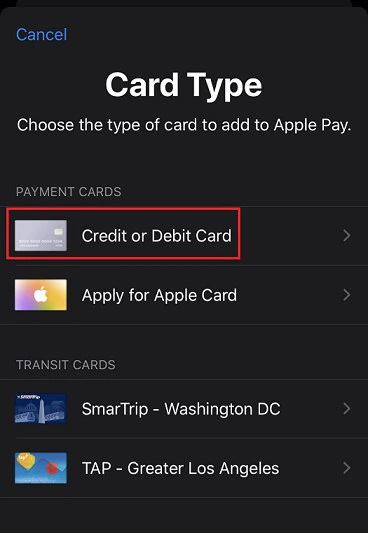
 Select Card type = Credit or Debit card
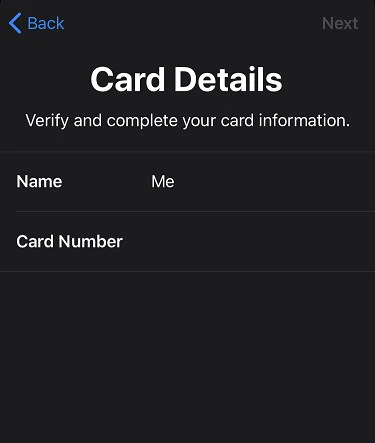
 Enter your PEX card details
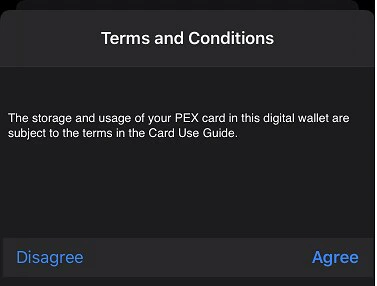
 Accept the terms and conditions by tapping "Agree".
 You may be presented with a Card Verification screen. Choose one of the options presented:
* Email - a numerical code will be sent to the email on file with PEX. This code must be entered into the digital wallet app when adding the card to the wallet.
* Call center - the cardholder can call PEX. You will be asked a series of questions to verify your identity.
You may be presented with a Card Verification screen. Choose one of the options presented:
* Email - a numerical code will be sent to the email on file with PEX. This code must be entered into the digital wallet app when adding the card to the wallet.
* Call center - the cardholder can call PEX. You will be asked a series of questions to verify your identity.
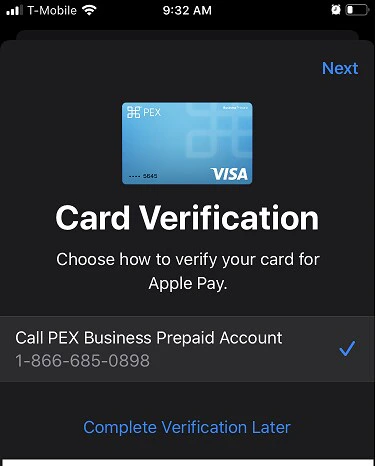 Once the Card verification is successfully completed, your PEX card is added to a digital wallet and ready to use.
**Note:**
You should verify the card billing address is set to the business address associated with your PEX card, NOT your personal residential address.
## How to verify the card billing address
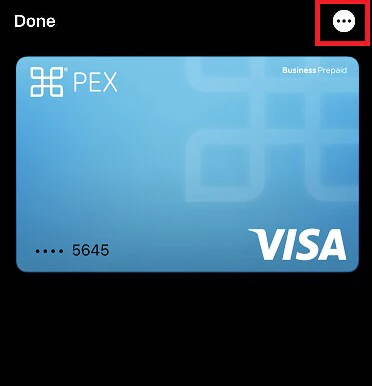
To verify your billing address, choose the card, and then tap the three dots in the top right.
Once the Card verification is successfully completed, your PEX card is added to a digital wallet and ready to use.
**Note:**
You should verify the card billing address is set to the business address associated with your PEX card, NOT your personal residential address.
## How to verify the card billing address
To verify your billing address, choose the card, and then tap the three dots in the top right.
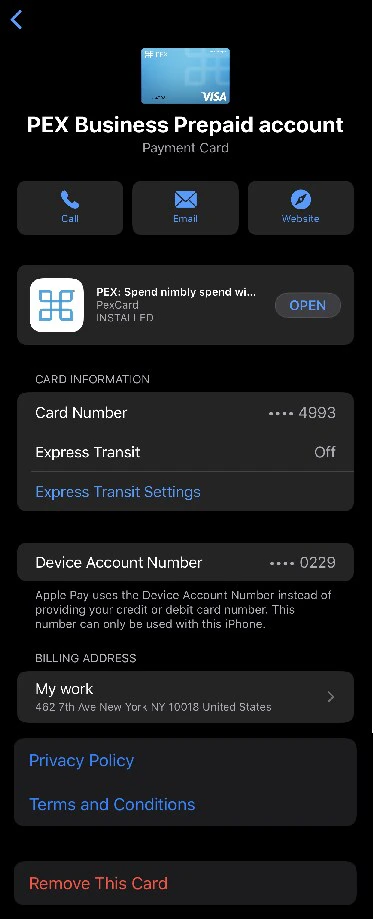 Ensure the billing address is your business address and **not** your personal residential address
## Additional information
It is recommended to not set the PEX card as the default card in the wallet.\
If your PEX card has been added to a different device, you may need to remove it from the old device before adding it to your new one.
Ensure the billing address is your business address and **not** your personal residential address
## Additional information
It is recommended to not set the PEX card as the default card in the wallet.\
If your PEX card has been added to a different device, you may need to remove it from the old device before adding it to your new one.