> ## Documentation Index
> Fetch the complete documentation index at: https://support.pexcard.com/llms.txt
> Use this file to discover all available pages before exploring further.
# Adding a PEX Card to Samsung Pay on All Programs
> Add your PEX card to Samsung Pay on your Samsung device so you can tap to pay at participating merchants.
**Important**:
You **must** have a registered PEX cardholder account to add your card to a digital wallet. To set up a PEX cardholder account, please visit [https://dashboard.pexcard.com/registration](https://dashboard.pexcard.com/registration?utm_source=support)
PEX supports the following digital wallets:
1. [Apple Pay](#adding-a-pex-card-to-apple-pay)
2. [Google Pay](/cardholder-guide/adding-your-pex-card-to-google-pay#adding-a-pex-card-to-google-pay)
3. [Samsung Pay](/cardholder-guide/adding-a-pex-card-to-samsung-pay-on-all-programs#adding-a-pex-card-to-samsung-pay)
However, not all cardholders are eligible to add a card to a digital wallet. Your business administrator controls if a cardholder is able to add a PEX card to a digital wallet. If you are not sure if you are eligible, please contact your business administrator.
## Adding a PEX card to Samsung Pay
Open the Wallet app
Click on + to add a new card
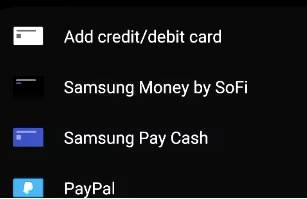
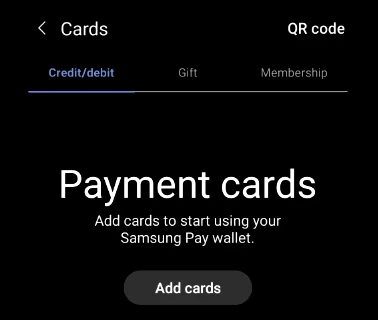 Select Card type = Credit or Debit card
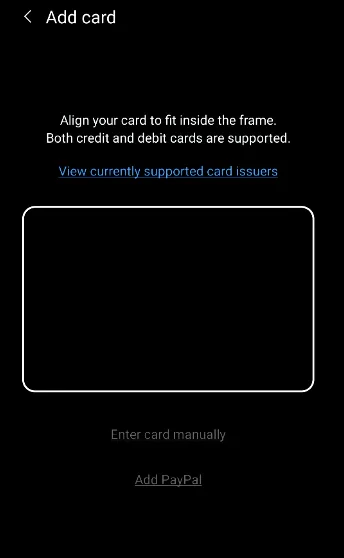
 Enter your PEX card details
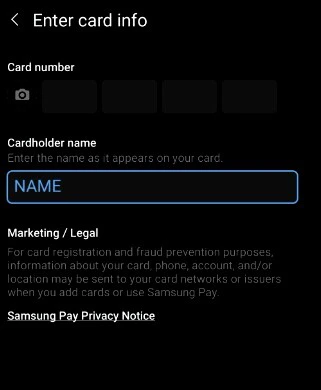 Accept the terms and conditions by tapping "Agree".
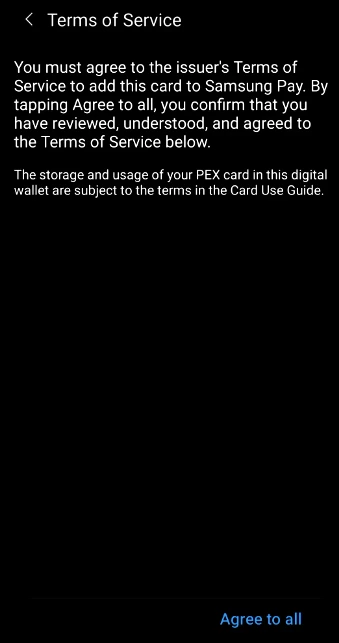 You may be presented with a Card Verification screen.
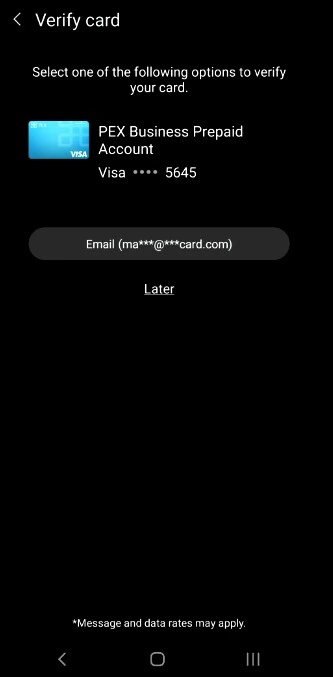 Choose one of the options presented:
* Email - a numerical code will be sent to the email on file with PEX. This code must be entered into the digital wallet app when adding the card to the wallet.
* Call center - the cardholder can call PEX. You will be asked a series of questions to verify your identity.
Enter the verification code.
Choose one of the options presented:
* Email - a numerical code will be sent to the email on file with PEX. This code must be entered into the digital wallet app when adding the card to the wallet.
* Call center - the cardholder can call PEX. You will be asked a series of questions to verify your identity.
Enter the verification code.
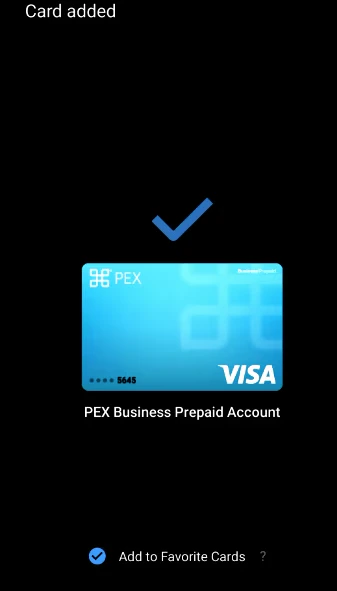
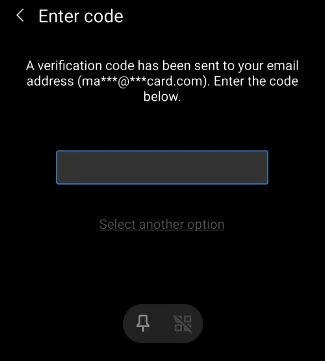 Once the Card verification is successfully completed, your PEX card is added to a digital wallet and ready to use.
 Ensure the billing address is your business address and **not** your personal residential address.
## Additional information
It is recommended to not set the PEX card as the default card in the wallet.
Ensure the billing address is your business address and **not** your personal residential address.
## Additional information
It is recommended to not set the PEX card as the default card in the wallet.