> ## Documentation Index
> Fetch the complete documentation index at: https://support.pexcard.com/llms.txt
> Use this file to discover all available pages before exploring further.
# Adding PEX Card to Google Pay (pre-Nov 2019)
> Add your PEX card to the legacy Google Pay app on Android if you have not yet upgraded to the November 2020 release.
**Important**:
You **must** have a registered PEX cardholder account to add your card to a digital wallet. To set up a PEX cardholder account, please visit [https://dashboard.pexcard.com/registration](https://dashboard.pexcard.com/registration?utm_source=support)
PEX supports the following digital wallets:
1. [Apple Pay](/cardholder-guide/adding-a-pex-card-to-apple-pay)
2. [Google Pay](/cardholder-guide/adding-pex-card-to-google-pay-prenov-2019)
3. [Samsung Pay](/cardholder-guide/adding-a-pex-card-to-samsung-pay-on-all-programs)
However, not all cardholders are eligible to add a card to a digital wallet. Your business administrator controls if a cardholder is able to add a PEX card to a digital wallet. If you are not sure if you are eligible, please contact your business administrator.
## Adding a PEX card to Google Pay (old app)
On November 18, 2020 Google Pay released a new Google Pay app. Use the steps below to add a card to your wallet if you are using the [pre-Nov 2020 Google Pay app](https://play.google.com/store/apps/details?id=com.google.android.apps.walletnfcrel\&hl=en_US\&gl=US) on your Android mobile device.
Open the Wallet app
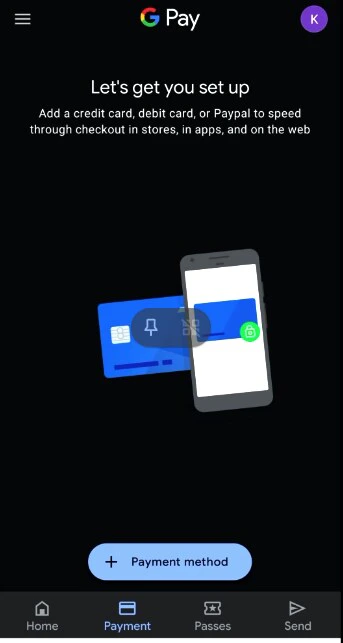
Click on + Payment method
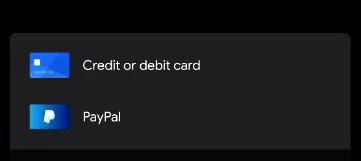
 Select Card type = Credit or Debit card
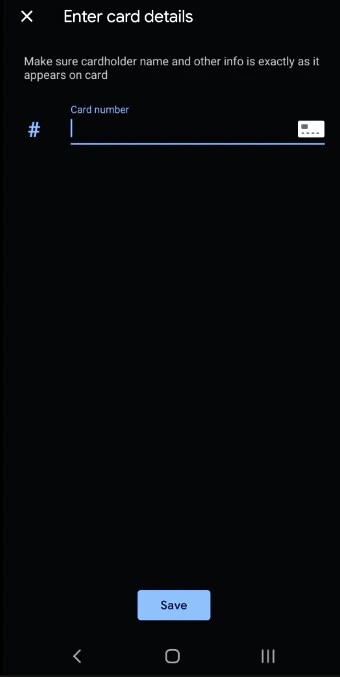
 Enter your PEX card details
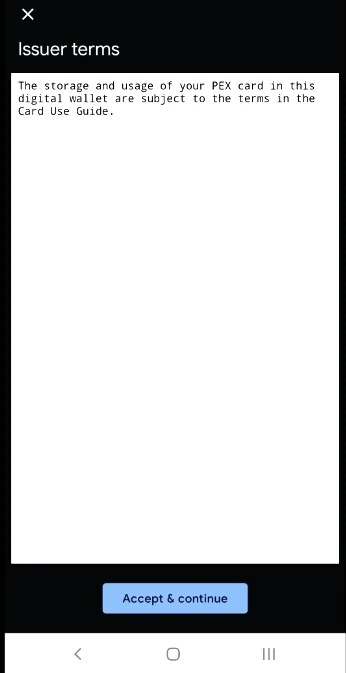
 Accept the terms and conditions by tapping "Agree".
 You may be presented with a Card Verification screen. Choose one of the options presented:
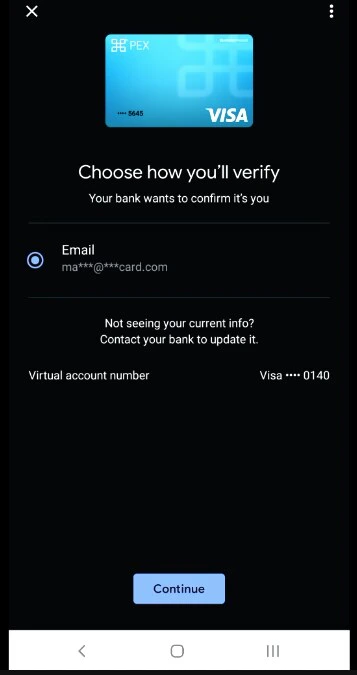 * Email - a numerical code will be sent to the email on file with PEX. This code must be entered into the digital wallet app when adding the card to the wallet.
* Call center - the cardholder can call PEX. You will be asked a series of questions to verify your identity.
Enter the verification code.
* Email - a numerical code will be sent to the email on file with PEX. This code must be entered into the digital wallet app when adding the card to the wallet.
* Call center - the cardholder can call PEX. You will be asked a series of questions to verify your identity.
Enter the verification code.
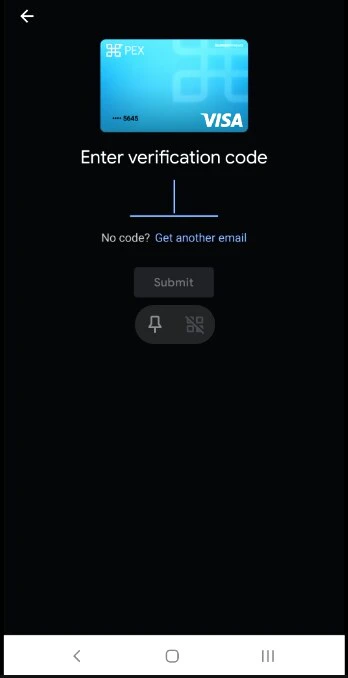 Once the Card verification is successfully completed, your PEX card is added to a digital wallet and ready to use.
**Important note:**
Confirm the billing address is your business address and **not** your personal residential address
## Additional information
It is recommended to not set the PEX card as the default card in the wallet.
Once the Card verification is successfully completed, your PEX card is added to a digital wallet and ready to use.
**Important note:**
Confirm the billing address is your business address and **not** your personal residential address
## Additional information
It is recommended to not set the PEX card as the default card in the wallet.