> ## Documentation Index
> Fetch the complete documentation index at: https://support.pexcard.com/llms.txt
> Use this file to discover all available pages before exploring further.
# Cancel a pending funding request
> Note that only cardholders have the ability to cancel a 'Pending' request. Administrators are able to either accept or reject a request.
[Instructions for the PEX Dashboard](/cardholder-guide/cancel-a-pending-funding-request#canceling-a-pending-request) | [Instructions for the Mobile App](/cardholder-guide/cancel-a-pending-funding-request#canceling-a-pending-request-via-the-mobile-app)
## Canceling a pending request
In the Dashboard site, click on "Funding Requests" on the left navigation menu.
* Only *Pending* requests can be cancelled
* Tip: You can use Filters to narrow the list, such as Status = Pending
* Log in to [dashboard.pexcard.com](https://dashboard.pexcard.com?utm_source=support)
* Click on "Funding Requests"Locate the Funding Request you wish to cancel and click on it.
In the Funding Request details window, click the "Cancel Request" button
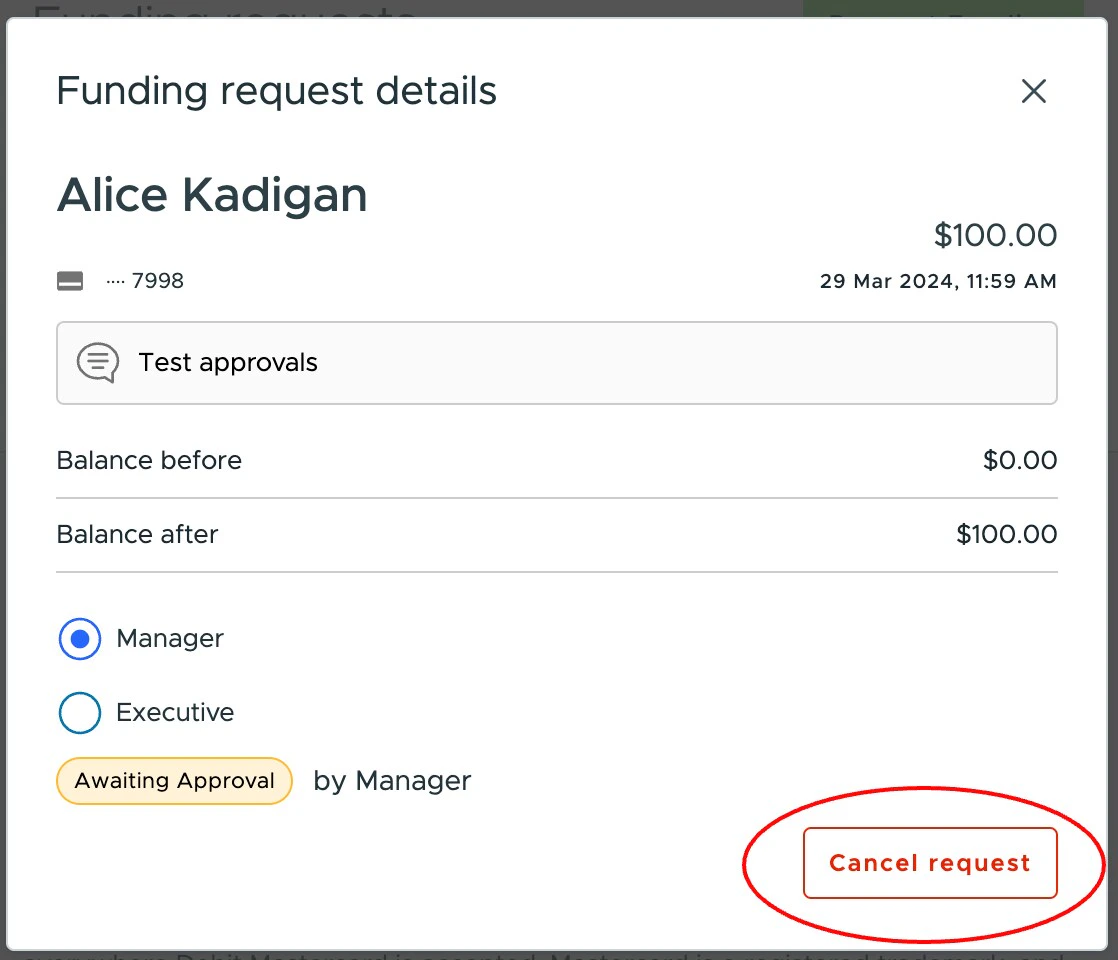 A confirmation window will open and ask you to click "Confirm"
## Canceling a pending request via the mobile app
Click on a "Pending" request and click on "Cancel Request".
**Note:**
the relevant administrators will receive a notification that the request has been canceled by the cardholder.
A confirmation window will open and ask you to click "Confirm"
## Canceling a pending request via the mobile app
Click on a "Pending" request and click on "Cancel Request".
**Note:**
the relevant administrators will receive a notification that the request has been canceled by the cardholder.