> ## Documentation Index
> Fetch the complete documentation index at: https://support.pexcard.com/llms.txt
> Use this file to discover all available pages before exploring further.
# How to Change My Cardholder Username
> Changing your username is simple. You can use either the PEX mobile app or the web app.
[Instructions for the PEX dashboard](/cardholder-guide/how-to-change-my-cardholder-username#how-to-change-your-username-through-the-pex-web-app) | [Instructions for the Mobile app](/cardholder-guide/how-to-change-my-cardholder-username#how-to-change-your-username-using-the-mobile-app)
## How to Change Your Username Through the PEX Web App
Log in to [dashboard.pexcard.com/](https://dashboard.pexcard.com/?utm_source=support)
* If you cannot log in, please see [Troubleshooting Cardholder Login](/cardholder-guide/troubleshooting-cardholder-user-login)
Click on the My Profile icon on the upper right corner of the screen (icon of a person)
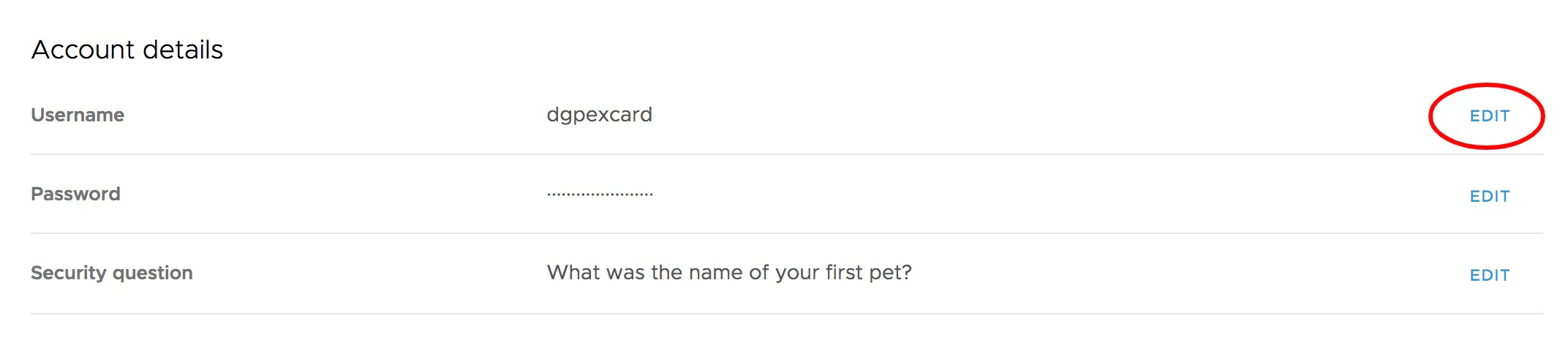
Under "Account Details", click "Edit" next to username
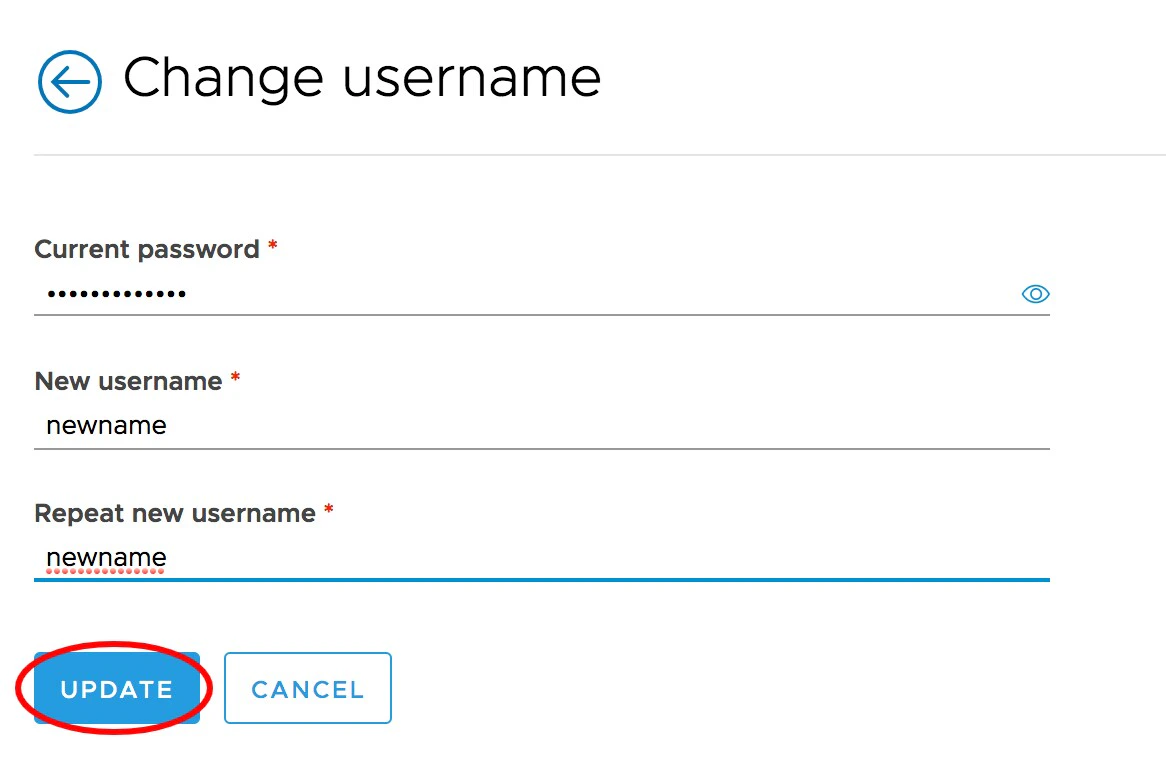
Enter your current password
Enter your new username
Re-enter to confirm the new username
Click "Update" to Save changes
 ## How to Change Your Username Using the Mobile App
Download the Mobile App:
* Download the [iOS App from the App Store](https://itunes.apple.com/app/id584331280)
* Download the [Android App from the Google Play Store](https://play.google.com/store/apps/details?id=com.softjourn.pexcardholder)
* The download is free but carrier data rates may apply
Log in to the Mobile App
Click the "Settings" icon at the bottom of the screen
## How to Change Your Username Using the Mobile App
Download the Mobile App:
* Download the [iOS App from the App Store](https://itunes.apple.com/app/id584331280)
* Download the [Android App from the Google Play Store](https://play.google.com/store/apps/details?id=com.softjourn.pexcardholder)
* The download is free but carrier data rates may apply
Log in to the Mobile App
Click the "Settings" icon at the bottom of the screen
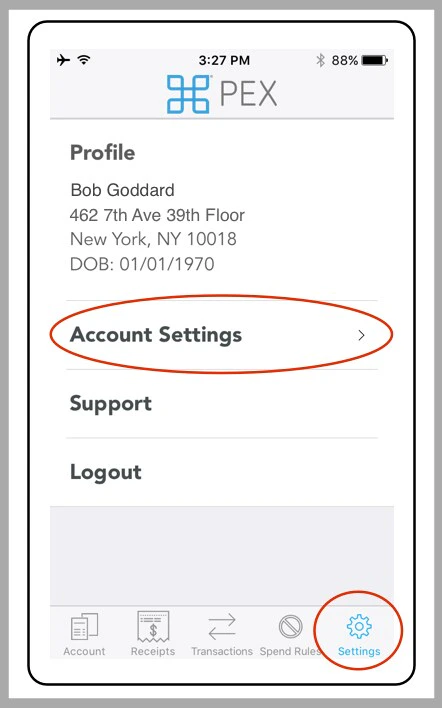 Click "Account Settings"
*Click "Settings" icon. Click "Account Settings."*
Click "Edit" after Username
Click "Account Settings"
*Click "Settings" icon. Click "Account Settings."*
Click "Edit" after Username
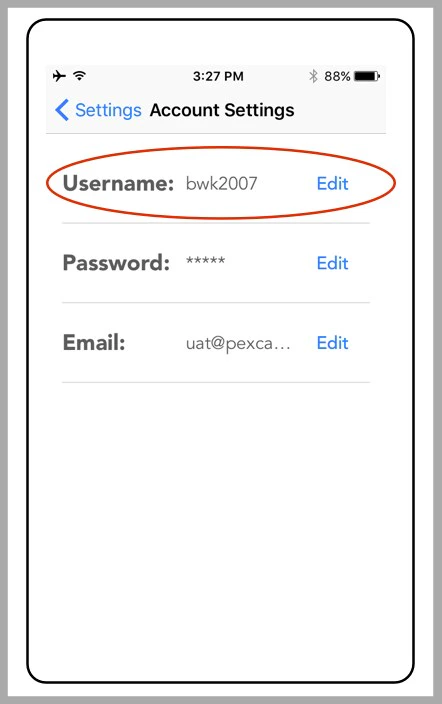 *Click "Edit" after Username*
Enter your current password
Enter and re-enter the new Username
Click "Save" to confirm the changes
*Click "Edit" after Username*
Enter your current password
Enter and re-enter the new Username
Click "Save" to confirm the changes
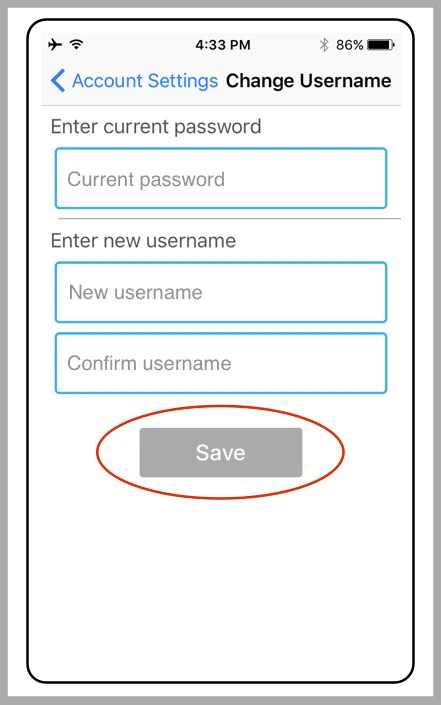 *Enter current password. Enter and re-enter new Username. Click "Save."*