> ## Documentation Index
> Fetch the complete documentation index at: https://support.pexcard.com/llms.txt
> Use this file to discover all available pages before exploring further.
# How to Create a New Cardholder User Account
> Cardholders can check their card balances, download statements, add transaction notes/receipts, and update their profiles through the PEX website.
In order to access the site, a cardholder must first complete the "First time login" process, also referred to as the cardholder registration process.
## Creating an Account
Go to [https://dashboard.pexcard.com/registration](https://dashboard.pexcard.com/registration?utm_source=support)
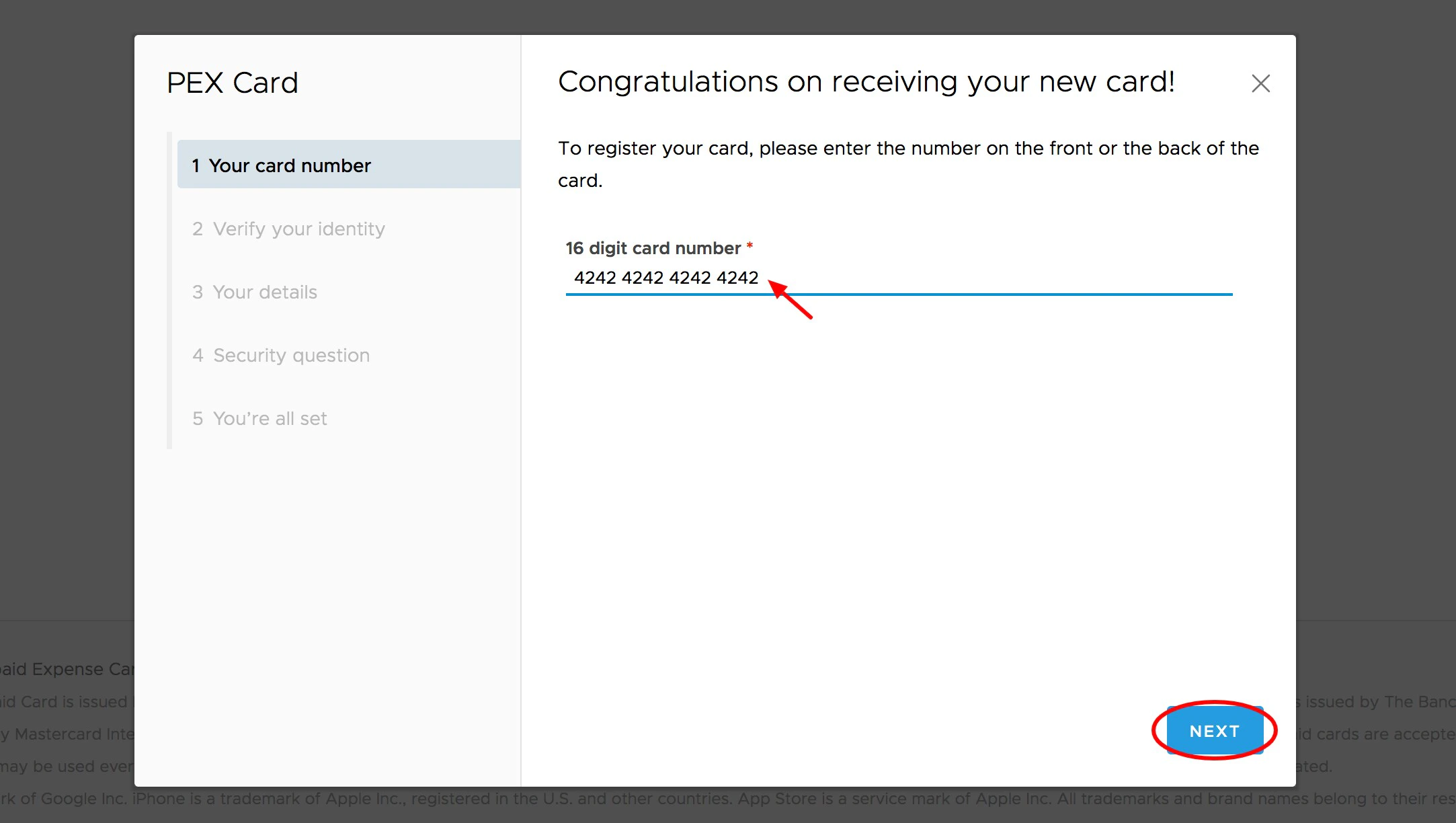
Enter your card number
A six (6) digit code will be emailed to the email address on file that was provided when the card was ordered
* Check with your business administrator to verify the email address on your card profile
* Retrieve the code from your email and enter it in the field provided. *Enter the number on your PEX Card and Click "Next"*
After verifying your email address, you will be shown the phone number and birth date that PEX has on file
* Please alert your business administrator if this information is incorrect
Create a username
* Your username must be unique to any other username in the PEX database
Choose a password. Passwords must meet the following requirements:
Must be between 8 and 16 characters in length
* Must contain at least one digit (0-9)
* Must not begin with a hash symbol (#)
* Palindromes (such as "123aba321") will be rejected
* Must not contain your username
* Spaces are not allowed
Choose a security question
**Tip:**
For extra security, you can also write your own question
**Note:**
Administrators cannot view this information
Enter your security answer
**Note:**
Answers are case sensitive, so be sure to enter the answer in the exact way you will enter it again in the future
**Note:**
Administrators cannot view this information
Your business administrators will receive an email alerting them to your new account.
Cardholders can also take an opportunity to download the PEX Mobile app via the [Google Play Store](https://play.google.com/store/apps/details?id=com.softjourn.pexcardholder) or the [Apple App Store](https://apps.apple.com/app/id584331280). Cardholders can log in while on-the-go, and manage various activities on your cardholder account.
## Creating a New Cardholder User Account Using Your Birth Year for Verification
If you do not have access to your company email, your administrator may have enabled the option to create a card account by using your birth year. This is not common.
On Step 3 in the above instructions, enter your 4-digit birth year in the field provided.
**Note:**
Your birth year will only be applicable if the administrator chose this method. Entering the birth year is not a substitute for the secure verification code sent by email.