> ## Documentation Index
> Fetch the complete documentation index at: https://support.pexcard.com/llms.txt
> Use this file to discover all available pages before exploring further.
# How to link multiple administrator or cardholder accounts
> Link additional PEX cardholder or administrator accounts to your existing profile so you can switch between them with a single username and password.
## How to Link Multiple Administrator or Cardholder Accounts
If you have credentials for more than one user account – either an additional cardholder account or an additional administrator account – you can now connect these accounts so that you can easily switch between them. This functionality allows you to access multiple accounts with a single username and password.
***Watch a step-by-step demonstration [here](https://pex.navattic.com/3sn0j43)!***
## How to Link Multiple Admin or Cardholder Accounts
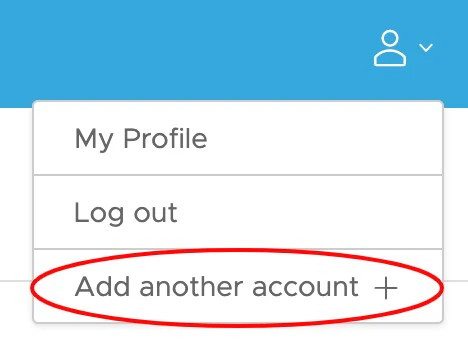
Select '*Add another account*' in the Profile section at the top right of the dashboard.
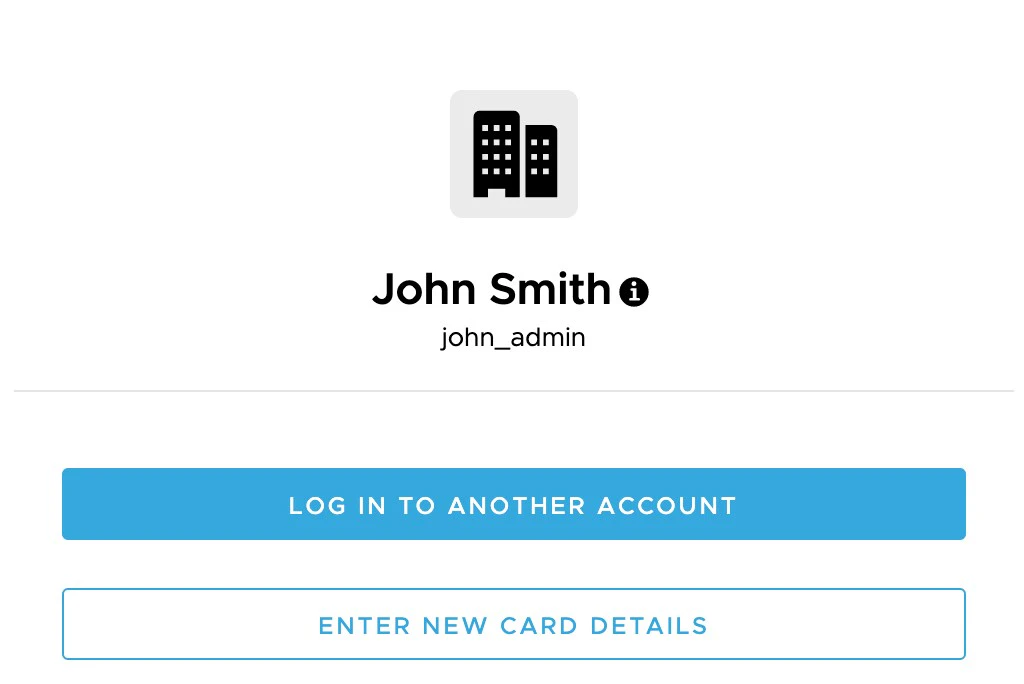
 1. To link an existing admin or cardholder account, select '*Log In To Another Account*.' From there, you will be prompted to enter in your credentials.
2. To link a new card account, select '*Enter New Card Details*.' You will be prompted to enter in your card information and new login credentials to register your account.
1. To link an existing admin or cardholder account, select '*Log In To Another Account*.' From there, you will be prompted to enter in your credentials.
2. To link a new card account, select '*Enter New Card Details*.' You will be prompted to enter in your card information and new login credentials to register your account.
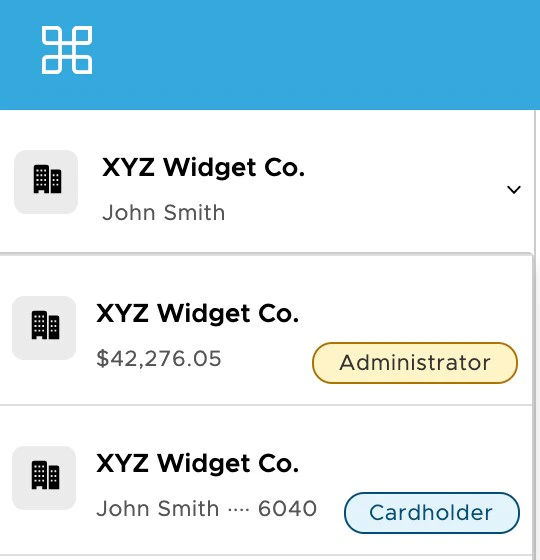
 Once you have successfully logged in to your other account, your new account will be accessible via dropdown on the top left section of the dashboard.
 You can also access your linked accounts via the PEX mobile app.
* Log in to the app and click 'Settings'.
* Your linked admin and cardholder accounts will appear at the top of the screen.
## Frequently Asked Questions
A: Yes, as long as you have the appropriate credentials, you can link accounts across businesses.
A: At this time, you will need to complete registration and account set-up for your new account. Once you have a username and password set up, you can then follow the process for linking an existing account.
A: No, you will not be able to remove an account once you have added it. To remove an account from your linked accounts, contact customer service.
A: Yes, you can link a closed account.
You can also access your linked accounts via the PEX mobile app.
* Log in to the app and click 'Settings'.
* Your linked admin and cardholder accounts will appear at the top of the screen.
## Frequently Asked Questions
A: Yes, as long as you have the appropriate credentials, you can link accounts across businesses.
A: At this time, you will need to complete registration and account set-up for your new account. Once you have a username and password set up, you can then follow the process for linking an existing account.
A: No, you will not be able to remove an account once you have added it. To remove an account from your linked accounts, contact customer service.
A: Yes, you can link a closed account.