> ## Documentation Index
> Fetch the complete documentation index at: https://support.pexcard.com/llms.txt
> Use this file to discover all available pages before exploring further.
# How to review approval workflow items as a Cardholder
> How to view and act on pending approval items as a Cardholder approver in PEX
Once you are added to an approval group, you'll start seeing workflow items that are pending your approval.
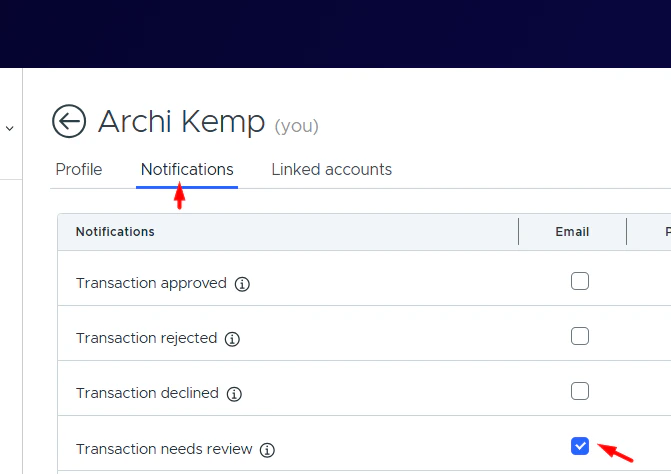
We recommend navigating to **Profile → Notifications** and enabling notifications for pending approval items to ensure you don't miss anything that requires your review.
 ## Reviewing pending approval items
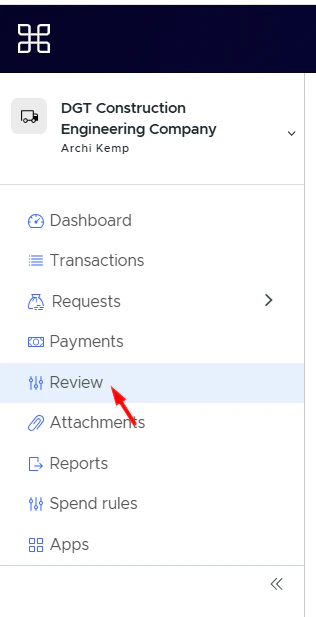
Navigate to the **Review** page from the sidebar menu.
The Review tab is only visible to Cardholder users who have been added to an approval policy as approvers.
## Reviewing pending approval items
Navigate to the **Review** page from the sidebar menu.
The Review tab is only visible to Cardholder users who have been added to an approval policy as approvers.
 Click the tab you need in the top menu.
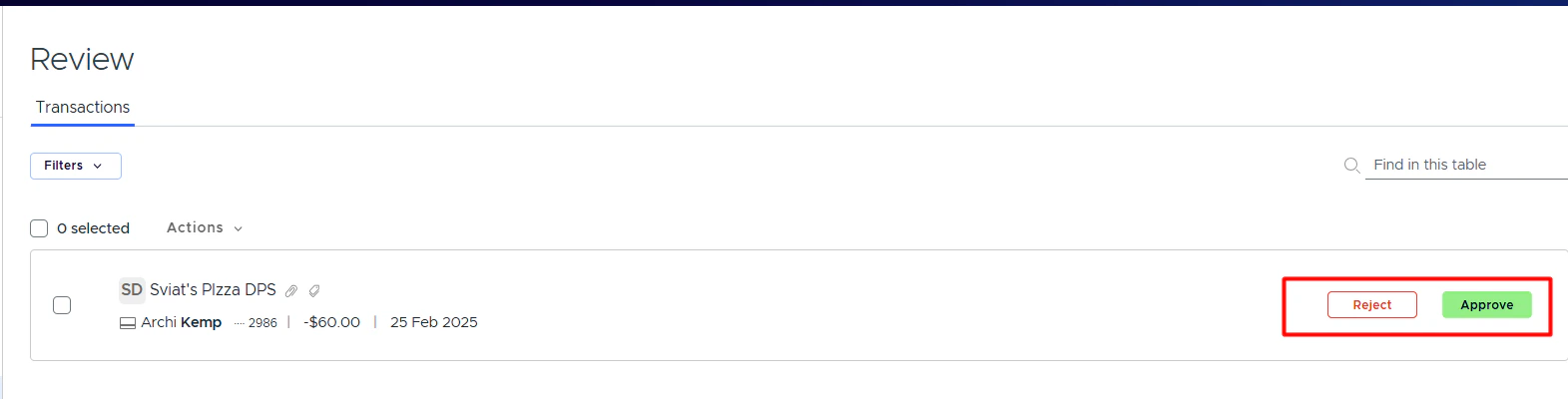
Click **Approve** or **Reject** next to the item.
Click the tab you need in the top menu.
Click **Approve** or **Reject** next to the item.
 To view full details, click on the item card in the list.
**Note:**
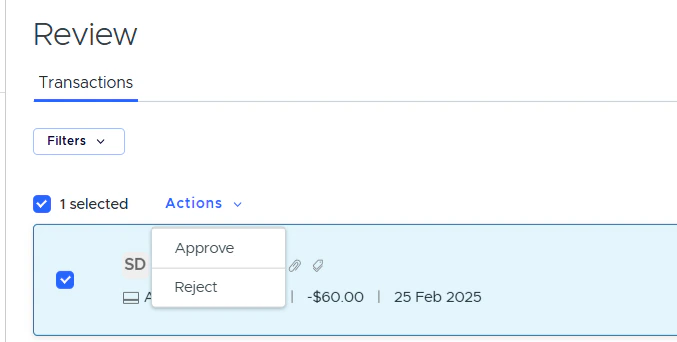
You can approve all items at once by clicking the first checkbox to select all, then clicking **Actions** and choosing the desired action.
To view full details, click on the item card in the list.
**Note:**
You can approve all items at once by clicking the first checkbox to select all, then clicking **Actions** and choosing the desired action.
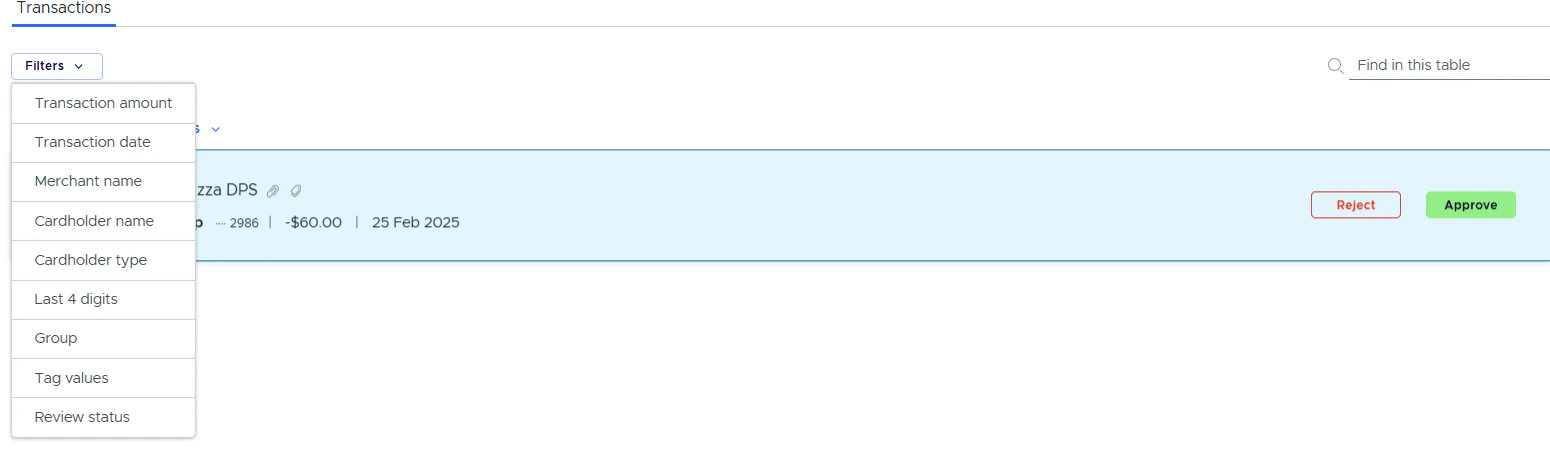
 Filtering and quick search are available for transactions and card requests.
 ## Working with item details
From the full details modal window, you can:
* Add and edit tags, attachments and notes from the transaction/reimbursement details modal
* Edit some data from the card request details
* Add tags by clicking the **Add** button next to the Tags section
* Edit tags by clicking the **Edit** button next to the Tags section
* Add or edit attachments by hovering over the attachments section
* Add a note by clicking the **Add** button next to the Notes section
* Approve or reject items using the **Approve** or **Reject** buttons
## FAQ
**Can I open the Review tab from the mobile app?**
Not yet — PEX is working on implementing that.
**What workflows are available now?**
Transaction, reimbursement and card request (card funding, spend rule and unblocking) workflows are currently available.
**Will I receive "pending my review" email notifications?**
Yes. To receive email notifications for items pending your review, enable the "Transaction needs review" or "Reimbursement needs review" notifications on the **Profile → Notifications** tab.
**Where can I see items that need to be reviewed?**
There is a **Review** tab in the left nav menu. Switch between tabs to review different workflow items.
**Can I edit tags, update receipts and manage notes?**
Yes. Once you become an approver, you can edit tags, attachments and add notes for pending approval items.
**Can I see items reviewed by me?**
Yes, there is a filter to review approved or rejected items.
**Can I mark approved or rejected transactions as not reviewed?**
Yes, there is a **Mark as not reviewed** button on the transaction details modal window.
**Why didn't the item status change to approved after my approval?**
If there is a multiple-level approval set up in the approval policy, the item status won't change until all groups approve it.
## Working with item details
From the full details modal window, you can:
* Add and edit tags, attachments and notes from the transaction/reimbursement details modal
* Edit some data from the card request details
* Add tags by clicking the **Add** button next to the Tags section
* Edit tags by clicking the **Edit** button next to the Tags section
* Add or edit attachments by hovering over the attachments section
* Add a note by clicking the **Add** button next to the Notes section
* Approve or reject items using the **Approve** or **Reject** buttons
## FAQ
**Can I open the Review tab from the mobile app?**
Not yet — PEX is working on implementing that.
**What workflows are available now?**
Transaction, reimbursement and card request (card funding, spend rule and unblocking) workflows are currently available.
**Will I receive "pending my review" email notifications?**
Yes. To receive email notifications for items pending your review, enable the "Transaction needs review" or "Reimbursement needs review" notifications on the **Profile → Notifications** tab.
**Where can I see items that need to be reviewed?**
There is a **Review** tab in the left nav menu. Switch between tabs to review different workflow items.
**Can I edit tags, update receipts and manage notes?**
Yes. Once you become an approver, you can edit tags, attachments and add notes for pending approval items.
**Can I see items reviewed by me?**
Yes, there is a filter to review approved or rejected items.
**Can I mark approved or rejected transactions as not reviewed?**
Yes, there is a **Mark as not reviewed** button on the transaction details modal window.
**Why didn't the item status change to approved after my approval?**
If there is a multiple-level approval set up in the approval policy, the item status won't change until all groups approve it.