> ## Documentation Index
> Fetch the complete documentation index at: https://support.pexcard.com/llms.txt
> Use this file to discover all available pages before exploring further.
# My Wallet
> Quickly view and manage the PEX cards linked to your account — right from the Dashboard or the mobile app.
**My Wallet** is available on both the **Web Dashboard** and the **Mobile App**.
## What is My Wallet?
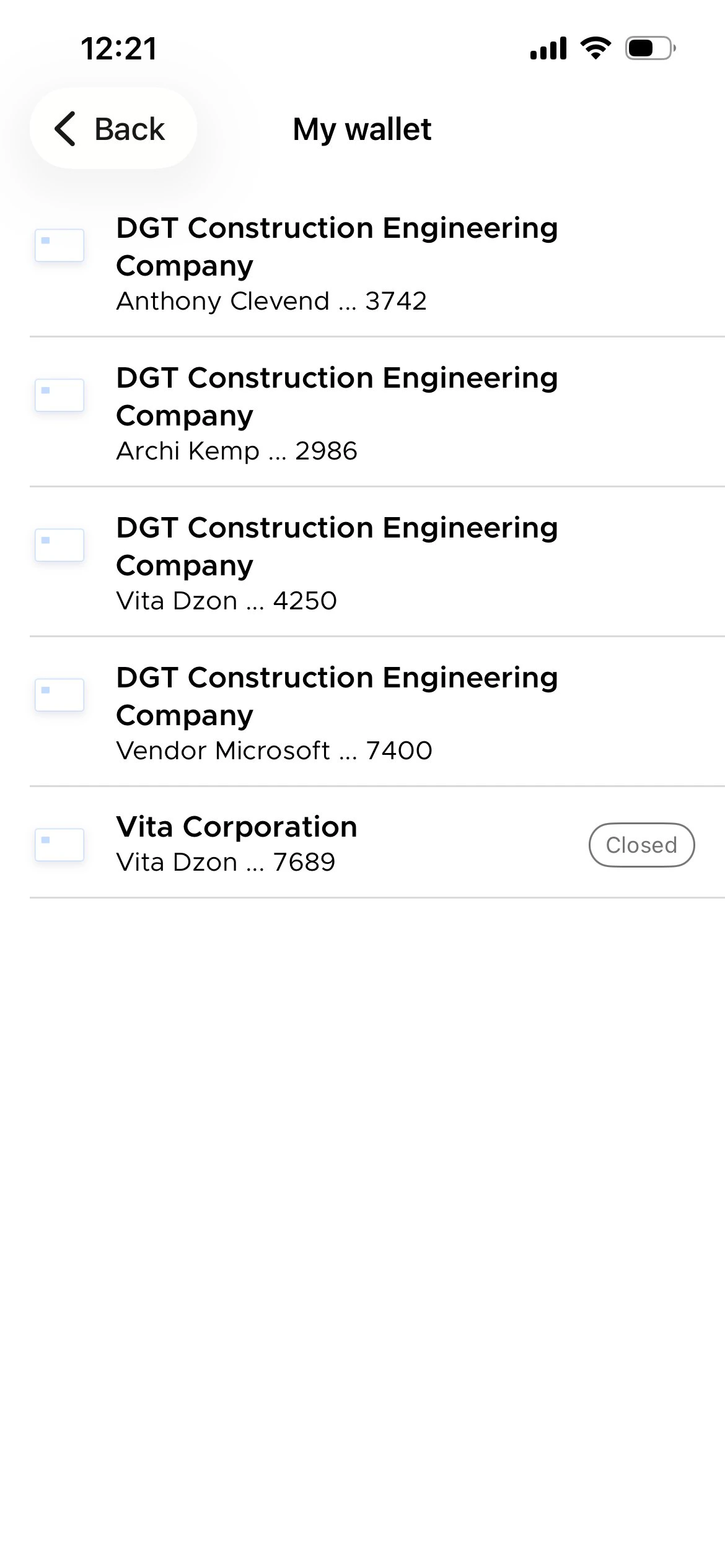
The **My Wallet** screen displays every PEX card linked to your user profile. Each card entry shows the business name it belongs to, the cardholder name, and the last four digits of the card number. If a card has been closed, a *Closed* badge appears next to it.
## How to access My Wallet
**Log in** to the [PEX Dashboard](https://dashboard.pexcard.com?utm_source=support) (web) or open the PEX mobile app.
Navigate to the **wallet icon** in the header menu and tap or click on it.
**Select a card** you need from the list to view its details, transaction history, or manage its settings.
 ## What you'll see
Each card in the wallet list includes the following details at a glance: the **business name** the card is associated with, the **cardholder name**, and the **last four digits** of the card number. Cards that have been deactivated are marked with a *Closed* label, so you can easily distinguish between active and inactive cards.
Still have questions? Reach out to your admin or [contact PEX Support](https://www.pexcard.com/contact-us/).
## What you'll see
Each card in the wallet list includes the following details at a glance: the **business name** the card is associated with, the **cardholder name**, and the **last four digits** of the card number. Cards that have been deactivated are marked with a *Closed* label, so you can easily distinguish between active and inactive cards.
Still have questions? Reach out to your admin or [contact PEX Support](https://www.pexcard.com/contact-us/).