How to Access Linked Accounts
Option 1: Via Side Menu
1
To switch between accounts, navigate to the sidebar dropdown under your company name. 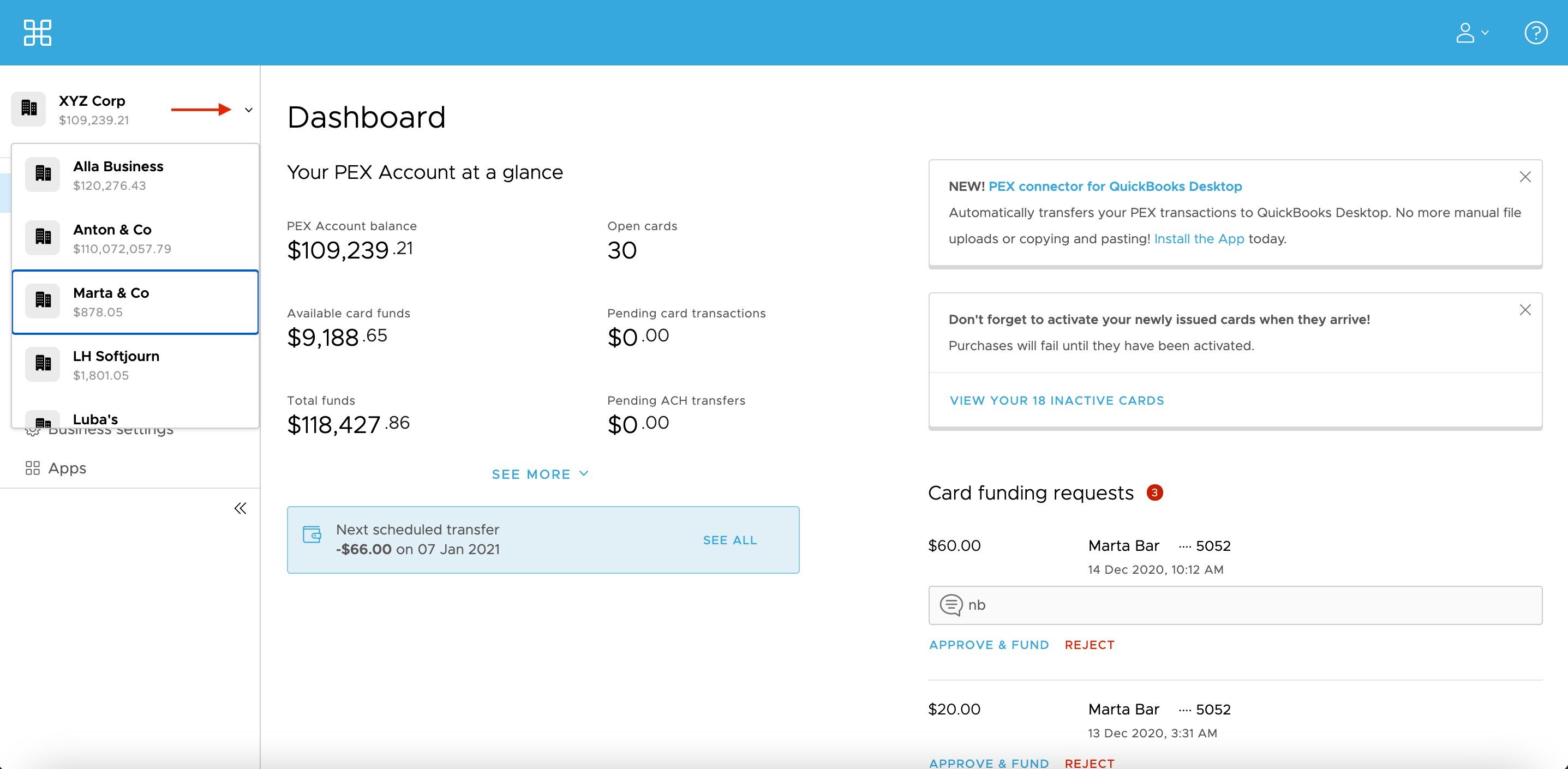
2
Scroll through all of your open accounts and select the account you wish to access.
Option 2: Via “Business Settings”
1
You may also access another account by visiting ‘Business Settings.’ Choose “Business Settings” from the left menu. 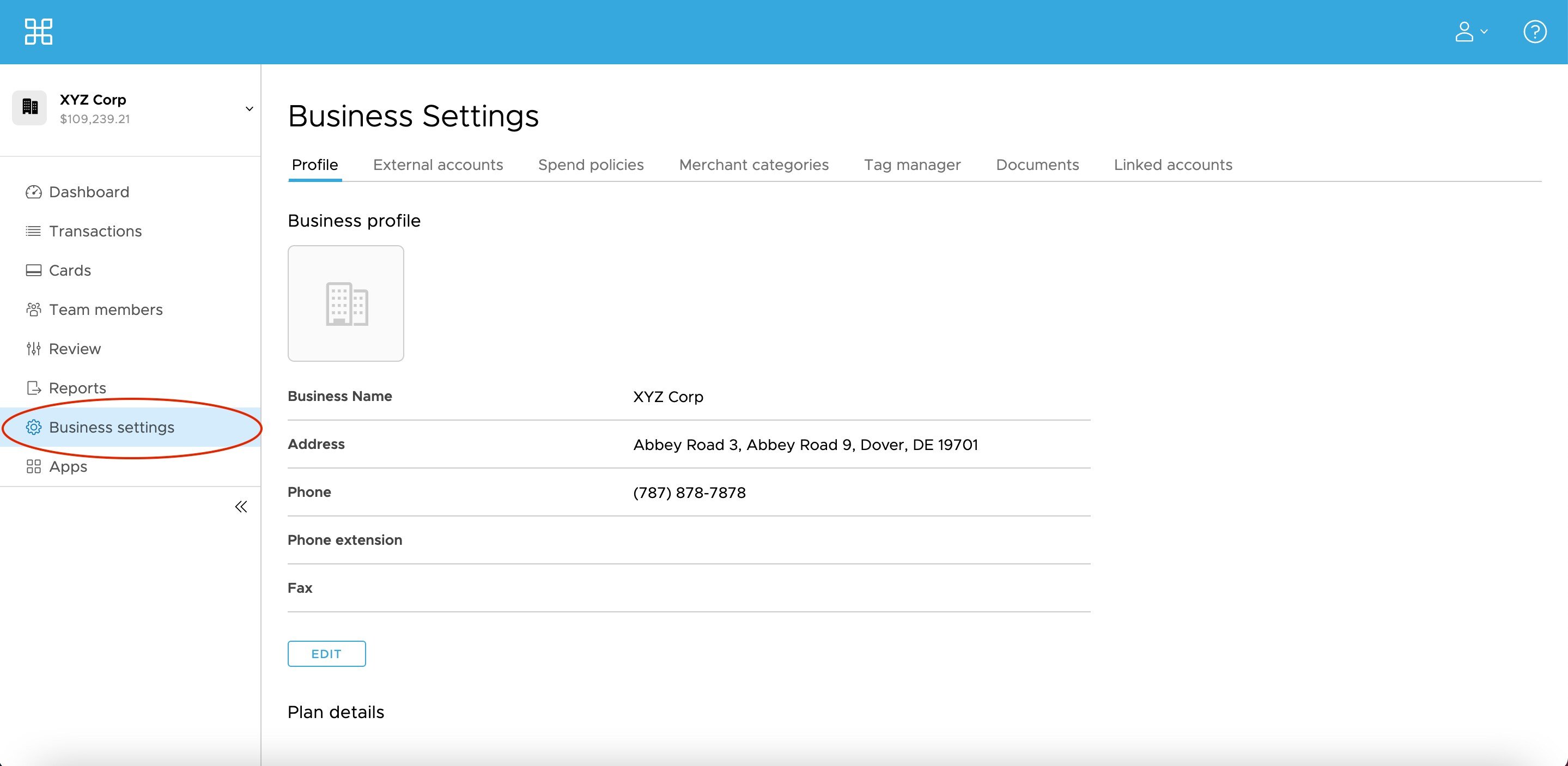
2
Navigate to the ‘Linked accounts’ tab. 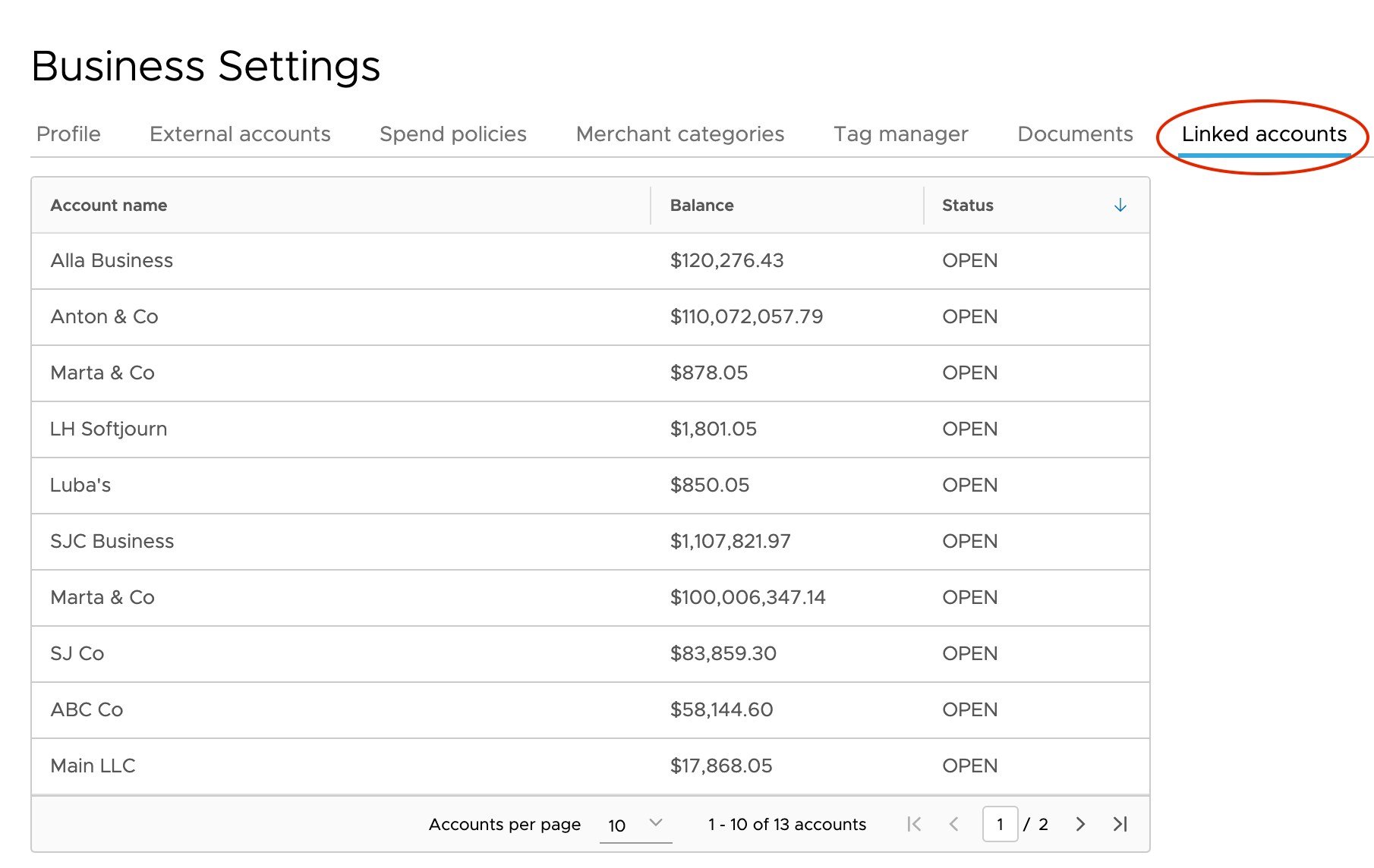
3
Select the account you wish to access.
Option 3: Via the mobile app
1
Log in to the app and click ‘Settings.’
2
Your linked admin and cardholder accounts will appear at the top of the screen.
How to Add Admins
1
Navigate to the ‘Team Members’ page.
How to add a new admin
1
Select ‘Invite Admin’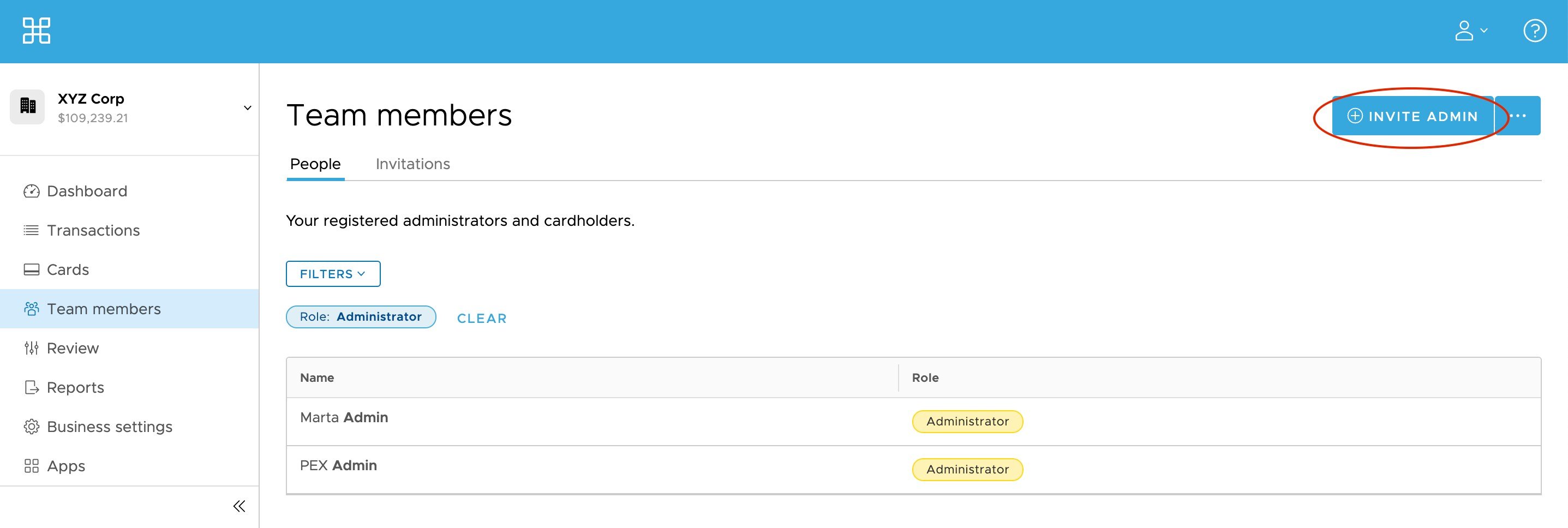
2
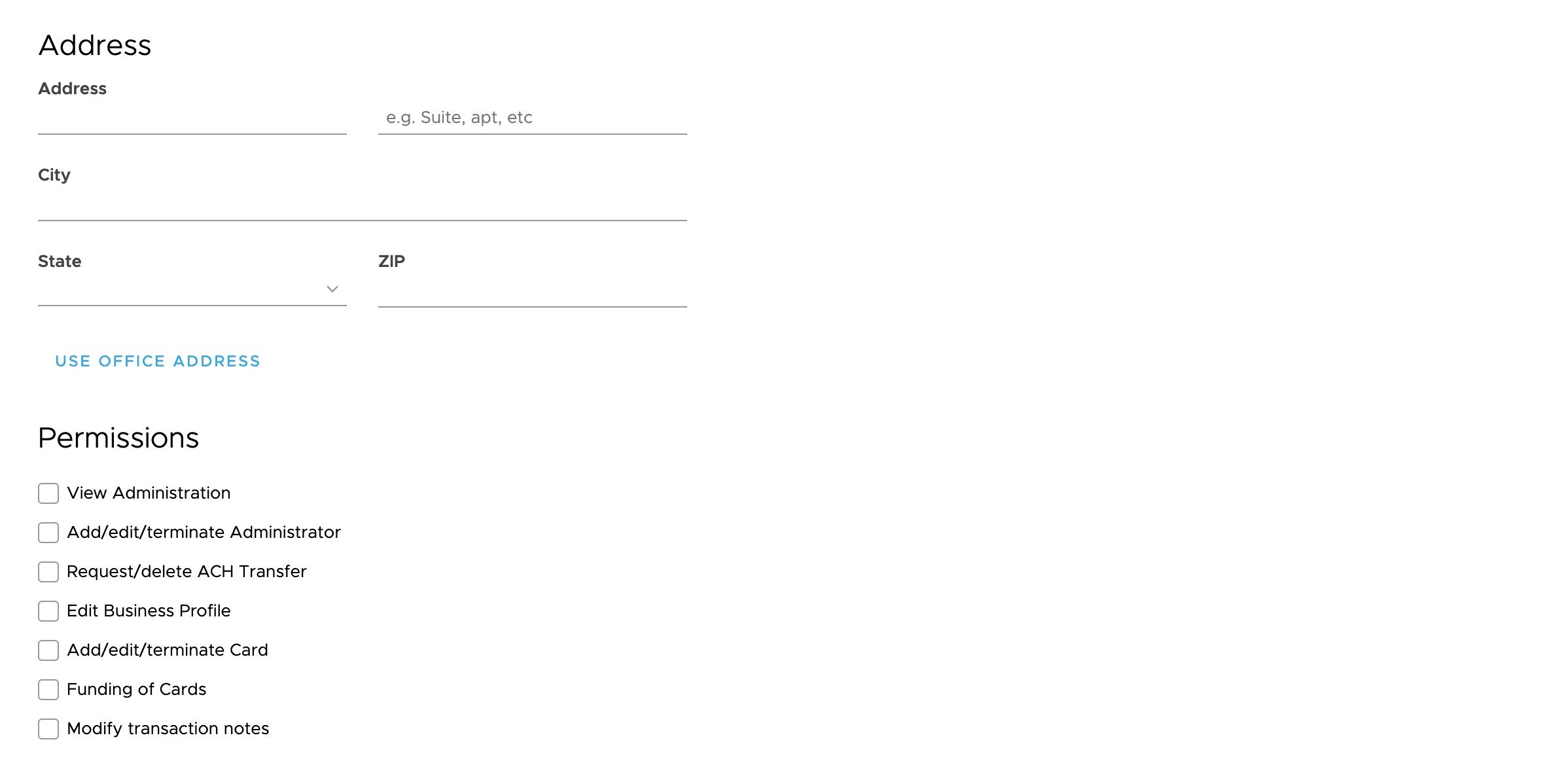
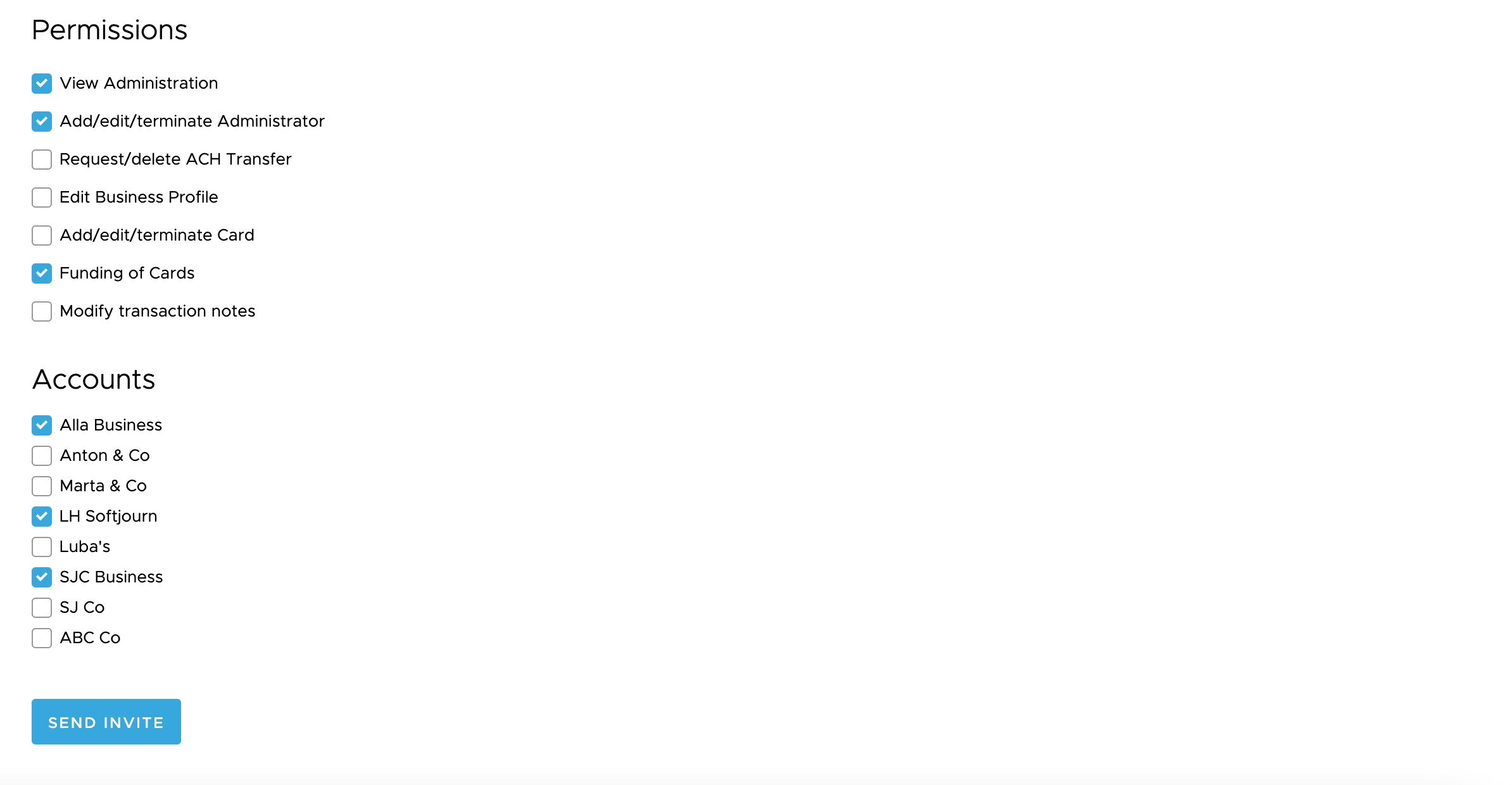
Fill out the required fields to send an invite. 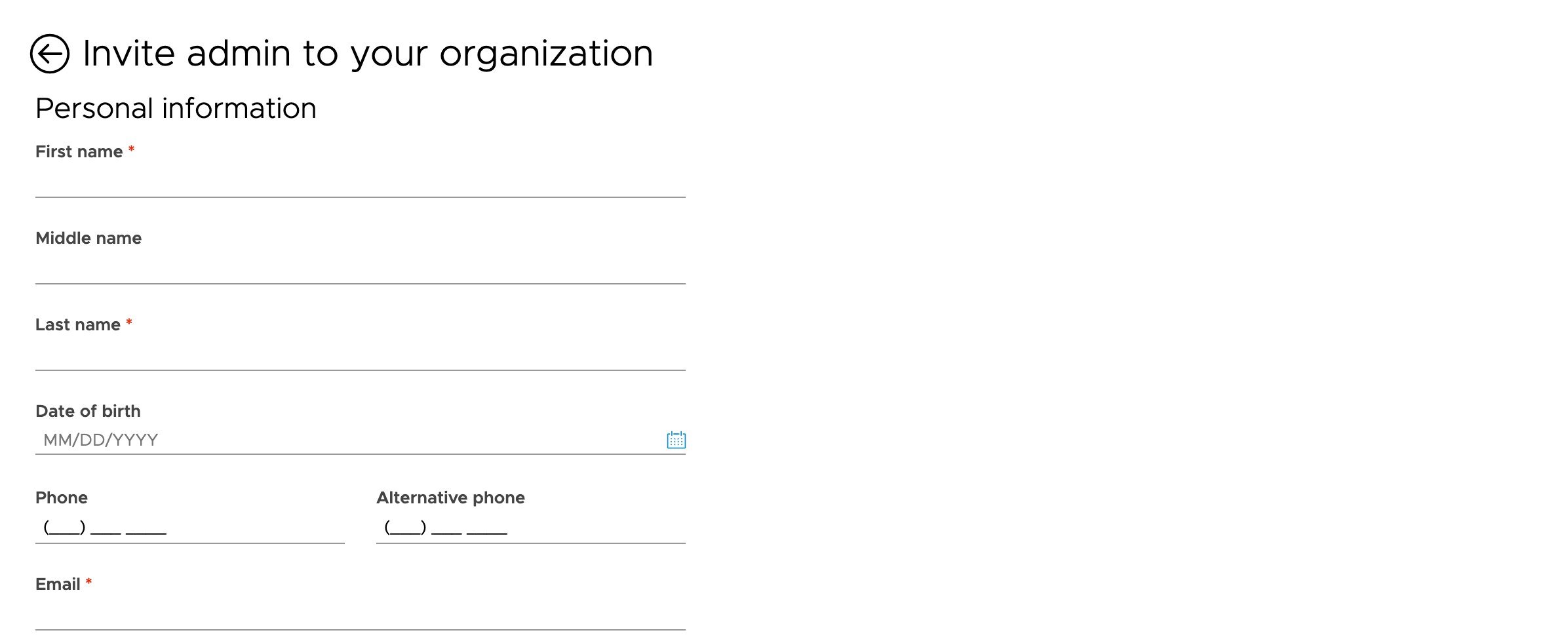
Enabling additional administrators to access linked accounts
1
Click the icon next to ‘Invite Admin’ and select ‘Add admin from linked account.’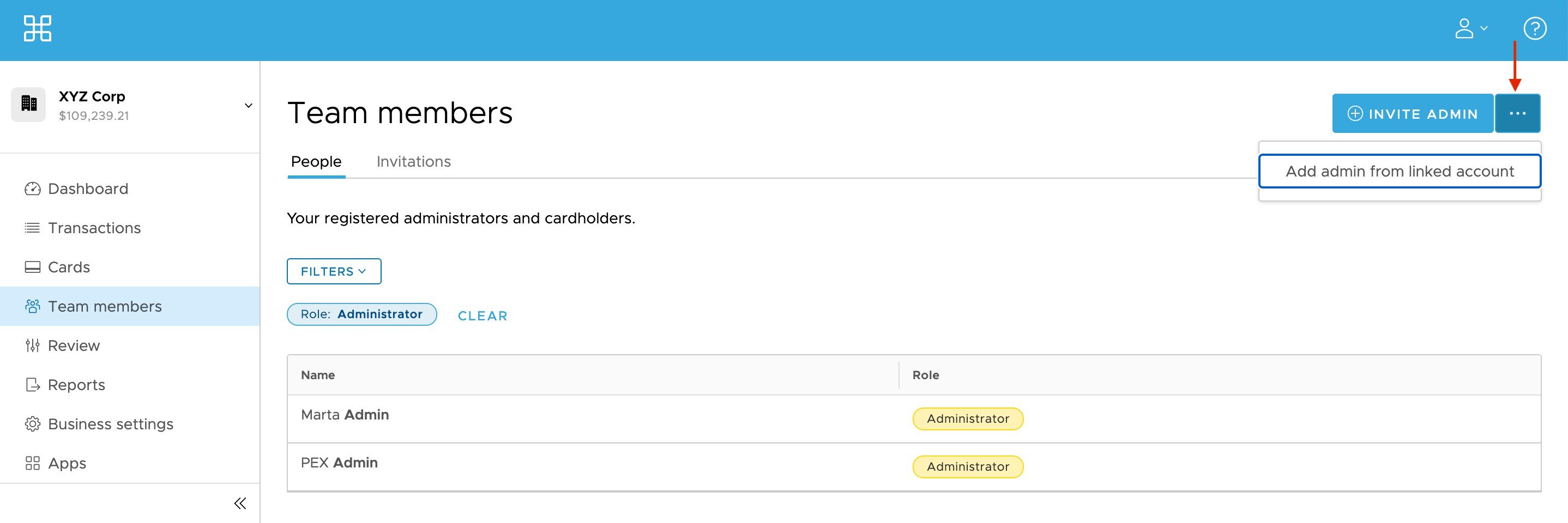
2
Select the account from which you are adding the admin. 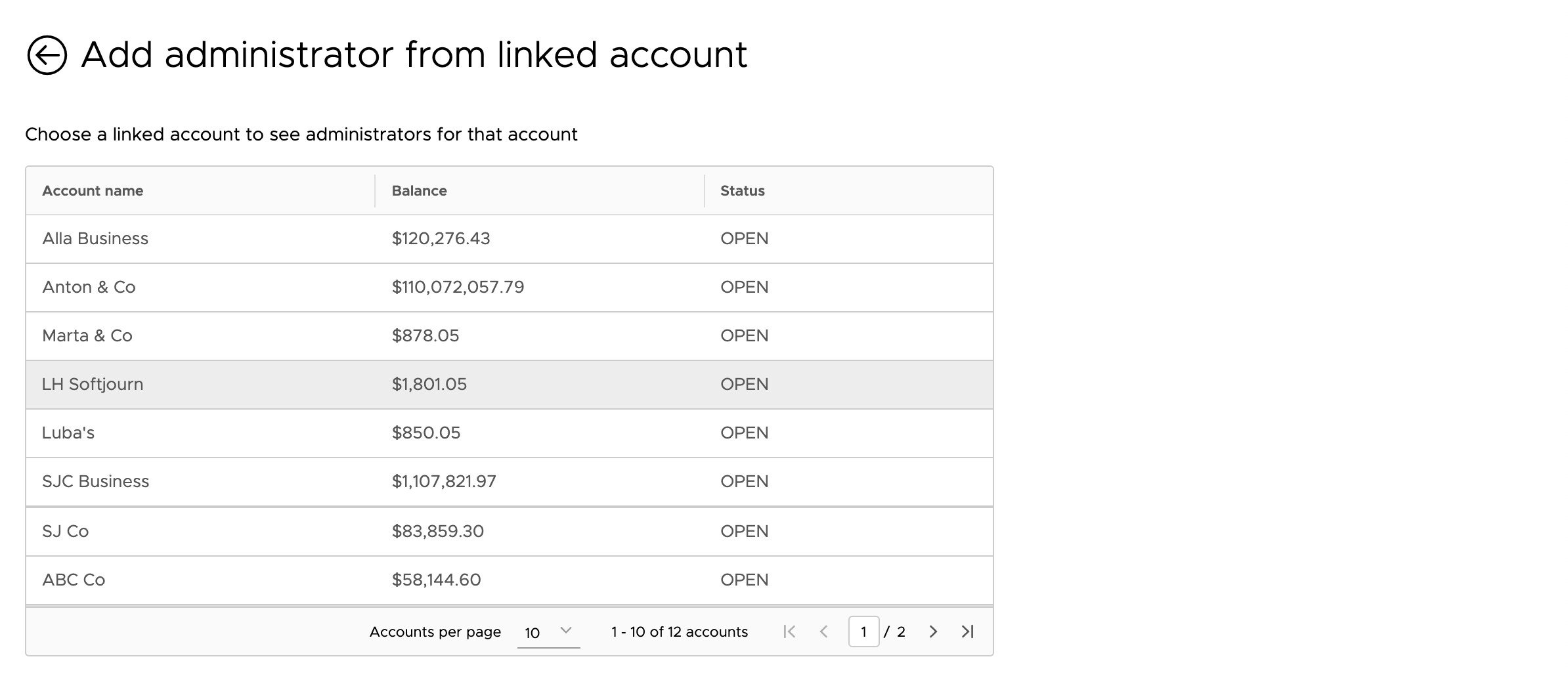
3
Select the admin you wish to add.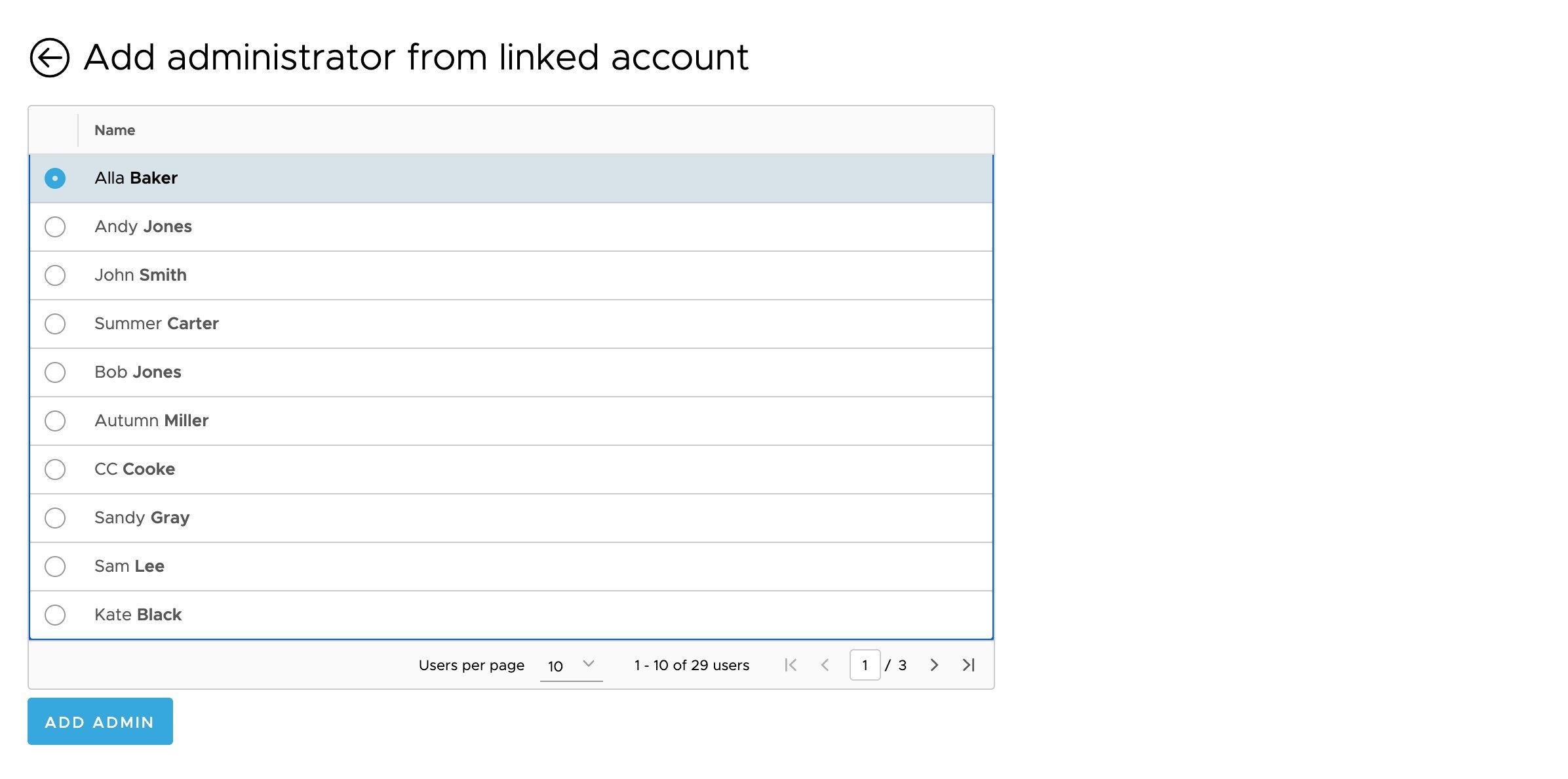
4
The admin you added will now show under the ‘Invitations’ tab with a pending status until they accept their invitation. 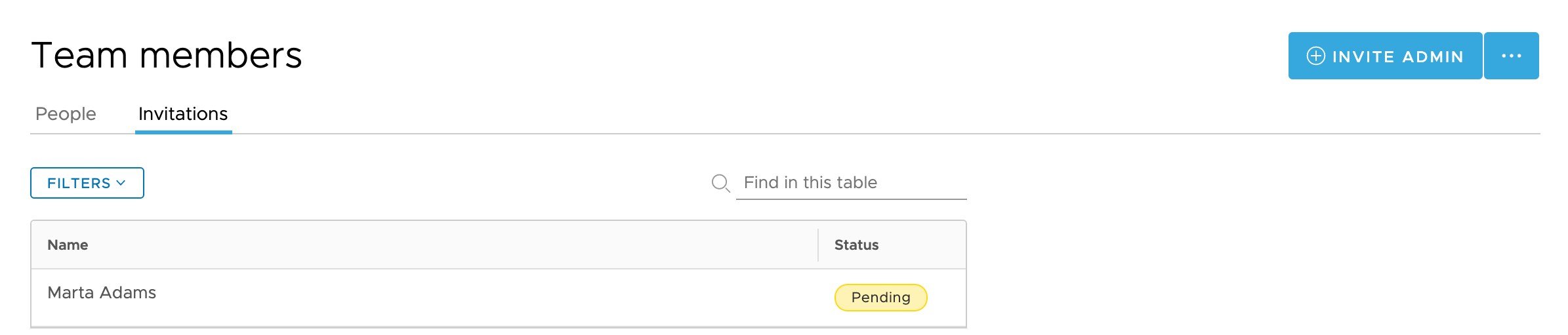
How to See Closed Accounts
Option 1: Via Side Menu1
Navigate to the sidebar dropdown under your company name. 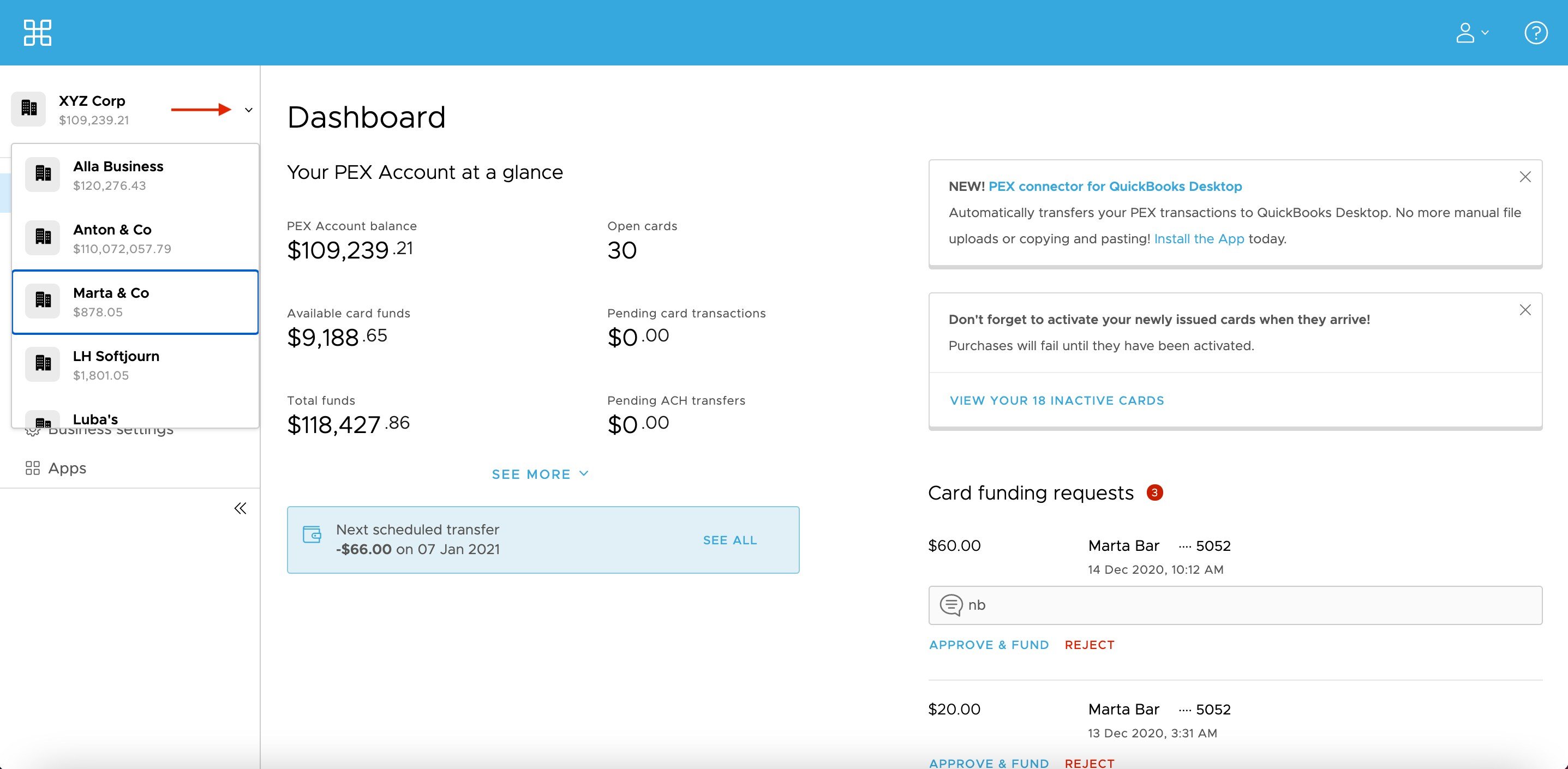
2
Scroll to the bottom and select ‘View All.’ 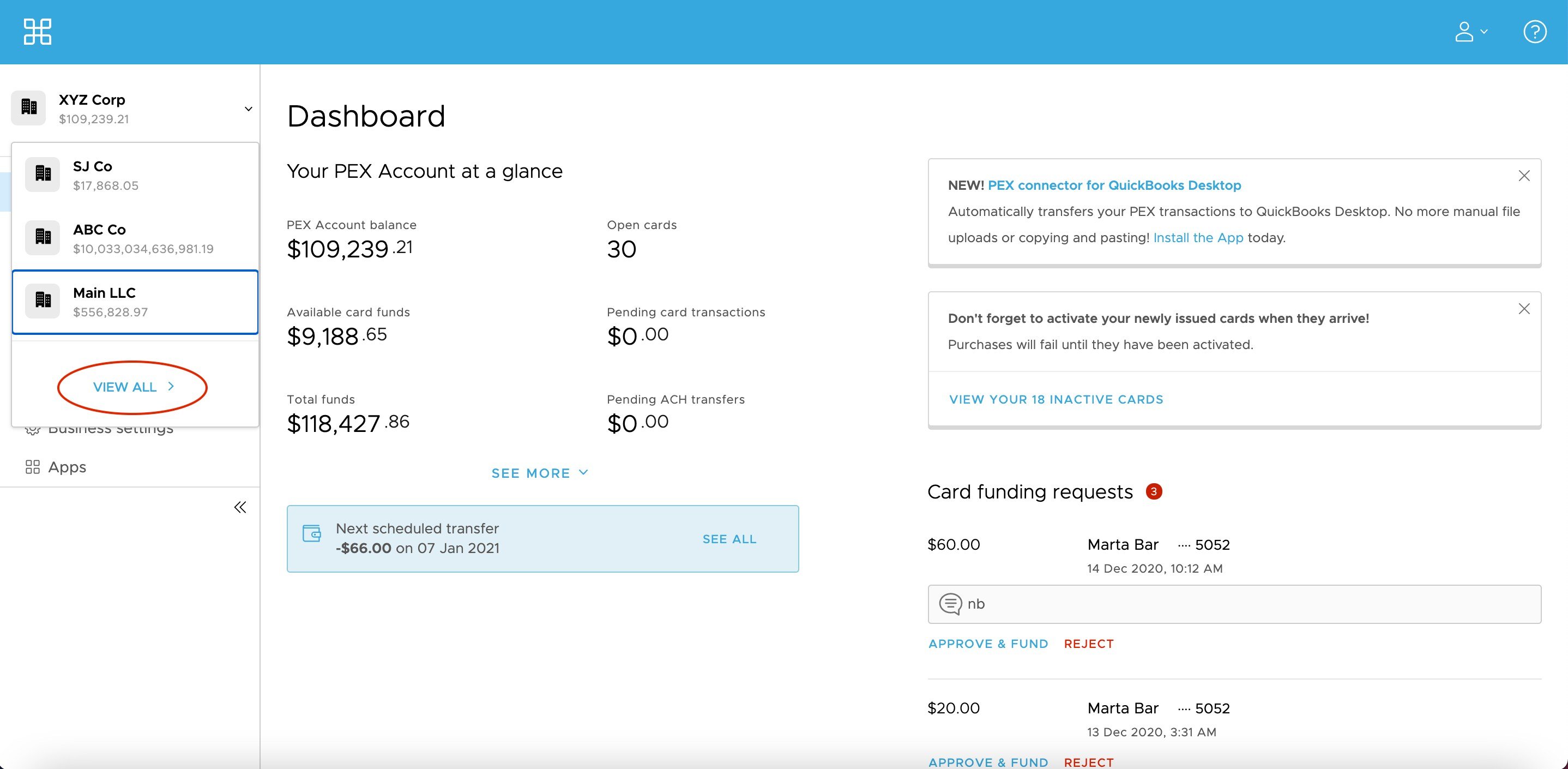
3
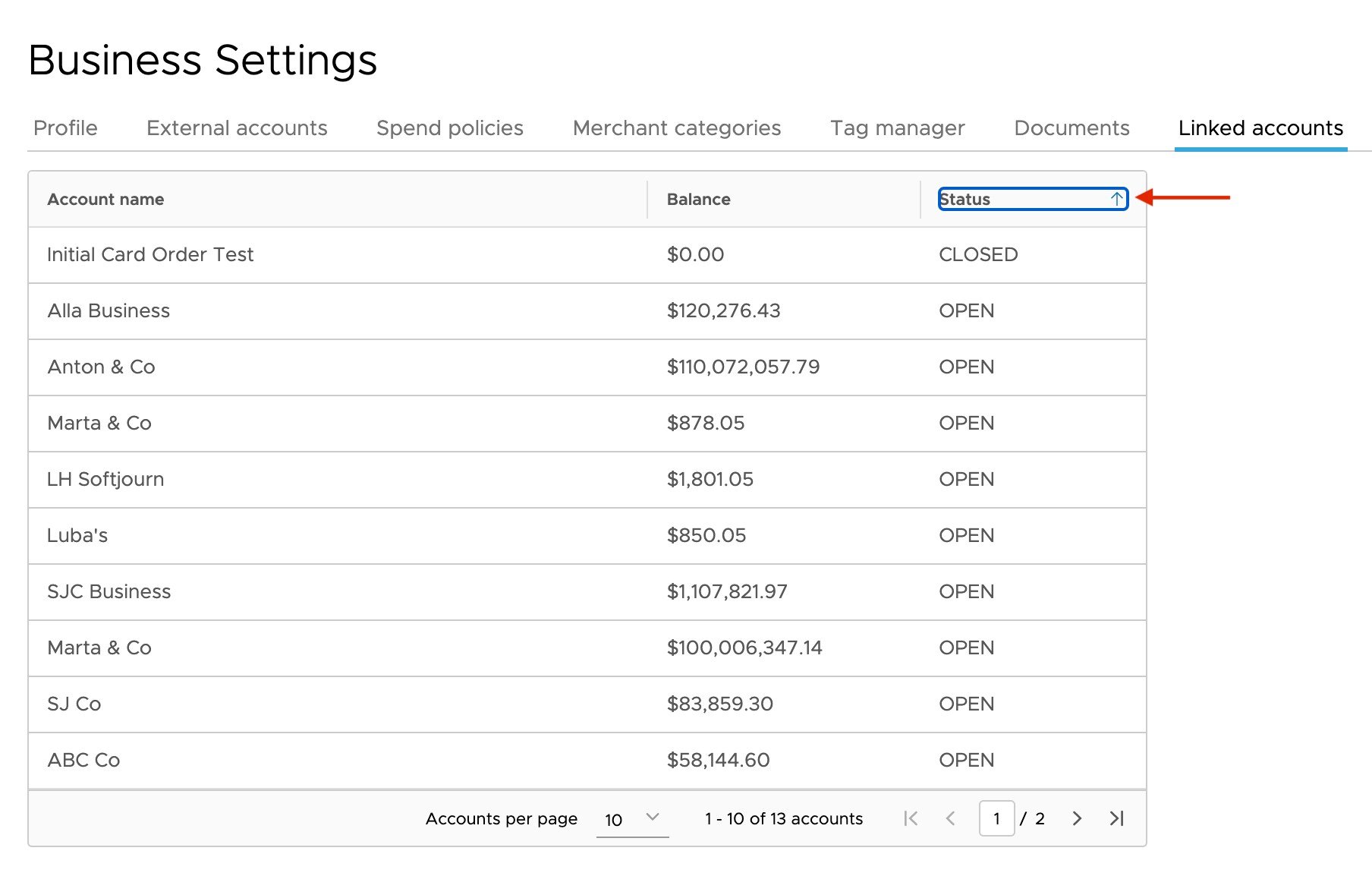
Sort by ‘Status’ to view closed accounts. 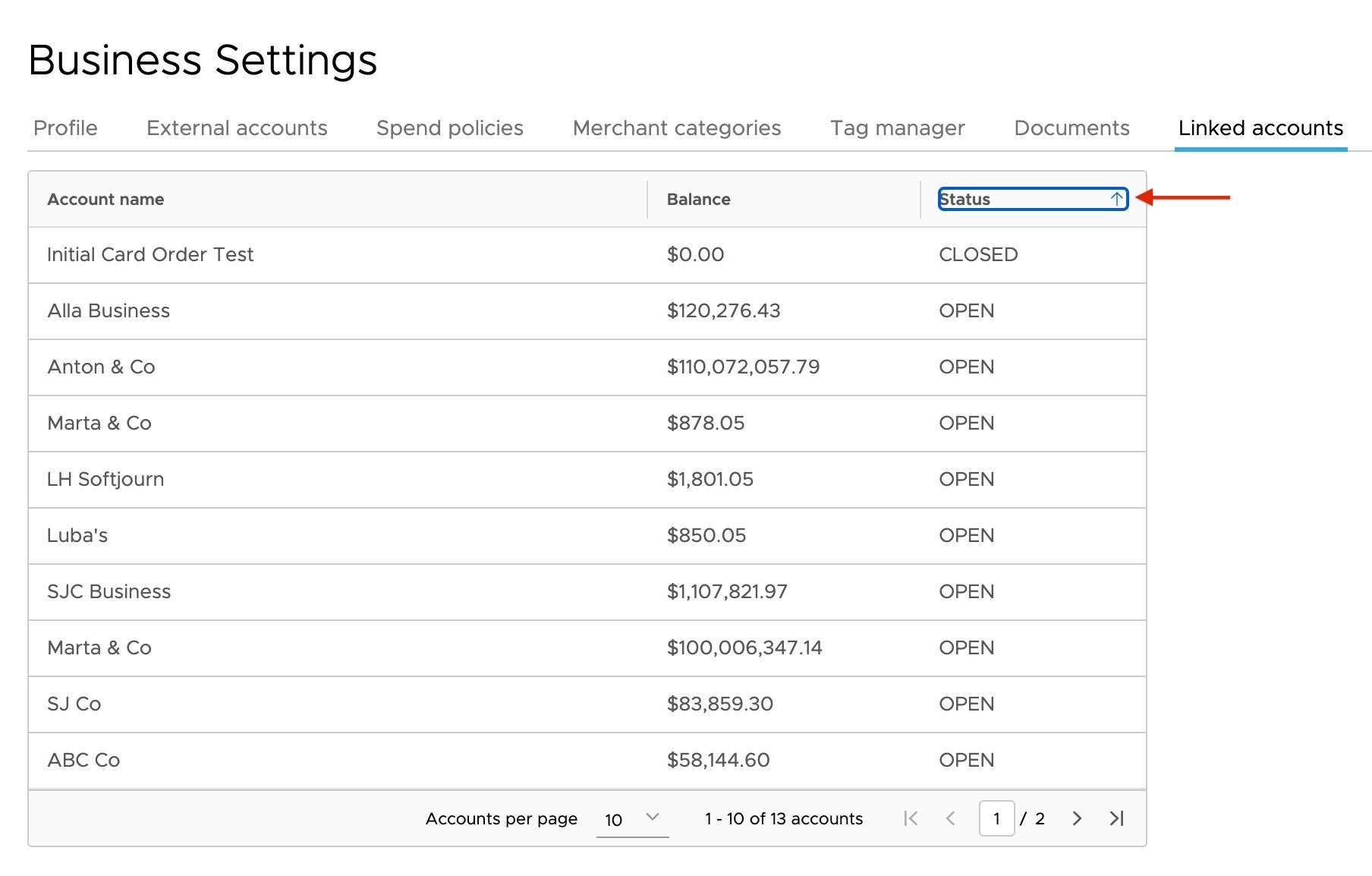
Option 2: Via ‘Business Settings’
1
Select ‘Business Settings’ on the side menu.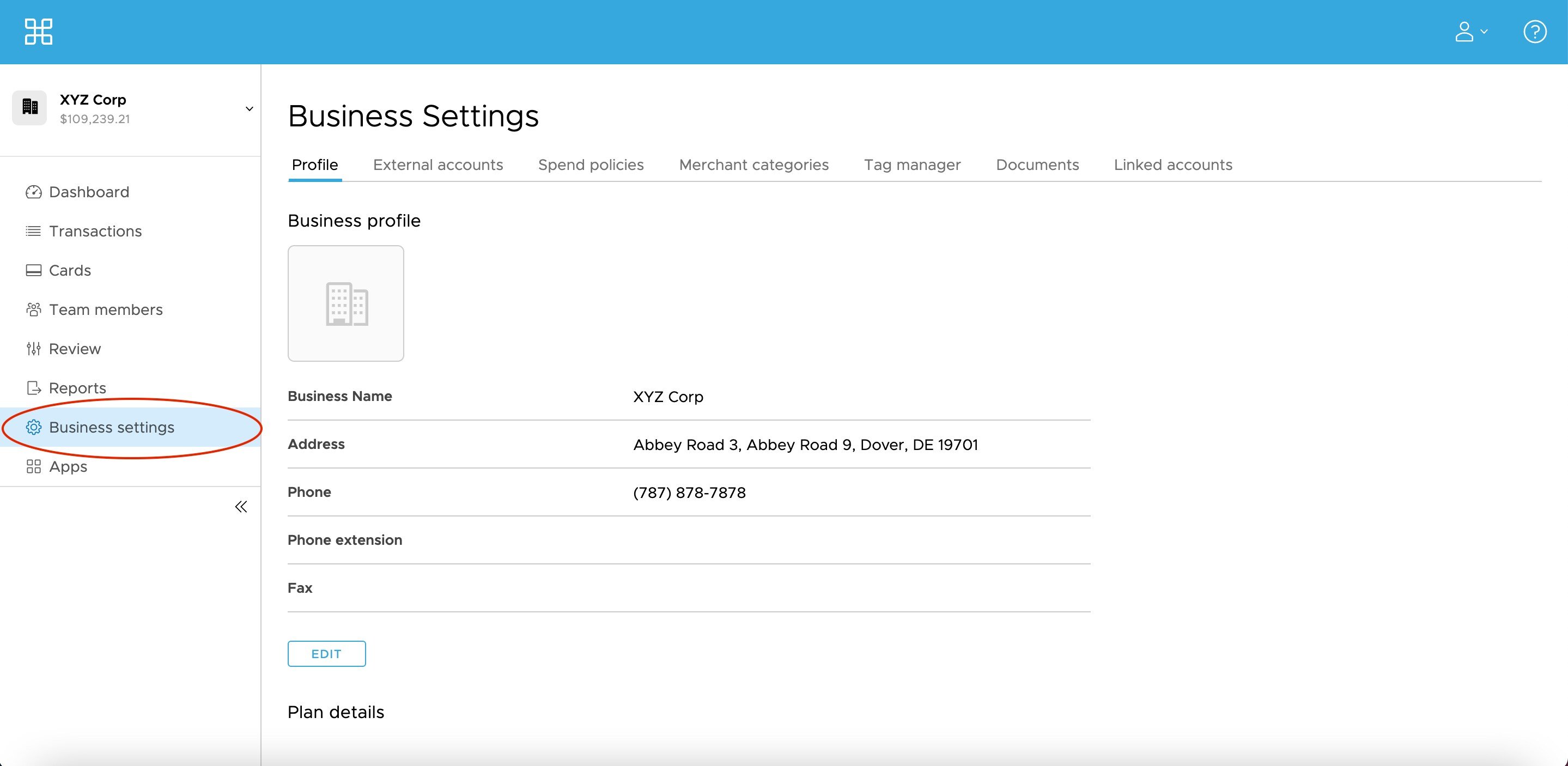
2
Select the ‘Linked accounts’ tab. 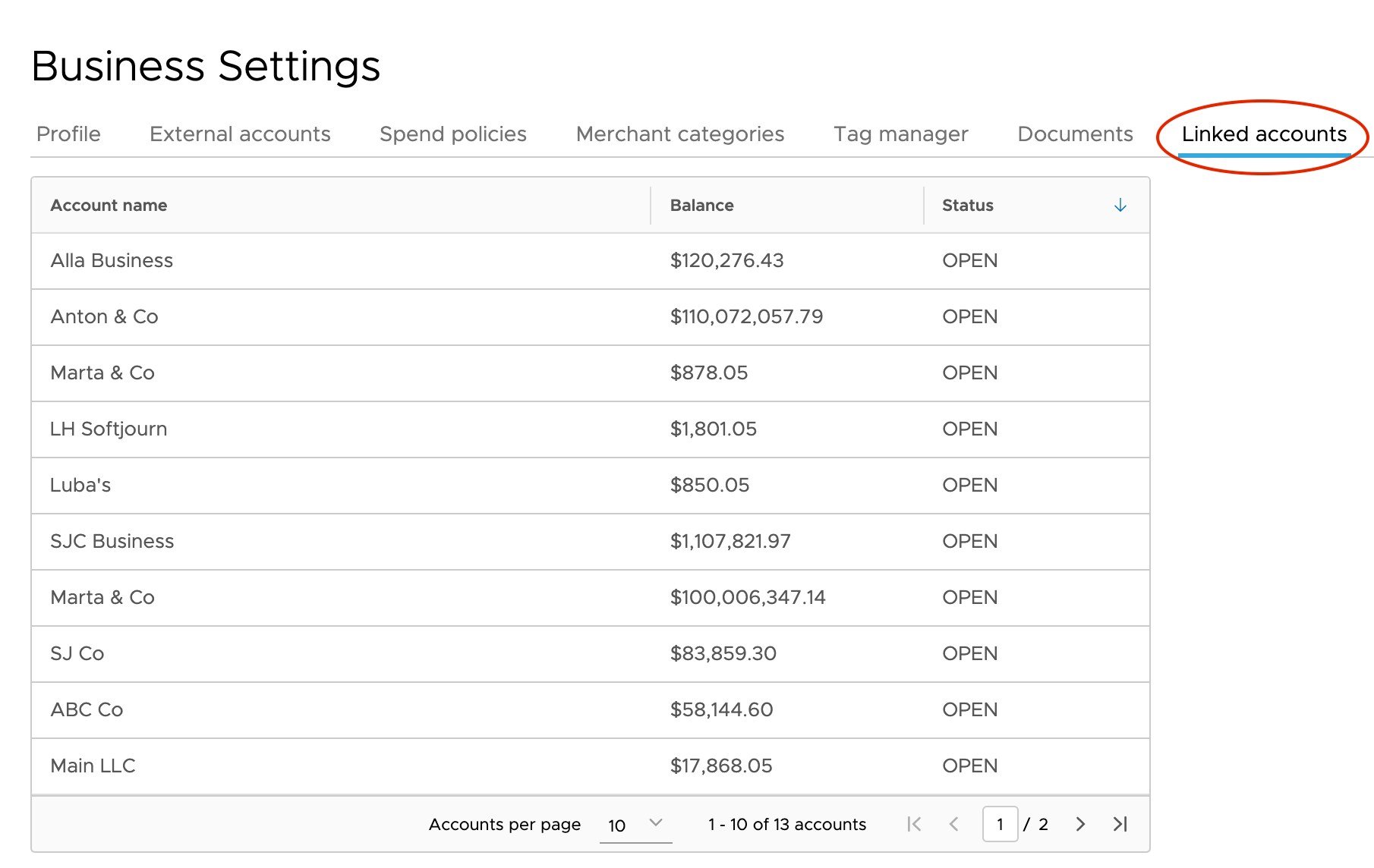
3
Sort by ‘Status’ to view closed accounts.