

What a lost-receipt affidavit is
A lost-receipt affidavit is a signed declaration that a Cardholder completes when they can’t provide a receipt for a card purchase. They select a reason, describe the business purpose and confirm that the expense is valid. PEX creates a signed affidavit PDF and attaches it to the transaction. The affidavit then acts as the receipt and follows your normal review and approval process.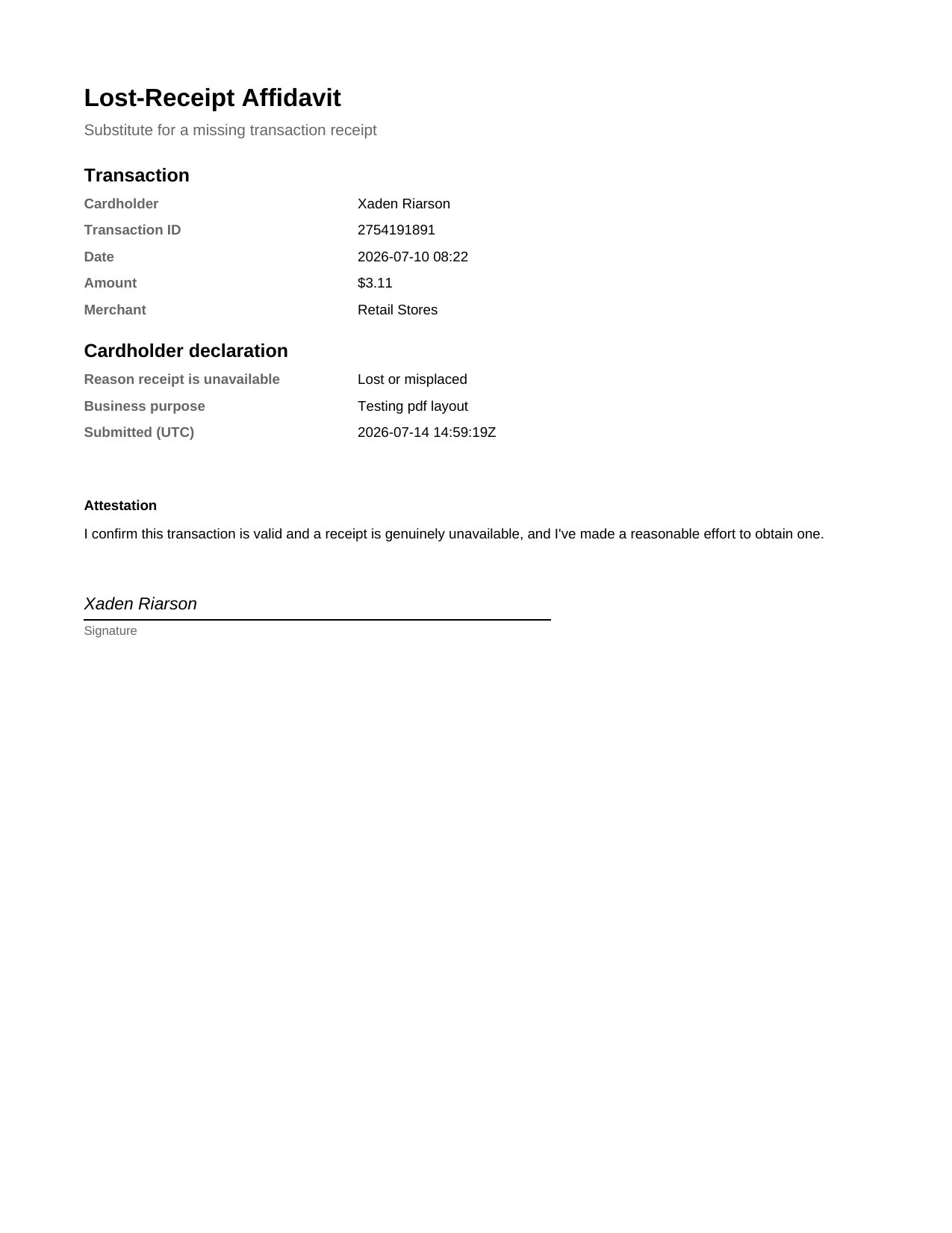
Example of a generated lost-receipt affidavit
Turn lost-receipt affidavits on or off
An account administrator can enable or disable the feature.1
Open workflow settings
Go to Business settings → Workflows → Workflow settings.
2
Edit the settings
Select Edit.
3
Find the lost-receipt affidavit setting
In the Card purchases section, find Lost-receipt affidavit.
4
Choose a setting
Select Enable or Disable.
5
Save the change
Select Update.
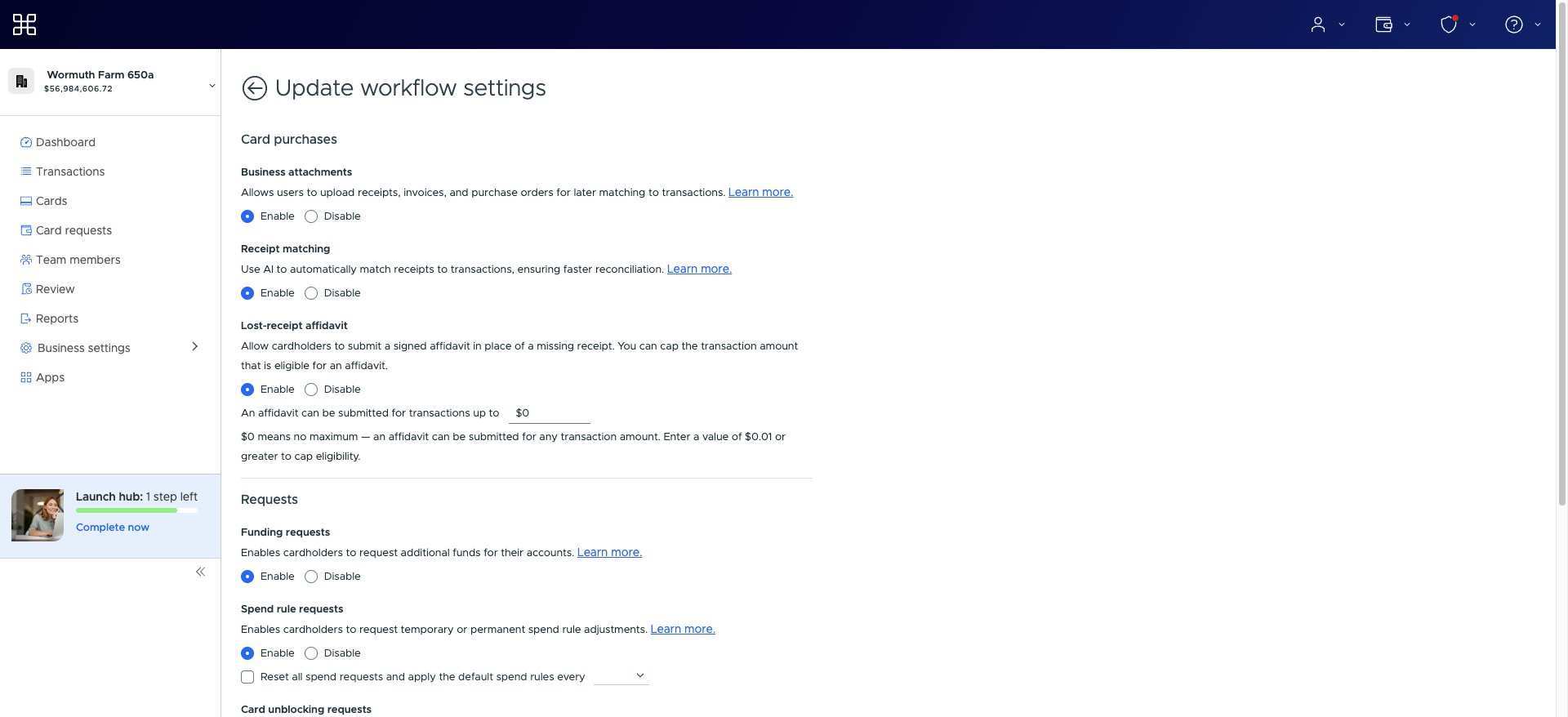
Lost-receipt affidavit settings under Card purchases
Note:If the Lost-receipt affidavit setting isn’t available, contact PEX administrator support for help enabling the feature on your account.
Set a maximum transaction amount
You can limit affidavits to purchases at or below a specific amount. Larger purchases will still require a receipt. When the feature is enabled, enter an amount in An affidavit can be submitted for transactions up to $:- Leave the amount at $0 to allow an affidavit for a transaction of any amount
- Enter $0.01 or more to set a maximum, such as $75.00
Check your current settings
The Workflow settings tab shows the current lost-receipt affidavit setup:- Enabled and No maximum transaction amount means affidavits are available for transactions of any amount
- Enabled and Up to $X.XX means affidavits are available at or below that amount
- Disabled means the feature isn’t available
Submit a lost-receipt affidavit
When the feature is enabled, a Cardholder can submit an affidavit from an eligible transaction.1
Open the transaction
Go to Transactions and select the transaction.
2
Choose the affidavit option
In the Receipts section, select I don’t have a receipt.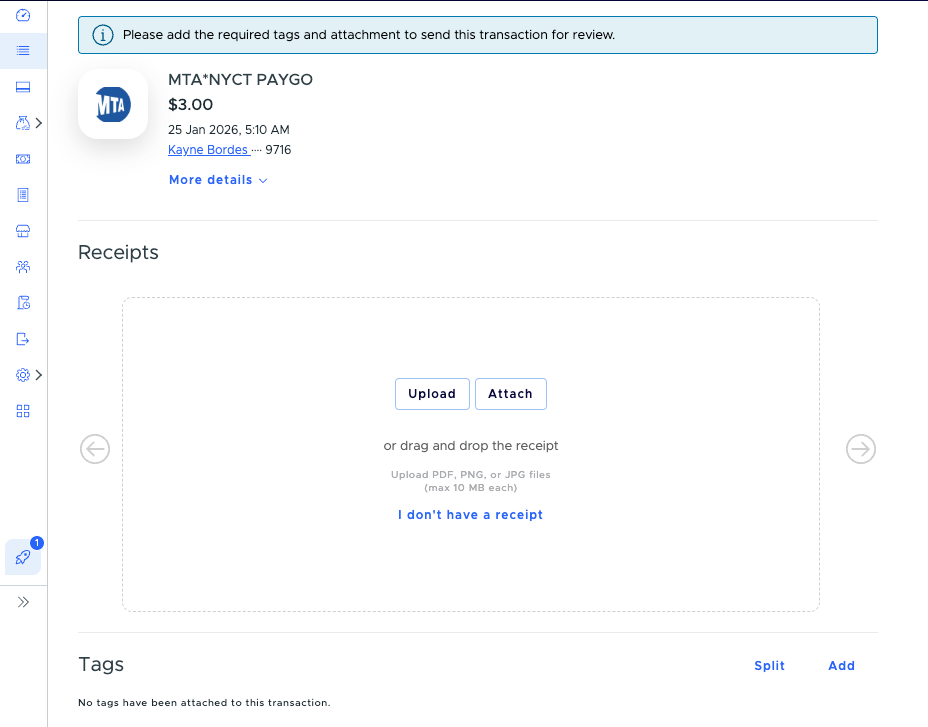
3
Select a reason
Choose why the receipt isn’t available, such as Lost or misplaced, Never received from the merchant, Digital-only or Other.
4
Enter the business purpose
Describe what the purchase was for. Include attendees when applicable.
5
Confirm the declaration
Select the checkbox confirming that the transaction is valid, the receipt is genuinely unavailable and you made a reasonable effort to obtain one.
6
Submit the affidavit
Select Submit affidavit.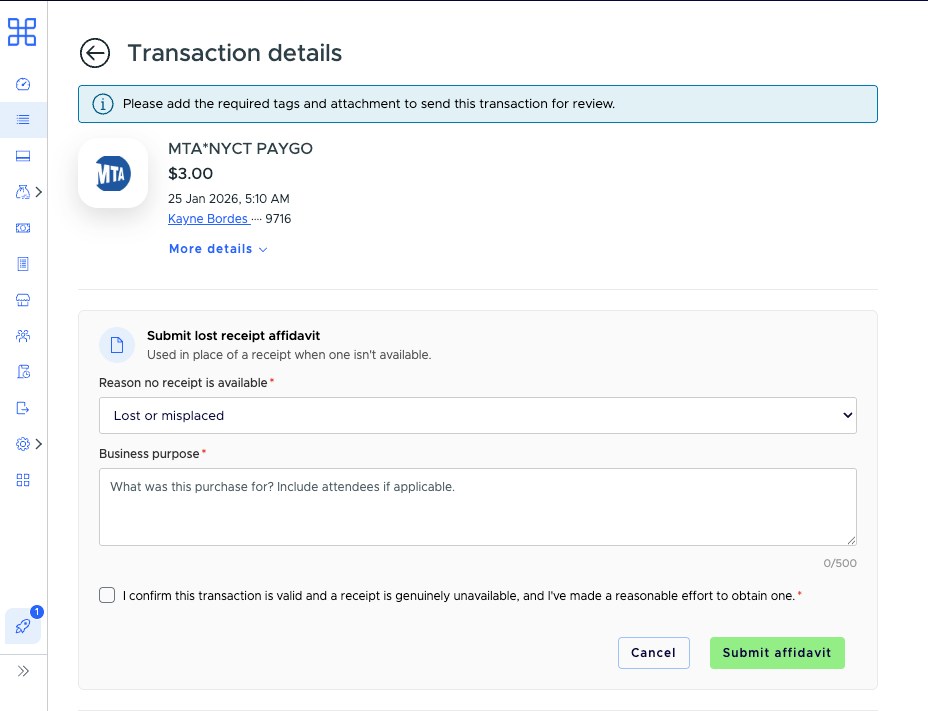
- The feature is enabled
- The transaction is a card purchase that still needs a receipt
- The transaction amount doesn’t exceed the configured maximum
Submit an affidavit from your phone
You can only submit a lost-receipt affidavit on the web for now. There’s no dedicated option in the PEX Mobile app yet. Our dashboard is mobile responsive, so you don’t have to wait until you’re at a computer. Open dashboard.pexcard.com in your phone’s browser, sign in and submit the affidavit just like you would on the desktop.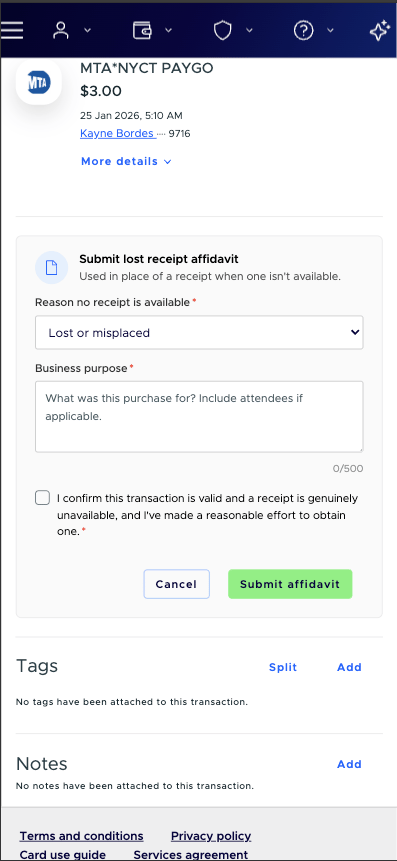
Submitting a lost-receipt affidavit from a mobile browser
Download an affidavit
Once submitted, the affidavit is attached to the transaction as its receipt, so you can download it just like any other receipt. Open the transaction, open the affidavit attachment and select the download button to save the PDF. You can download the affidavit from both the web dashboard and the PEX Mobile app.FAQ
Can I submit a lost-receipt affidavit in the PEX Mobile app?
Can I submit a lost-receipt affidavit in the PEX Mobile app?
Not yet. Affidavits are only available on the web for now. Open dashboard.pexcard.com in your phone’s browser to submit one on the go — the dashboard is mobile responsive.
Why can't I see the I don't have a receipt option?
Why can't I see the I don't have a receipt option?
The option only appears when the feature is enabled, the transaction is a card purchase that still needs a receipt and the amount doesn’t exceed the configured maximum. If you still don’t see it, contact PEX administrator support.
Is there a limit on the transaction amount?
Is there a limit on the transaction amount?
An account administrator can set a maximum amount. Affidavits are available for transactions at or below that amount, and larger purchases still require a receipt. Leave the maximum at $0 to allow an affidavit for a transaction of any amount.
What happens after I submit an affidavit?
What happens after I submit an affidavit?
PEX generates a signed affidavit PDF and attaches it to the transaction as its receipt. The affidavit then follows your normal review and approval process.
Can I download the affidavit later?
Can I download the affidavit later?
Yes. The affidavit becomes an attachment on the transaction, so you can download the PDF just like any other receipt — from both the web dashboard and the PEX Mobile app.
Can I edit or remove an affidavit after I submit it?
Can I edit or remove an affidavit after I submit it?
Once an affidavit is attached, the I don’t have a receipt option is no longer available on that transaction. Administrators can still approve or reject the transaction through the normal review process. Contact PEX administrator support if you need to make a change.