

Enable cardholders to text in receipts
Admin setup required
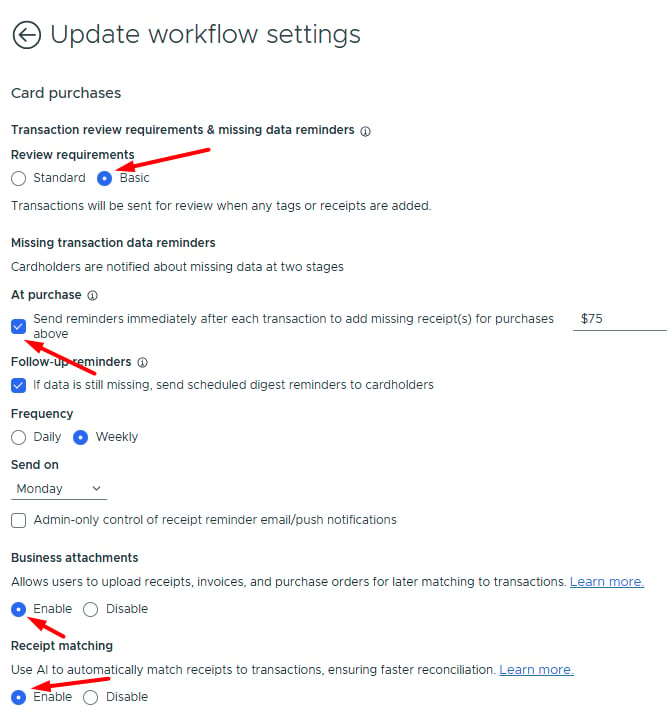
Configure these settings to allow cardholders to text receipts:2
Under Transaction review requirements & missing data reminders, select Basic
3
Check “Send reminders immediately after each transaction to add missing receipt(s) for purchases above”
- Set minimum purchase amount in the dollar field to trigger reminders (e.g., $100 = reminders only for purchases above $100).
- Leave empty to send reminders for all purchases.
- If disabled, cardholders will not receive SMS receipt reminders.
4
Enable Business Attachments (on by default)
- If disabled, cardholders can send receipts via SMS, but receipts won’t be stored as business attachments or auto-matched.
5
Enable Receipt Matching (on by default)
- Allows PEX AI to automatically match receipts to transactions.
6
Click Update
Cardholder setup required
Have your cardholders enable SMS receipt reminders in their profiles. Cardholder steps:- Verify your phone number:
- Go to My Profile


- To add another phone number for SMS receipt reminders:
- Click Edit Profile
- Edit your Phone or Alternative Phone number
- Click Update
- Verify the phone number for SMS receipt reminders:
- Click Verify

- Click Send code
- Enter the Secure Access Code you have received
- Click Verify
Note: If both Phone and Alternative Phone numbers are verified, SMS receipt reminders go to your Phone number. - Click Verify
- Go to My Profile
- Enable SMS receipt reminder:
- Go to Notifications
- Locate the “Receipt reminder” notification
- Check the SMS box across it
- Click Update Notifications
Add PEX as a contact
On your mobile device, create a new contact called “PEX” with phone #: (640) 800-7522. Use this number for SMS reminders and to text receipts and notes to PEX.Reply with receipt image
When your cardholders make a purchase, they will receive an SMS receipt reminder from PEX (640) 800-7522. They simply reply with a receipt photo. For best matching, receipts should show date and total amount paid. PEX auto-matches receipts and sends confirmation SMS.Send a note with your receipt
You and your cardholders can include a note with your receipt in two ways:- Same message: Add note text in the same SMS as the receipt image.
- Works for anonymous senders too.
- Follow-up message: Send the receipt image first, then reply with your note as a separate text message within 15 minutes.
- Not available for anonymous senders.
Note:Follow-up notes must be sent within 15 minutes or they won’t be associated with the receipt.
Send SMS without reminder
You and your cardholders can also text PEX a receipt directly without waiting for a reminder.- Save PEX number to your contacts: (640) 800-7522.
- Send receipt photo(s) via SMS (multiple receipts allowed).
- PEX auto-matches receipts and sends confirmation SMS.
- Include notes in the same message as receipt, or reply within 15 minutes to attach to the same transaction.
- Go to My Profile
- Locate your phone number
- To add another phone number for SMS receipt reminders:
- Click Edit Profile
- Edit your Phone or Alternative Phone number
- Click Update
- To add another phone number for SMS receipt reminders:
- Click Verify
- Click Send code
- Enter the Secure Access Code you received
- Click Verify
Note:All settings in Admin Setup Required must be enabled for SMS receipt submission to work.
Send a receipt anonymously
You can submit receipts by text message even if your phone number isn’t linked to a Cardholder account — so bookkeepers, assistants, or other third parties can send in receipts on a Cardholder’s behalf without needing their own PEX login. If PEX can’t tell which business the receipt belongs to, you’ll get a text asking for the last 4 digits of the card used for the purchase.- You have 24 hours to respond.
- Your reply must be just the 4 digits (for example, “1234”).
- No reply in 24 hours? The request expires and you’ll get a notification.
- Reply with valid digits and a match is found, you’ll get a confirmation.
PEX SMS responses
If you send a receipt via SMS on behalf of a cardholder, you might receive these notifications:- Success match:
- “Thank you! Your receipt has been auto matched.”
- Duplicate receipt:
- “This receipt has already been submitted. Please send each receipt only once.”
- Unrecognized phone number:
- “We don’t recognize this phone number. Please update and verify your phone number in your PEX profile, then resend the receipt.”
- Retry start (waiting for transaction):
- “Waiting for your transaction to appear in PEX. We’ll keep checking and auto-match it for you soon. Thank you!”
- Retry expired (auto-match failed):
- “The receipt couldn’t be auto-matched. You can check the reason in the Attachment thumbnail menu. Please, manually add the receipt to the transaction.”
- No match:
- “Receipt auto match was not successful. Manually upload and match your receipt to the purchase transaction using PEX mobile app or dashboard.”
- Last 4 digits (anonymous sender only):
- “We received your receipt but need more information to match it. Please reply with the last 4 digits of the PEX card used for this purchase.”
FAQ
Is there a cardholder guide for sending receipts via SMS?
Is there a cardholder guide for sending receipts via SMS?
Yes. Share this guide with your cardholders: Text to PEX (Cardholder Guide)
Why can't my cardholders edit their phone number? It's grayed out.
Why can't my cardholders edit their phone number? It's grayed out.
Contact adminsupport@pexcard.com to grant cardholders phone number editing permission.
Can I text you a receipt amount along with the image?
Can I text you a receipt amount along with the image?
No need. We will only look for the receipt image. This is enough for us to auto match the receipt to the transaction.
The receipt is too long. Can I text you images of different parts of the receipt?
The receipt is too long. Can I text you images of different parts of the receipt?
Yes. Make sure the receipt has a date and total amount paid visible.
Can I text you more than one receipt?
Can I text you more than one receipt?
Of course! We will auto match the receipts to their corresponding transactions.
How much does it cost to send a receipt via SMS to PEX?
How much does it cost to send a receipt via SMS to PEX?
Message & data rates may apply according to your carrier.
Is there any other way I can send you a receipt?
Is there any other way I can send you a receipt?
Yes. You and your cardholders can send or forward the receipt(s) to us via email at receipts@pexcard.com. See the Email to PEX (Admin Guide) for details.
Is there another way to remind cardholders to send receipts?
Is there another way to remind cardholders to send receipts?
Yes. Send bulk receipt reminders via email:
- Go to Transactions menu
- Click Filters → Select Attachments → Select No attachment → Click Add
- Select transactions in the table (all or specific ones)
- Click Actions → Select Send receipt reminder
- Optionally add a note
- Click Send
- Go to Transactions menu
- Click Filters → Select Attachments → Select No attachment → Click Add
- Select transactions in the table (all or specific ones)
- Click Actions → Select Send digest email reminder
- Optionally add a note
- Click Send *
Is sending a receipt via SMS available for both Prepaid and Credit accounts?
Is sending a receipt via SMS available for both Prepaid and Credit accounts?
Yes.
Does PEX support international phone numbers for cardholders?
Does PEX support international phone numbers for cardholders?
Not at the moment. Cardholders with international phone numbers cannot receive receipt reminders and cannot send a receipt from an international phone number.
Why didn't my receipt match?
Why didn't my receipt match?
To ensure best matching results:
- Ensure your receipt has a date and total amount paid visible.
- Submit receipts only for purchases made using your PEX card.