

Create an Odometer tag
You need the Manage workflows permission to create tags. See How to manage permissions.1
Log in to dashboard.pexcard.com.
2
Go to Business settings > Workflows > Tag manager.
3
Click Add tag and select Odometer.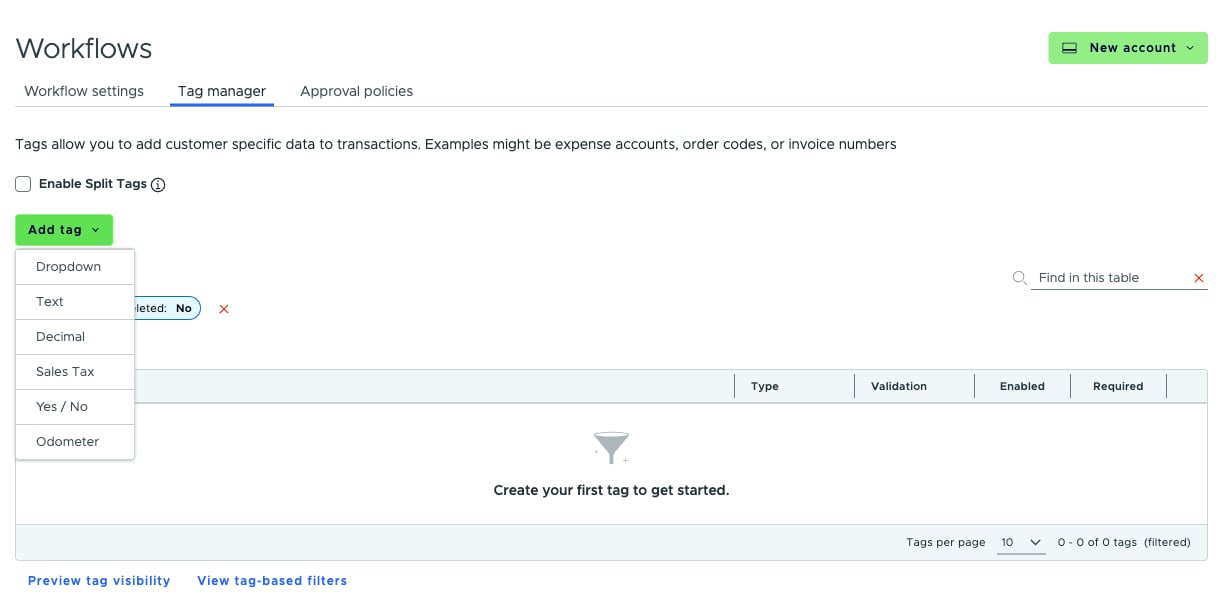
4
On the New odometer tag form, enter a Name. This is the name Admins and Cardholders see in the Tags section on a transaction (for example, “Mileage”).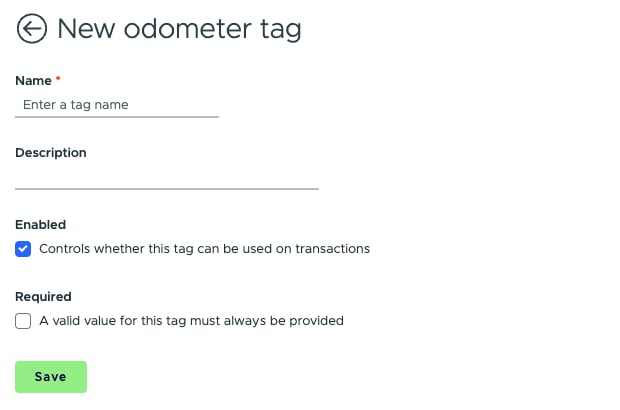
5
Optionally, add a Description.
6
Leave Enabled checked so the tag can be used on transactions.
7
Check Required if a valid value for this tag must always be provided.
8
Click Save. You’ll see “Tag created.” and the tag appears in Tag manager with the type Odometer.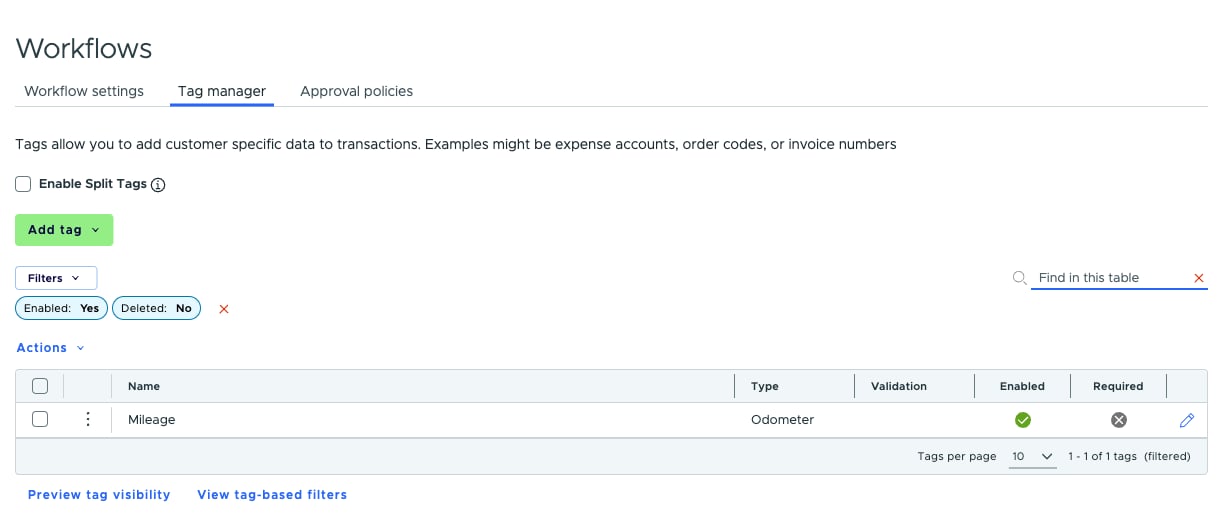
Entering readings
An Odometer tag accepts whole numbers of 0 or more. Decimals, negative numbers and commas aren’t accepted, so leave off the tenths digit. For example, enter45678 rather than 45,678.9.
Admins can enter a reading on the web from:
- The transaction page
- Split tags
- Bulk set tag value
Scanning a reading on iPhone
In the PEX mobile app, a camera button appears next to an Odometer tag on the Edit tags screen. Tapping it lets Cardholders and Admins photograph the odometer instead of typing the number.- Requirements: an iPhone 15 Pro, iPhone 15 Pro Max or any iPhone 16 or later, running iOS 26 or later with Apple Intelligence turned on in Settings. The base iPhone 15 and earlier models don’t support Apple Intelligence. On other iPhones and on Android there is no camera button, so type the reading instead.
- How it works: take a photo of the odometer and crop it. The app reads the number on the phone and fills in the field. Check the number and edit it if needed before saving.
- Camera access: the first scan asks for camera access. If access was denied earlier, the app shows an alert with a button to open Settings.
- If the number can’t be read: the field stays as it was and the app shows “Couldn’t read the odometer. Enter it manually.”
The scan photo
When you tap Save on a transaction, the photo from the last successful scan is added as a receipt. No photo is added if you leave without saving, if the transaction can’t take another receipt, if you scan on a reimbursement or if you type the reading by hand. For the Cardholder steps, see Adding an odometer reading to a purchase.FAQ
Is this the same as the odometer fields on mileage reimbursements?
Is this the same as the odometer fields on mileage reimbursements?
No. Mileage reimbursement requests have their own Starting odometer and Ending odometer fields. An Odometer tag is a separate tag entered in the Tags section. A reading in one never fills in the other.