

Type a reading (iPhone and Android)
1
Log in to the PEX mobile app and open the purchase.
2
Tap Add tag(s) or Edit tag(s). The Edit tags screen opens.
3
Enter the reading as a whole number. Leave off the tenths digit and don’t use commas — for example, enter
45678.4
Tap Save.
Scan a reading (iPhone)
You can scan the odometer instead of typing it if you have an iPhone 15 Pro, iPhone 15 Pro Max or any iPhone 16 or later, running iOS 26 or later with Apple Intelligence turned on in Settings. On older iPhones, including the base iPhone 15, and on Android you won’t see a camera button, so type the reading instead.1
On the purchase, tap Add tag(s) or Edit tag(s). On the Edit tags screen, tap the camera button next to the odometer tag.
2
The first time you scan, the app asks for camera access. Tap Allow.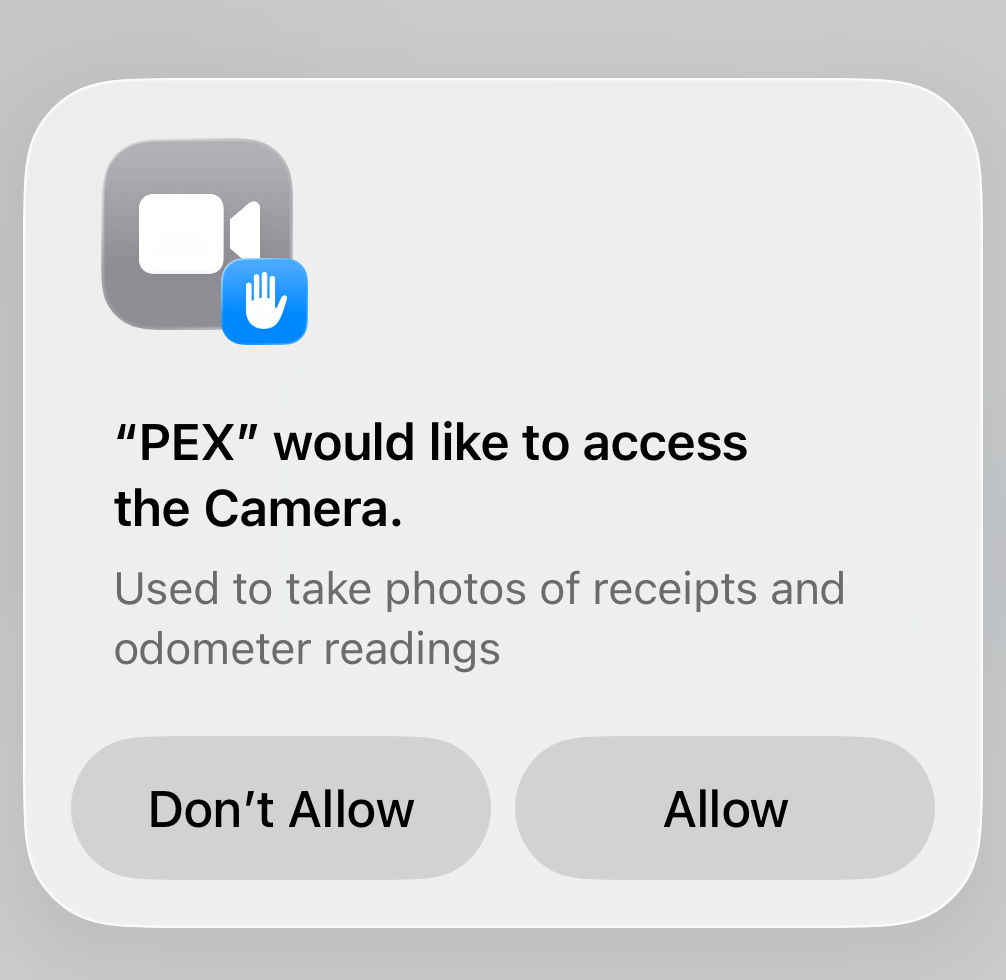
3
Take a photo of the odometer and crop it.
4
The app reads the number and fills in the field. Check the number and edit it if needed.
5
Tap Save. The photo from your last successful scan is added to the purchase as a receipt.
Note:If you scan more than once, only the photo from your last successful scan is added. If you leave without saving, the photo isn’t added. If the purchase can’t take another receipt, the reading still fills in but no photo is added. Typing a reading by hand never adds a photo.