

Reply to reminder
PEX will send an email receipt reminder when you make a purchase. Simply reply to the email with a receipt image and we will take care of the rest.Enable receipt reminder
To enable the email receipt reminder, follow the steps: Ensure your email is verified:1
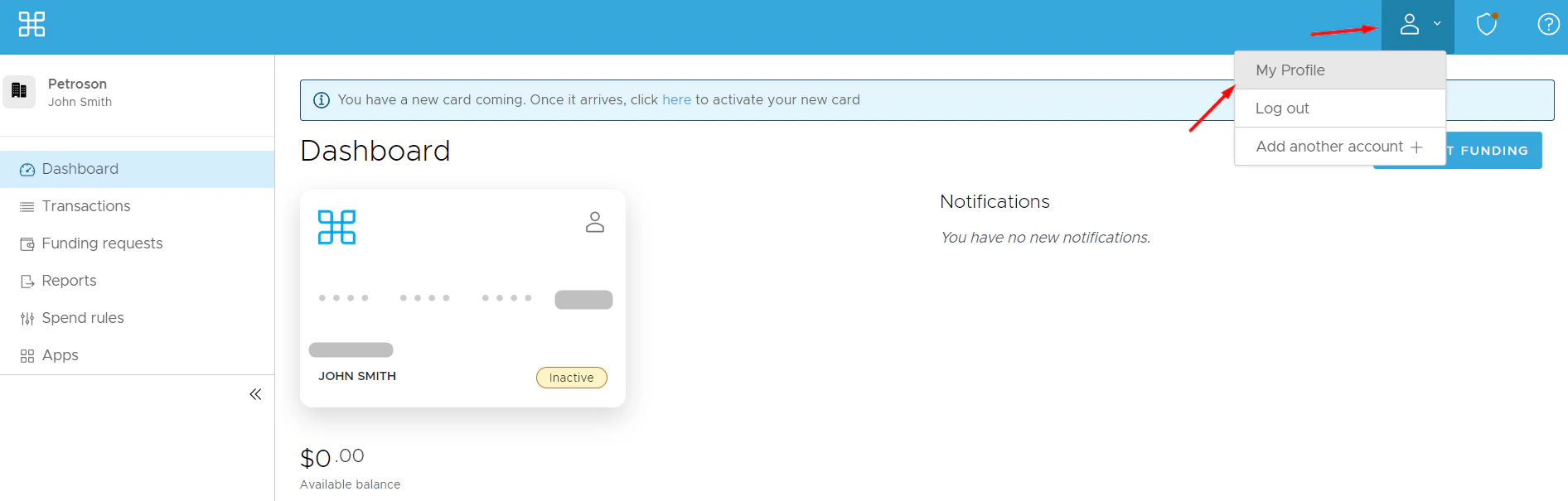
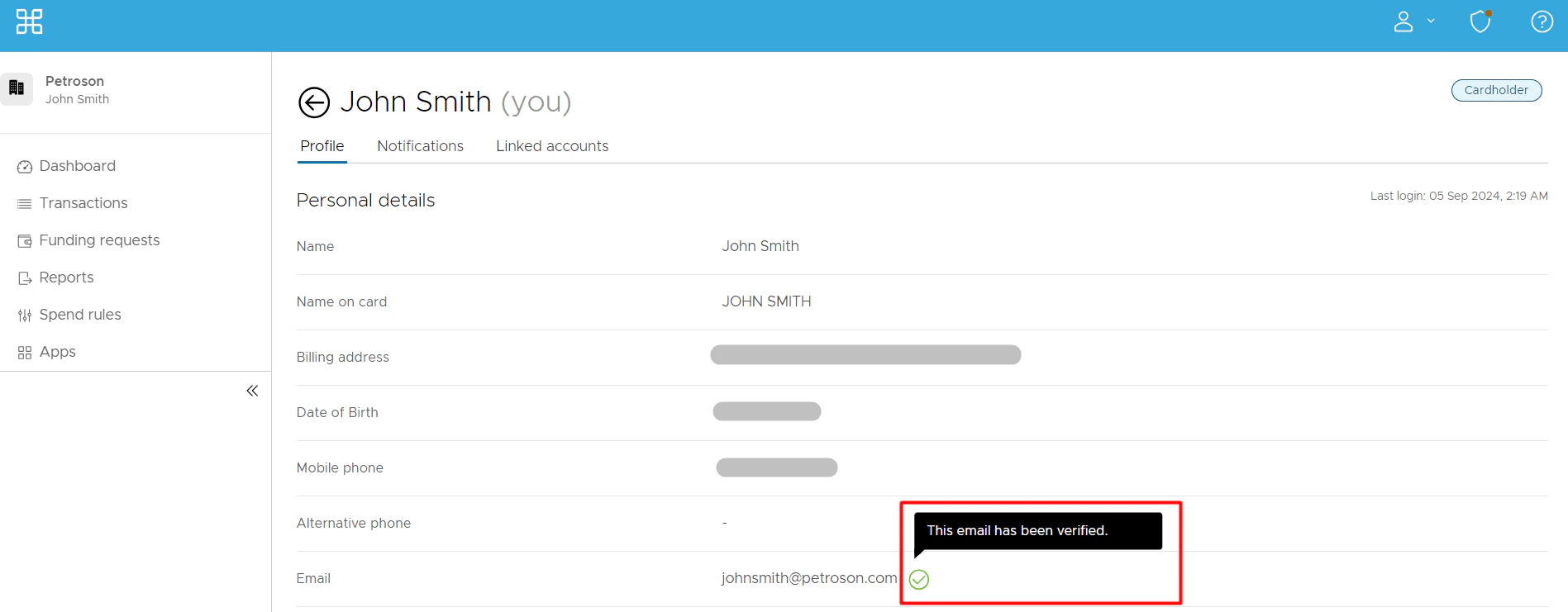
2
You can add a new email address for receipt reminders:
- Click Edit Profile
- Edit your email address
- Click Update
- Enter your secure access code you have received
- Click Continue
3
Verify the email you would like to receive email receipt reminders to:
- Click Verify
- Enter the Secure Access Code you have received
- Click Verify
1
Go to the Notifications tab
2
Locate the “Receipt reminder” notification
3
Check the email box across it
4
Click Update Notifications
Reply with receipt image
Whenever you make a purchase, you will receive an email receipt reminder from our PEX email: receipts@pexcard.com. Simply reply to it with a photo of your receipt. To ensure best matching results, make sure your receipt has a date and total amount paid visible. We will auto match the receipt to its corresponding transaction. Once done, PEX will send you an email confirming the successful auto match.Send email without reminder
You can email in receipts without a receipt reminder straight to receipts@pexcard.com- When you email in the receipt image or images (you can send more than one), we will auto match the receipt(s) to its/their corresponding transaction(s). Once done, we’ll send you an email confirming the successful match.
- When emailing in the receipt image or images, make sure that the email you use is verified. To verify the email:
- Click on the Person icon at the top right → Select My Profile
- Locate your email address
- If you want to add a new email address for receipt reminders:
- Click Edit Profile
- Edit your email address
- Click Update
- Enter your secure access code you have received
- Click Continue
- If you want to add a new email address for receipt reminders:
PEX email responses
You might receive these email notifications in response to your sent receipt:- Success match
- The receipt has been successfully auto matched.
- Duplicate receipt
- You have either previously submitted this receipt or it has already been mapped to a transaction.
- Unrecognized email address
- This email address is not added to your PEX account. Please add it and resend your receipt.
- No match
- We are having trouble matching your submitted receipt to a transaction. Please manually attach via the PEX dashboard or mobile app.
FAQ
Do I need to text you a receipt amount along with the image?
Do I need to text you a receipt amount along with the image?
No need. We will only look for the receipt image. This is enough for us to auto match the receipt to the transaction.
My receipt is too long. Can I email you images of different parts of the receipt?
My receipt is too long. Can I email you images of different parts of the receipt?
Yes. Make sure your receipt has a date and total amount paid visible.
Can I email you more than one receipt?
Can I email you more than one receipt?
Of course! We will auto match the receipts to their corresponding transactions.
Can I email receipts in HTML format?
Can I email receipts in HTML format?
Yes! We will auto match the receipts to their corresponding transactions.
Can I email receipts as multi-page PDFs?
Can I email receipts as multi-page PDFs?
Sure! We will auto match the receipts to their corresponding transactions.
Is there any other way I can send you a receipt?
Is there any other way I can send you a receipt?
Yes. You can text a photo of your receipt via SMS to PEX at this number: (640) 800-7522. More info here: Text to PEX (Cardholder Guide)
Why do I see my email attached to the transaction?
Why do I see my email attached to the transaction?
When you email a receipt, only the receipt is saved to the transaction. However, if the email is missing an inline or attached receipt, we attach the email itself instead.
Why didn't my receipt match?
Why didn't my receipt match?
To ensure best matching results:
- Ensure your receipt has a date and total amount paid visible.
- Submit receipts only for purchases made using your PEX card.