- Through the Administrator Site
- Through the Mobile App
- Download the iOS app from the App Store
- Download the Android app from the Google Play Store
- The download is free but carrier data rates may apply
How to Quick Fund a Card Through the Administrator Site
1
Log in to dashboard.pexcard.com
2
Click the Cards tab on the left side of the page
3
Within the All Cards list, use the Find in this table function on the upper right to search and find the Cardholder. The field will begin searching based on a few letters of the person’s name or the entire name.
4
Enter the amount to that card in the Quick fund box, the box at the far right, as a positive number, e.g., “500”
5
Click the blue arrow button
6
To remove funds from a card, enter the amount to that card in the Quick fund box, the box at the far right, as a negative number, e.g., “-500”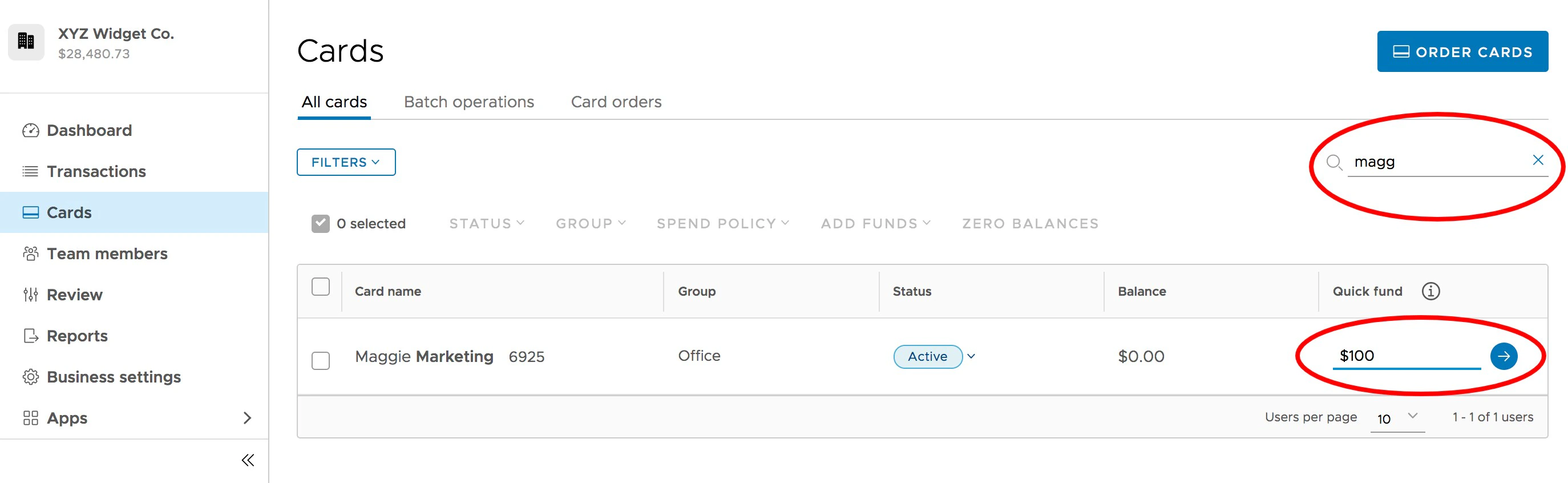
How to Quick Fund a Card Through the Mobile App
1
Log in to the Mobile App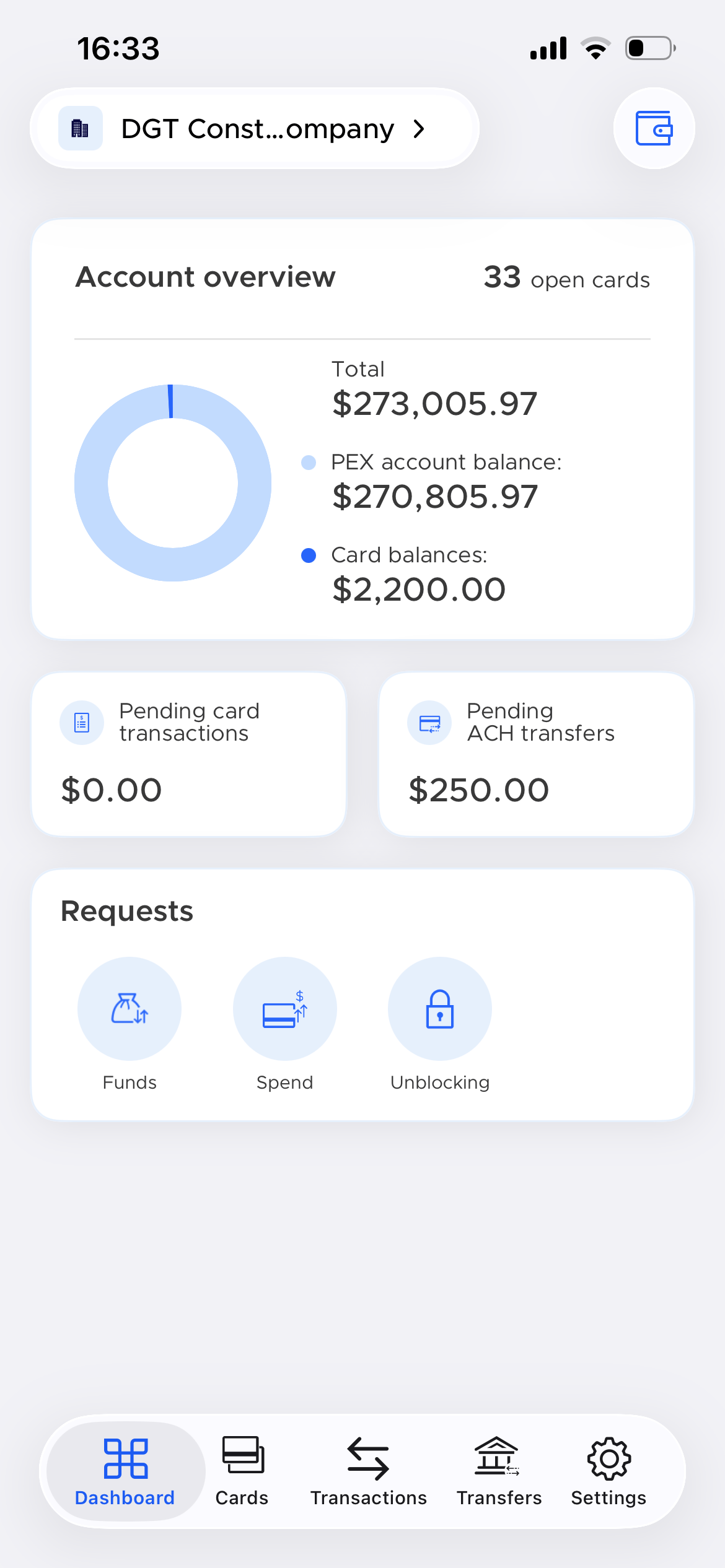
2
Click the Cards icon at the bottom of the page
3
Navigate to the cardholder
4
Click on the cardholder’s name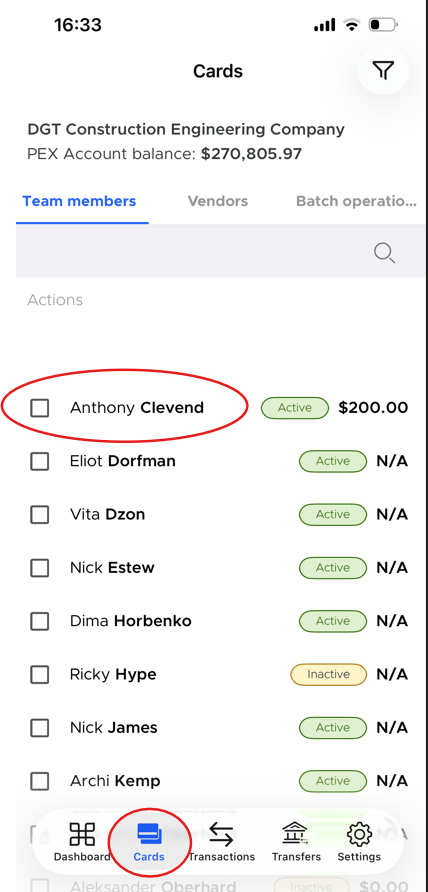
5
Enter the amount to add in the Quick fund box
6
Click the green Add funds button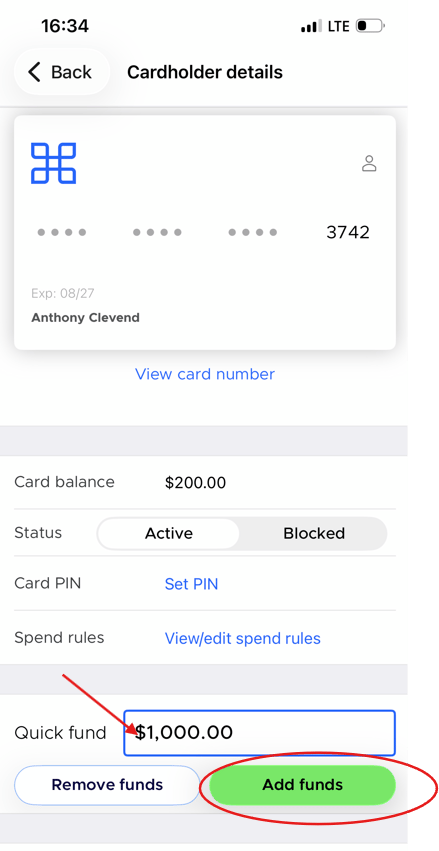
7
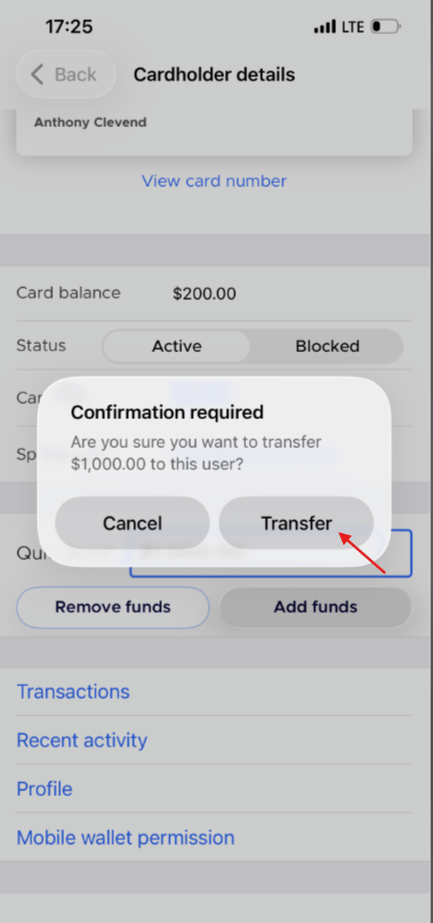
Click Transfer in the confirmation dialogue box to add funds to the card