

For Admins & Accounting Teams:This guide covers PEX best practices for configuring, enforcing, and reviewing purchase transactions — so your books stay clean and your team stays compliant.
Your workflow at a glance
Follow these seven steps across three phases to build a reliable, end-to-end purchase workflow.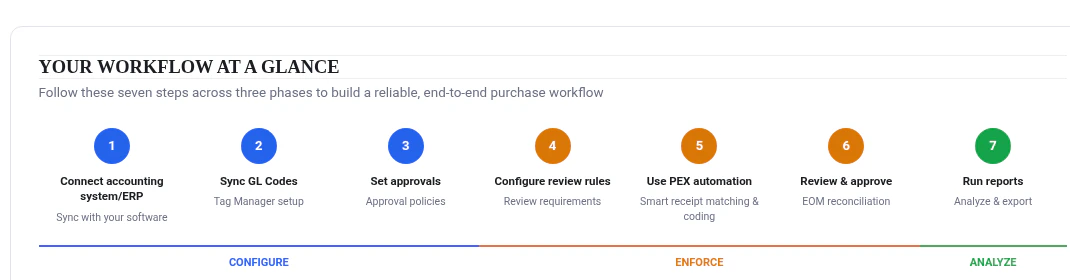
Phase 1 — Configure
1. Connect to your accounting system
PEX supports 50+ integrations. Once your account is connected to your accounting software, all purchases sync automatically — no manual data entry, fewer mistakes, and a much more effective flow.Tip:Check the Apps page to find your accounting software and connect in just a few clicks.
2. Sync your GL codes
Use the Tag Manager to create, sync, or import your GL codes so that every transaction can be properly categorized. Business settings → Workflows → Tag managerTip:If your accounting software is already connected, sync your GL codes directly — it takes just a few clicks and keeps everything aligned automatically.
3. Set up approval policy
Define how transactions get approved based on your company’s needs. PEX supports several types of approval policies that you can use individually or combine for more advanced rules. Business settings → Workflows → Approval policiesAvailable policy types
- Threshold-based — approve based on transaction amount
- Department (group)-based — route approvals by team or department
- Code (tag)-based — assign approvers by expense category
- Advanced — combine all three types into a single policy
Avoid bottlenecks with the Out-of-policy feature
What happens when an approver is on vacation? Set up out-of-policy rules so that designated top managers can approve items by bypassing the standard approval chain — keeping purchases moving without delays. Business settings → Workflows → Approval policies → Out-of-policyPhase 2 — Enforce
4. Configure transaction review requirements
Align PEX’s default rules with your company’s compliance requirements so employees know exactly what’s expected for every purchase. Business settings → Workflows → Workflow settings → Transaction review requirements- Standard — requires GL coding, receipt upload, and an explanatory note for each transaction. Includes automatic reminders for cardholders when anything is missing.
- Basic — for simpler compliance rules that don’t require tags or receipts. Lightweight and easy for your team.
Auto-Enforcer:Want stricter compliance? Enable Auto-Enforcer to automatically block a cardholder’s card when transaction info is still missing and they haven’t followed company rules.
Share with your team:Once your workflow is configured, send your employees our cardholder guide — Managing Your Purchases with PEX — so they can self-educate on adding receipts, tags, and notes.
5. Automate your workflow with PEX AI-powered features
Reduce manual work and keep all required info flowing in automatically. PEX offers smart automation tools that handle receipts, notes, and GL codes so your team can focus on what matters. Business settings → Workflows → Card purchasesFor receipts & notes — Receipt matching
Cardholders simply send receipts and notes directly via SMS or Email. PEX automatically matches them to the correct transactions through receipt matching — no manual uploading needed.For GL codes — AI-powered tag suggestions
Smart tag suggestions appear automatically based on your past transactions. The more your team uses it, the better the suggestions get — saving time and reducing coding errors.For GL codes (rule-based) — Auto Tagger app
Create dynamic rules that automatically tag transactions with the right PEX tags. Rule-based tagging reduces reconciliation time and enhances the accuracy of your reporting.Tip:Use Receipt Matching together with either AI Tag Suggestions or the Auto Tagger app for maximum automation — your cardholders handle receipts, and the system handles coding.
6. Review and approve transactions before end of month
Make sure every transaction gets reviewed by a manager before the books close. Use these filters to find what still needs attention:- Transactions awaiting review: Transactions → Filter → Review Status → Not Reviewed
- Transactions missing required data: Transactions → Filter → Review Status → Missing Info
Tip:Set up daily or weekly digest approval reminders so you never miss a pending approval transaction. Go to Profile → Notifications → Digest Reminders.
Tip:Install our Mobile app to get real-time push notifications and approve purchases directly from your phone.
Phase 3 — Analyze
7. Use reports to your advantage
PEX offers a suite of built-in reports to help you monitor spending, track compliance, and generate the exports your finance team needs. Explore the Reports section to find transaction summaries, approval status breakdowns, and more.Tip:Schedule reports to run automatically and have them delivered to your inbox — one less manual step at month-end.