Jump to: Reset your own password (self-service) | Reset a cardholder’s password (admins only)
Reset your password (self-service)
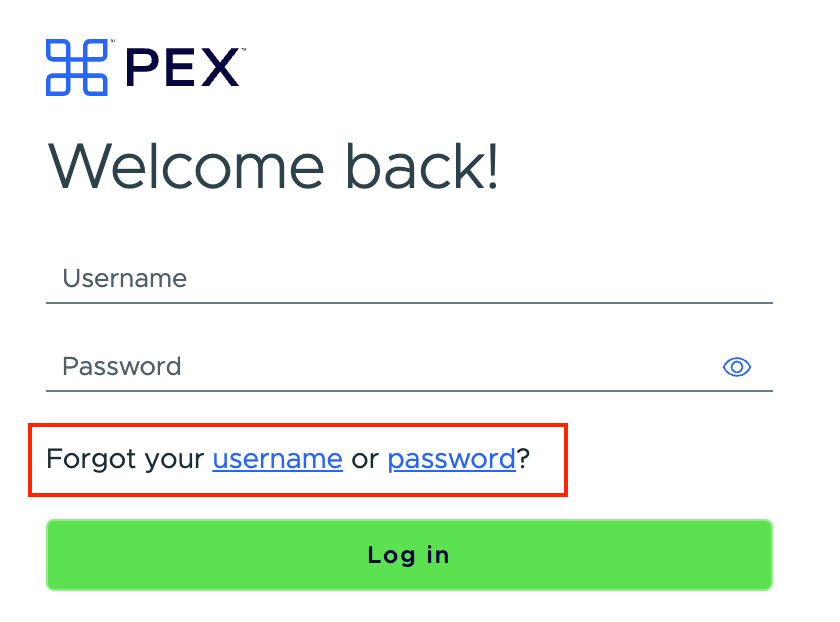
- Navigate to the login page: dashboard.pexcard.com
- Click the link titled “Forgot your username or password”
- Enter your username
- If you’ve forgotten your username, click the link to receive a username reminder by email
- The password reset link is sent to your email
- Check your email and follow the reset link
- Click the “Continue” button on the “Verify your identity” page
- An OTP code is sent to your mobile device. Note: if you have more than one phone number saved to your profile, you can choose which one to use for verifying your identity.
- When you receive the code, enter it in the “Secure Access Code” field
- Don’t enter any spaces or additional characters
- The code is valid for one-time use only
- If you’re resetting your password from a new device and don’t receive a “Secure Access Code,” contact our Customer Support team
- Click “Continue” to proceed
- On the “Reset password” page, enter and confirm your new password. Passwords must meet the following requirements:
- At least 8 characters long
- At least one digit (0–9)
- Can’t begin with a hash symbol (#)
- Palindromes (such as “123aba321”) are rejected
- Can’t contain your username
Reset the password for one of your cardholder team members (admins only)
- Log in to dashboard.pexcard.com
- On the Team Members tab, find and click the name of the cardholder whose password needs to be reset
- Click the “Reset Password” button at the bottom of the page
- Review the email address shown for the cardholder - clicking “Reset Password” sends a temporary password to that email address
Last modified on July 16, 2026