

For Admins & Account Managers:Your Business Settings area is where you control how your PEX account operates at the company level. It’s organized into three main sections — Profile, Workflows, and Spend Controls — each accessible from the left-hand navigation menu under Business settings.
Profile
The Profile section contains your company’s core account information and connected bank accounts. Navigate to Business settings → Profile.Business profile
View and update your company details, including:- Business Name — your registered company name on the PEX platform.
- Address — your company’s mailing address.
- Mobile phone, Phone extension, and Fax — contact numbers associated with your account.
Plan details
Below the business profile, you’ll see your current Plan (e.g., Pro) along with a summary of your account usage:- Open Team Member card accounts this month and current count.
- Open Vendor card accounts this month and current count.
External accounts
Select the External accounts tab to manage the bank accounts linked to your PEX account. These are the checking accounts used when transferring funds to or from PEX. Each linked account shows the Bank name, last four digits of the Account number, a Description (e.g., Business Account), its Status (Active or Pending), and Online Validation state (Linked or Unlinked). From here you can:- Add a new external account by clicking the green Add external account button.
- Edit or remove an existing account using the action icons on each row.
- Validate a pending account to activate it for transfers.
Note:Bank accounts on the PEX platform must be checking or operating accounts held in your company’s name. Authorize PEX to debit your bank account by informing your bank to allow-list PEX using the company ID shown on this page.
Settings
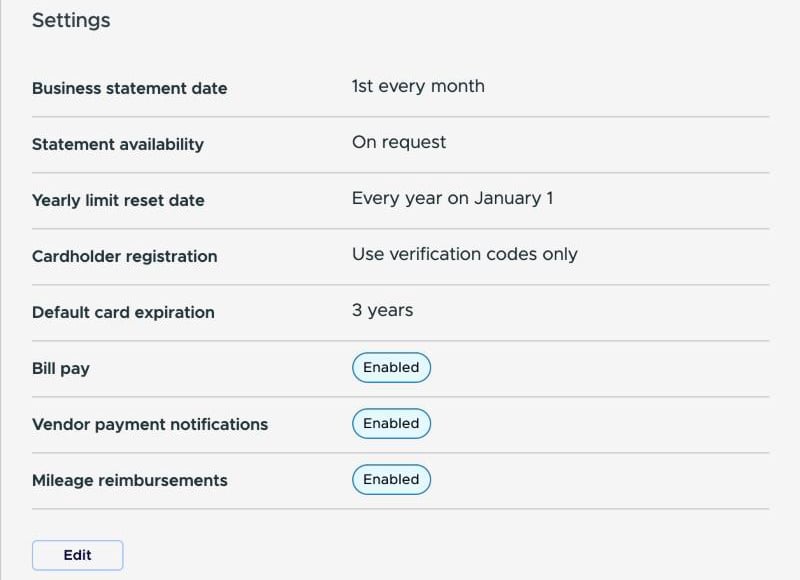
The Settings section on the Profile tab, below your plan details, shows account-wide settings:- Business statement date — the day your monthly business statement period starts (e.g., 1st every month).
- Statement availability — how your business statements are made available (e.g., On request).
- Yearly limit reset date — when yearly spend limits reset (e.g., Every year on January 1).
- Cardholder registration — how cardholders register their cards (e.g., Use verification codes only).
- Default card expiration — how long new cards are valid by default (e.g., 3 years).
- Bill pay — whether Bill Pay is turned on for your business.
- Vendor payment notifications — whether vendors are emailed when you send them an ACH bill payment. Only appears when Bill pay is enabled. See Vendor payment notifications.
- Mileage reimbursements — whether cardholders can submit mileage reimbursement requests.
Workflows
The Workflows section lets you configure transaction review requirements, tagging, approval chains, and auto-tagging rules. Navigate to Business settings → Workflows to access four tabs.Note:You need the Manage workflows permission to see the Workflows section. See How to manage permissions.
Workflow settings
This tab controls the baseline rules for card purchases and internal requests.Card purchases
- Transaction review requirements & missing data reminders — choose a review standard (e.g., Standard) and define what’s required. For example: receipts for all transactions, and user notes only for transactions equal to or greater than a specific dollar amount (e.g., $200.00).
- Business attachments — toggle the ability to attach files to transactions at the business level.
- Receipt matching — automatically match uploaded receipts to transactions.
Requests
- Funding requests — allow cardholders to request additional funds on their cards.
- Spend rule requests — allow cardholders to request changes to their spending rules.
- Card unblocking requests — control whether cardholders can request that a blocked card be unblocked.
Tag manager
Tags let you add custom data fields to transactions — such as expense accounts, order codes, or invoice numbers. Navigate to Workflows → Tag manager. From this tab you can:- Add a new tag using the green Add tag button.
- Filter the tag list by enabled/disabled or deleted status.
- View all active tags (e.g., Teaching accounts, Human Resources, Athletics, Department).
- Enable Split Tags if your organization needs to split a single transaction across multiple tag values.
Tip:If your accounting software is already connected through the Apps page, sync your GL codes directly through the Tag Manager — it keeps everything aligned automatically.
Approval policies
Create approval workflows that define which transactions or requests need sign-off and by whom. Navigate to Workflows → Approval policies. Each policy shows its Name, Status (Active or Inactive), and which Workflow type it applies to — such as Funding request, Payment transfer, Transaction, Reimbursement request, or Spend rule requests. From here you can:- Create a new policy using the green Create new policy dropdown.
- Configure out-of-policy behavior for transactions that fall outside any defined policy.
- Change a policy’s status between Active and Inactive using the dropdown on each row.
Auto Tagger
Automatically tag cardholder transactions based on rules you define — no manual coding required. Navigate to Workflows → Auto Tagger. If no rules exist yet, click Create a Rule to get started. Each rule has a Priority, Name, Description, and Active status. An advanced mode is available if you need more specifications or tags per rule.Tip:Use the Auto Tagger together with Receipt Matching for maximum automation — your cardholders handle receipts, and the system handles GL coding.
Spend controls
Spend controls let you define exactly where and how cardholders can use their PEX cards. Navigate to Business settings → Spend controls to access three tabs.Spend policies
A spend policy is a collection of spend rules that you can apply to one or many cardholders. For example, you might create one policy for your “Sales Team” and another for your “Delivery Drivers.” Each policy row shows the policy Name, number of Cards assigned, and which controls are enabled or disabled:- Time-based spend limits — restrict spending by time period.
- International — allow or block international transactions.
- In-person and online spend rules — set separate rules for physical and digital purchases.
- Auto card funding — automatically add funds to cards when balances drop.
- MCC (Merchant Category Code) restrictions — limit spending to specific merchant types.
- Merchant deny list / allow list — block or allow specific merchants.
Merchant categories
Create custom merchant categories to further control where cardholders can spend. Each category must contain at least one Visa merchant category code (MCC). The table shows each category’s Name, the number of Cards it applies to, a Description of the merchant types included, and the count of MCCs in the category. Pre-built categories cover common areas such as Restaurants, Retail Stores, Fuel Pumps Only, Healthcare & Childcare, Professional Services, and Entertainment. Click Create new category to define a custom grouping tailored to your business needs.Merchant lists
Create specific lists of merchants to use in cardholder spend rules. This allows you to build allow-lists or deny-lists of individual merchants by name rather than by category. Click Create new merchant list to get started. Each list shows its Name, Description, and number of Merchants included.Tip:Combine spend policies with merchant categories and merchant lists for layered control — restrict by time, by merchant type, and by individual merchant in a single policy.
Still have questions? Contact PEX Support.