

How to reject a purchase
1
Log in to the Dashboard via https://dashboard.pexcard.com
2
Navigate to Transactions from the sidebar menu and click on it
3
Locate the purchase that was submitted for review. You can use the Review Status filter to show only transactions pending your approval
4
Click on the transaction to open the details modal
5
Review the transaction and identify what information is missing or incorrect
6
Click the Reject button at the bottom of the modal window
7
Add a note to the Cardholder explaining why the purchase was rejected and what information they need to provide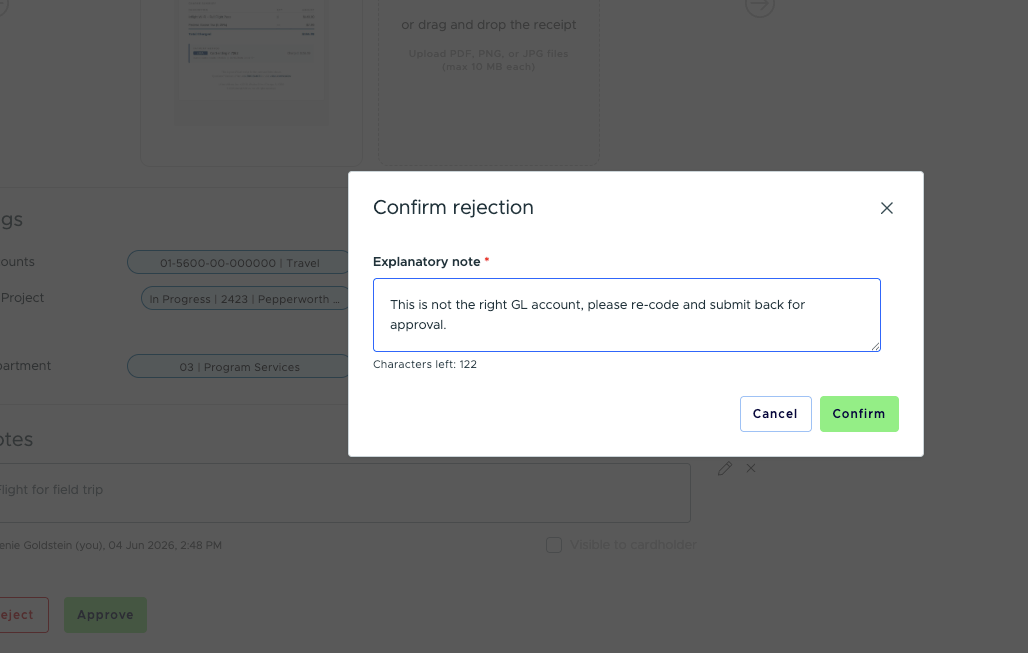
8
Click Confirm to complete the rejection
FAQ
If I reject a purchase, will this item show up on my balance sheet?
If I reject a purchase, will this item show up on my balance sheet?
Yes, rejecting a purchase does not negate the purchase. It only asks the Cardholder to submit additional information to correctly reconcile the transaction. The charge still appears on your balance sheet regardless of its review status.
Can I reject multiple transactions at once?
Can I reject multiple transactions at once?
Yes, you can use the bulk actions feature on the Card Transactions page. Select the transactions you want to reject, click Actions and choose the reject option from the dropdown menu.
Will the Cardholder be notified when I reject their purchase?
Will the Cardholder be notified when I reject their purchase?
Yes, the Cardholder receives an email and push notification (if enabled) letting them know their purchase was rejected along with the note you provided.