

PEX declines vs merchant declines
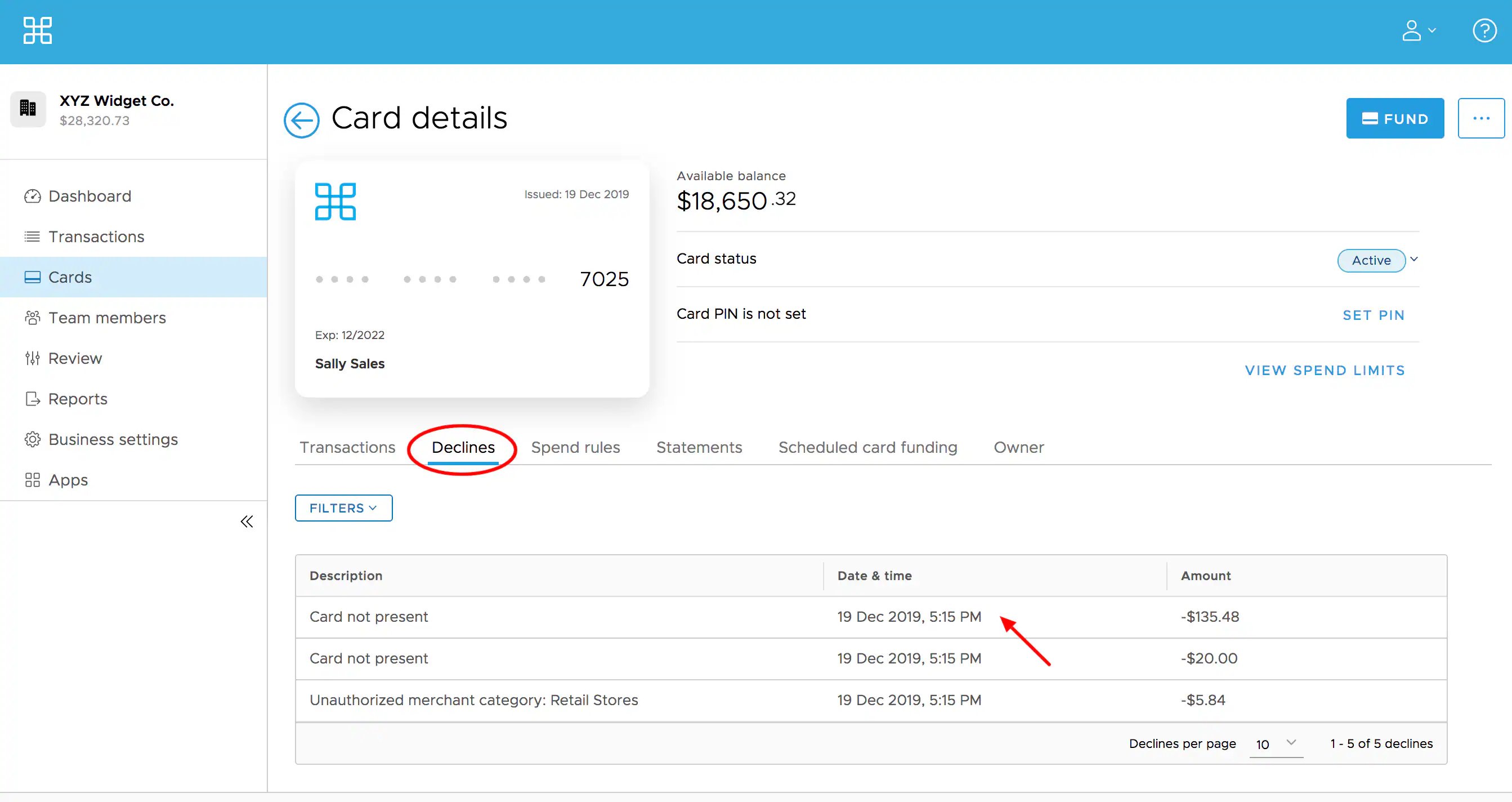
PEX declines PEX blocks transactions based on the spend parameters you’ve set. You can verify every PEX decline in the Cardholder’s record — the Declines tab shows the merchant and transaction detail plus the reason for the decline. Merchant declines When a merchant declines a transaction, PEX doesn’t receive the reason, so it won’t show up on your Administrator site. Our support team can often help track down why a merchant decline happened, so reach out if you need help investigating one.How to view card decline details
1
Log in to dashboard.pexcard.com
2
Click the Cards page
3
Find the Cardholder’s name and click it
4
Click the Declines tab on the card details page
5
Click the description to see the transaction details
If a Cardholder says a transaction was declined, but you don’t see it in the Declines tab
This can happen for a few reasons:- The Cardholder entered the card’s 3-digit security code (CVV2/CVC2) incorrectly during an online purchase
- The card was approved for a partial amount, equal to the card’s available balance
- Check the Transactions tab to see if there’s a pending transaction for that merchant
- The merchant doesn’t accept prepaid debit cards
Common reasons for card declines
These are the most common reasons for declines. You can see the exact reason for a specific decline on the Cardholder’s Declines tab.- There’s a Spend Rule block (a spend restriction you’ve set up for the card)
- The card isn’t in Active status
- The card has an insufficient available balance
- The card reached its daily spend limit
- The card’s expiration date was entered incorrectly
- The Cardholder tried to spend at a merchant your Spend Rules don’t authorize
- The merchant doesn’t accept prepaid debit cards
- The Cardholder tried to spend at a non-US merchant
- The Cardholder selected debit at checkout, but the card has no PIN assigned
- The merchant’s system automatically processes the transaction as PIN-required, and the card has no PIN set
- The Cardholder tried to access cash through an ATM, a financial institution or a merchant
- The zip code entered doesn’t match the card profile
- Gas pump purchase: PEX authorizes and holds $49 for gas pump purchases. The merchant can hold up to $120.00, which may cause a decline due to insufficient funds